System Monitor (Sysmon) is a built-in Windows system service and device driver that, once installed, stays active across system reboots to track and record system activity in the Windows event log. It delivers in-depth insights into process creation, network connections, and modifications to file creation timestamps. The Sysmon service runs as a protected process, hence dis-allowing a wide range of user mode interactions.
If you’ve Windows 11 build 26200.9822 (25H2), 26100.7922 (24H2) and build 2800.1764 (26H1) or later, you can find Sysmon as a Windows feature. This means Sysmon is now native to Windows OS. It capture events can help you deal with threat detection. Since these events are written in Windows logs, you can use them to troubleshoot variety of issues in Windows.
Page Contents
Enable or disable Sysmon in Windows 11
Method 1: Using Windows Features
1. Search for Turn Windows features on or off in Windows 11 and select it.
2. In the window loaded next, locate Sysmon, select it and click OK.
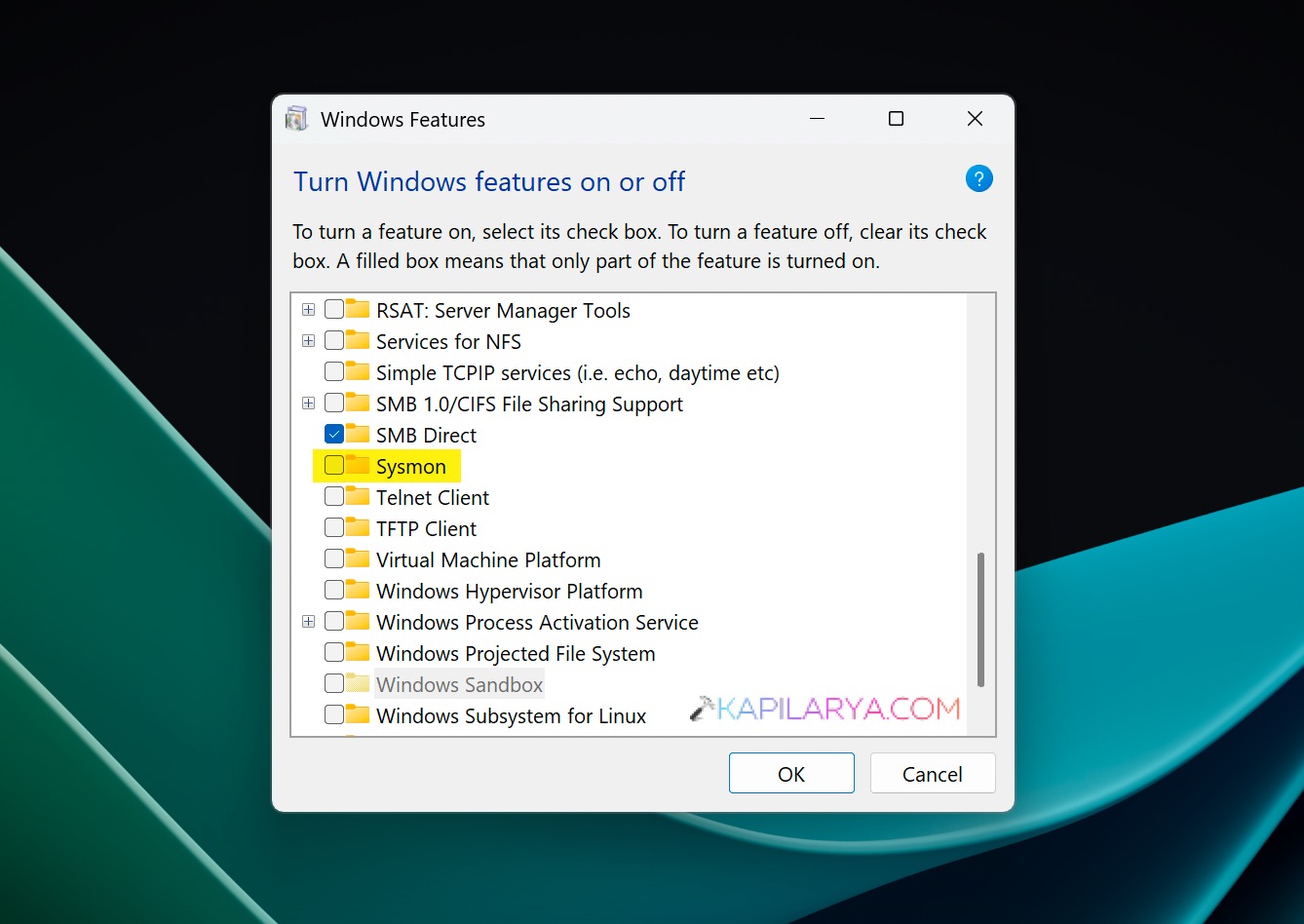
3. In few moments, you’ll see Sysmon feature is activated. Open admin Windows PowerShell, type Sysmon -i command to start Sysmon.
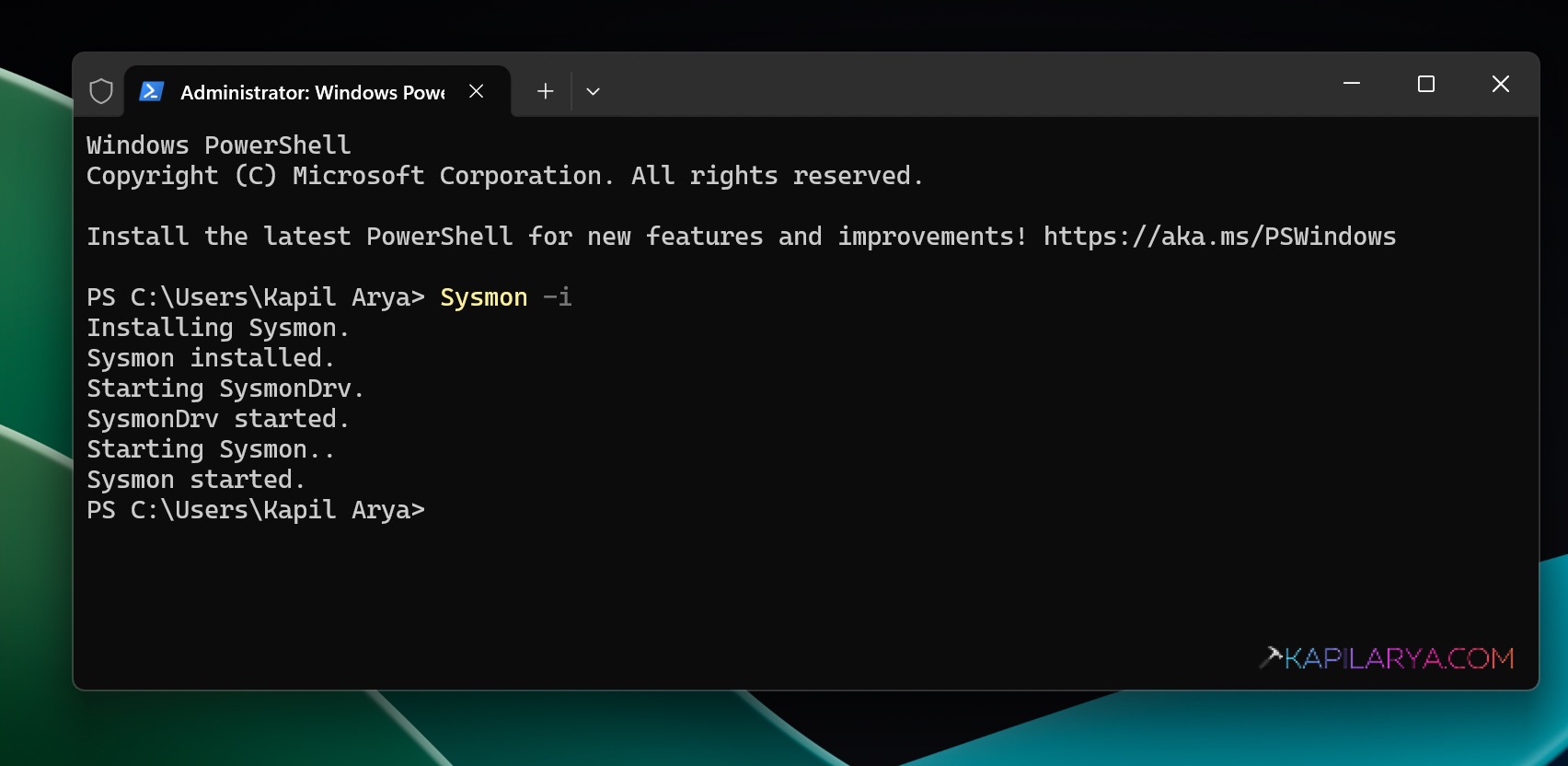
If you ever want to disable Sysmon, you can simply uncheck the option in Windows Features.
Method 2: Using PowerShell
1. Right click on the Start button and select Terminal (Admin).
2. By default Terminal (Admin) opens to Windows PowerShell. In the administrative Windows PowerShell tab, paste this command and press Enter key:
Enable-WindowsOptionalFeature -Online -FeatureName Sysmon
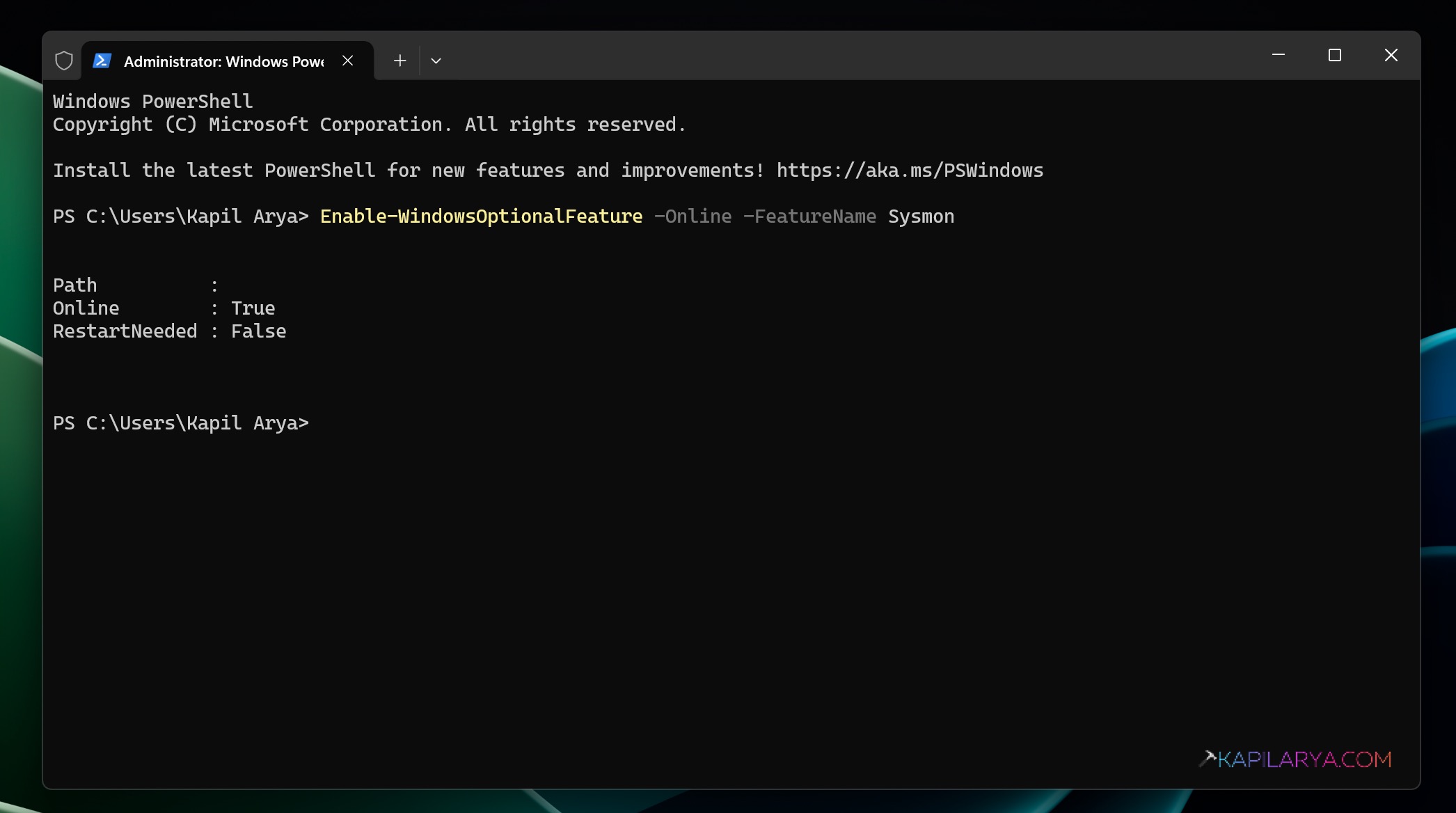
Once the command has been executed successfully, you only need to run the Sysmon -i command to start Sysmon.
In case if you want to disable Sysmon later, you can execute following command in the Windows power shell:
Disable-WindowsOptionalFeature -Online -FeatureName Sysmon
Method 3: Using Command Prompt
1. Using Windows Search, search for the term command prompt or cmd. From search results, choose Command Prompt and then click Run as administrator.
2. In the administrative Command Prompt window, paste this command and press the enter key:
DISM /Online /Enable-Feature /FeatureName:"Sysmon"
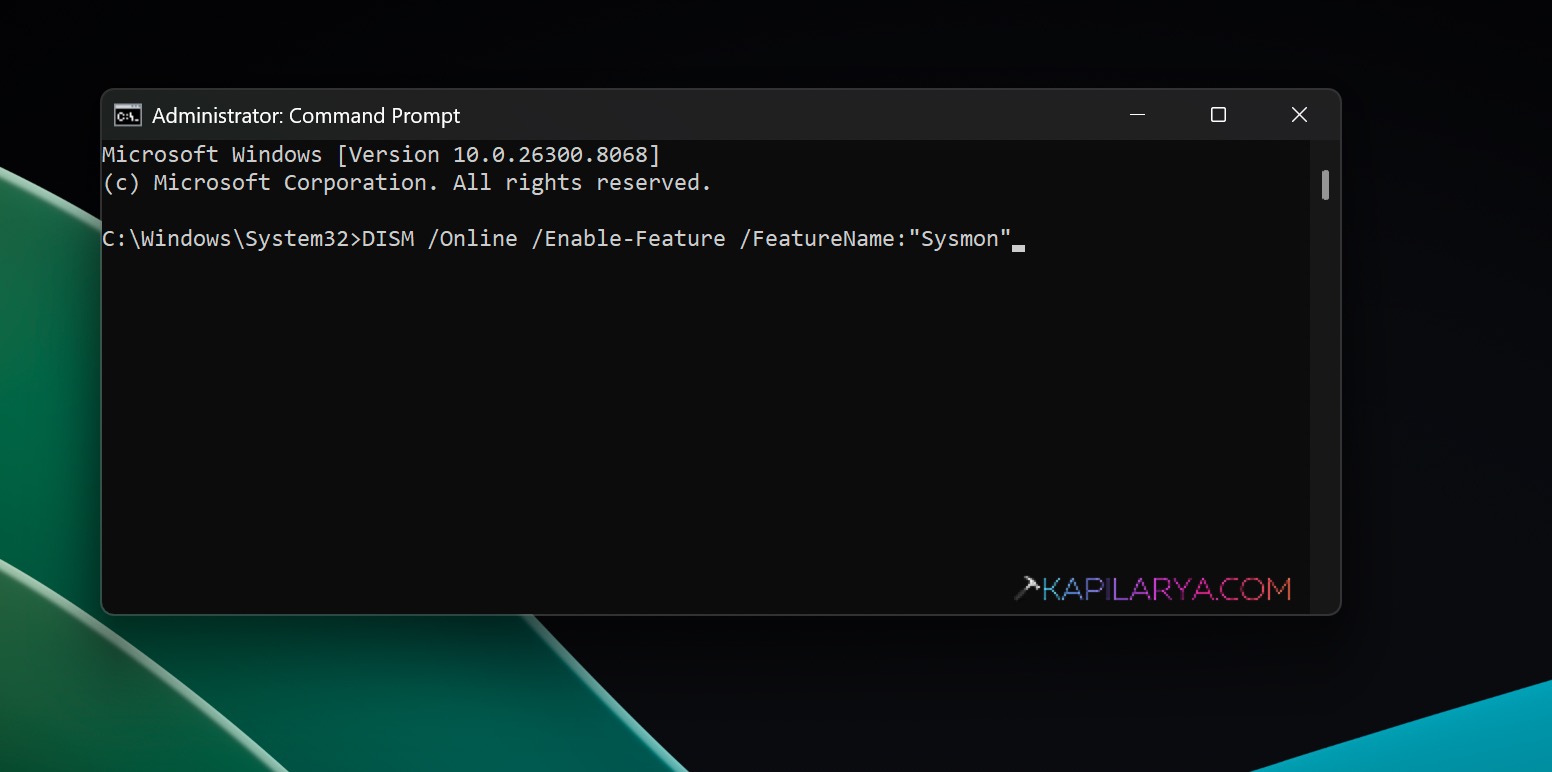
Once the command has been executed successfully, then you only run the Sysmon -i command in admin Windows PowerShell to start Sysmon.
In order to disable sysmon later, you can use this following command:
DISM /Online /Disable-Feature /FeatureName:"Sysmon"
So this is how you can enable or disable Sysmon feature in Windows 11 operating system.
That’s it!