You charge your laptop to 100%. Start working. And suddenly you see the battery starts draining fast. Well, we have seen many Windows 11 users facing this problem after upgrading to the new version.
But the good news is that the solutions are simple, and you can do them yourself.
Page Contents
Windows 11 Battery Draining Fast? 10 Fixes That Actually Work
Let’s reveal those solutions to fix your battery draining fast:
1. Turn On Your Battery Saver
Battery Saver reduces your background activities and power usage. Below are the steps to turn it on:
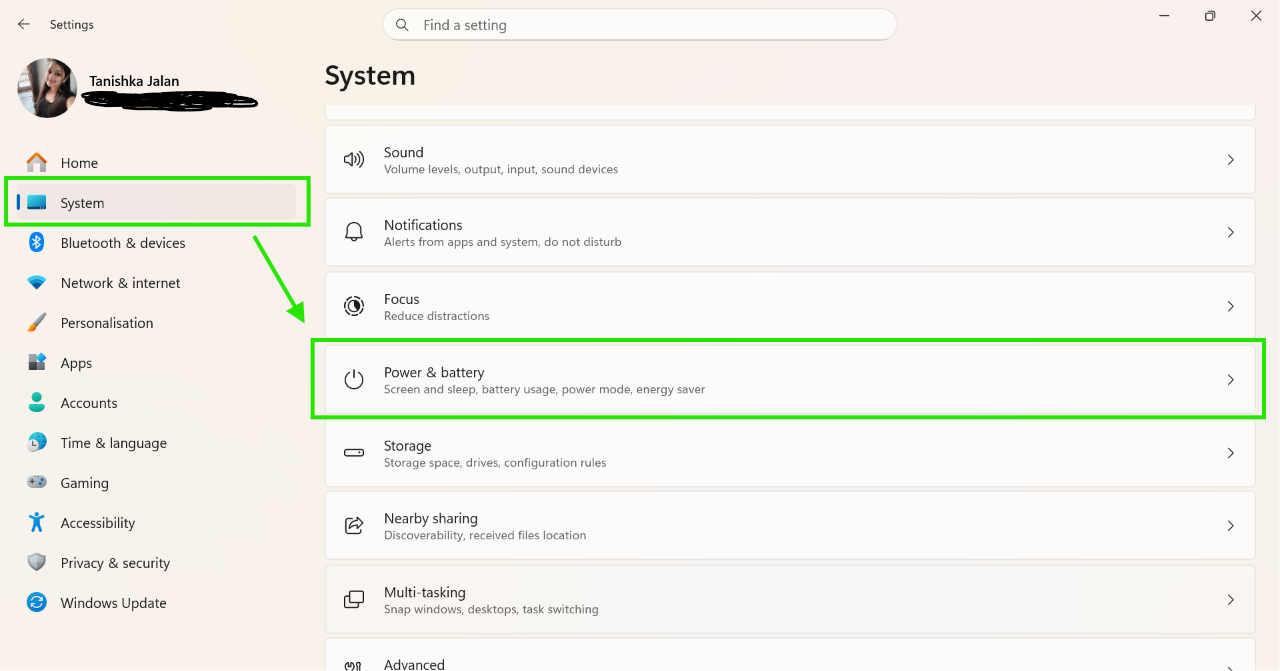
1. Open Settings > System > Power And Battery.
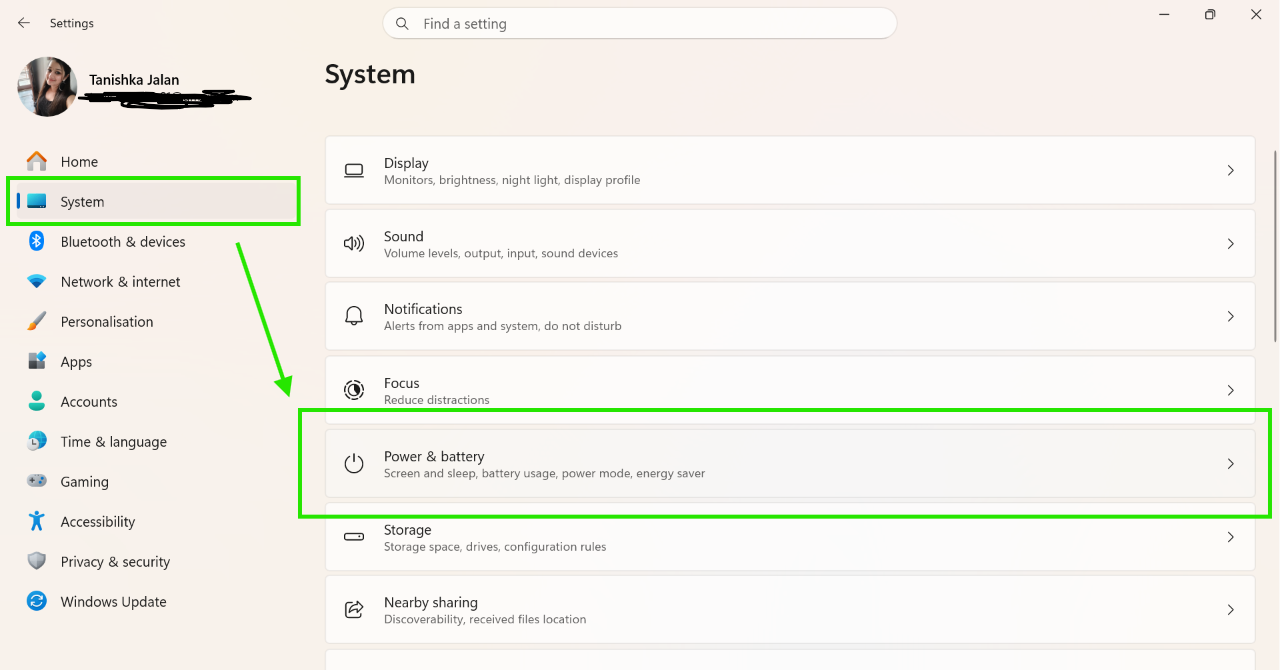
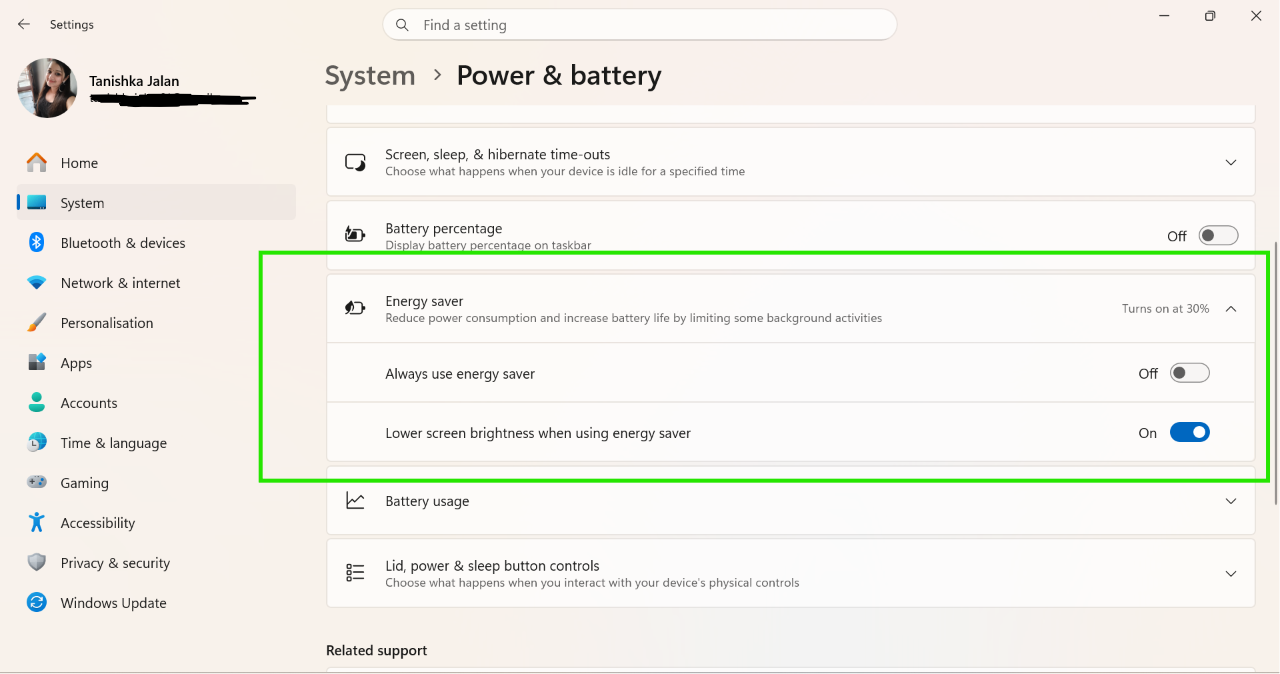
2. Locate and expand Battery Saver or Energy Saver.
3. Turn it on to activate it immediately.
2. Lower Screen Brightness
Display is one of the most common reasons that consumes battery. So you have to follow the steps to lower the brightness:
1. Go to Settings > System > Display.
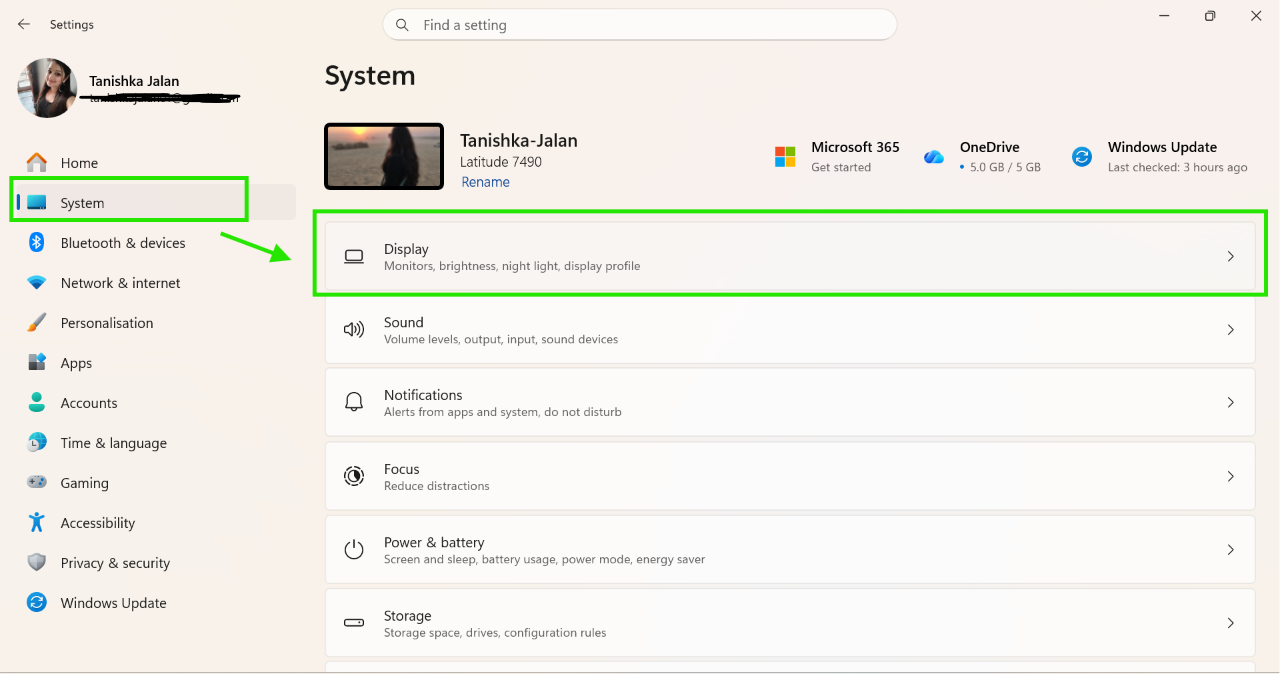
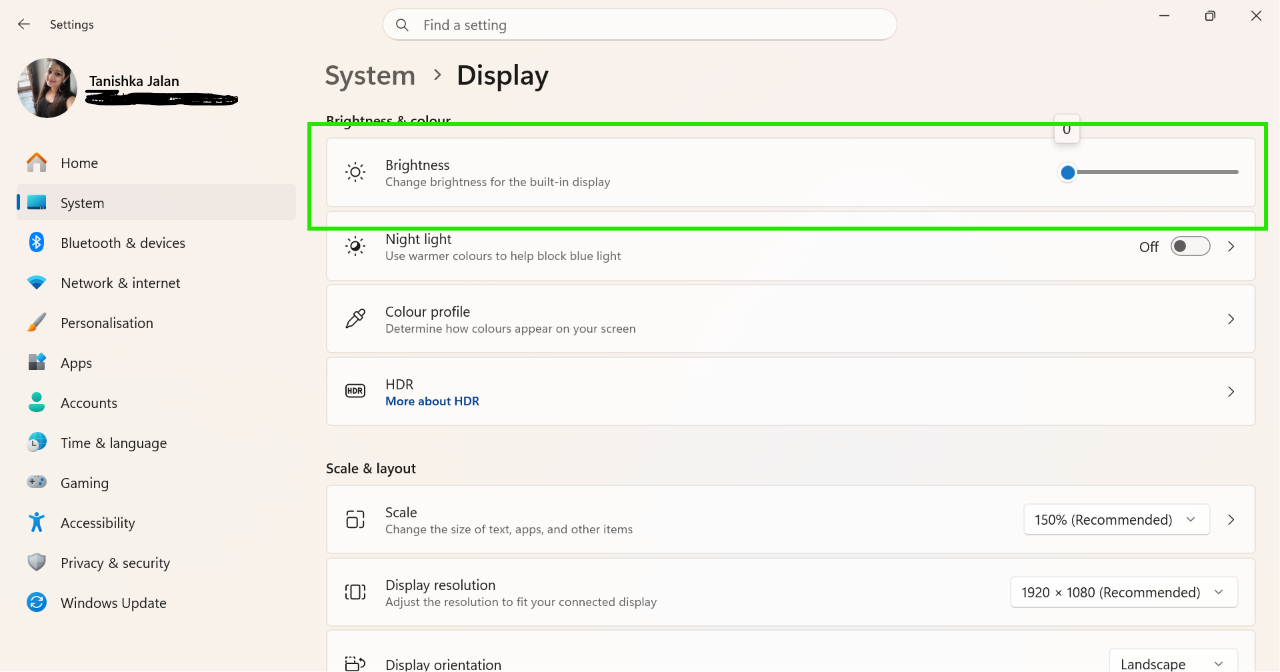
2. Now slide to reduce the brightness.
3. Stop Power-Hungry Background Apps
Some apps run in the background, even when you are not using them. And to stop them, follow the steps:
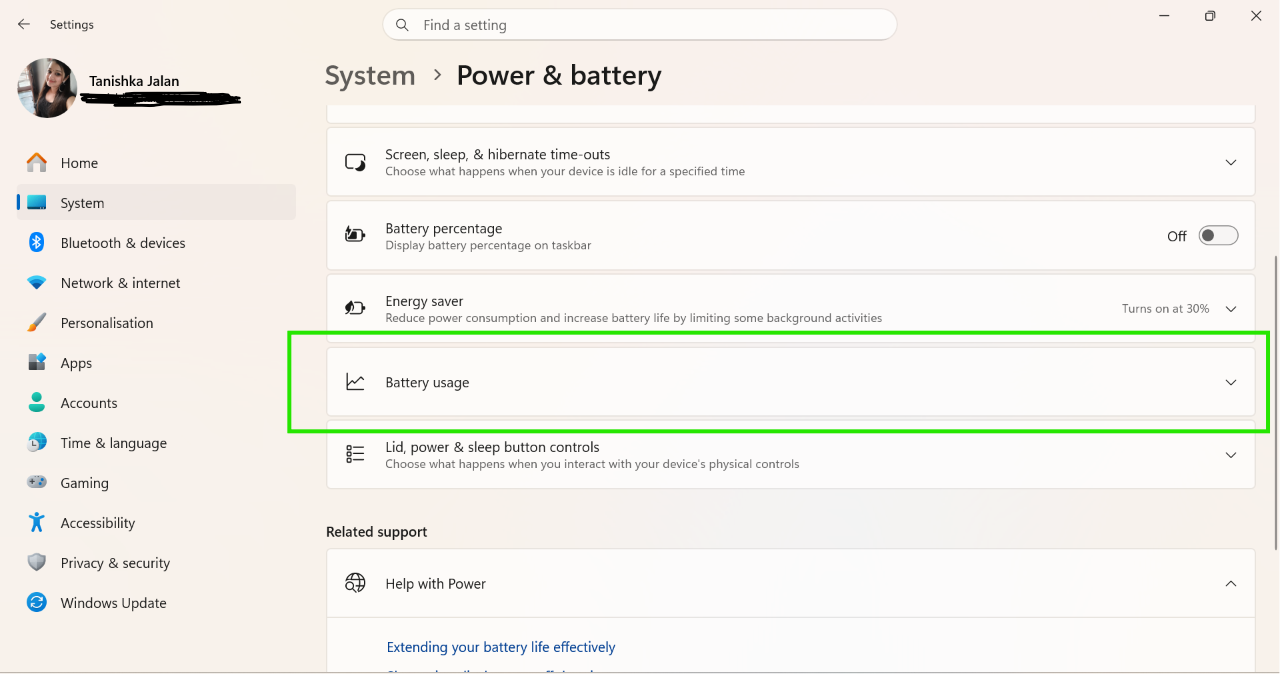
1. Open Settings > System > Power And Battery > Battery usage.
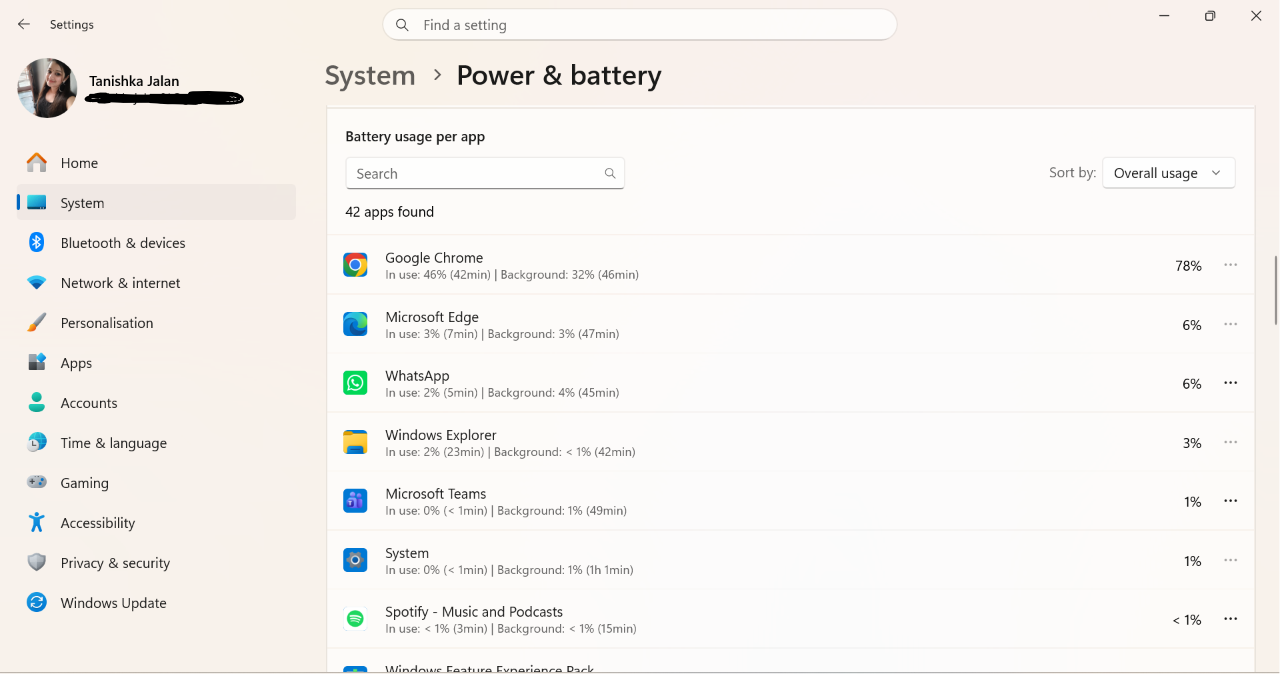
2. Find apps using that are using more battery.
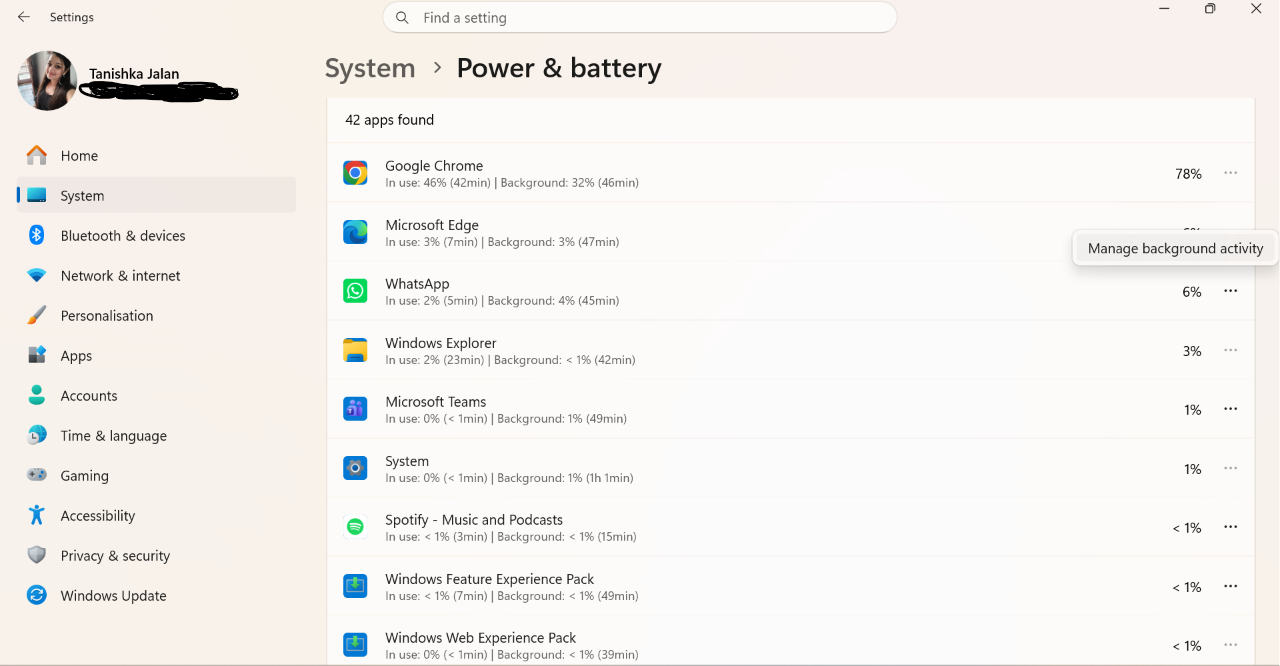
3. Select Manage background activity and set permission to Never where available.
4. Choose Your Best Power Efficiency Mode
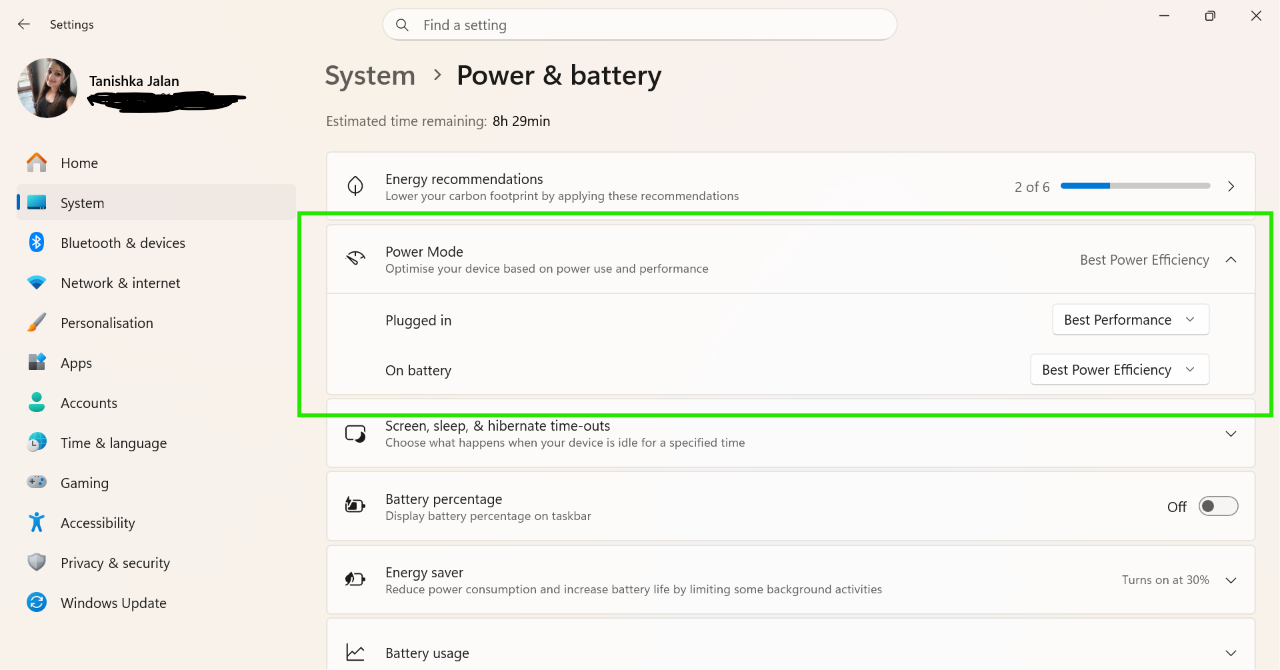
Windows 11 offers different power modes. Here is what you need to do:
1. Open Settings > System > Power And Battery.
2. Under Power Mode, select Best Power Efficiency.
5. Disable Fast Startup When Battery Drains Fast
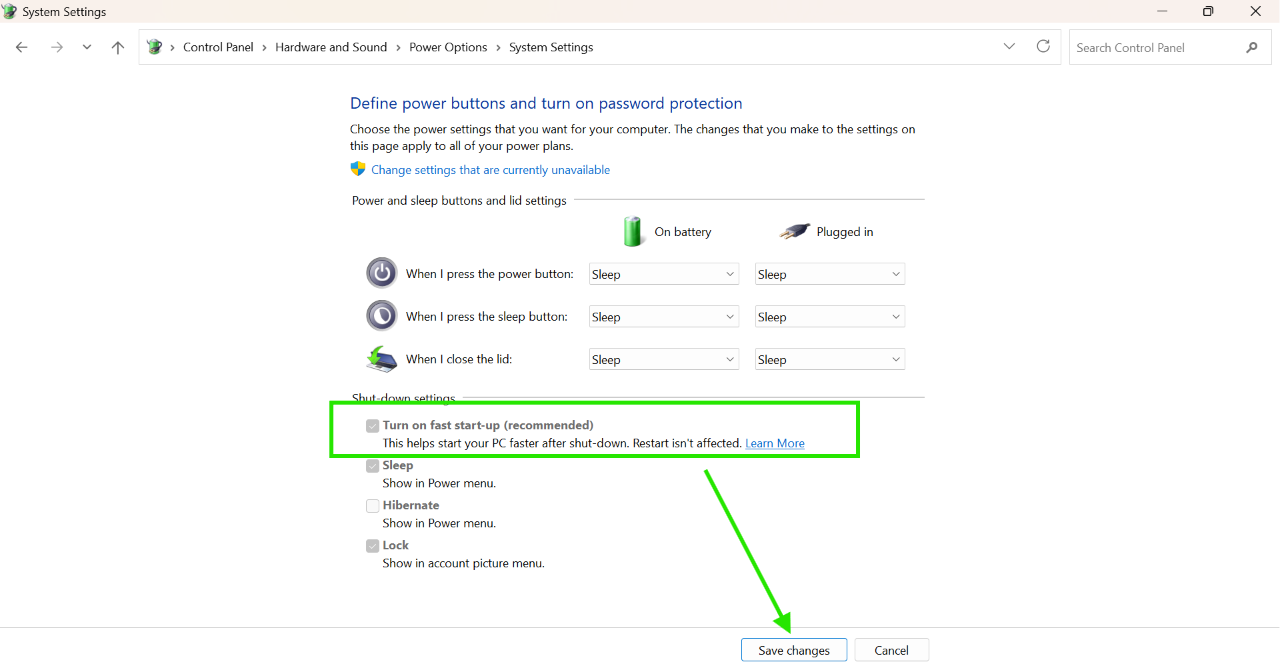
Fast Startup sometimes increase battery drain. So, follow the steps to disable it:
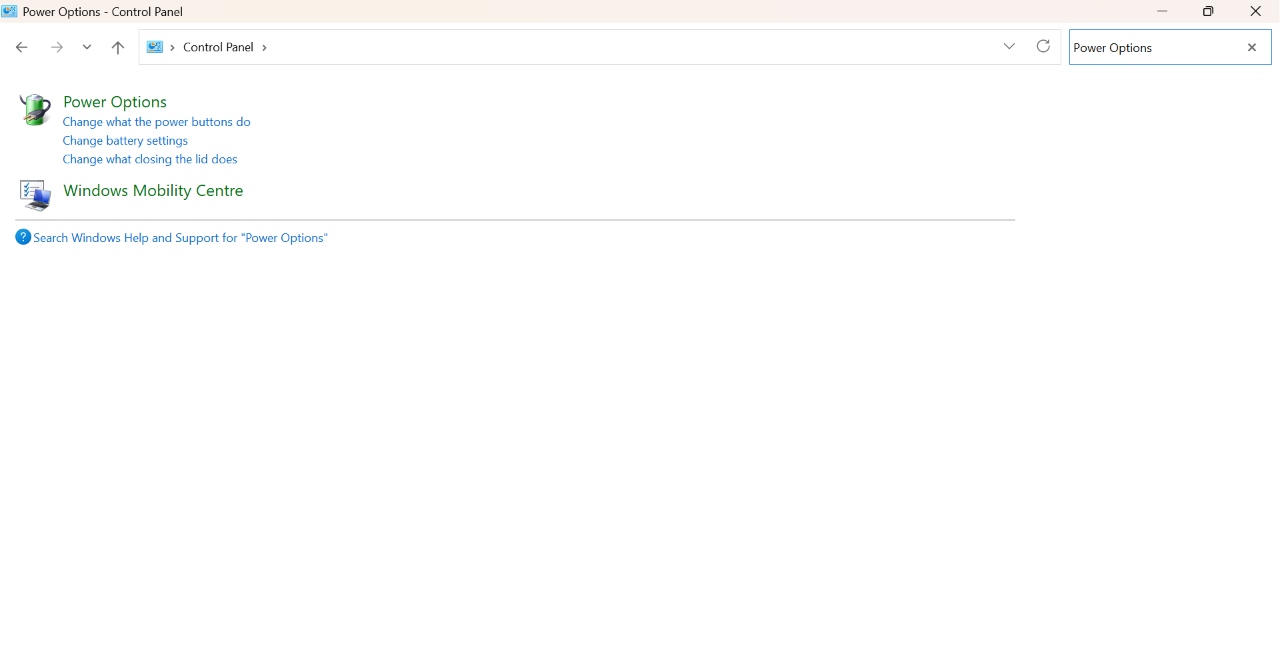
1. Open Control Panel and search for Power Options.
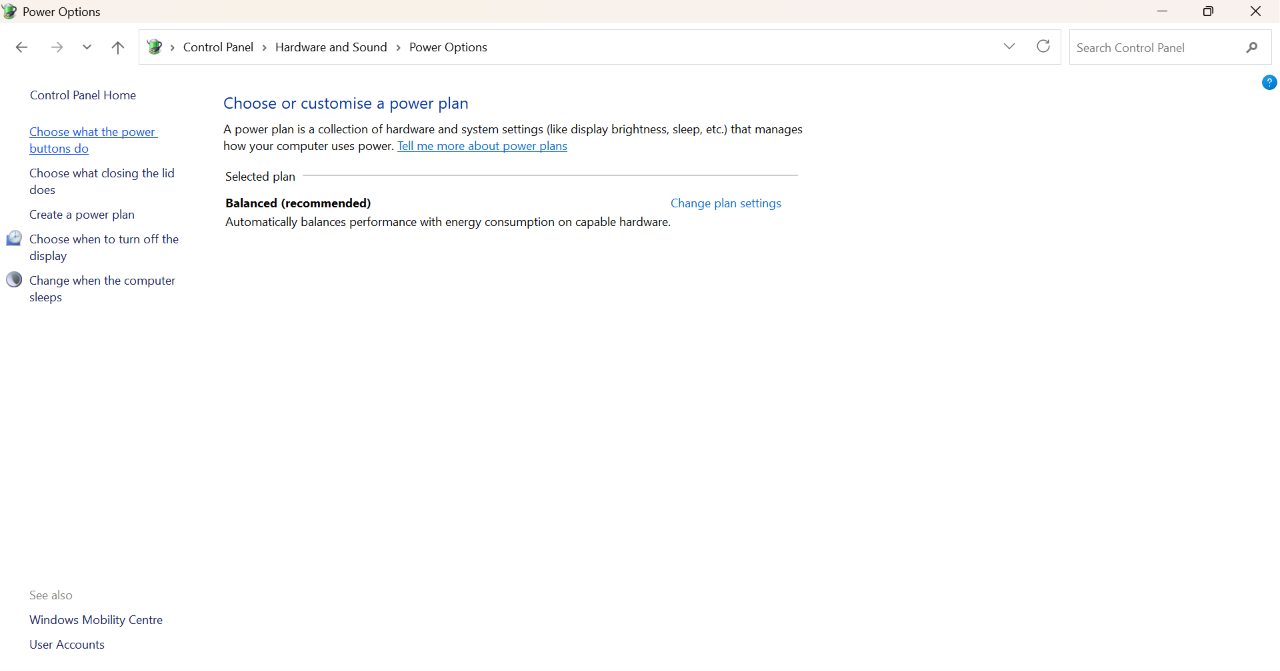
2. Select Choose what the power buttons do.
3. Turn off Fast Startup and save the changes.
6. Use Power Saver Plan
A power-saving plan reduces unnecessary power usage. Here are the steps to follow:
1. Press Windows + R to open the Run dialogue box.
2. Type powercfg.cpl and press Enter.
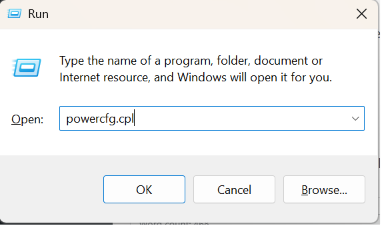
3. In the Power Options window, select Power Saver.
However, if you can’t find Power Saver:
1. Click Create a power plan from the left panel.
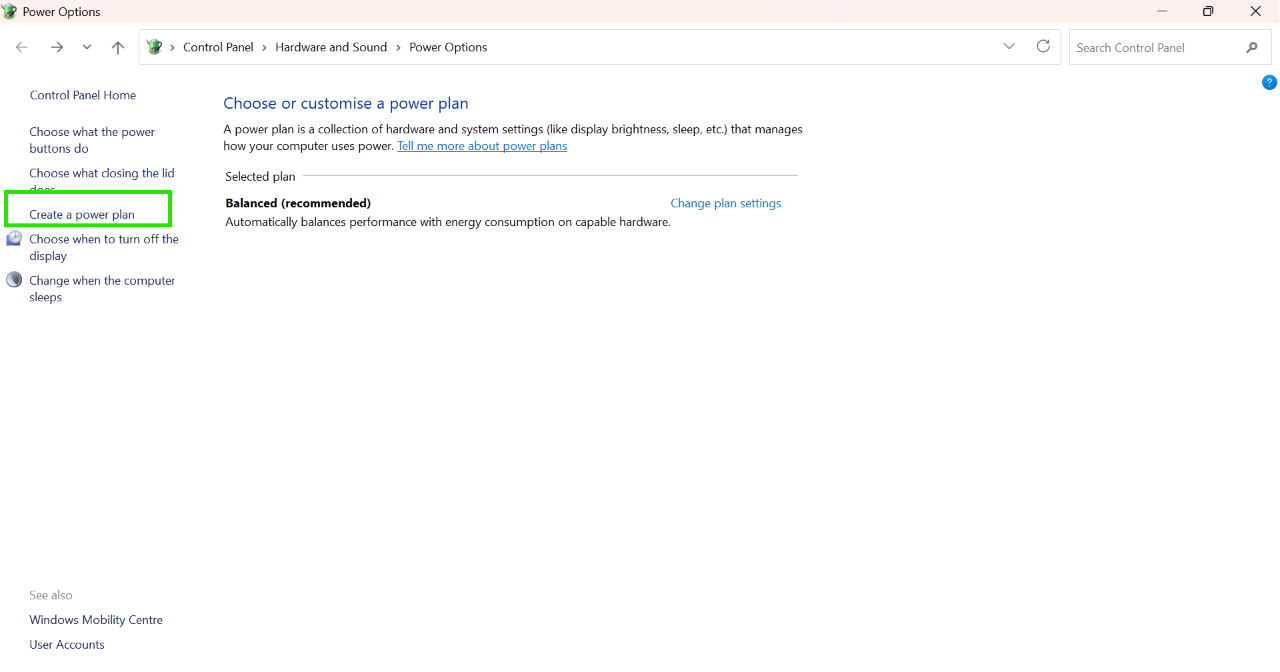
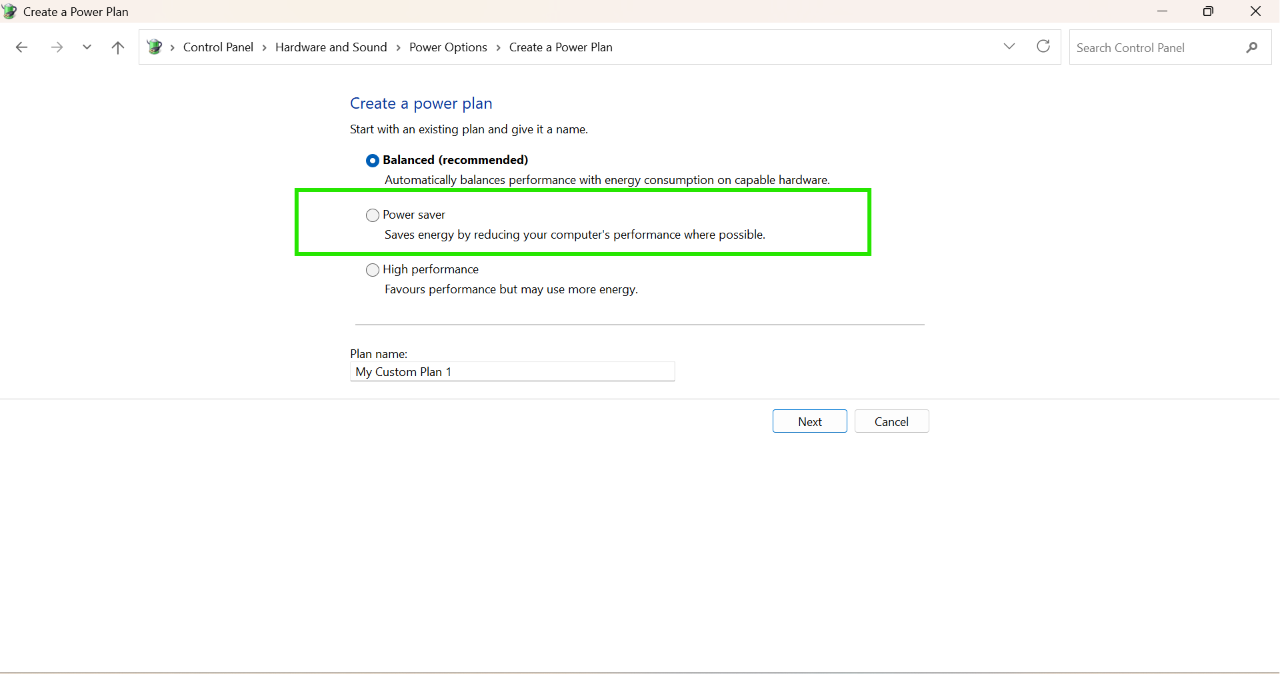
2. Select Power Saver.
3. Enter a plan name and click Next.
4. Click Create to save the new plan.
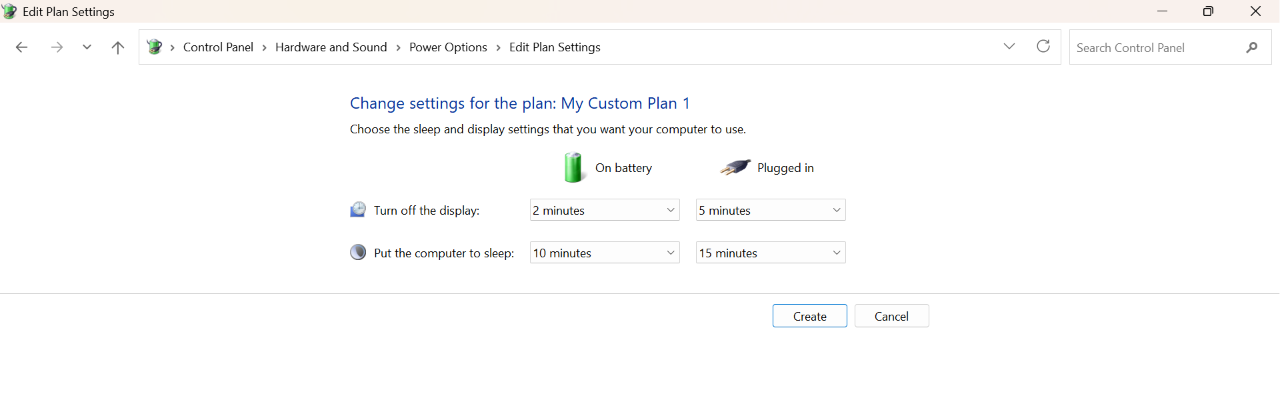
Once enabled, the Power Saver plan will help improve battery life and reduce unnecessary power usage.
7. Optimise Video Playback
Video streaming can drain battery quickly. Steps are listed below:
1. Open Settings > Apps > Video playback.
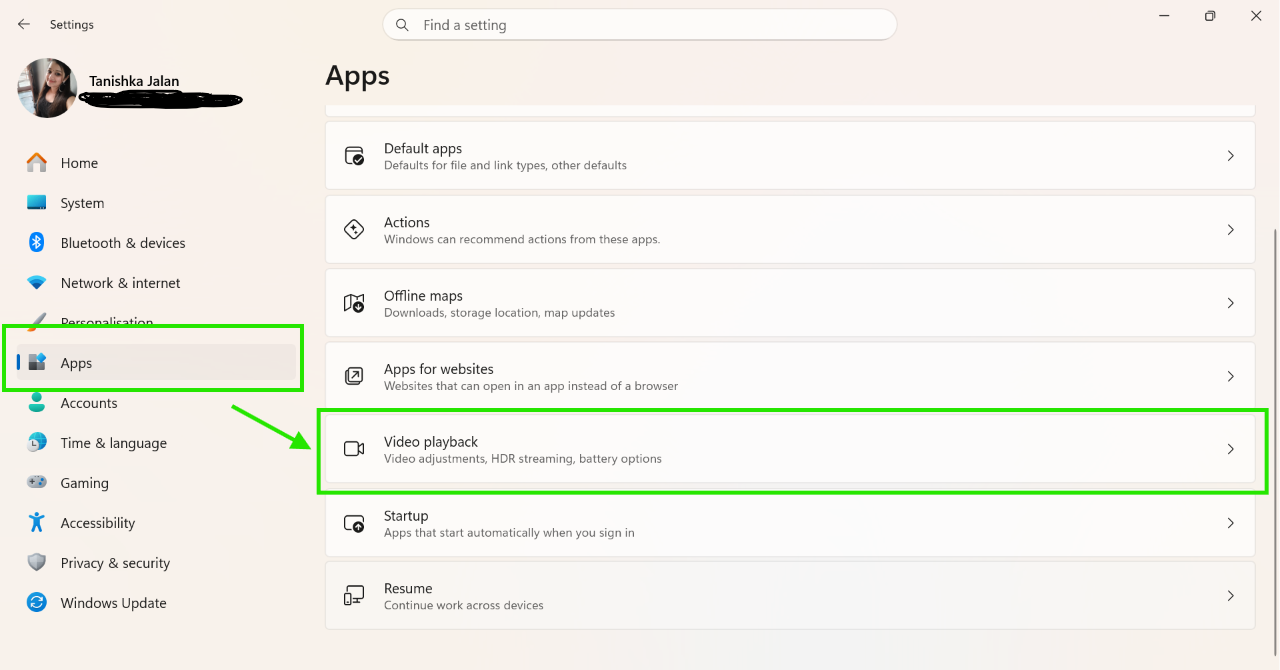
2. Choose Optimise for battery life.
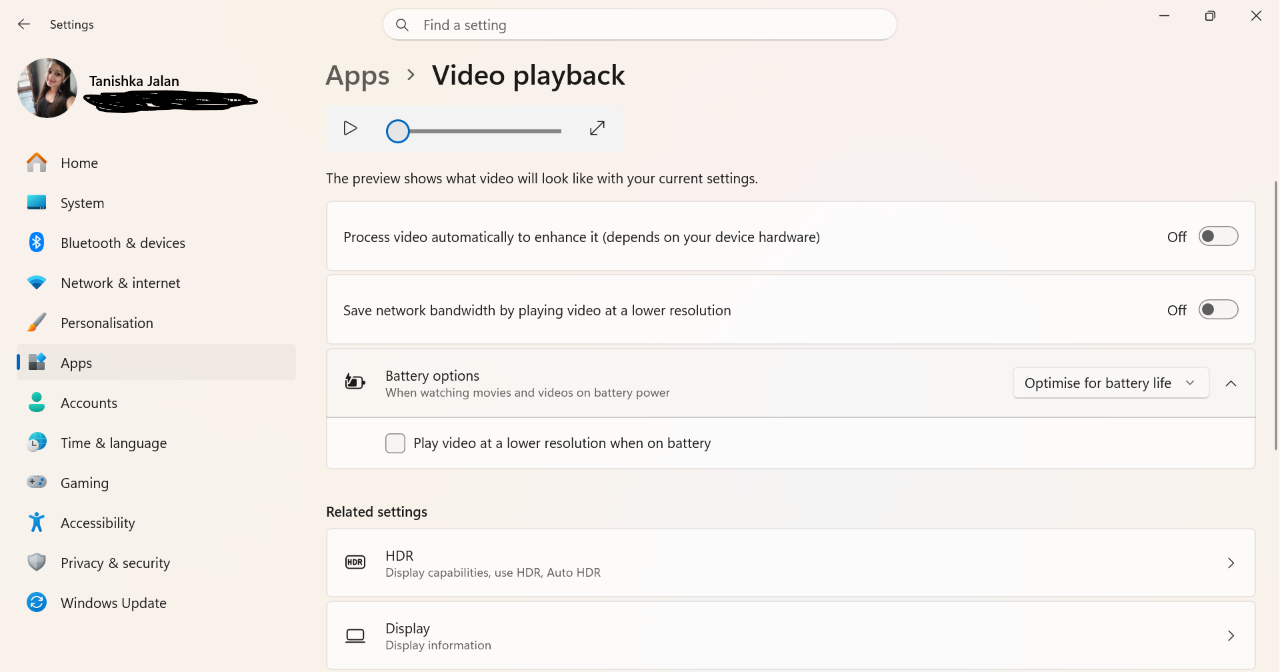
3. Enable lower video resolution on battery.
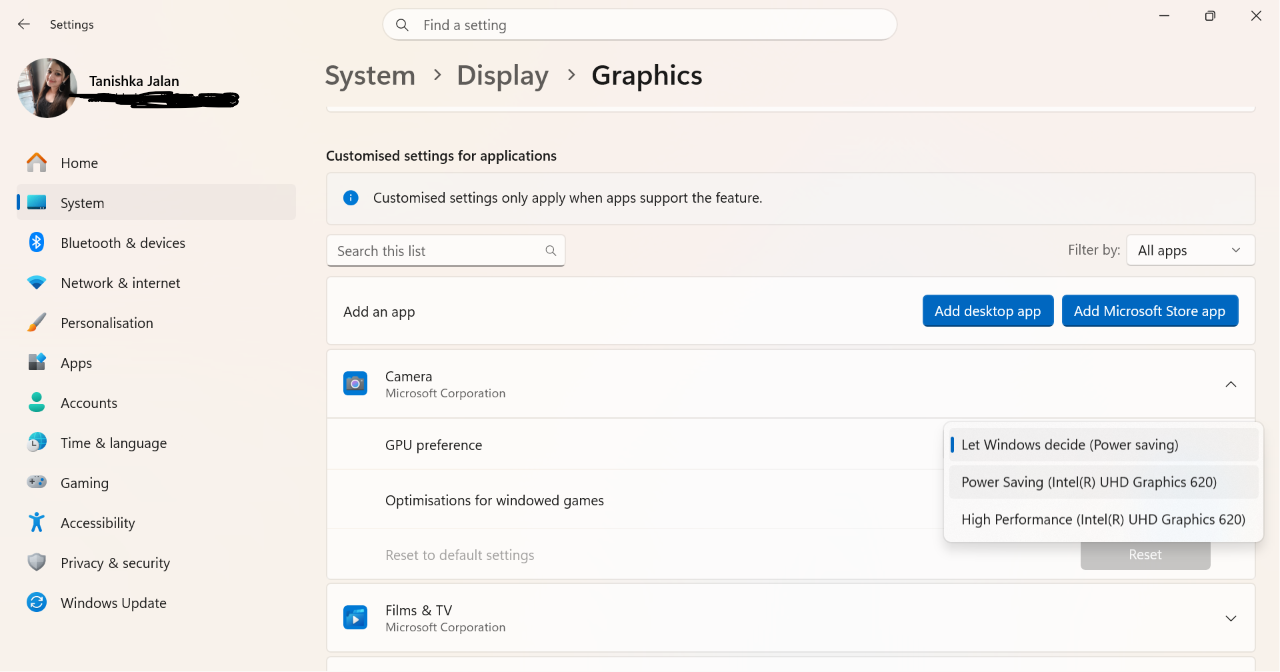
8. Set Graphics To Power Saving
High-performance graphics use more battery. Let’s see how to set graphics:
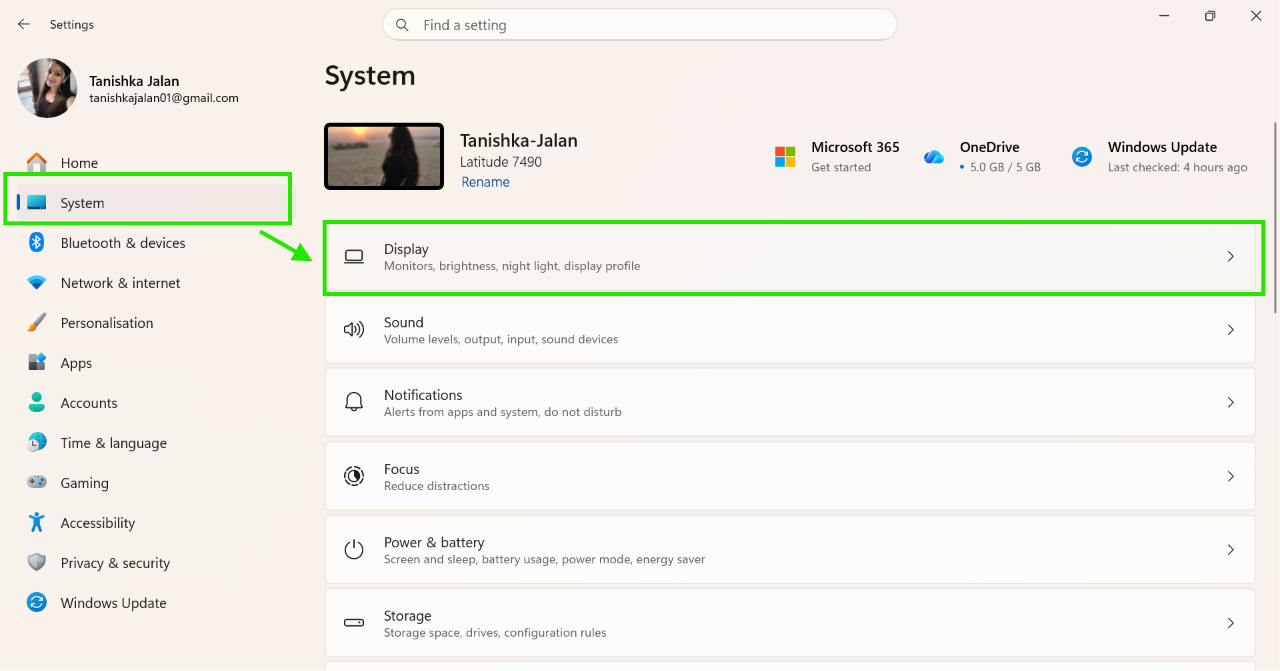
1. Go to Settings > System > Display > Graphics.
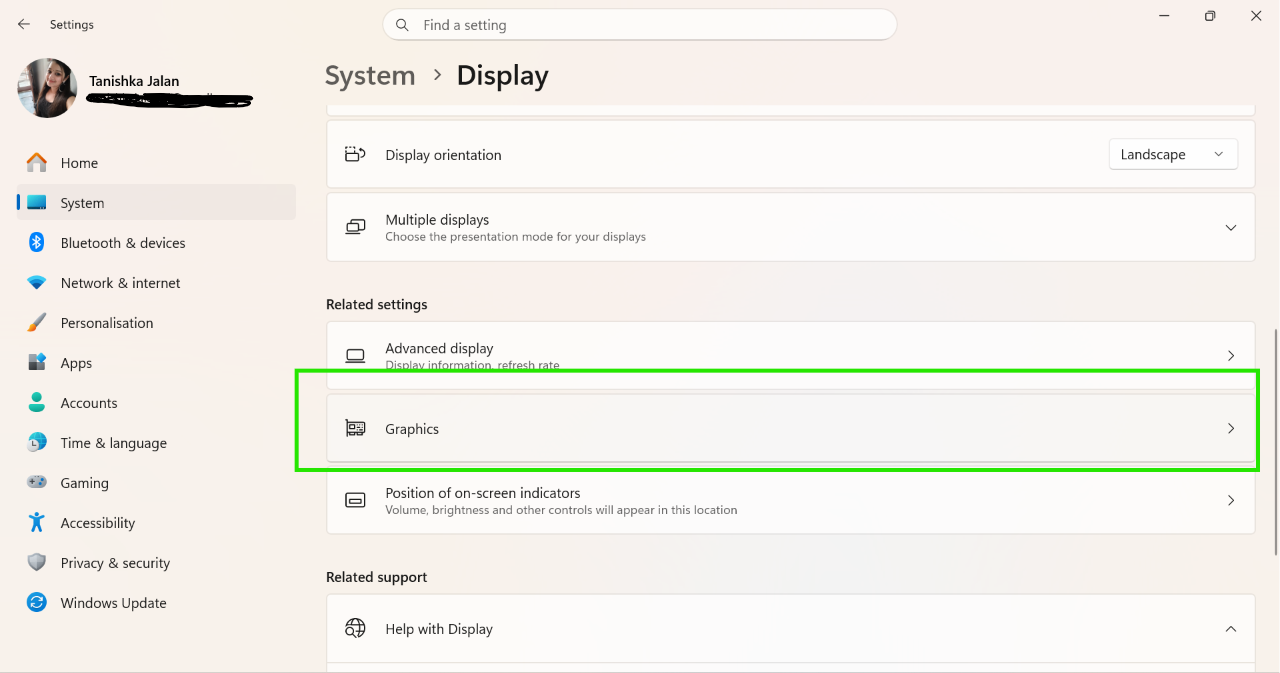
2. Select an app and choose Power saving.
9. Run The Power Troubleshooter
Windows can automatically detect power issues.
1. Open Settings > System > Troubleshoot > Other Troubleshooter.
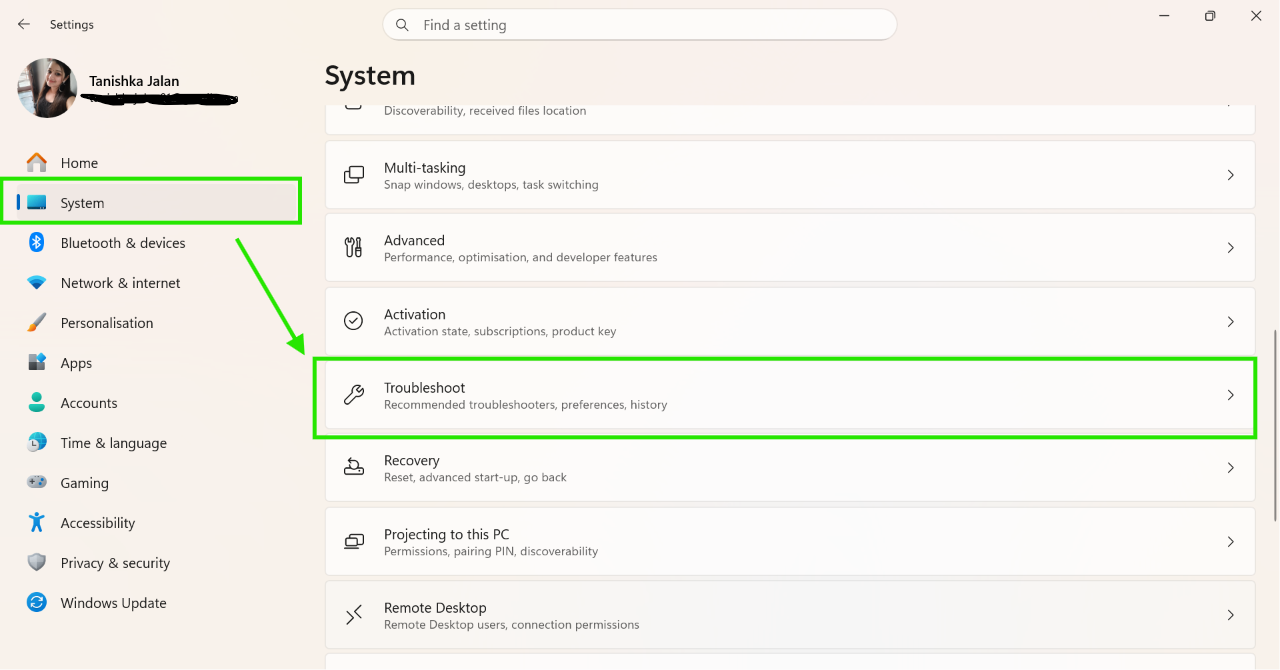
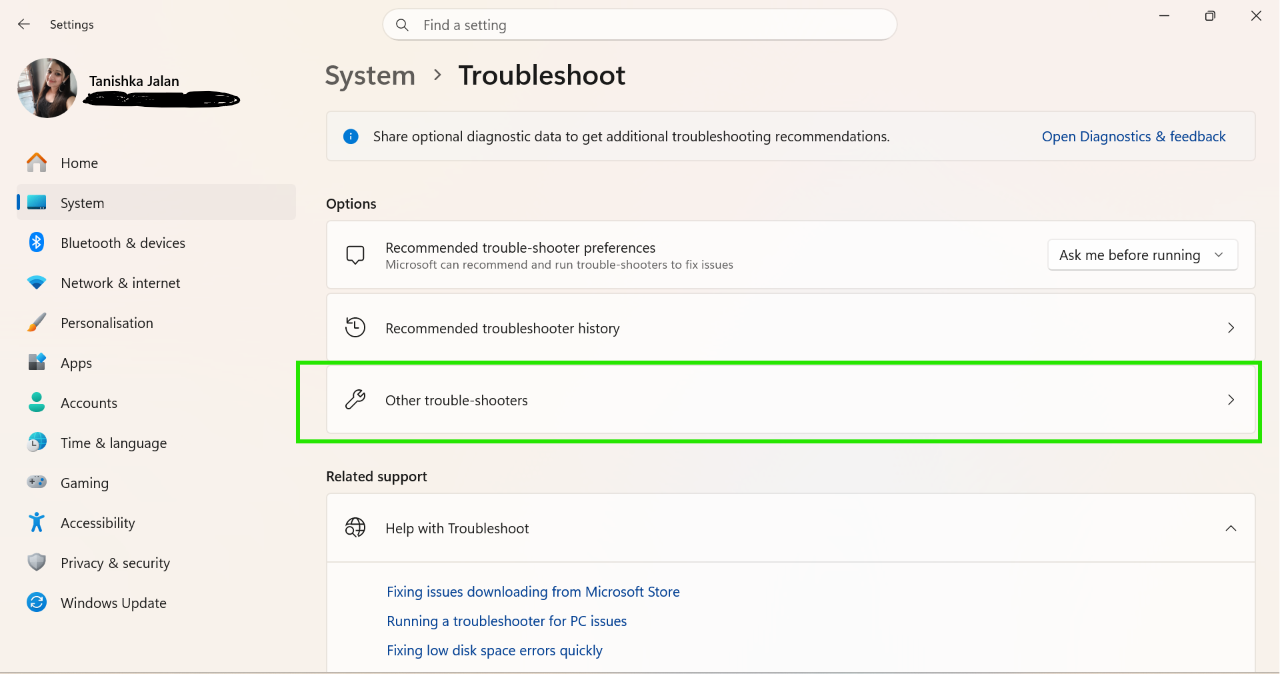
2. Run the Power troubleshooter.
10. Check Your Battery Health
A battery report helps identify hardware problems. Follow the steps:
1. Open Command Prompt as Administrator.
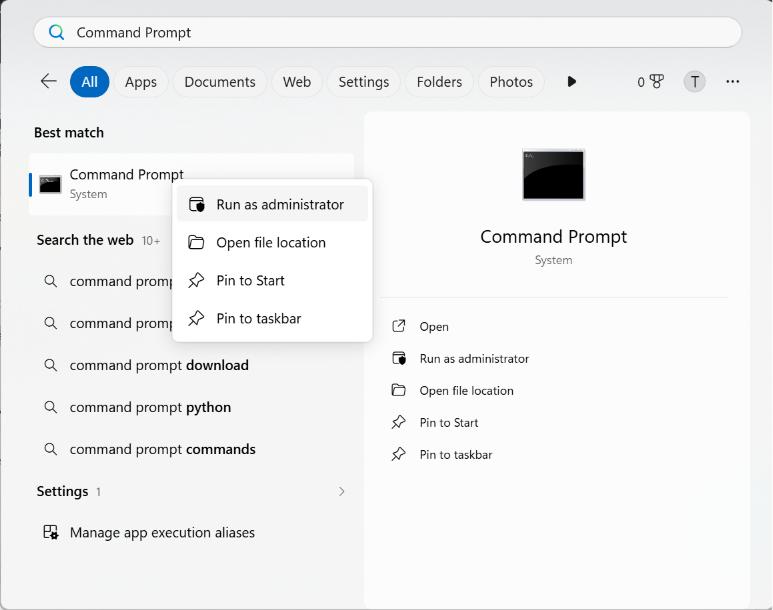
2. Run:
powercfg /energy
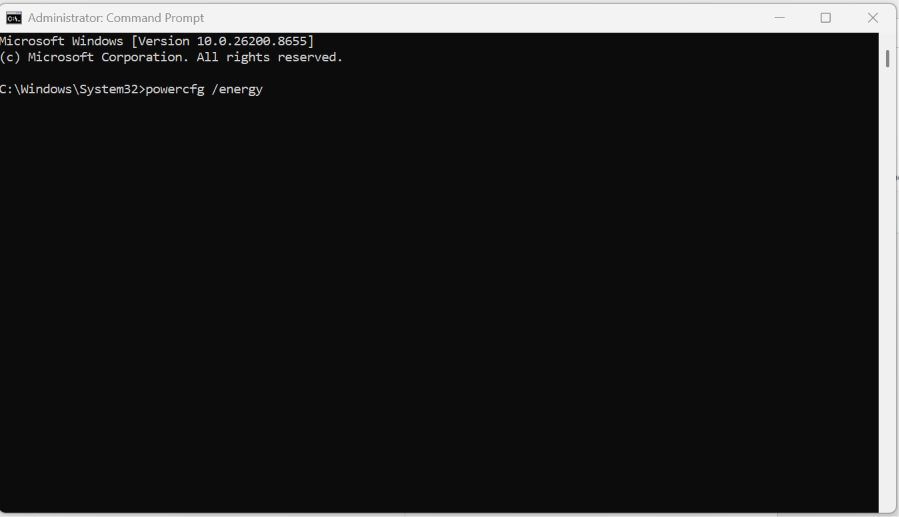
3. Review the command execution result. It must have an output defined and should generate an HTML report you can view in your browser. You can then review the generated report, and act accordingly based on suggestions.
And that’s it!