Storage management is one of those things most users do not think about until a drive starts running out of space, Windows feels cramped, performance starts to suffer, or a system migration becomes unavoidable. In that moment, having the right tool makes a big difference.
MiniTool Partition Wizard is a free partition manager and trustworthy all-in-one tool for partition management, disk cloning, OS migration, and data recovery. Its visual interface makes the software feel approachable, even when the tasks are technical. It stands out as a capable disk partition software option for both everyday users and more advanced system work.
Page Contents
MiniTool Partition Wizard Review: Features, Key Use Cases, and Overall Experience
What makes the software feel flawless is its combination of practical utility and a guided workflow. Instead of forcing users into command-line tools or rigid Windows defaults, it presents operations in a cleaner, safer way. Small details like pending actions, a disk map, and a simple Apply step help reduce mistakes. That matters when you are changing partitions, moving operating systems, or working on a drive that already contains important data.
What Minitool Partition Wizard is Designed to Do
At its core, MiniTool Partition Wizard is built to help users manage storage without making the process feel overwhelming. It supports partition resizing, disk cloning, OS migration, file-system conversions, and data recovery. The software also includes a range of maintenance tools like Space Analyzer and Surface Test. It is also designed to work across modern and older Windows environments, which makes it useful for mixed hardware setups.
It is also worth noting that the free edition is not just a limited teaser. The Free edition covers most everyday partition-management tasks. However, advanced features such as OS migration, system-disk cloning, dynamic disk management, and Data Recovery are available only in the paid editions.
Testing Environment
This review was conducted using MiniTool Partition Wizard 13 on a Lenovo IdeaPad 3 15IAU7 running Windows 11 Home Single Language (Build 26200). The laptop is powered by a 12th Gen Intel Core i3-1215U processor, 16 GB of RAM, and a 447.13 GB SSD. The software was explored across its key features, including partition management, disk analysis, cloning tools, and migration workflows, with all screenshots captured during the review process.
Throughout the review, the software felt straightforward to use. The visual disk map made it easy to understand drive layouts, while the pending-action system provided an extra layer of confidence by allowing changes to be reviewed before they were applied. Features such as Extend Partition, Copy Disk, and Space Analyzer were easy to locate and did not require navigating through multiple menus.
Interface and Usability
One of the strongest parts of MiniTool Partition Wizard is its interface. Rather than feeling cluttered, the layout is organized around a disk map and a task panel, so users can see storage details before making changes. That detailed approach is helpful because partition work is often easier to understand when you can actually see what will happen to each volume. The pending-operation model also adds a layer of safety. The changes are not executed immediately. Instead, they remain in the queue until the user confirms them.
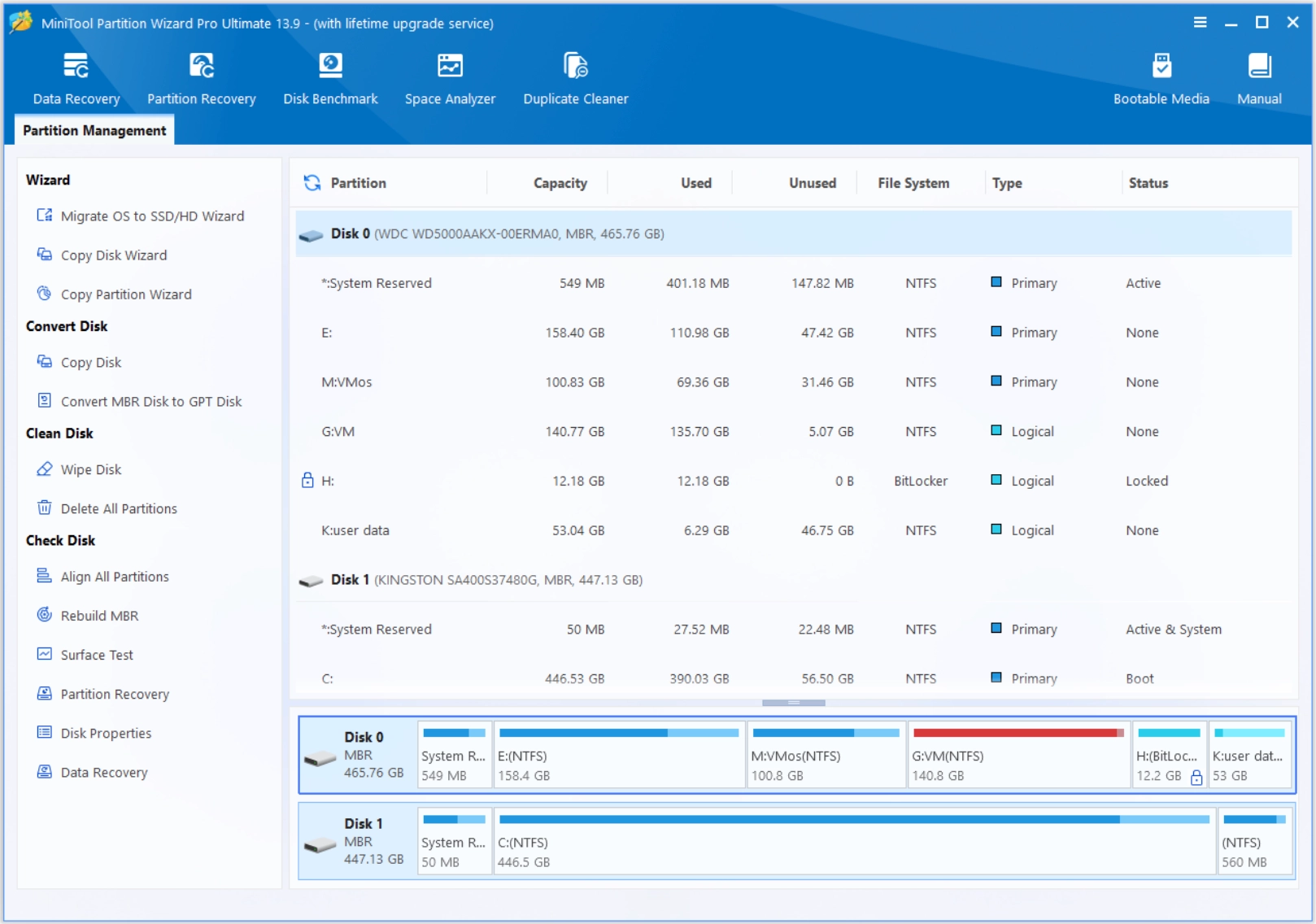
This approach makes the software feel user-friendly, giving the impression that it is designed for regular users rather than just experts.
Extend Partition: One of the Most Useful Everyday Features
The Extend Partition feature is easily one of the most valuable tools in the software. It becomes especially useful when the system drive is full and Windows’ own Disk Management options are too limited to help. In many cases, Windows requires unallocated space immediately adjacent to the target volume. MiniTool Partition Wizard handles this more flexibly. It works by letting users take free space from another partition on the same disk and add it to the partition that needs more room.
The process is very easy: select the partition, open Extend Partition, pick a source drive, and adjust the space using a slider. During testing, the workflow felt intuitive. The software clearly displayed pending changes before applying them, making it easier to review actions and avoid mistakes.
From a user’s standpoint, this is exactly the kind of feature that saves time during everyday maintenance. A nearly full C: drive can slow down updates, affect performance, and make basic system tasks frustrating and impossible. Extend Partition gives users a clean way to correct that without needing to rebuild the machine from scratch.
Copy Disk: A Useful Choice for Drive Upgrades
The Copy Disk feature is another highlight. It is very useful for anyone upgrading from an HDD to an SSD or moving from one drive to a larger one. It can be described as a 1-to-1 cloning workflow that copies the source drive structure, including system partitions and boot-related data where relevant. That makes it much easier to move from one disk to another without spending hours reinstalling Windows and setting everything up again.
The process is also designed with sensible safeguards. The destination disk warning is clear, and the cloning layout options make it easier to decide whether to fit partitions to the full disk or keep them at their original size. The inclusion of the alignment option is especially useful for SSD performance.
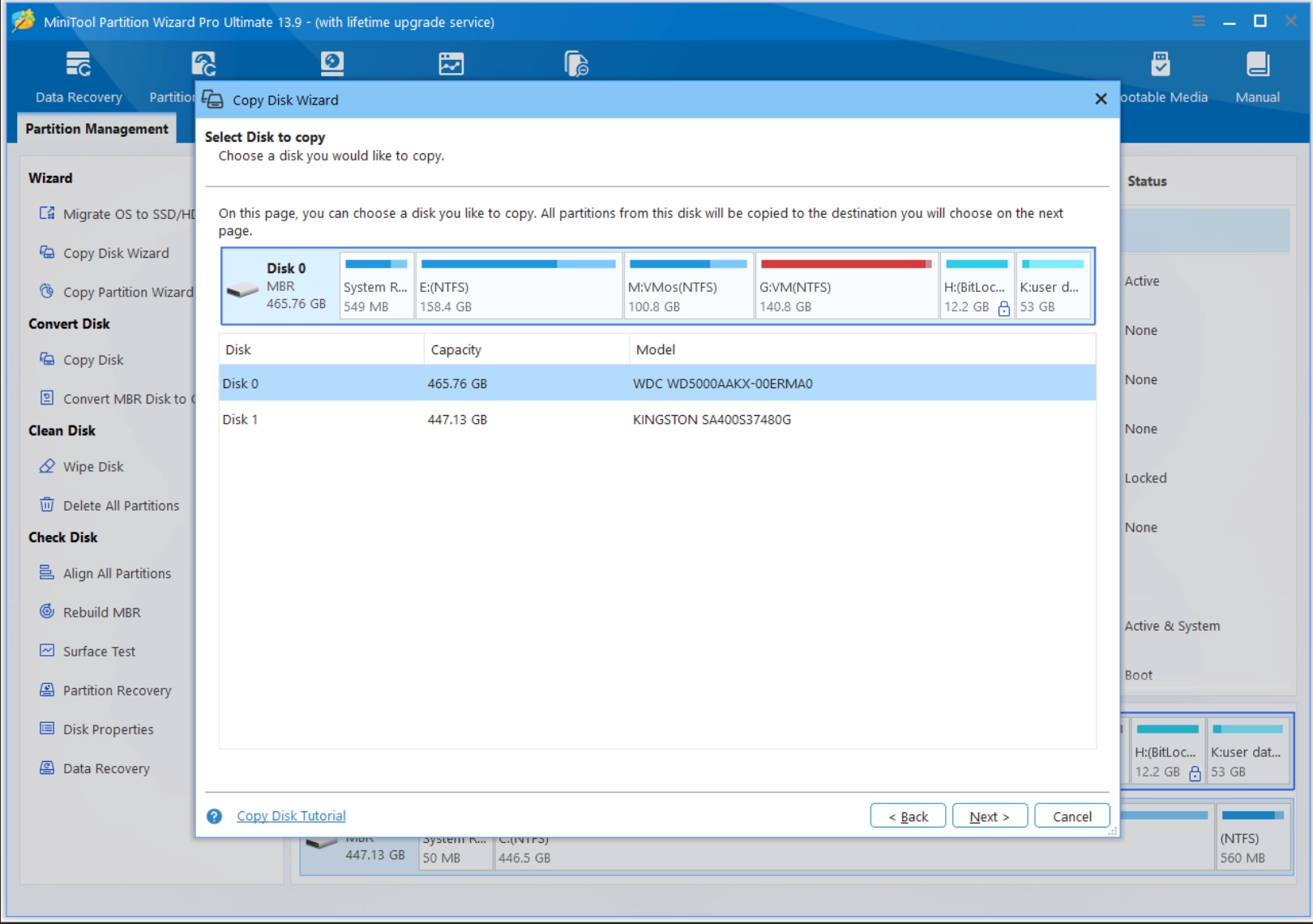
What stands out about the Copy Disk feature is how it simplifies what would otherwise be a time-consuming migration process. Instead of reinstalling Windows, applications, and files from scratch, users can transfer an existing setup to a new drive through a guided cloning workflow, making storage upgrades considerably more convenient.
For users planning a storage upgrade, this feature is one of the strongest reasons to consider the software. You could actually save yourself a lot of time. During testing, the cloning wizard was easy to navigate, and the step-by-step layout reduced the likelihood of selecting the wrong destination drive.
Migrate OS to SSD/HDD: A Focused Migration Tool
The Migrate OS to SSD/HDD function is more specialized than Copy Disk, and that specialization is what makes it useful. Instead of cloning everything on the drive, it focuses on the partitions required to move Windows itself. That is a better fit for users who want to keep their data drive intact while moving the operating system to faster storage.
The steps are easy to follow. You select the migration wizard, choose the destination disk, decide how the OS partitions should fit, and then finish the setup. The software reminds users to update the BIOS or UEFI boot order afterward, which is an important final step.
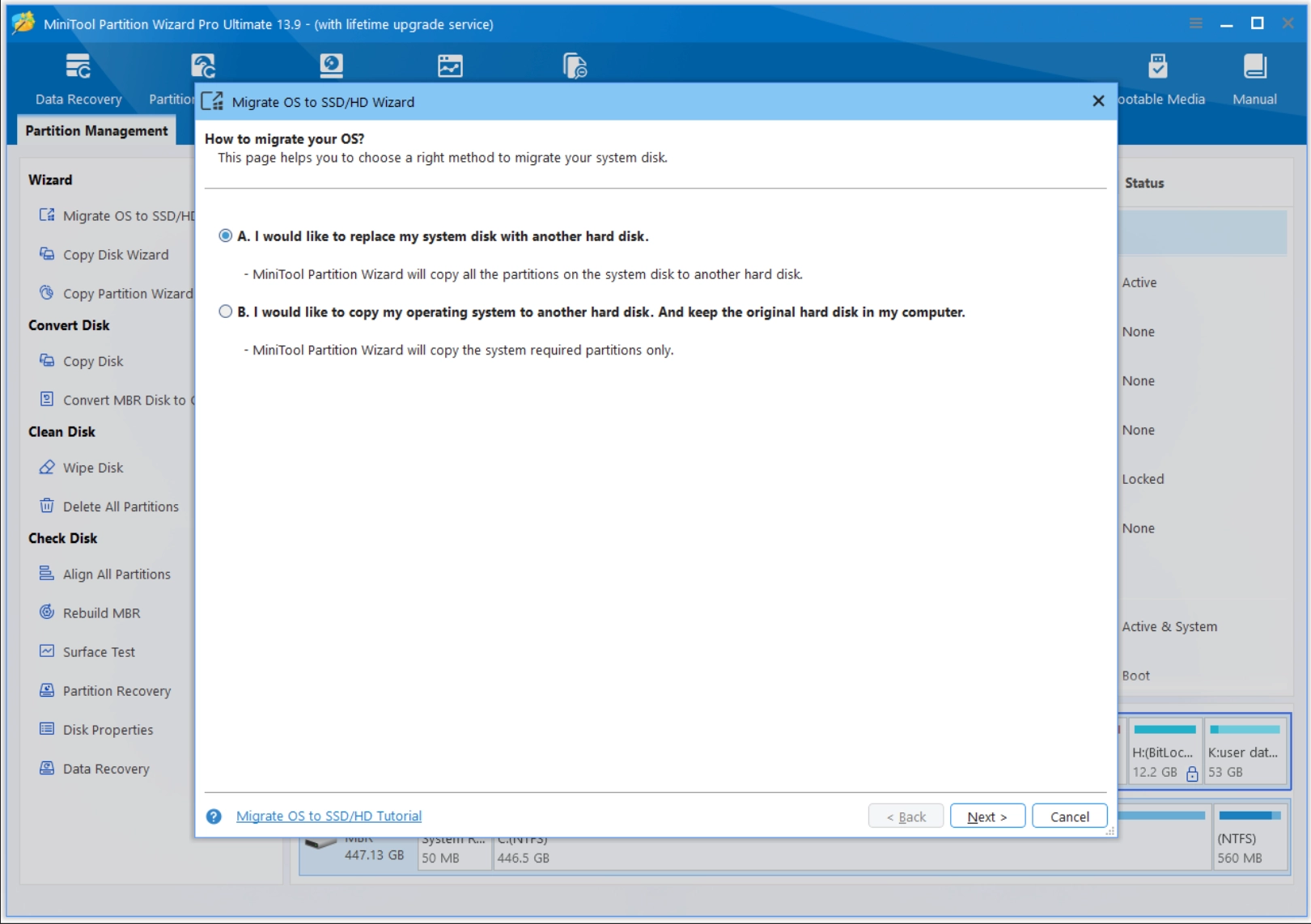
The workflow feels practical and clear, especially for users who want an OS-only move rather than a full clone. This feature is particularly relevant when upgrading a boot drive while keeping personal files on a larger storage drive. It keeps the process more targeted and reduces the amount of unnecessary file copying.
Data Recovery: A Meaningful Recovery Option
For users with access to the appropriate edition, the Data Recovery feature adds significant value beyond traditional partition management. It can scan drives, lost partitions, and unallocated space. Then it will preview and recover deleted files with filtering by file type, size, and path.
The inclusion of preview and filtering tools helps users narrow down recovery results before restoring files. This makes the recovery process easier to manage, especially when scanning larger drives with a significant number of recoverable files.
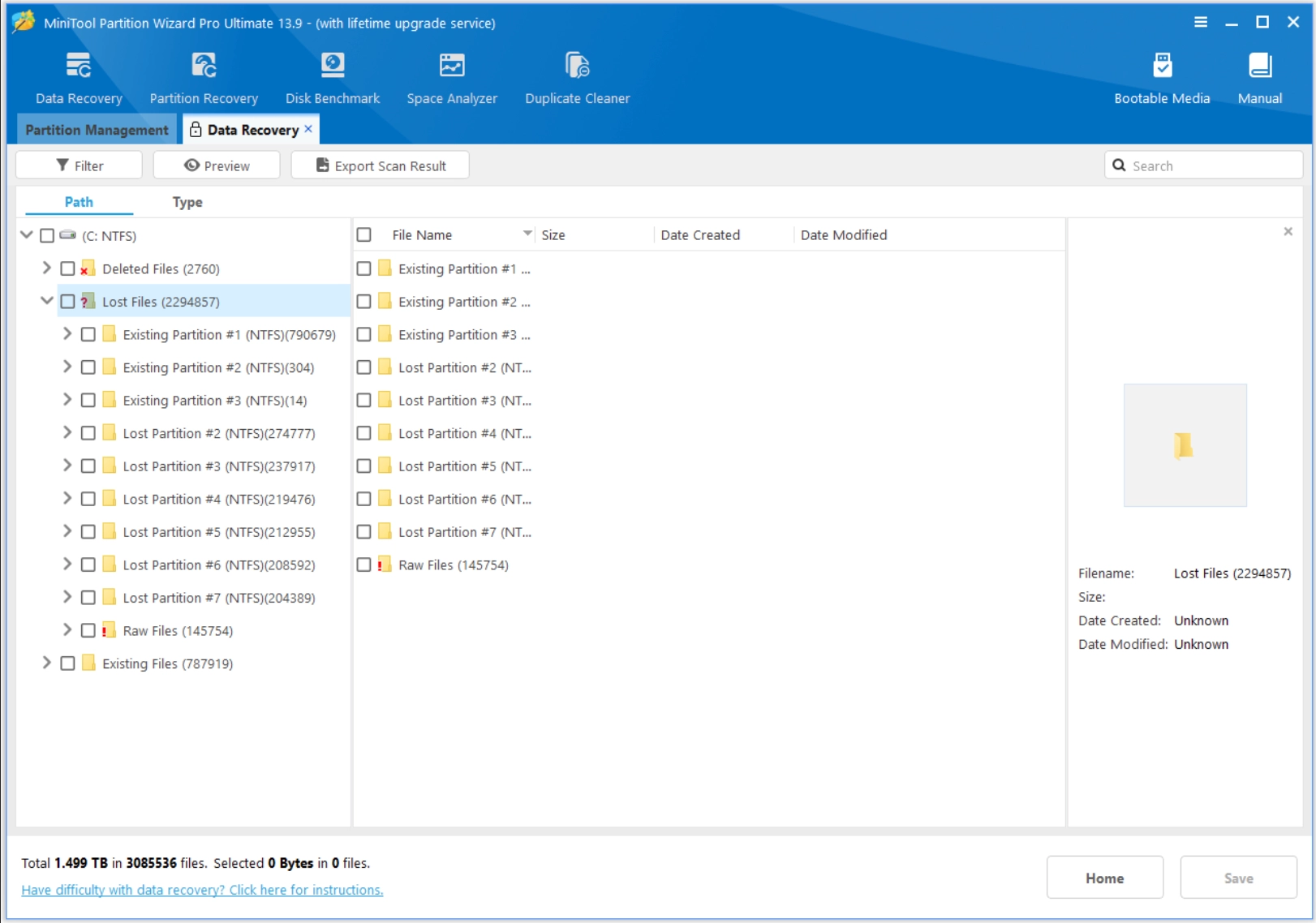
The Data Recovery module adds value by extending the software beyond partition management, giving users access to file-recovery tools alongside disk and partition maintenance features.
BitLocker Manager: A Useful BitLocker Management Tool
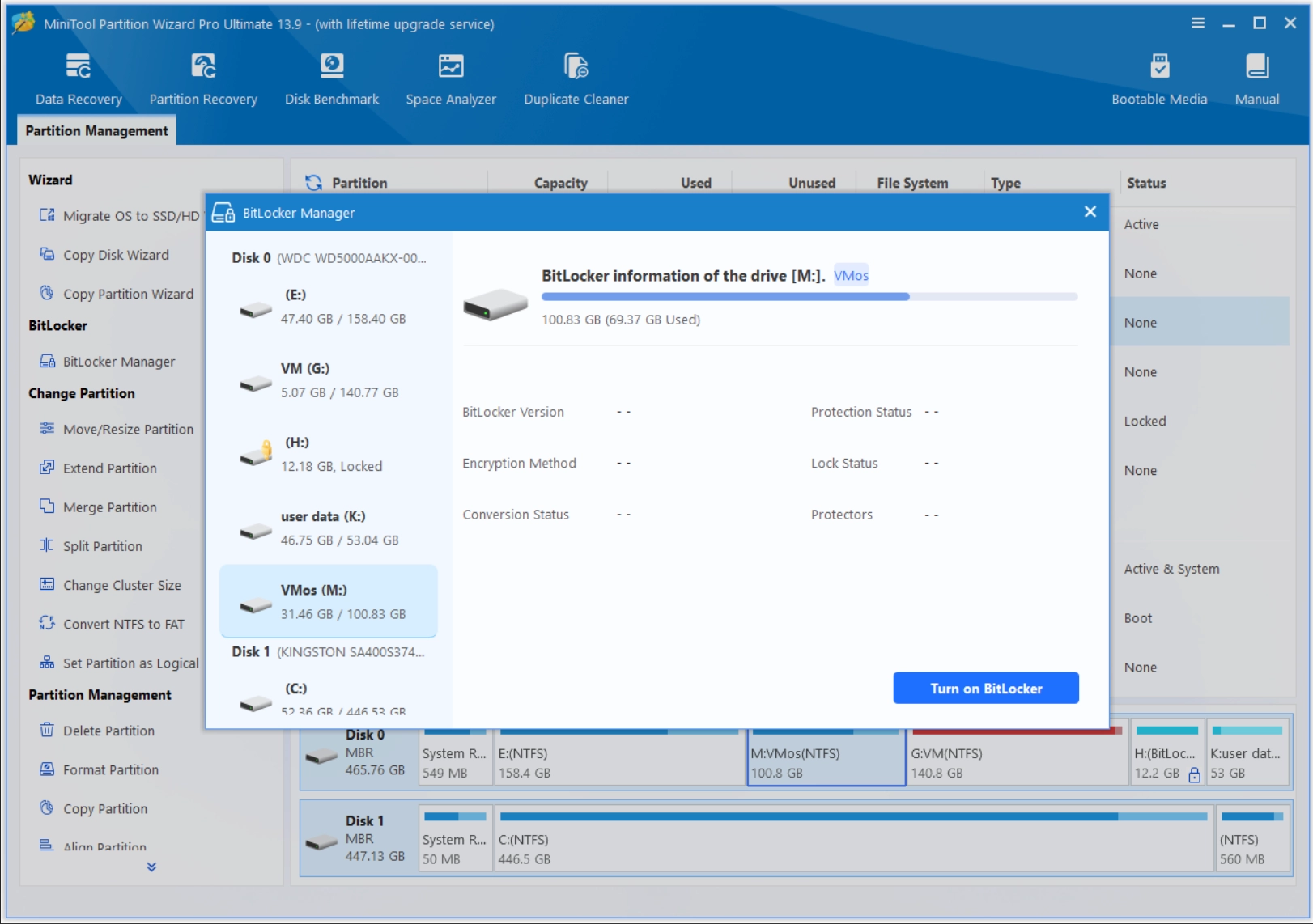
A new feature called BitLocker Manager makes it easier for Windows users to manage BitLocker drive encryption from a single, user-friendly interface. Instead of navigating through multiple Windows settings, users can perform common BitLocker tasks directly within MiniTool Partition Wizard.
BitLocker Manager is a built-in feature that helps you manage BitLocker-encrypted drives on Windows 10 and Windows 11. Whether you want to encrypt a drive, decrypt it, lock or unlock a partition, the tool provides a straightforward workflow that simplifies BitLocker management.
It is especially useful for users who want an easier alternative to the Windows Control Panel or Command Prompt for handling BitLocker operations.
Extra Features that Make the MiniTool Partition Wizard More Complete
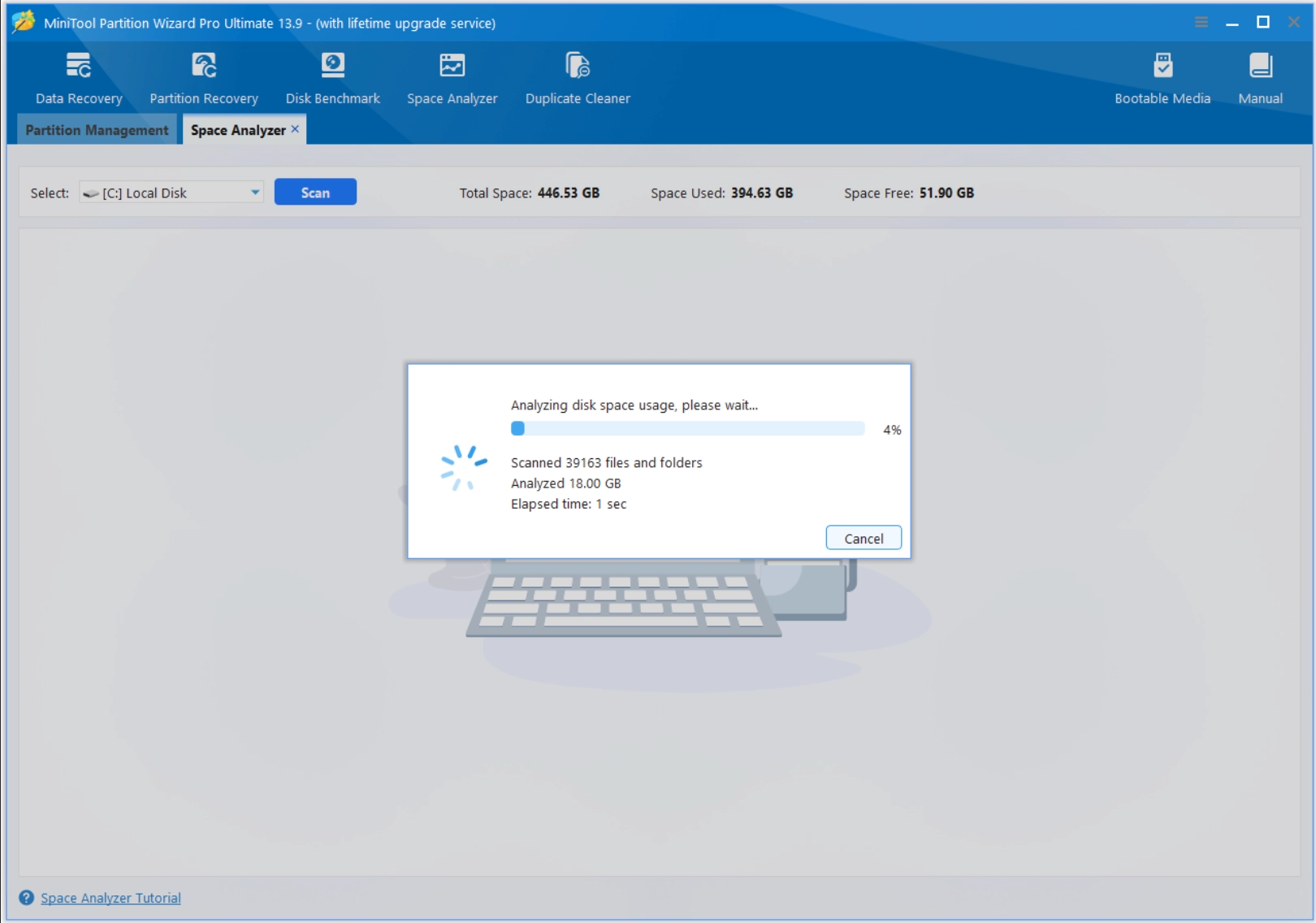
Beyond the primary features, the supporting tools add real day-to-day value. Space Analyzer is useful when a drive feels full, but it is not immediately obvious what is consuming the space. It gives users a tree view, file view, and folder view so they can quickly identify large items or hidden clutter. In practical use, Space Analyzer made it easy to identify large folders and files without manually browsing through multiple directories.
Duplicate Files Cleaner is a logical addition for users who want to reclaim storage without manually hunting through folders for files that might have more than one copy of them.
Surface Test and Disk Benchmark also round out the package well. Surface Test helps identify bad sectors and surface errors, while Disk Benchmark provides insight into storage performance through read and write speed testing. These are not flashy features, but they are valuable for users who care about drive health and system stability.
The conversion tools are equally practical. The software can handle FAT32 to NTFS conversion, MBR to GPT conversion, and other structural changes without forcing users into destructive formatting in many cases. That is a useful strength for users dealing with older drives, larger-capacity disks, or mixed compatibility needs.
Overall Hands-on Impression
MiniTool Partition Wizard is very stable, efficient, and easy to use. It is not only easy to install, but the interface that you will find after installation is organized and simple, and will help you work with its major workflows in such a way that there is little friction between you and being efficient with your use of the program.
The part of the software that really shines is that it balances power with usability. It does not try to hide the fact that partition management can be technical, but it does make those tasks easier to approach. That is a strong combination for users who need something practical for system maintenance, drive upgrades, or recovery work.
Pros
- Clean and user-friendly interface.
- Powerful partition-management tools.
- Useful disk cloning and OS migration options.
- Includes Space Analyzer, Surface Test, and Disk Benchmark.
- The free edition covers many everyday storage-management tasks.
Cons
- Some advanced features require a paid edition.
- The interface can feel feature-heavy for non-technical users.
- Surface Test can identify issues but does not repair them.
Final Verdict for MiniTool Partition Wizard
MiniTool Partition Wizard is a strong choice for users who want complete control over how they set up their storage, compared to the more limited built-in Windows disk-management tools. Its best strengths are the features many users look for when managing storage: Extend Partition, Copy Disk, Migrate OS to SSD/HDD, and a range of disk maintenance and recovery tools. Adding the support tools like Space Analyzer, Surface Test, and duplicate-file cleanup, the result is a well-rounded storage utility that feels genuinely useful in real-world situations.
Anyone looking for an easy-to-use and dependable storage management tool with a good range of features will benefit from the use of this software. It is especially attractive for people who want a capable free partition manager to start with, then scale up later if their needs become more advanced. As a storage management utility, it offers a thoughtful mix of control, convenience, and flexibility for both routine maintenance and more advanced disk operations.