You turn on your Windows 11 PC like every other day. But something feels wrong. Your desktop is missing. Your files are gone. Or Windows signs you into a temporary account instead of your own. A corrupted user profile can stop you from using your computer properly. The good news is that you can usually fix it without losing your files.
Page Contents
What Causes A Corrupted User Profile?
A user profile can become corrupted for several reasons, such as:
- Sudden power loss or improper shutdown
- Damaged system files
- Malware or virus infections
- Disk errors
- Faulty software or driver updates
Fix Corrupted User Profile In Windows 11
Below are the best ways to repair the issue in Windows 11:
Fix 1: Run DISM And SFC Scans
Corrupted Windows system files can affect your user profile.
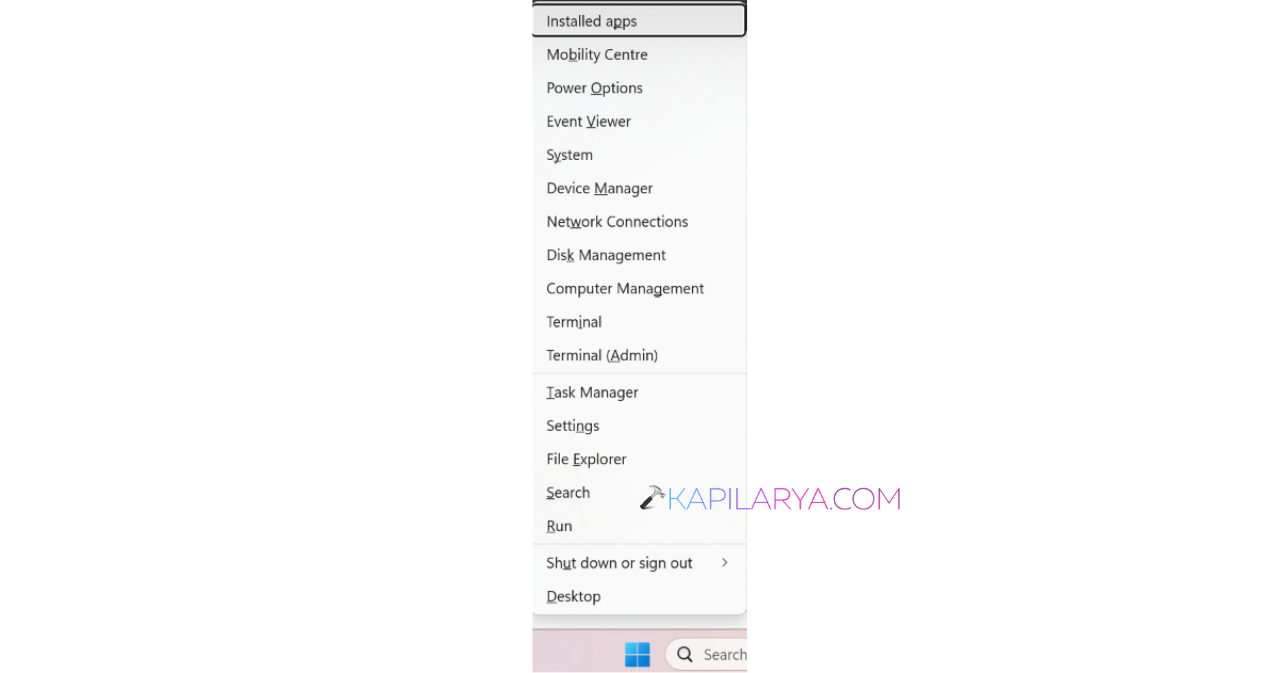
1. Press Windows + X and open Terminal (Admin).
2. Run:
DISM /Online /Cleanup-Image /RestoreHealth
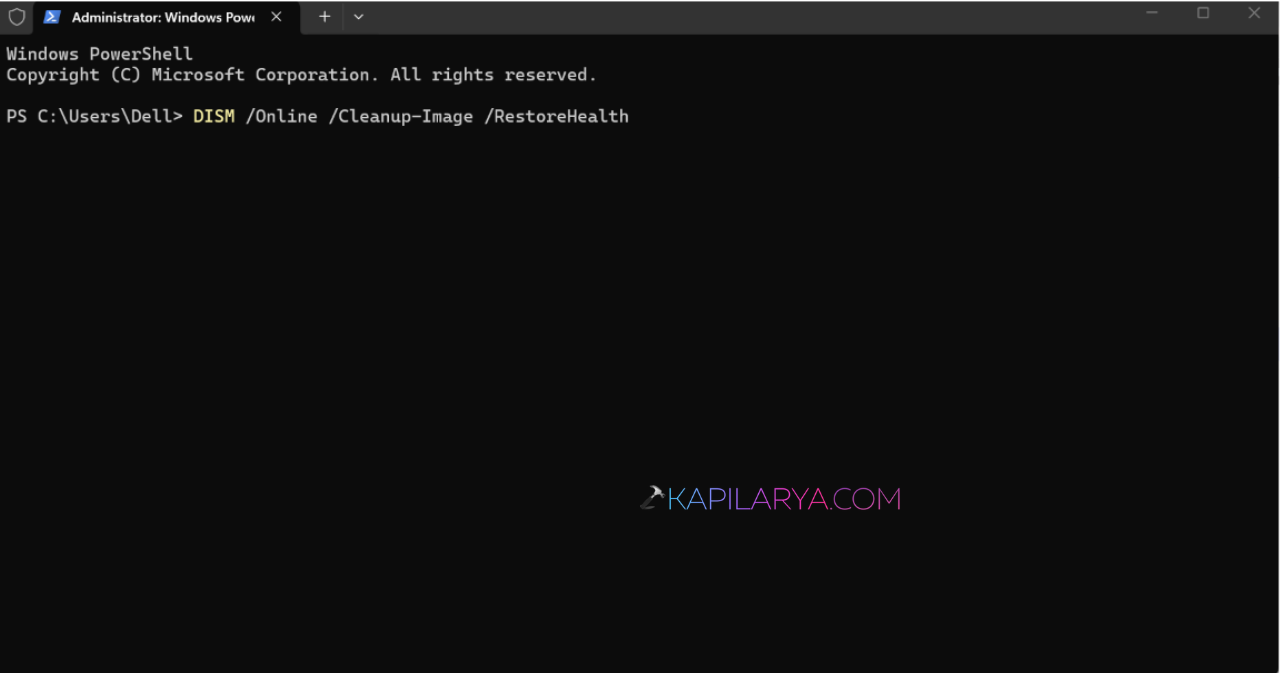
3. After it finishes, run:
sfc /scannow
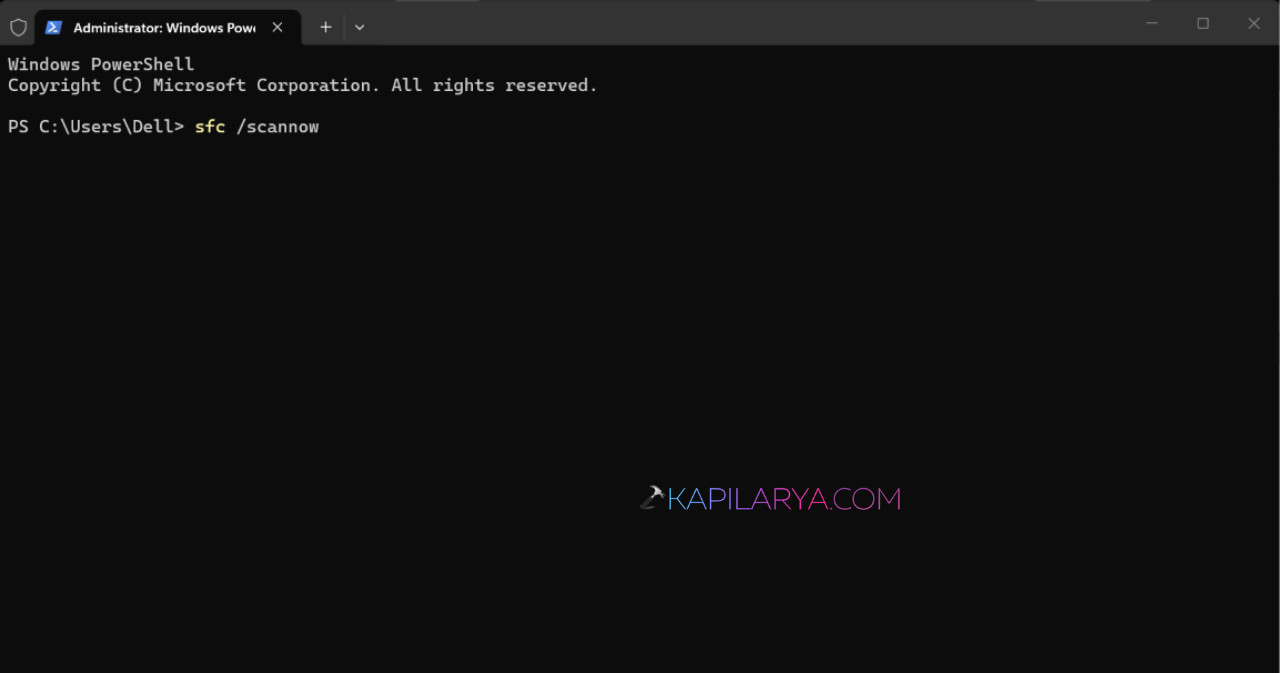
4. Restart your PC.
Fix 2: Create A New User Profile
If the profile is badly damaged, creating a new account is often the easiest solution.
1. Open Settings > Accounts > Other users.
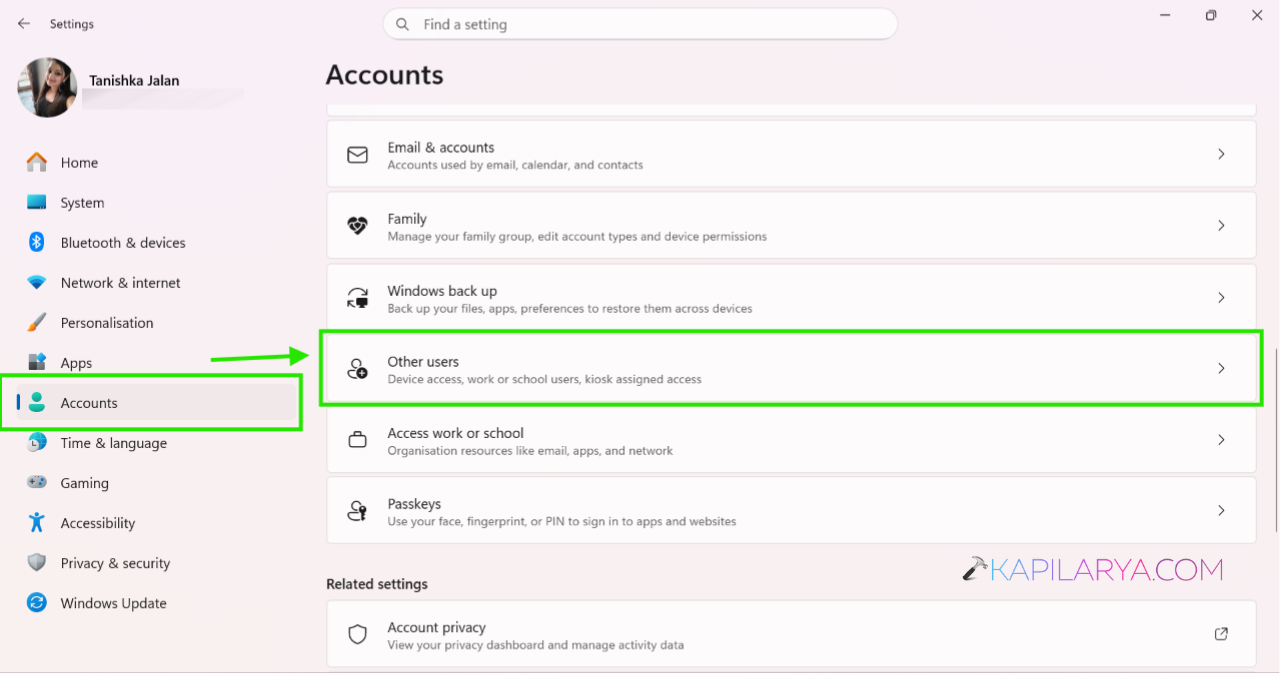
2. Click Add account.
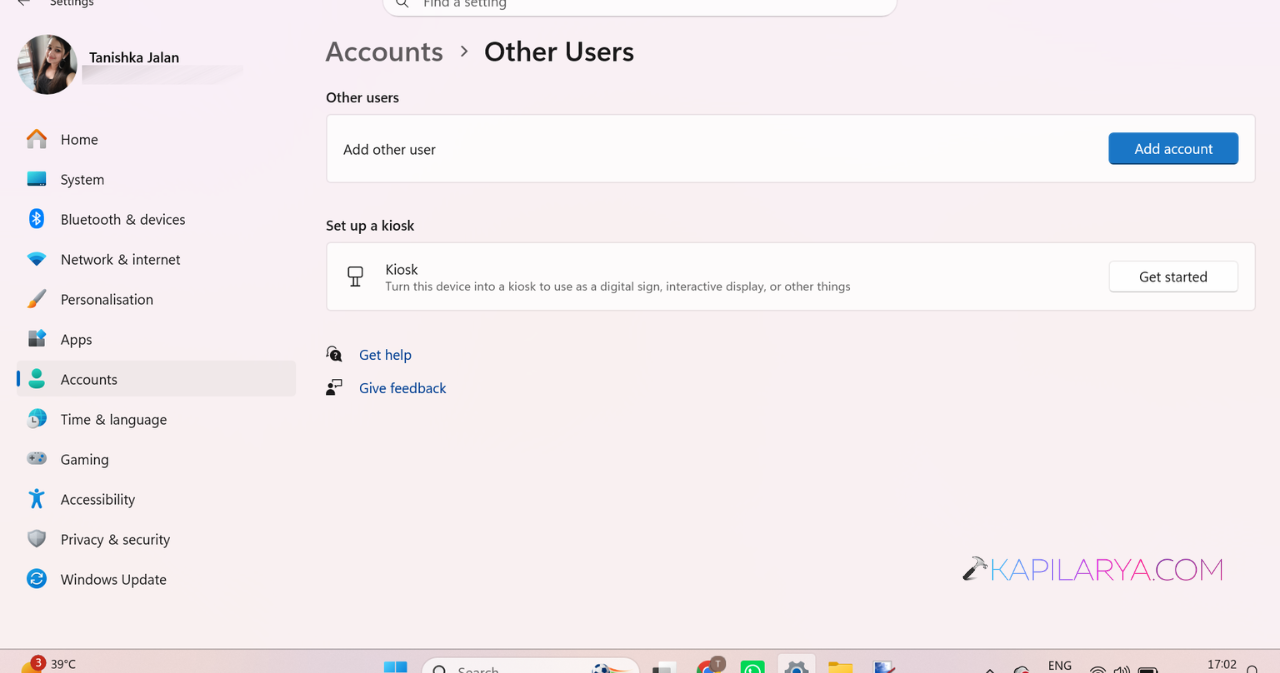
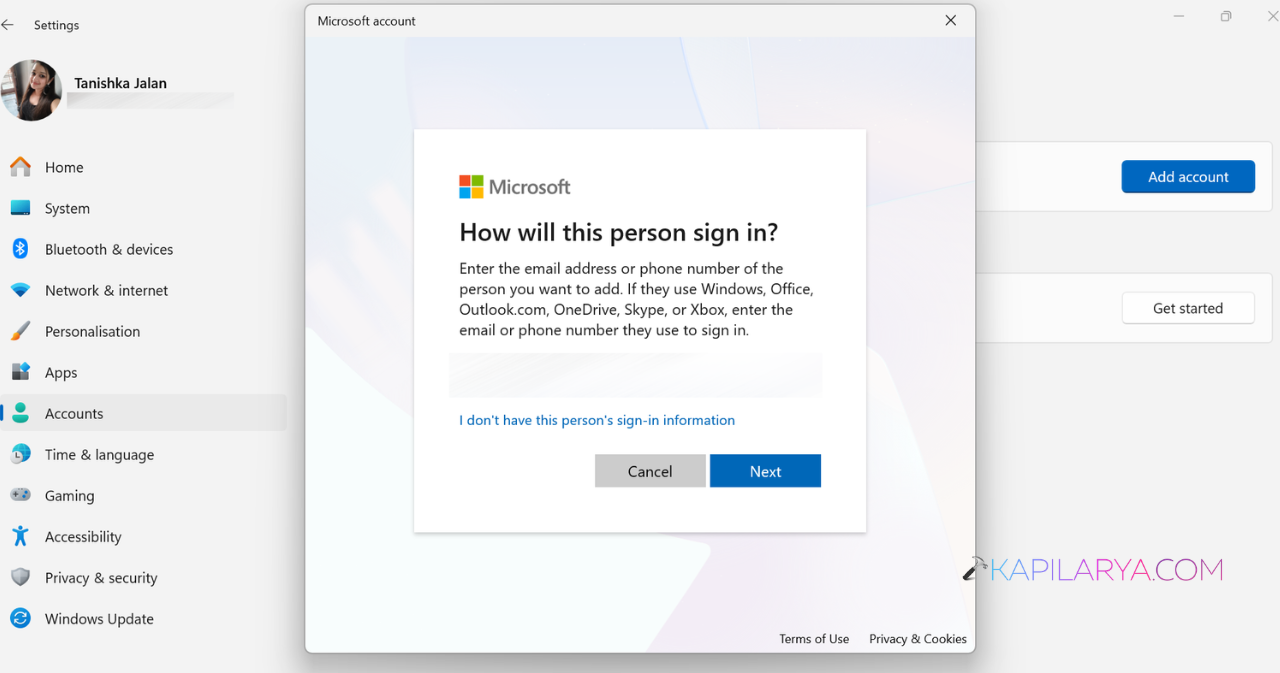
3. Create a new local user account.
4. Sign in to the new account.
5. Copy your personal files from C:\Users\OldUsername to the new profile.
Fix 3: Repair The Registry
Sometimes Windows stores incorrect profile information in the registry.
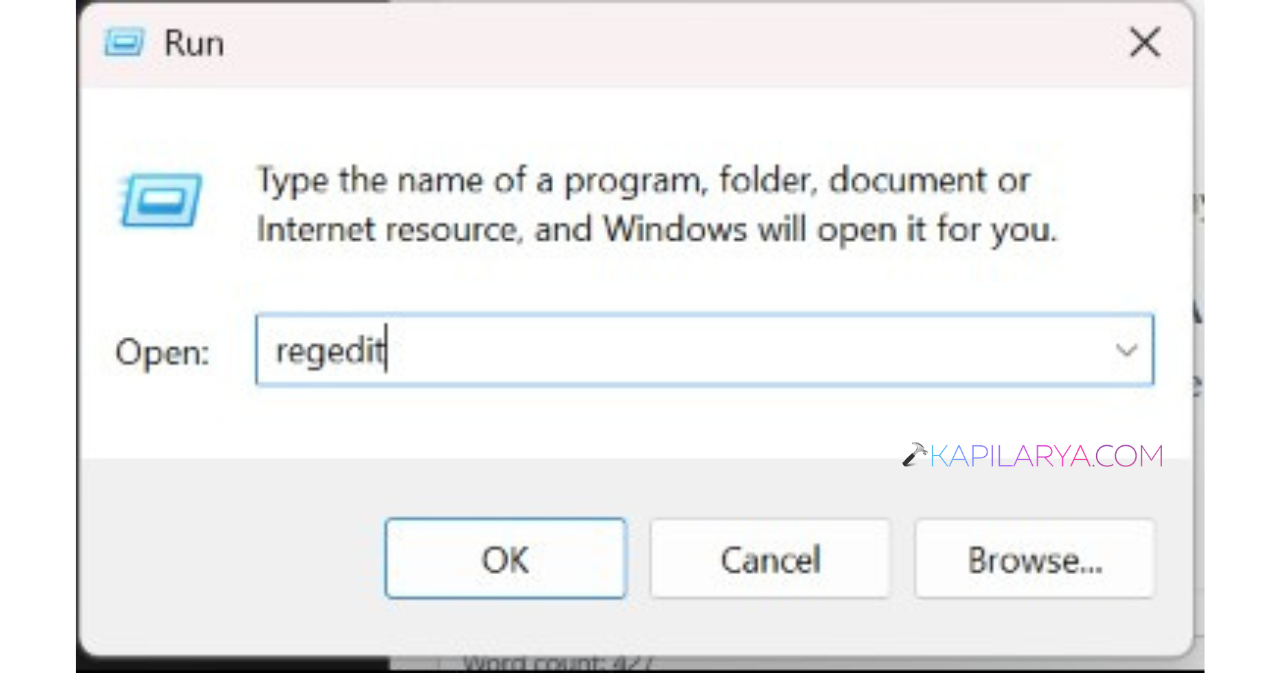
1. Press Windows + R, type regedit, and press Enter.
2. Navigate here:
HKEY_LOCAL_MACHINE\SOFTWARE\Microsoft\Windows NT\CurrentVersion\ProfileList
3. Find the profile with the .bak extension.
4. Set State and RefCount values to 0.
5. Restart your computer.
Fix 4: Re-Register Windows Apps
Broken Windows apps can also cause profile issues.
1. Open PowerShell (Admin).
2. Run the AppX registration command.
Get-AppxPackage -AllUsers | Foreach {Add-AppxPackage -DisableDevelopmentMode -Register "$($_.InstallLocation)\AppXManifest.xml"}
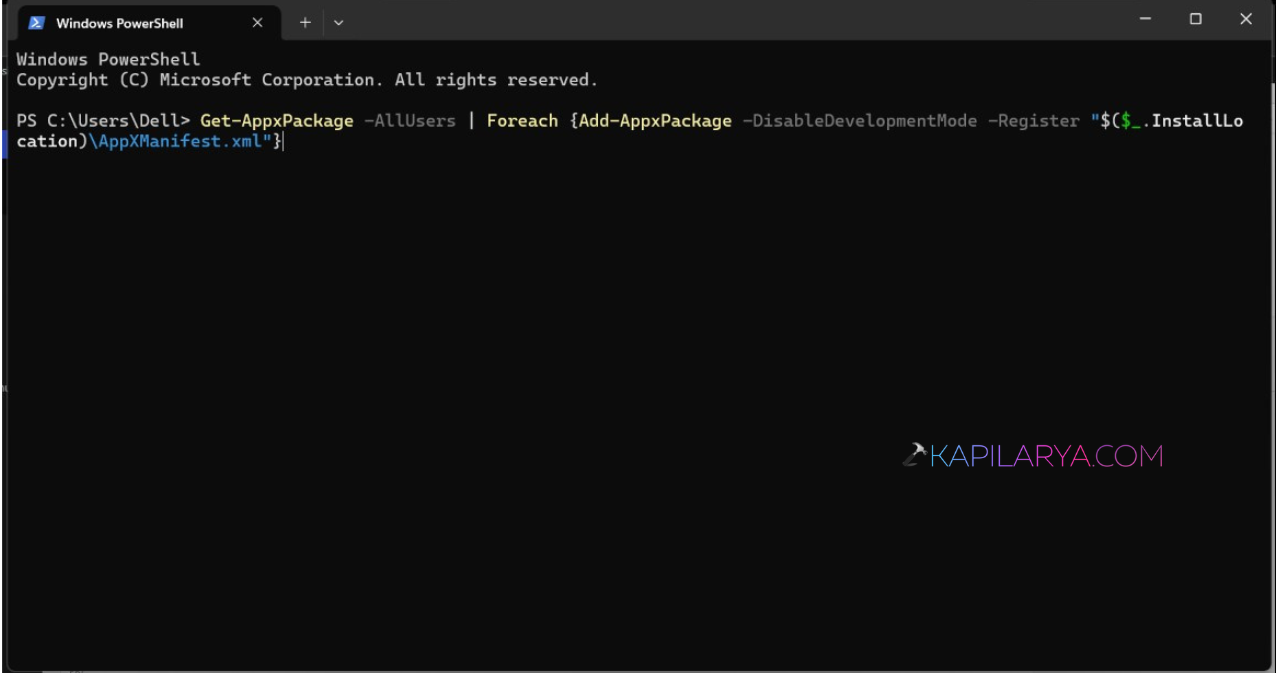
3. Wait for the process to complete.
4. Restart your PC.
Fix 5: Reset Windows 11
If nothing else works, reset Windows while keeping your personal files.
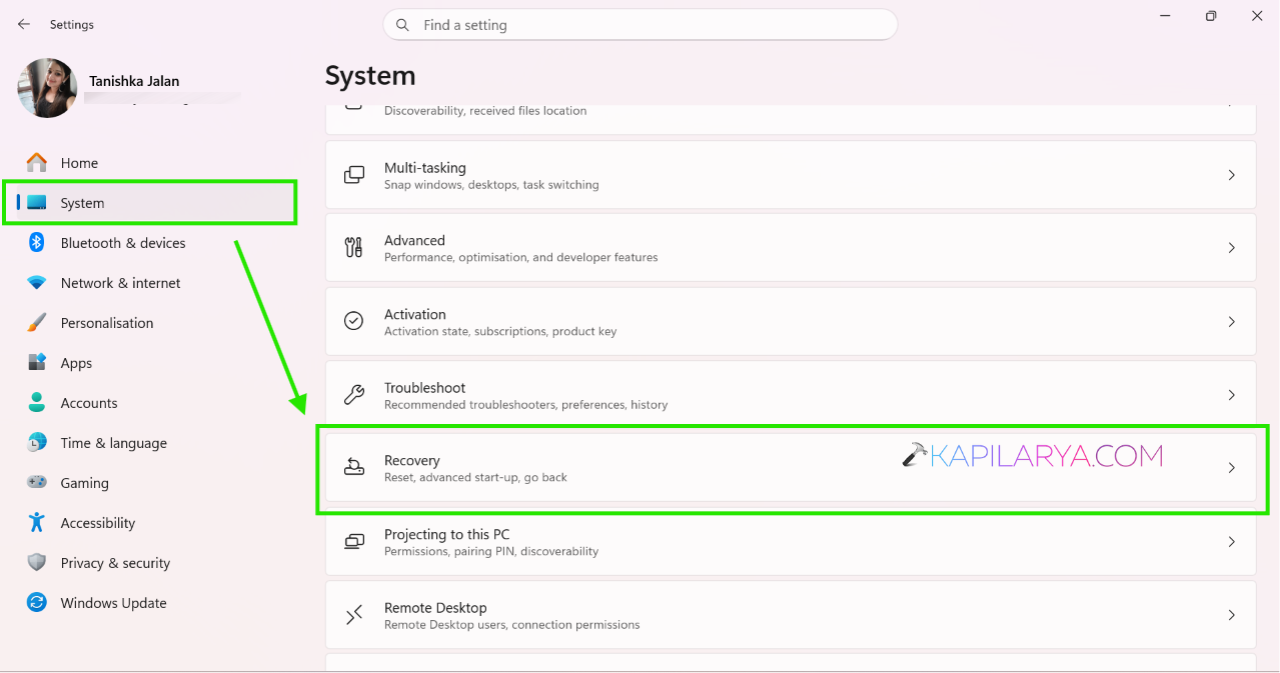
1. Open Settings > System > Recovery.
2. Click Reset PC.
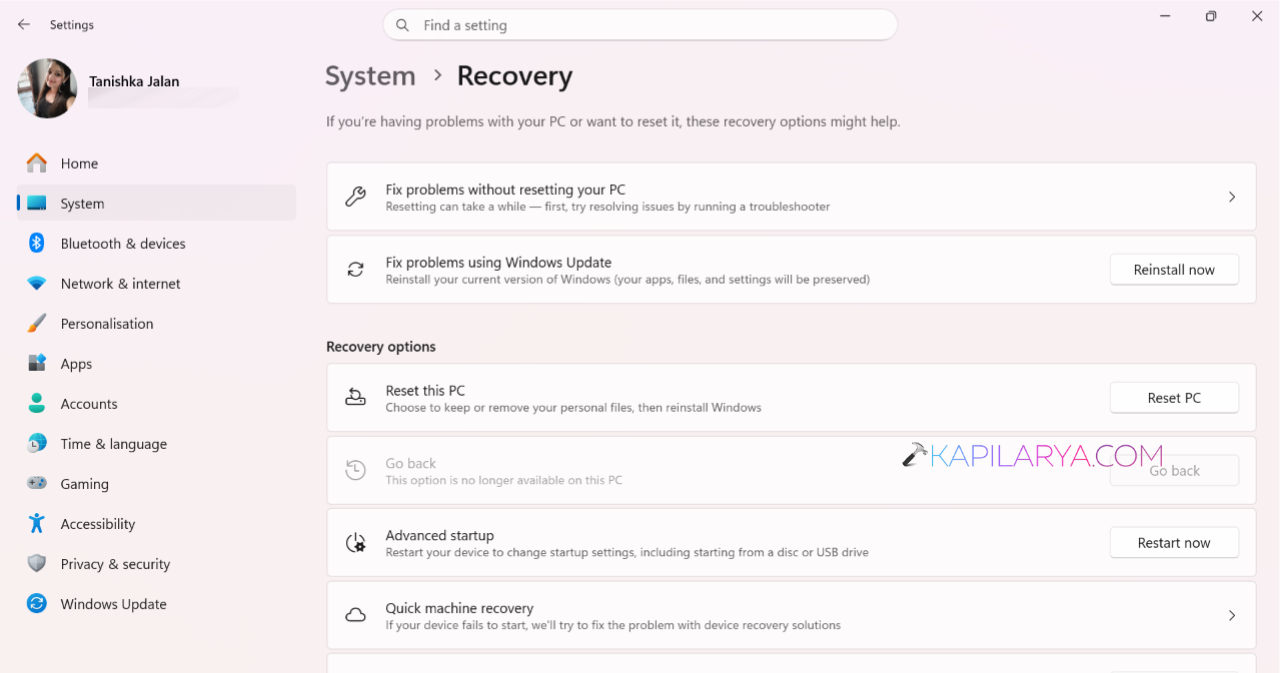
3. Select Keep my files.
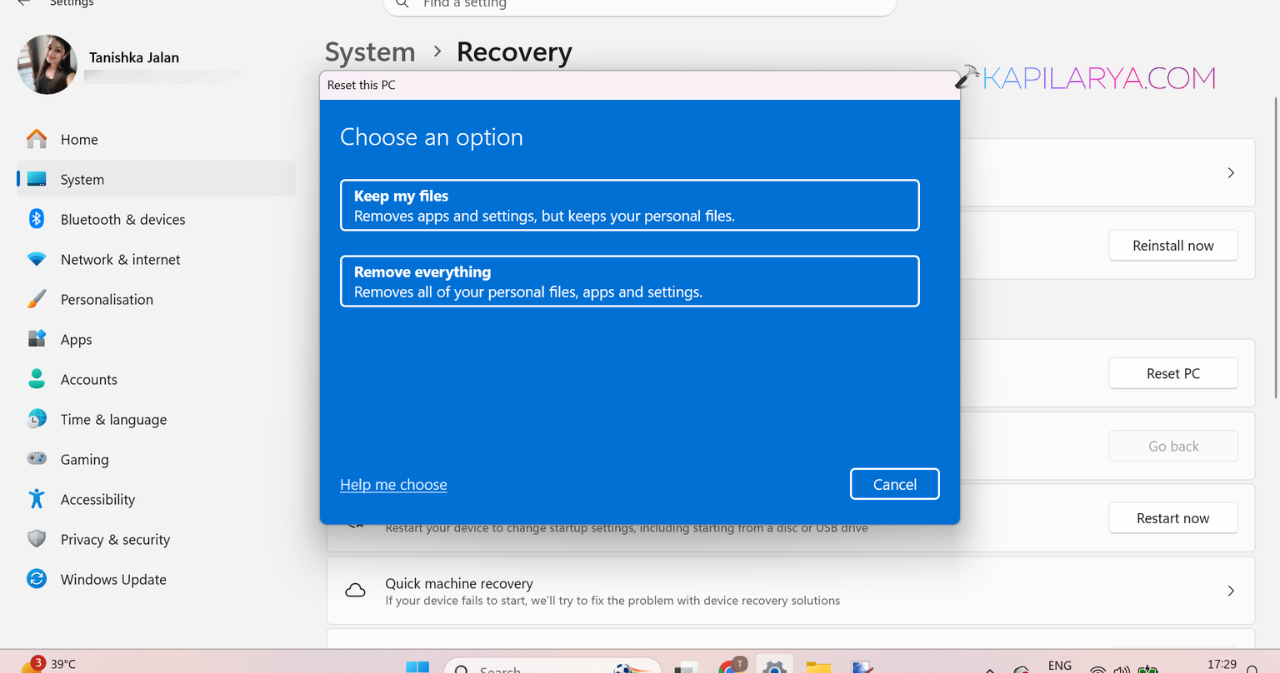
4. Follow the on-screen instructions.
If Windows does not boot, use a Windows 11 installation USB and choose Repair your computer > Troubleshoot > Reset this PC.