If Endpoint Protection Service is using a lot of CPU on Windows 11, you can get rid of it. If you are a Windows user and you observe that the Endpoint Protection Service (EPS) is using a lot of CPU resources and your computer becomes slow or unresponsive, or even the cooling fan gets a lot of activity, then the problem is with the Endpoint Protection Service.
Typically, this is caused by Windows Security scans, corrupted system files, out-of-date security definitions, third-party antivirus software conflicts or damaged Windows components. Luckily, there is no need to reinstall Windows.
This guide offers explanations for the Endpoint Protection Service High CPU issue and detailed instructions that will help you resolve the issue and improve your system’s performance.
Page Contents
What is Endpoint Protection Service?
Endpoint Protection Service is a security feature added to Windows 11 to protect your Windows 11 PC from viruses, malware, ransomware and other online threats. It operates in the background, observing your system and scanning your files, and blocks suspicious activities that might harm your computer.
Usually, the service is hidden and very light on CPU usage. But if it becomes in a problem when scanning, finds corrupted files or if there is a software conflict, it can begin to use up a lot of CPU resources. This can cause Endpoint Protection Service High CPU in Windows 11, resulting in your computer becoming sluggish or unresponsive.
Why is Endpoint Protection Service Using High CPU?
There isn’t a single reason why Endpoint Protection Service uses high CPU. The service may have a high demand on system resources due to several reasons.
These are some of the most prevalent:
- Windows Security is scanning the system for a full or scheduled scan.
- Older Microsoft Defender security intelligence updates.
- Damaged Windows system files.
- Malware or potentially unwanted programs that are running frequent scans.
- Clashes with third-party anti-virus programs.
- Recent Windows Updates installed that start security scans in the background.
- Excessive number of files being scanned simultaneously.
- Temporary problems with the Windows Security services.
If the high CPU usage only lasts for a few minutes during a scheduled scan, it’s usually normal. If the CPU level is still high even when your PC is not doing anything, however, on a sustained basis, then it is time to troubleshoot the issue with the methods listed below.
How to Check if Endpoint Protection Service is Causing High CPU
Before attempting any remedies, make sure that Endpoint Protection Service is indeed causing the high CPU usage.
1. To open Task Manager, press Ctrl + Shift + Esc. Task Manager will open in compact mode.
2. Click on Processes in the Control Panel. To sort processes according to CPU usage, click on the CPU column.
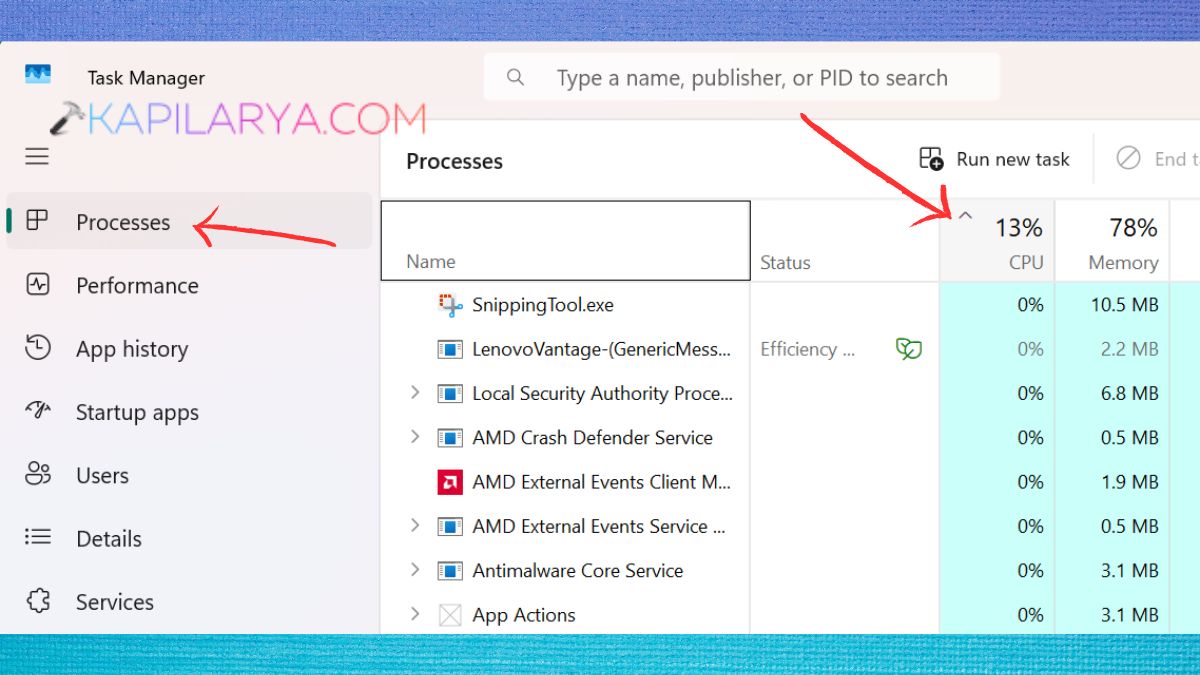
3. The above process can be found by looking for one of the following:
- Microsoft Defender Antivirus Service
- Antimalware Service Executable (MsMpEng.exe)
- Endpoint Protection Service, if using 3rd party endpoint security software.
Look at the CPU usage percentage next to the process.
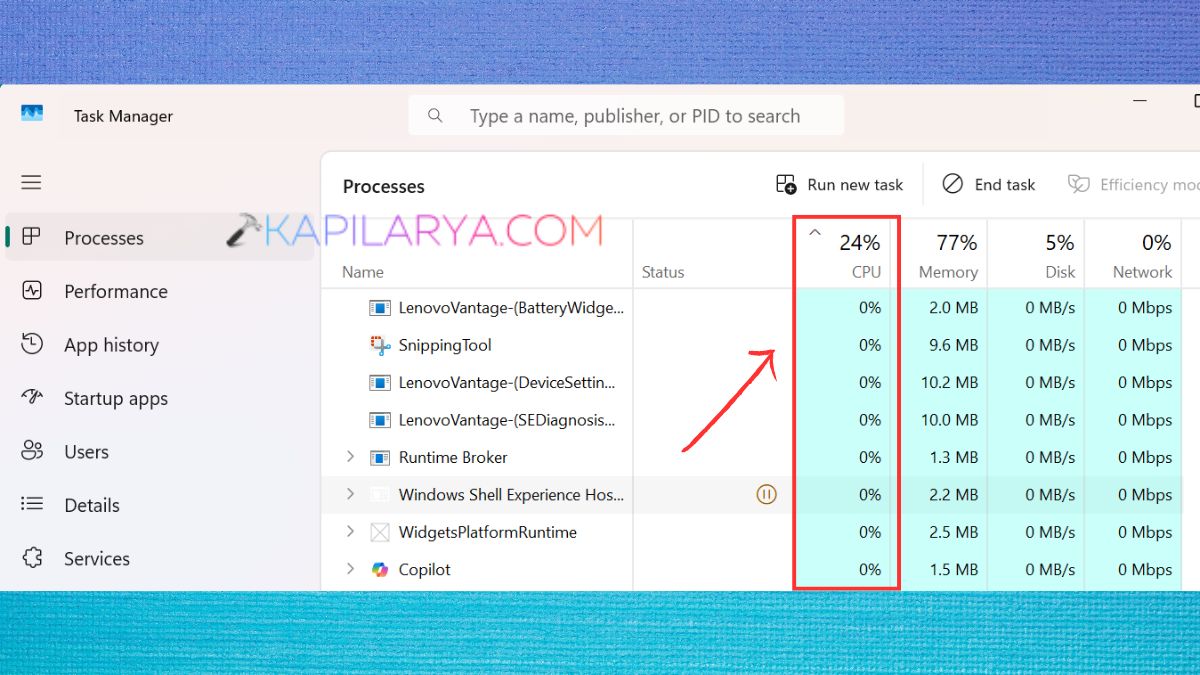
If this process regularly consumes a lot of CPU, even if you’re not using any apps, it’s probably the root cause of the performance problem.
Fix: Endpoint Protection Service High CPU in Windows 11
Fix 1: Restart Your PC
Endpoint Protection Service may consume too many CPU resources due to a temporary Windows Security glitch or a background process. Turning your computer back on reboots your machine, resets temporary memory, terminates hung processes and restarts the Windows services—the last of which is often enough to cure the situation.
1. Save and close all running programs.
2. Click on the Start button, and on the Power icon.

3. Tap Update and Restart or Restart.
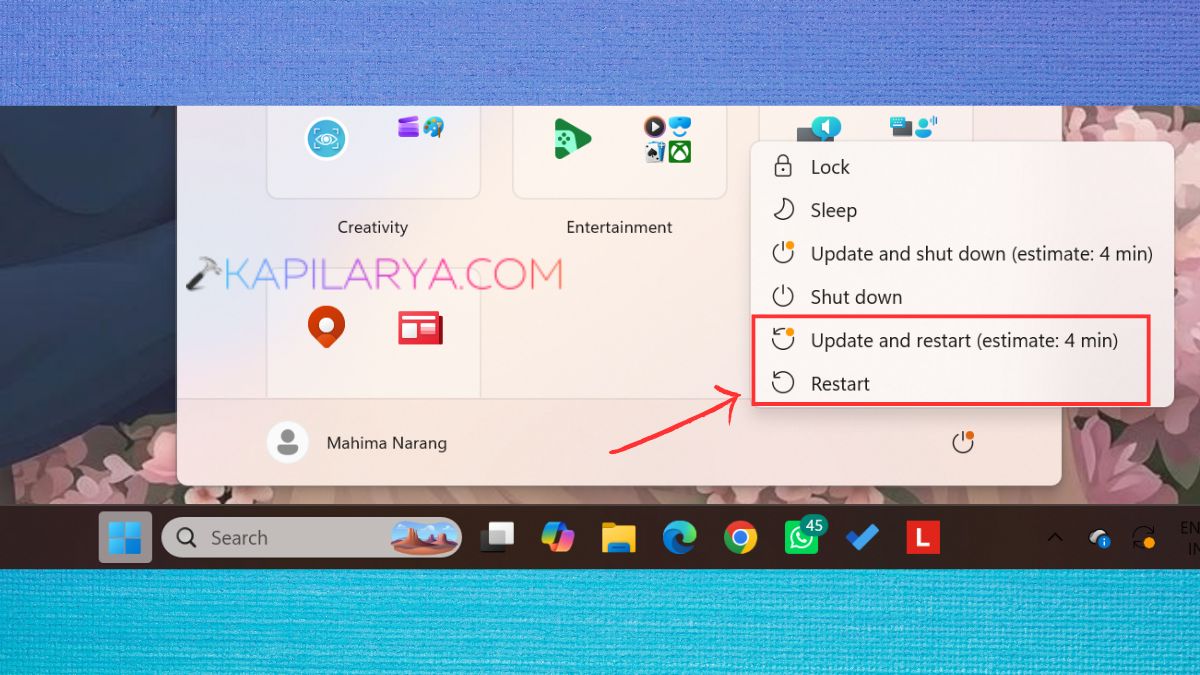
4. Wait for Windows 11 to reboot completely. Then restart, open Task Manager and see if the CPU usage returned to normal. If this still doesn’t work, try the next one.
Fix 2: Update Windows
Microsoft releases Windows updates periodically that contain security updates, performance fixes, and bug fixes. If you are facing the Endpoint Protection Service High CPU Windows 11 problem, try updating your software, as this may fix any bugs in Microsoft Defender or Windows Security.
1. Open Settings by pressing Windows + I. Select Windows Update on the left.
2. Click on Check for updates. Click on Download & install if there are updates available.
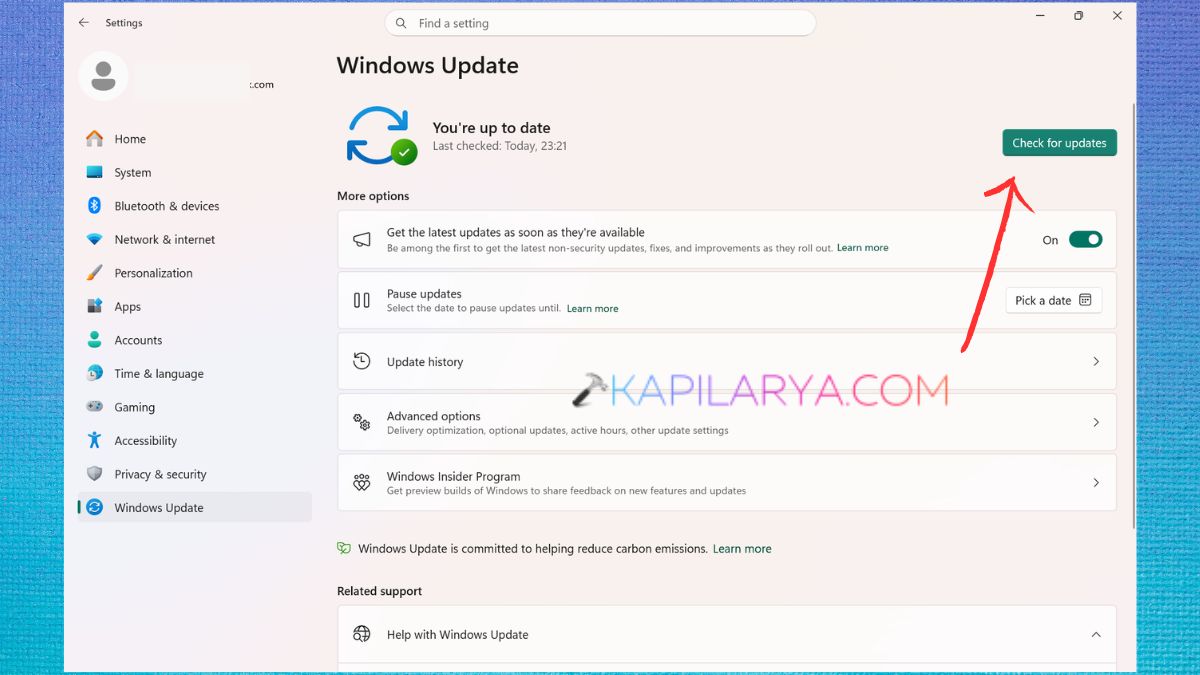
Be patient for the installation to finish. If asked, restart the computer. After the restart of your PC, check the CPU usage and determine if the issue is resolved.
Fix 3: Update Microsoft Defender
Microsoft Defender uses the latest security intelligence updates to efficiently detect threats. At times, the virus definitions are outdated and may lead to repeated or inefficient scanning, which consumes a lot of CPU resources. Microsoft Defender is updated to make sure that the security engine is up to date with improvements and bug fixes.
1. Go to Windows Security from the Start menu.
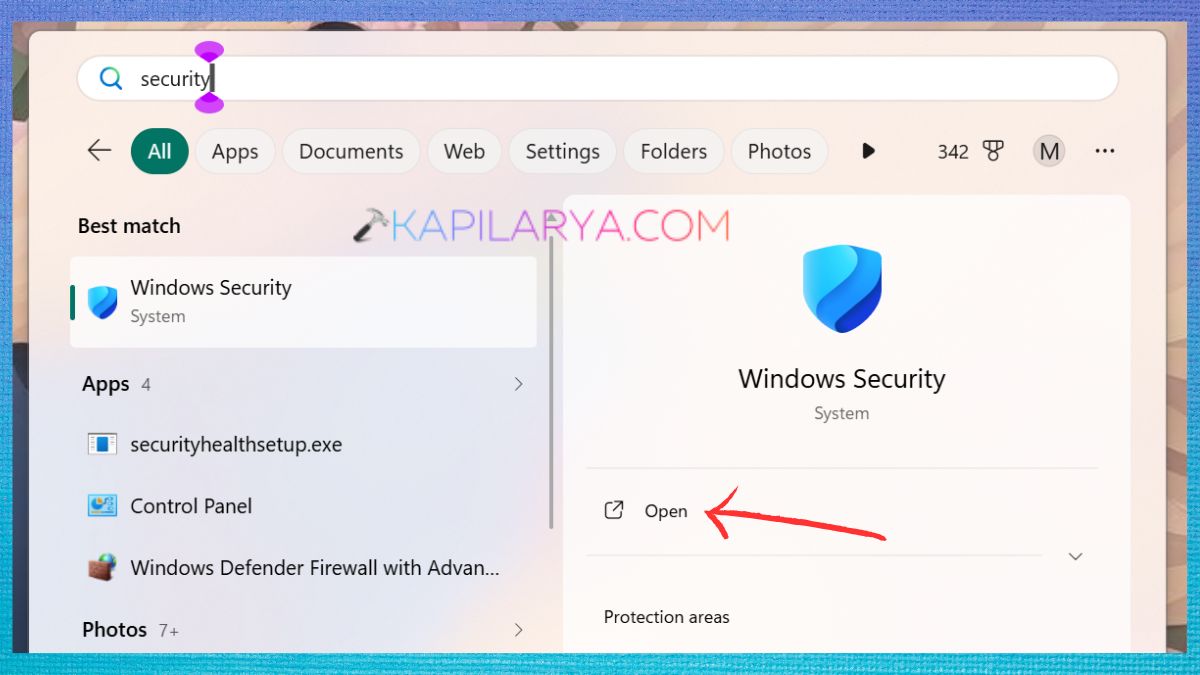
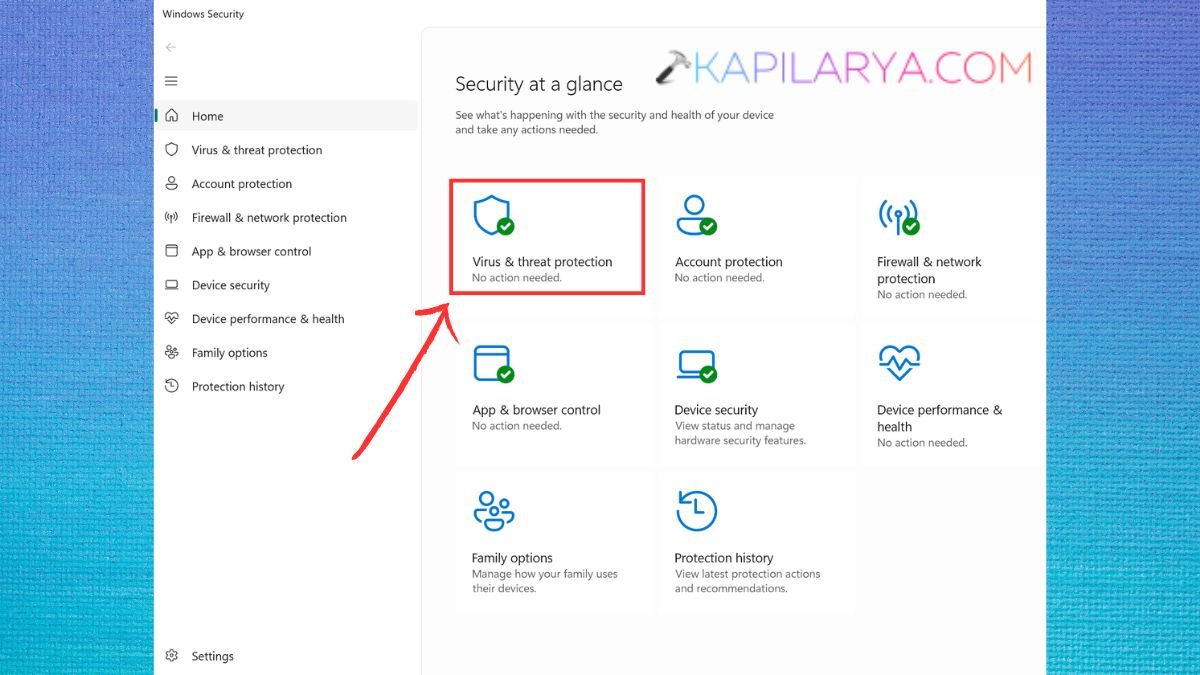
2. Tap on Virus & threat protection.
3. To see Virus & threat protection updates, click Protection updates.
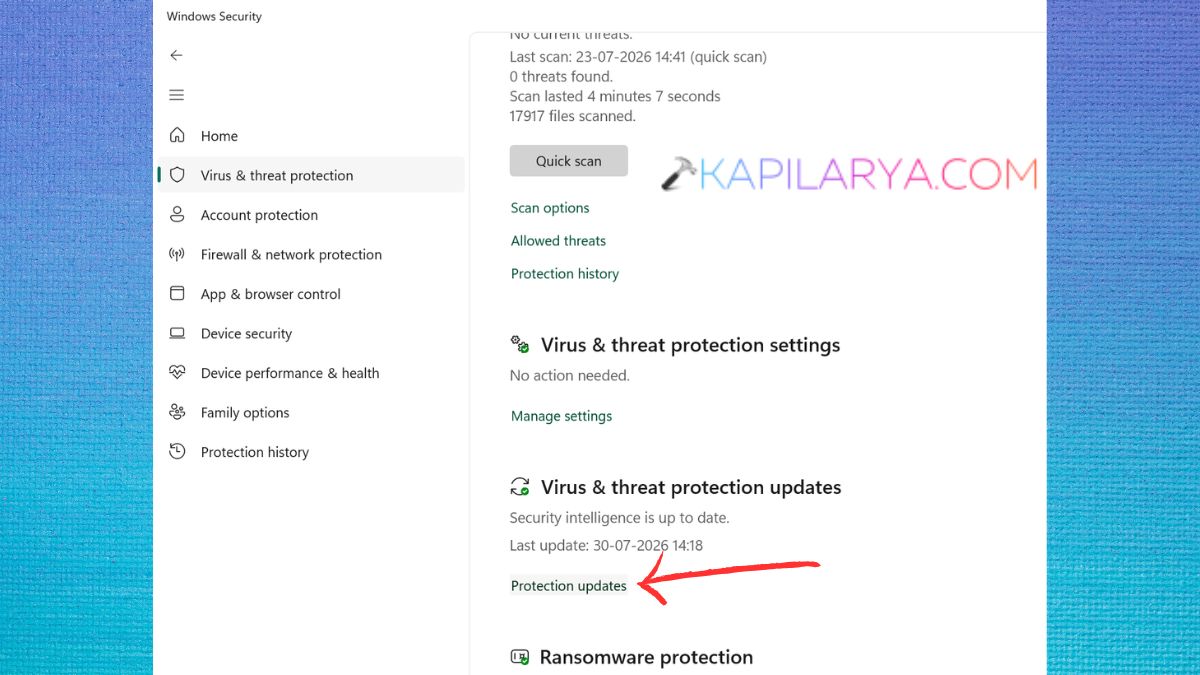
4. Click on Check for updates.
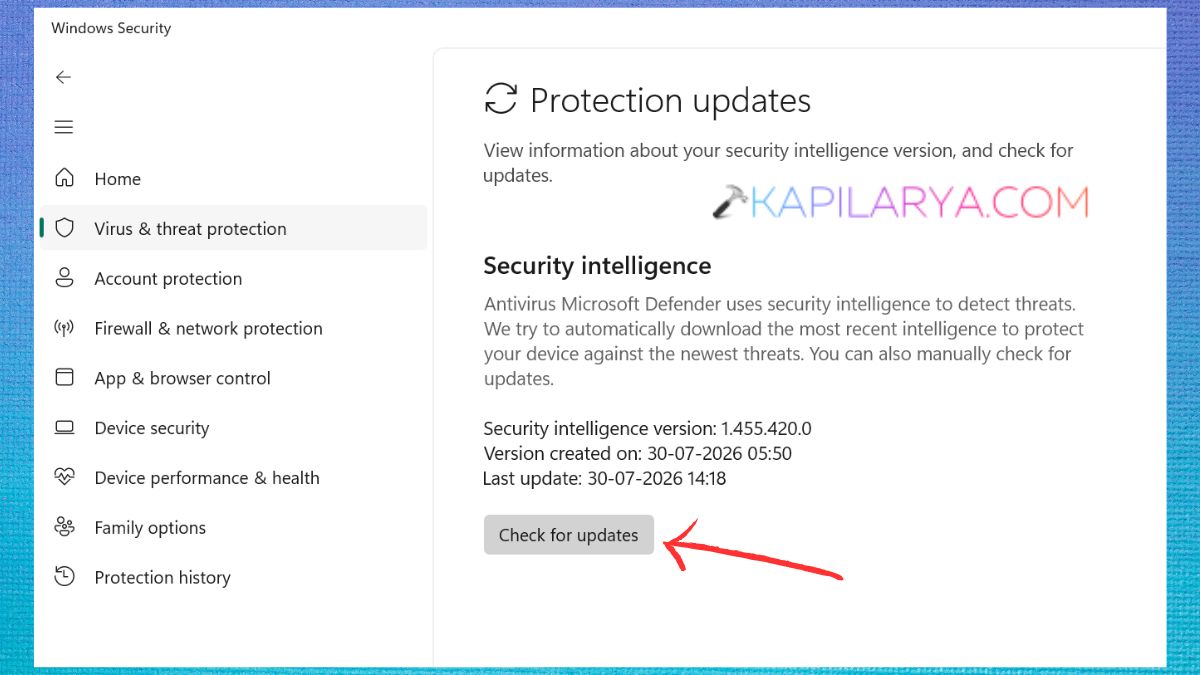
Wait as Windows downloads and installs security intelligence updates. After the update, reboot your computer. Once the computer has been rebooted, check Task Manager to see if Endpoint Protection Service is using too much CPU.
Fix 4: Run an SFC Scan
The Endpoint Protection Service High CPU in Windows 11 issue may occur when Windows Security is not running properly, due to corrupted or missing system files. System File Checker (SFC) will find and fix these files.
1. Click on Windows + S and type Command Prompt. Right-click on Command Prompt and click Run as administrator.
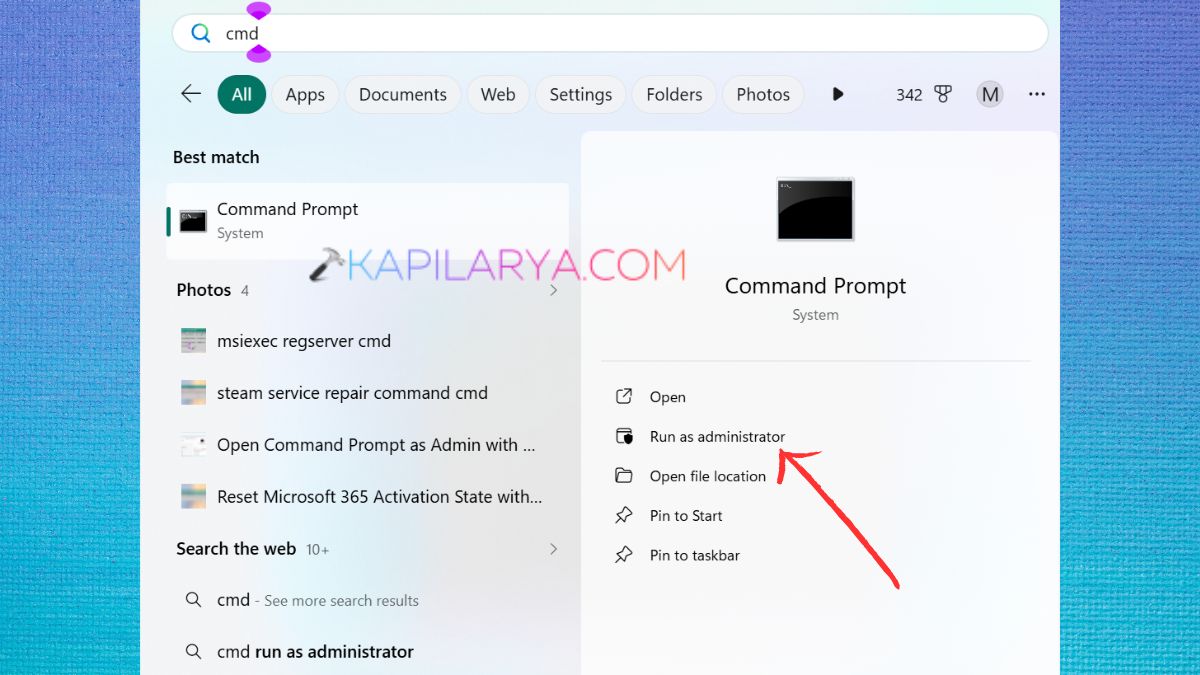
2. Enter the following command in the Command Prompt window, and press Enter.
sfc /scannow
Be sure to wait until the scan is done. This can take up to a few minutes.
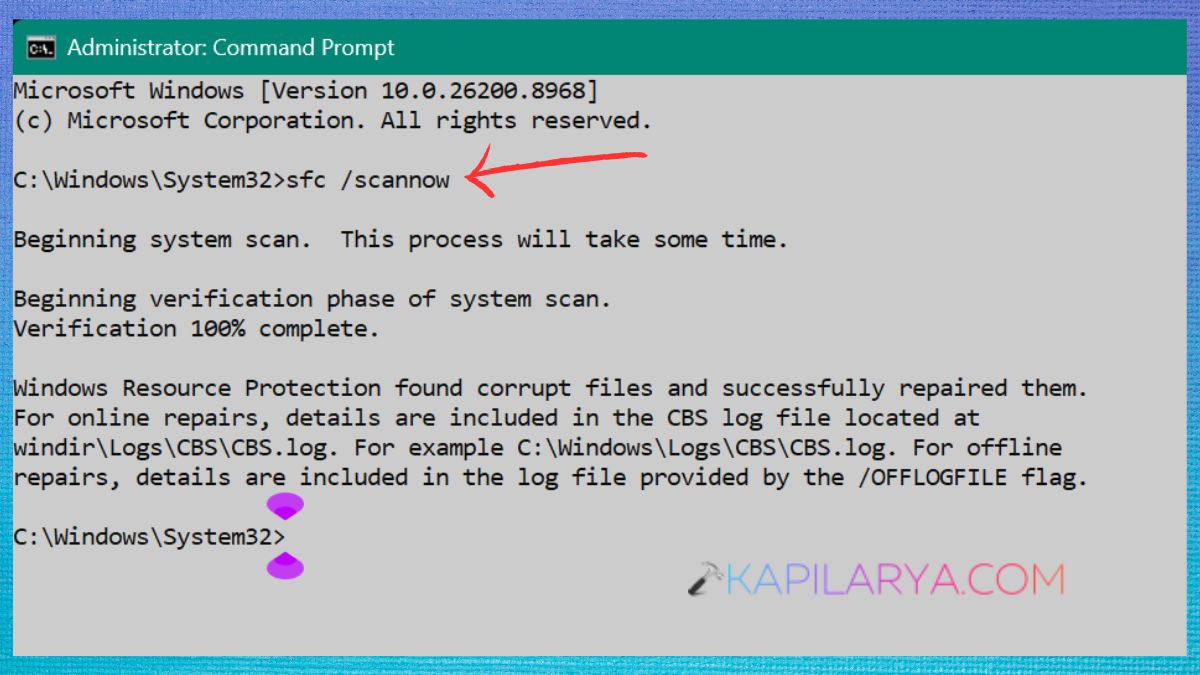
Windows will automatically fix corrupted files if they are detected.
3. Reboot the computer when the scan is completed. Once the computer is restarted, run Task Manager and see if Endpoint Protection Service continues to consume too much CPU.
Fix 5: Repair Windows Image Using DISM
If the SFC scan fails to correct the problem, there may be a corruption in the Windows system image. The Deployment Image Servicing and Management (DISM) tool fixes the Windows image and lets the system services, such as Microsoft Defender, function properly.
1. Open Command Prompt as admin again.
2. Enter the command below and press Enter.
DISM /Online /Cleanup-Image /RestoreHealth
Here, be patient; Windows is scanning and fixing the system image. This process can take up to 10-20 minutes.
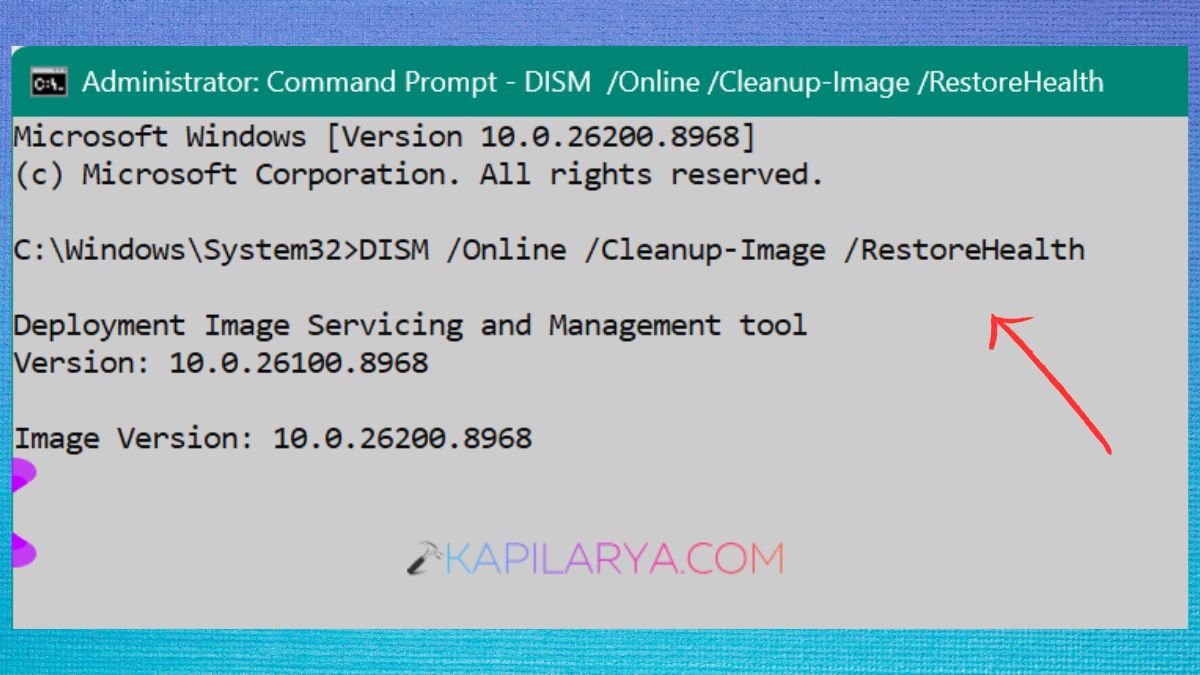
Once completed, restart your computer. When using DISM, re-run the SFC scan for optimal results. If the Windows pieces had been corrupted, the CPU usage should now be at normal levels.
Fix 6: Scan for Malware
While Endpoint Protection Service will help prevent malware from infecting your PC, if Endpoint Protection Service is already infected with malware, it can run continuous scans and cause excessive CPU utilization.
Running a full system scan can be helpful in identifying and removing malicious files that can be contributing to the problem.
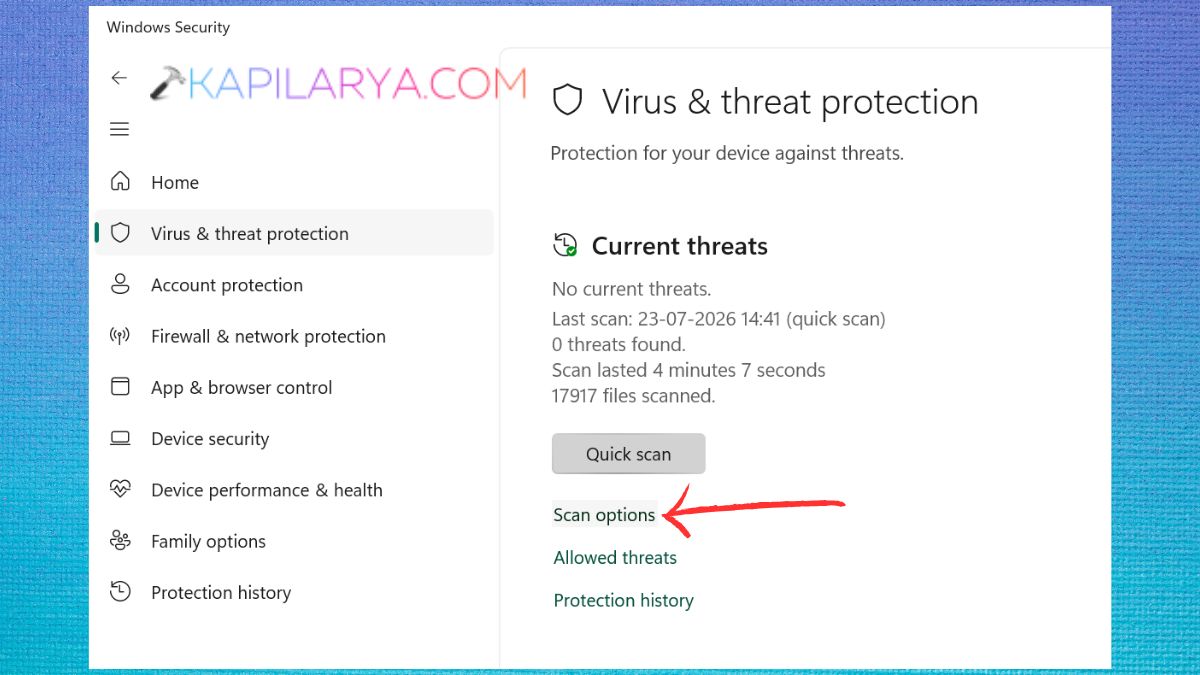
1. Open Windows Security. Click Virus & threat protection.
2. Click Scan options.
3. Choose Full scan. Click Scan now.
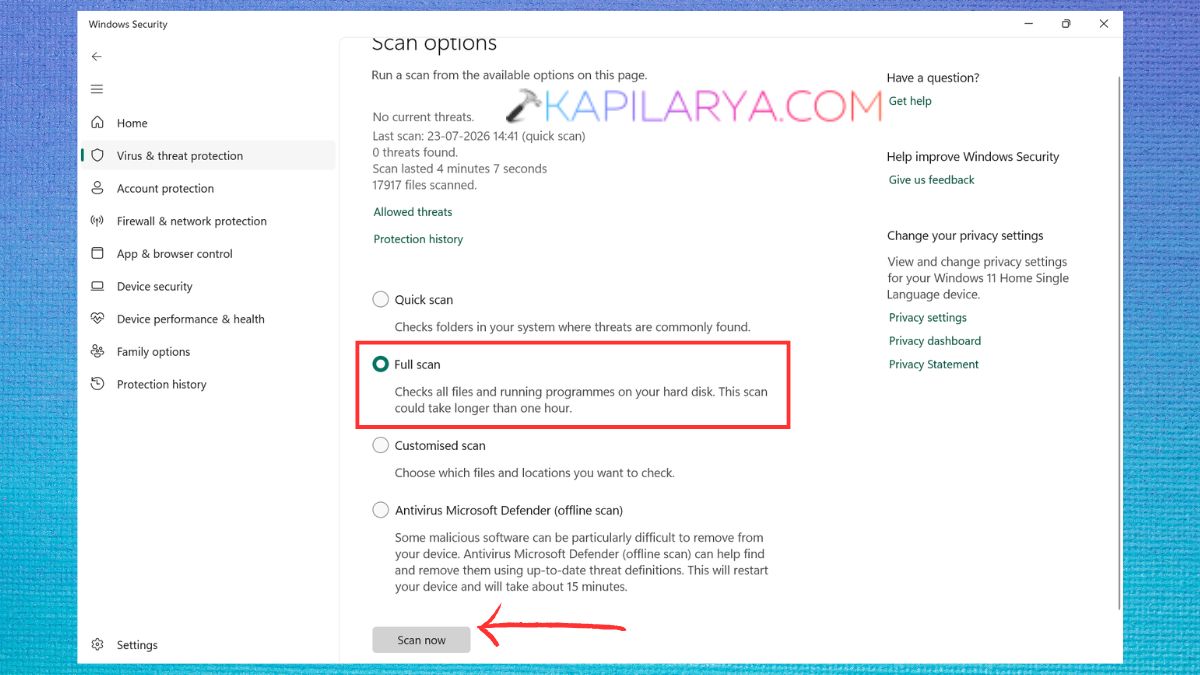
Wait until the scan is finished. This will take some time, depending on the number of files on your PC. If there are any threats found, follow the on-screen instructions to delete or quarantine them. Reboot your computer after you’ve finished the scan. After removing the malware, try to see if the CPU usage has reduced or not.
Fix 7: Disable Real-Time Protection Temporarily
Real-time protection constantly keeps an eye on your system for threats. Sometimes it can get stuck during the scanning process, resulting in an Endpoint Protection Service High CPU issue.
To overcome temporary glitches, turn off and then turn on Real-time Protection.
1. Open Windows Security. Click Virus & threat protection.
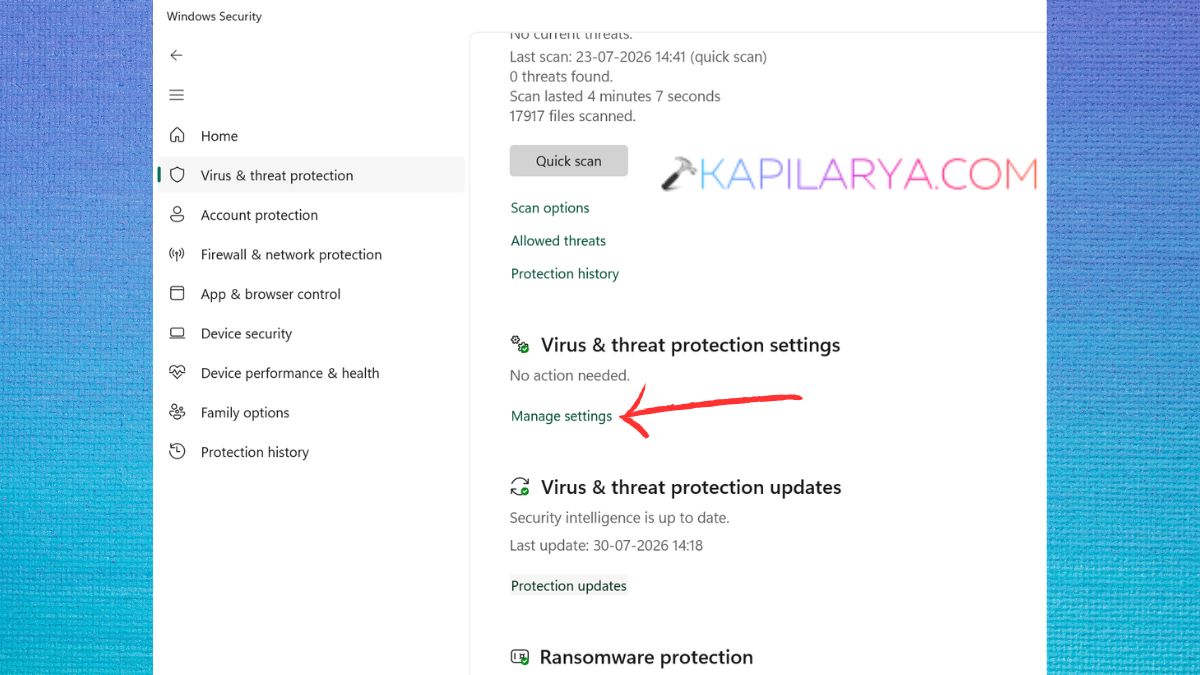
2. Click Manage settings in the Virus & threat protection settings.
3. Turn Real-time protection off. Wait for 2–3 minutes.
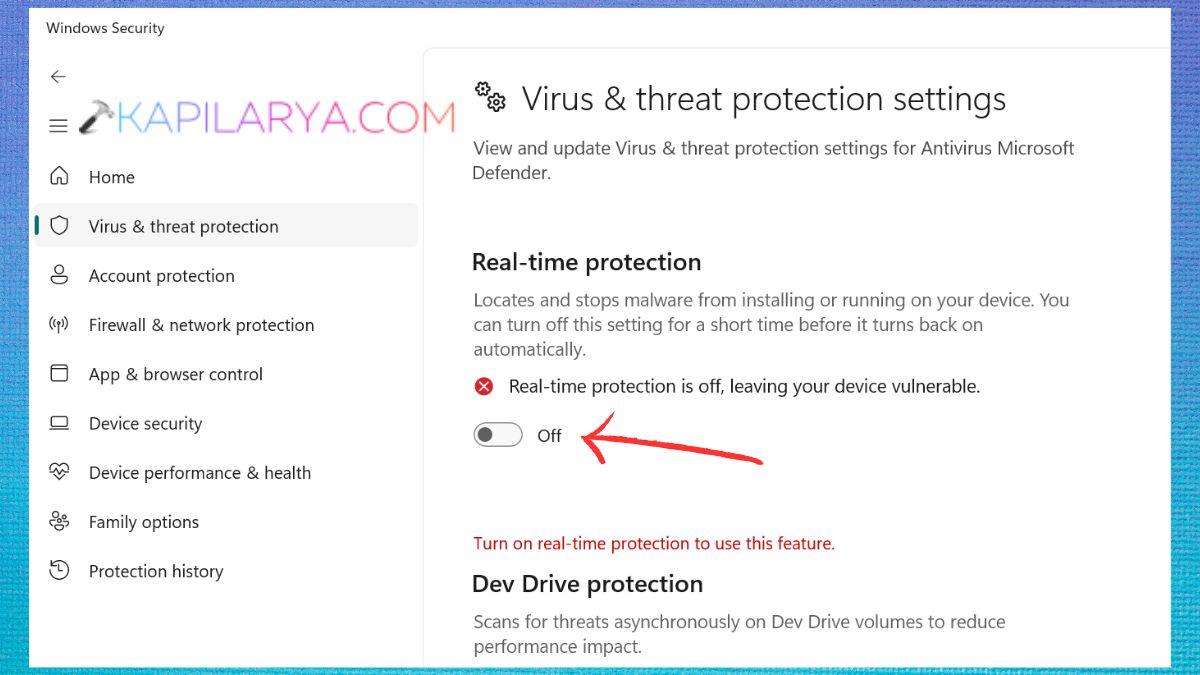
4. Return to Real-time protection On. Restart your computer.
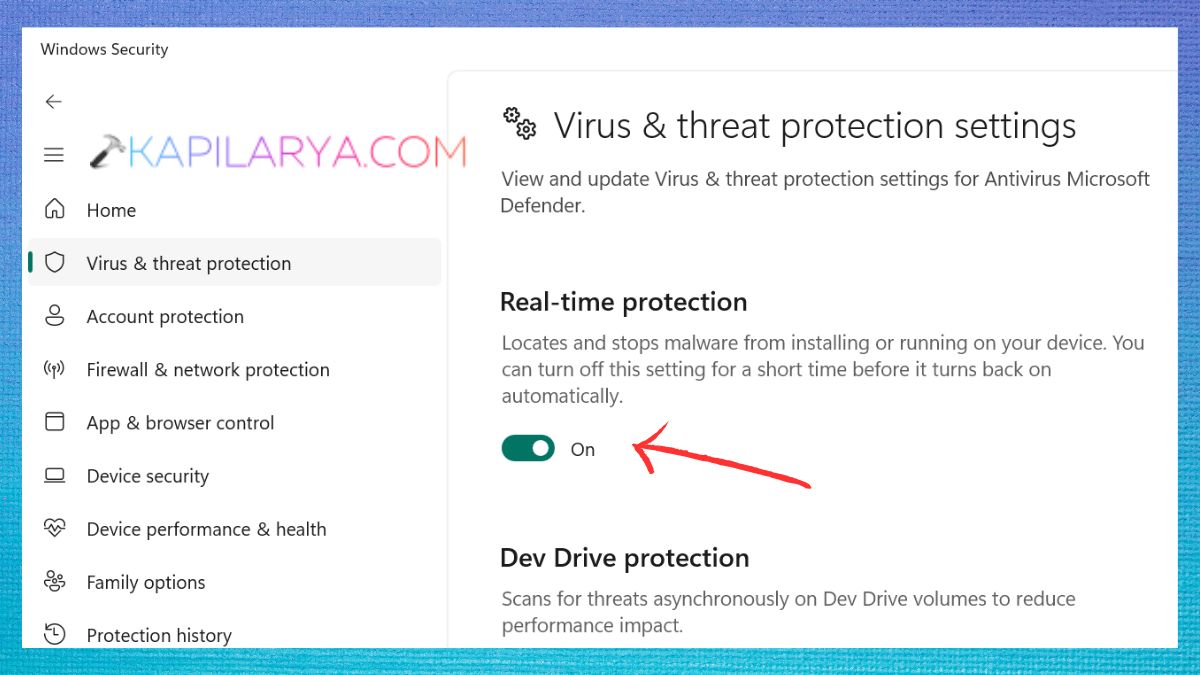
Once it restarts, check how much CPU it is using in the Task Manager.
Fix 8: Check for Third-Party Antivirus Conflicts
If you’ve third-party AV installed, it can create conflict with Windows Security comes pre-installed with Windows 11 and can lead to high CPU usage for this case.
Generally, only one active antivirus solution is recommended.
1. Tap Windows + I to open Settings. Go to Apps > Installed apps.

2. Identify whether an Antivirus program is installed or not. Put it on a temporary hold to block its real-time protection or Uninstall it if not needed.

Restart your computer. Turn on Task Manager and see if the CPU utilization is better. If the problem goes away without the third-party anti-virus installed, it was probably the third-party anti-virus causing the conflict.
Fix 9: Perform a Clean Boot
Background applications and services can affect the functionality of Windows Security, which can cause the Endpoint Protection Service to use too much CPU. A Clean Boot will boot Windows with only the essential Microsoft services running, which will help you to see if there are any software conflicts.
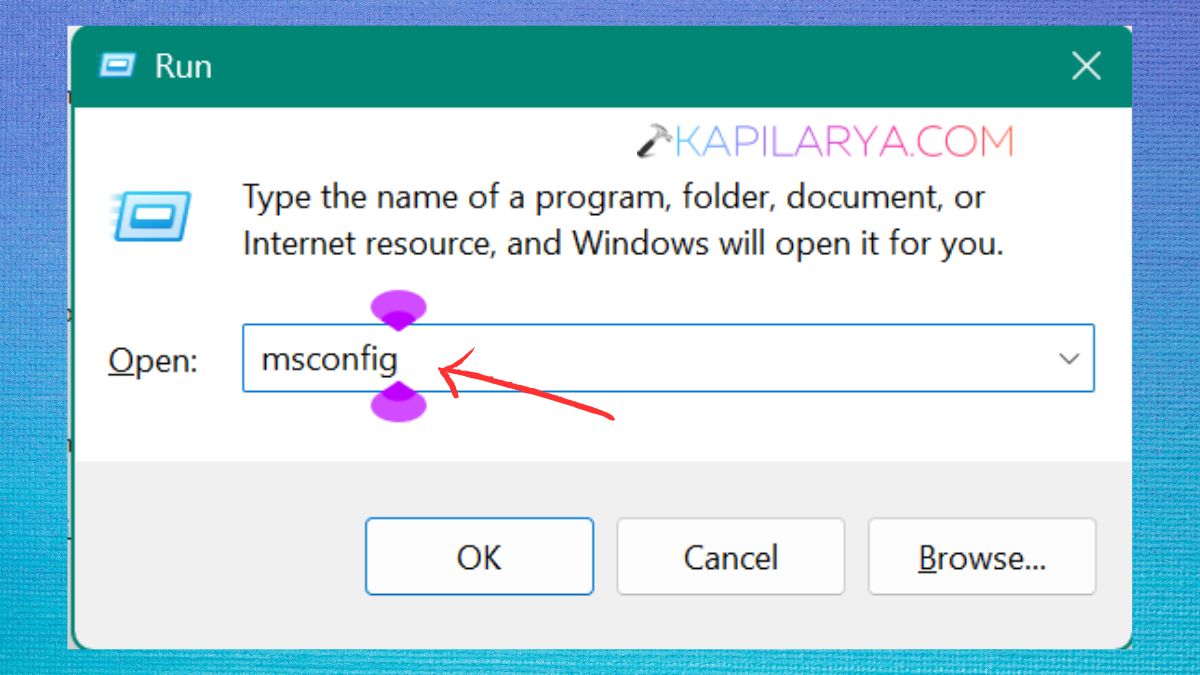
1. Press Windows + R, type this and then press Enter.
msconfig
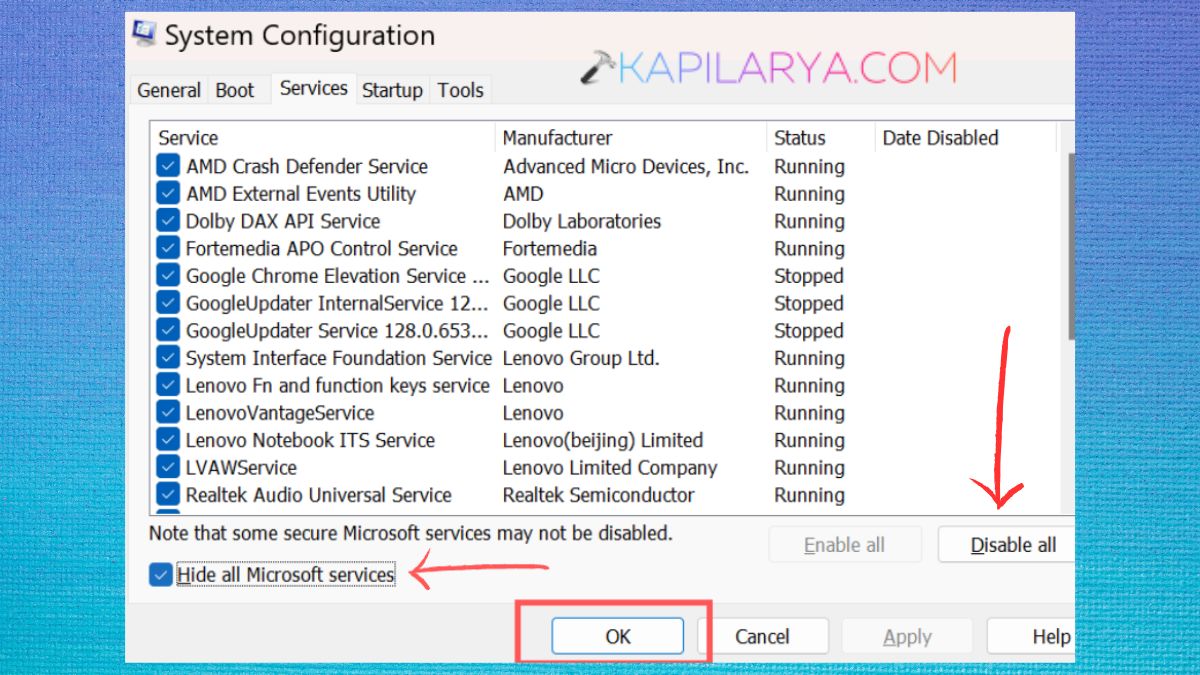
2. Open the Services tab in the System Configuration window. Verify Hide all Microsoft services. Click Disable all.
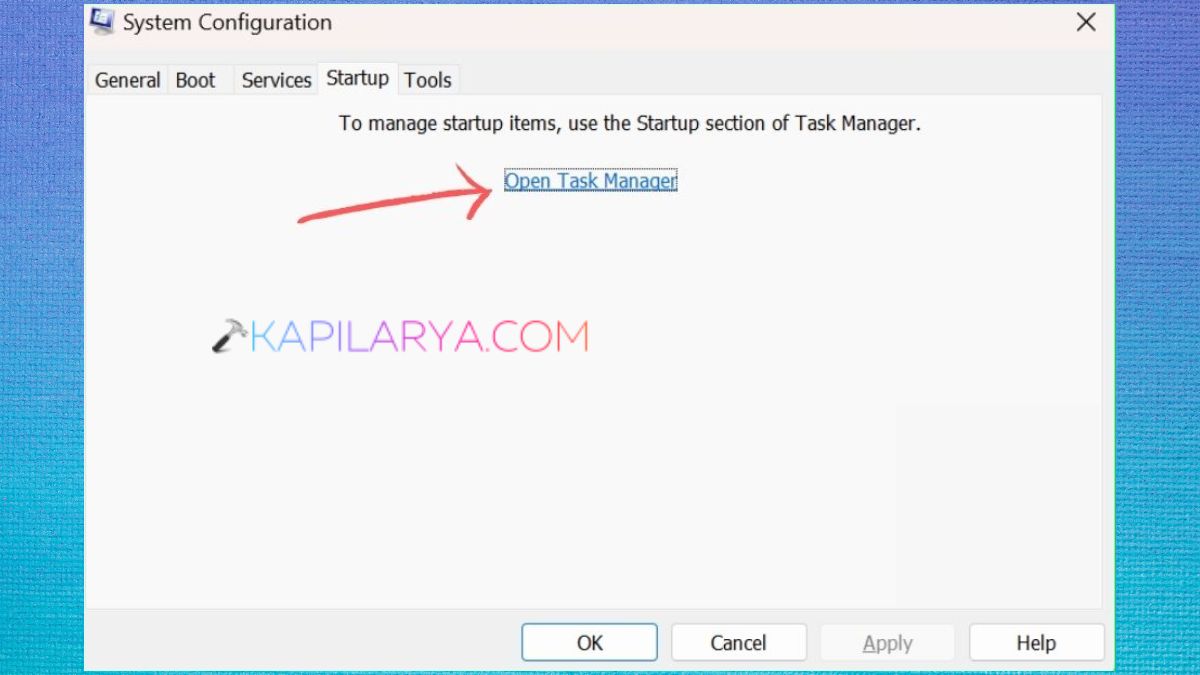
3. Switch to the Startup tab and click the Open Task Manager button.
4. Turn off any applications that do not need to start up when your computer is turned on. Close Task Manager and then click OK in the System Configuration window. Then, restart your computer. If the CPU usage returns to normal after a Clean Boot, then enable the components that were turned off one by one to determine which one is causing the problem.
Fix 10: Repair or Reset Windows Security
If the Windows Security file is corrupted, application repair or reset can correct abnormal CPU usage by restoring application defaults.
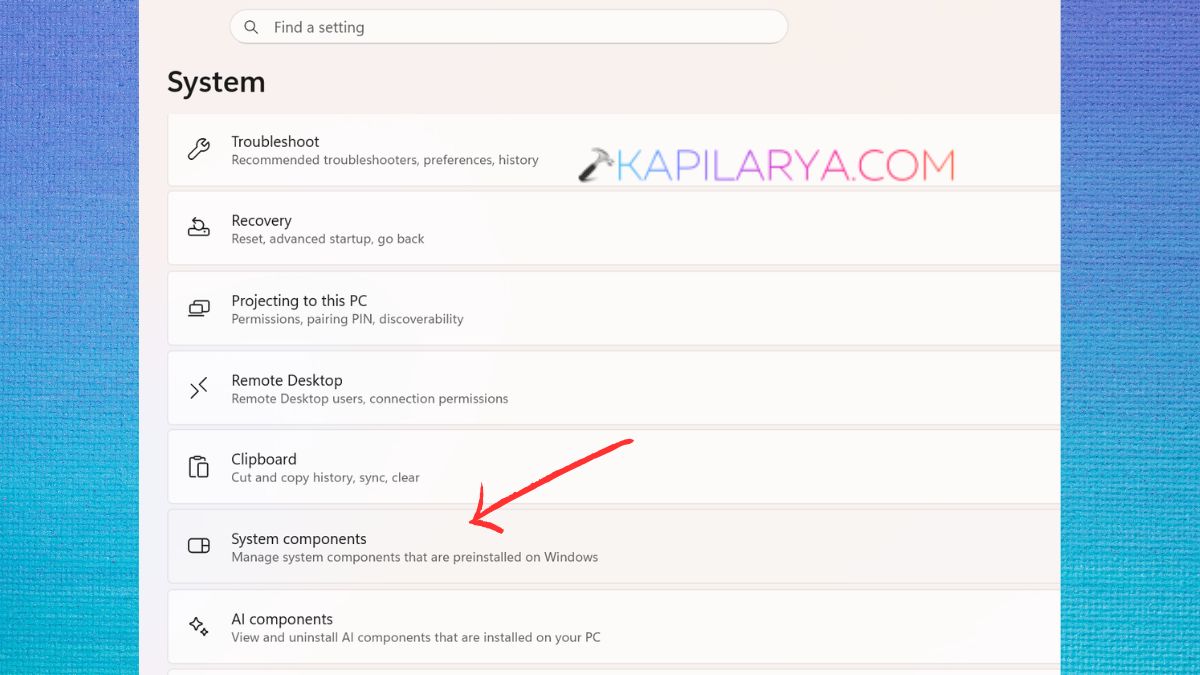
1. If you press Windows + I, you will open Settings. Go to Apps > System Components.
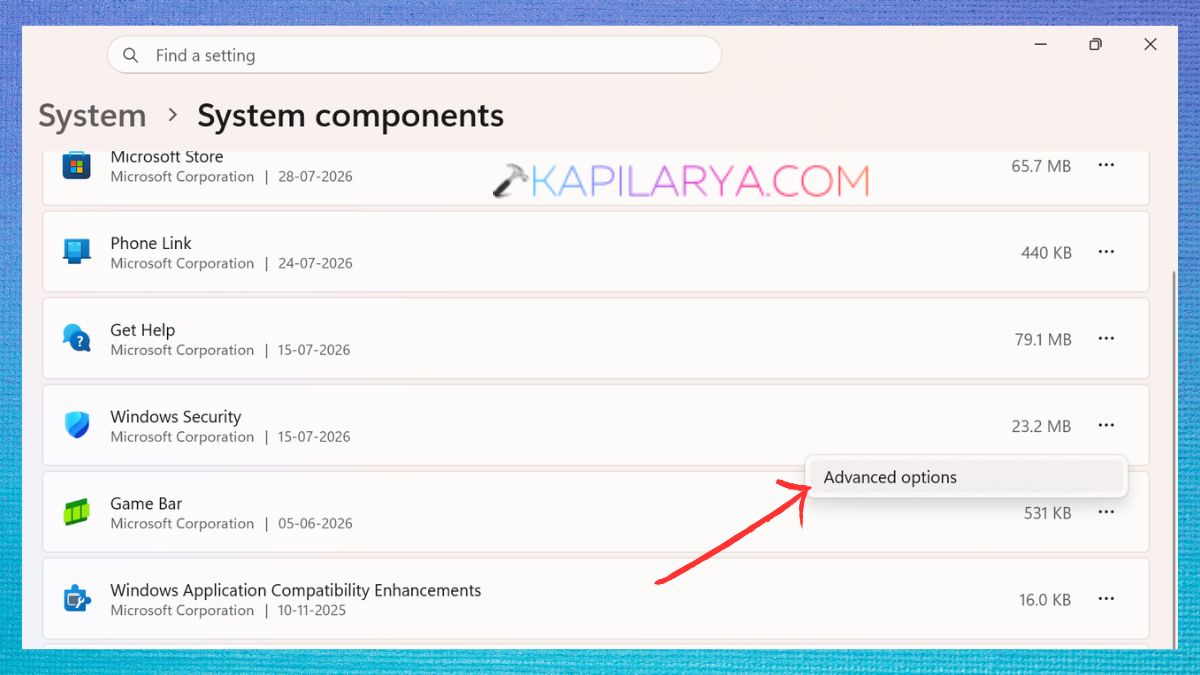
2. Locate Windows Security. Next to it, click on the three-dot menu and choose Advanced options.
3. Scroll down and then click Repair.
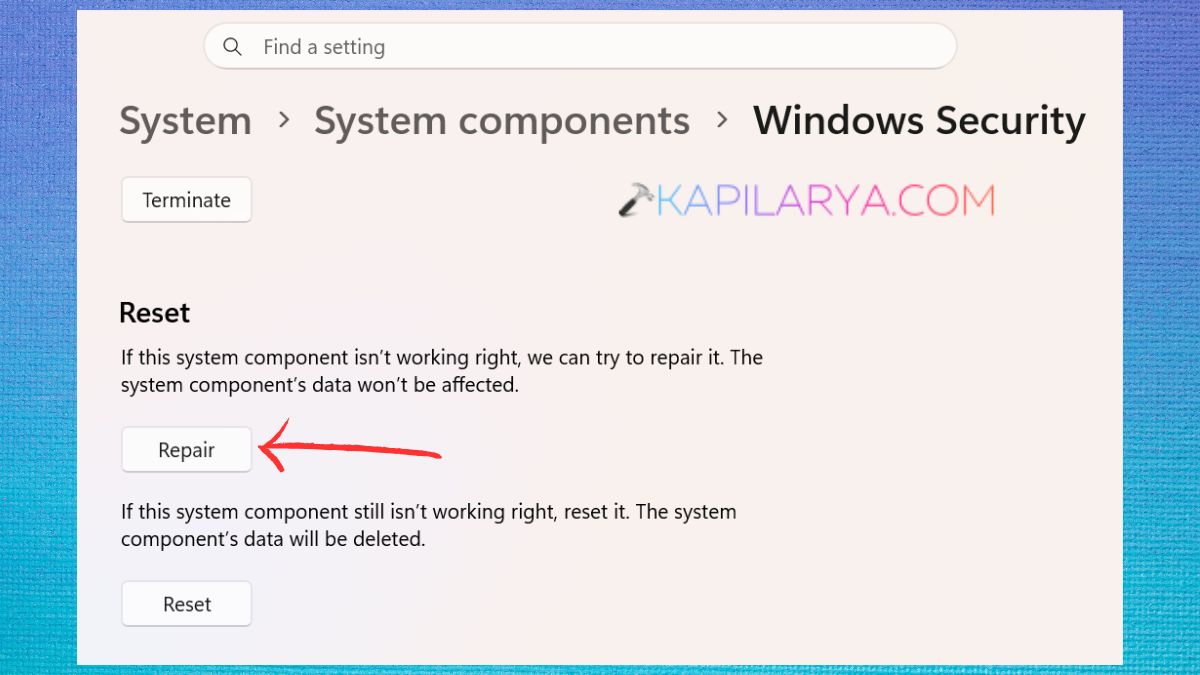
Reboot the computer and test to see if the problem has been solved. If Repair is not successful, reset Windows Security (If Repair Doesn’t Work). Click Reset. When asked, confirm your selection.
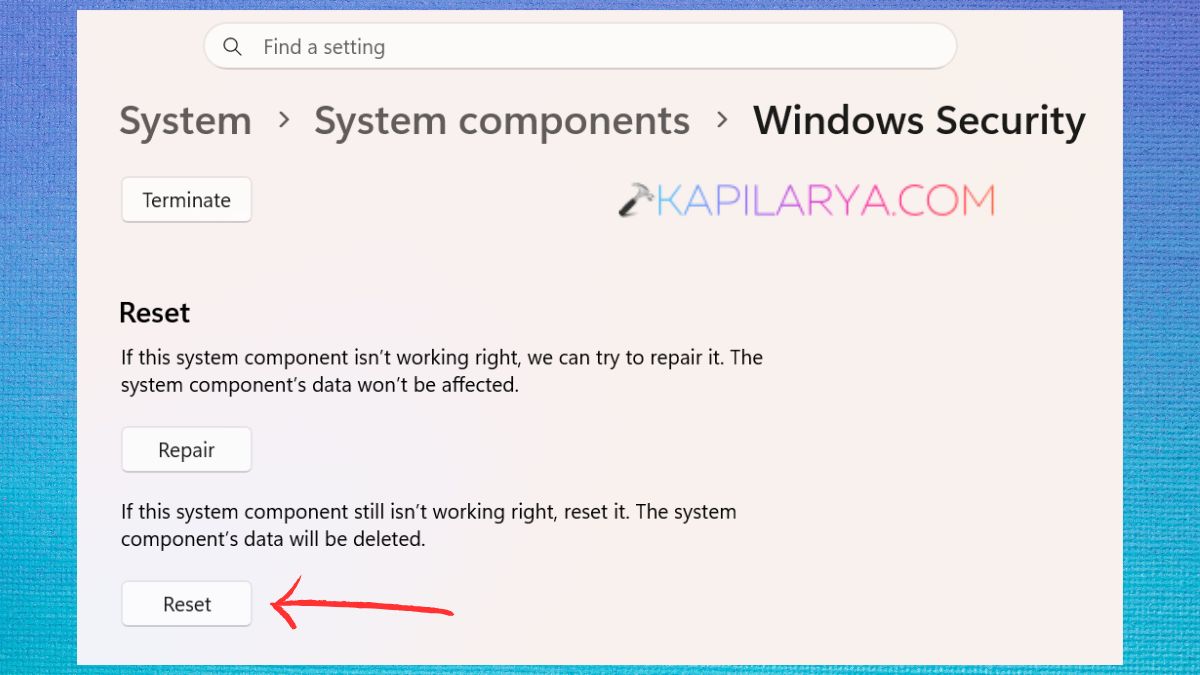
Restart your computer. Resetting Windows Security restores the default settings to the Windows Security settings, which can help to resolve persistent Endpoint Protection Service High CPU in Windows 11 issues that may be due to corrupted settings, without affecting your personal files.
Is High CPU During Antivirus Scans Normal?
Yes, it’s perfectly normal if Endpoint Protection Service or Microsoft Defender consumes more CPU during the virus scan. The security service scans thousands of files, processes and areas of the system to look for malware or suspicious behavior. It will need extra processing power and may cause the CPU to use more power for a while.
Once the scan has completed, the CPU usage will return to normal in most cases. If the service has been using a lot of CPU for a long time since the scan completed, however, it could be a sign of a problem with the system, such as corrupted system files or outdated security definitions, or a conflict between two or more software applications.
To determine if there is a scan in progress, open Windows Security > Virus & threat protection and view the scan status.
Why Does High CPU Happen After Windows Updates?
It is normal to see more Endpoint Protection Service or Microsoft Defender CPU usage after installing a Windows Update. Typically, this occurs when Windows is running some background processes after updating, such as:
- Rebuilding security databases.
- Updating Microsoft Defender security intelligence.
- Scanning the newly installed system files.
- Optimizing Windows components.
- Assessing for malware on updated files.
The background activities can cause a high CPU usage for several minutes or even longer, depending on your system.
If CPU usage is still high after the update, you can restart your PC or check out the troubleshooting options mentioned in this guide.
What is MsMpEng.exe and Why is it Using High CPU?
The Antimalware Service Executable (MsMpEng.exe) is the primary background process for Microsoft Defender Antivirus. It is responsible for scanning files, monitoring applications, detecting threats, and providing real-time protection against malware.
This is a normal occurrence because this process will manage your PC’s security, thus consuming some CPU resources, particularly when performing a scheduled scan or full system scan.
If, however, MsMpEng.exe is using a large percentage of CPU on a regular basis when your computer is not being used, it could be due to:
- Running a full antivirus scan in the background.
- Bad Windows system files.
- Older Microsoft Defender updates.
- Malware that sends out scans over and over.
- Conflicts with another antivirus program.
You can prevent too much CPU utilization and still maintain your system’s security by following the solutions in this guide.
Can You Disable or Remove Endpoint Protection Service?
For troubleshooting reasons, some features of Windows Security can be temporarily disabled, such as Real-time Protection. It is not, however, recommended to permanently disable or remove the Endpoint Protection Service.
This service is crucial to safeguarding your computer against viruses, ransomware, spyware, and other forms of cyber attack. If left on permanently, your system might be susceptible to malware attacks.
If the service is consuming a lot of CPU, it’s best to determine the cause of the high CPU usage and correct it, rather than turning off the security protection completely.
In the case of a trusted third-party antivirus program, Microsoft Defender might try to minimize its usage to prevent conflicts.
How to Prevent Endpoint Protection Service High CPU
While occasional CPU spikes are normal, you can help prevent the Endpoint Protection Service High CPU issue in Windows 11 by using the best practices given in this article.
These simple maintenance activities can help improve the overall system performance as well as avoid any unnecessary CPU usage in the future.