The next feature update, i.e. Version 26H2 to Windows 11 is here. After every update, there are some unexpected issues that may appear. In this guide, we would be talking about one such issue. On some devices the audio may not work as expected, after upgrading to the latest version. As of what we know, it is affecting limited number of devices at the moment.
Page Contents
Audio not working after Windows 11 Version 26H2
According to Microsoft, after updating to Windows 11 Version 26H2, some devices lost audio. They might fail to start or produce audio. In case if you have USB Audio Class 1.0 devices, you may expect following symptoms with those devices:
- The device displays an error in Device Manager: “This device cannot start (Code 10).”
- No audio output.
- Volume controls are unresponsive or remain at zero.
- Sound settings are unresponsive or unavailable.
The issue has been identified by Microsoft but the company is currently working on a resolution. So at the moment you cannot resolve it immediately but you can try out some workarounds to fix this issue temporarily. These workarounds would also be helpful, in case if you do not have USB Audio Class 1.0 devices and still have the issue.
Fix 1: Reinstall audio driver from device manufacturer
This is one of the most recommended solution for these type of problems. The Microsoft may be be aware of the issue and working on it to resolve but the device partners or the device manufacturers may also work on this issue at their own end. Thus it is recommended to get the driver installed from the Original Equipment Manufacturer (OEM).
1. First open the Device Manager, and locate your audio driver. If it exhibits any of the symptoms mentioned above, you can try uninstalling it by doing right click on it and select Uninstall.
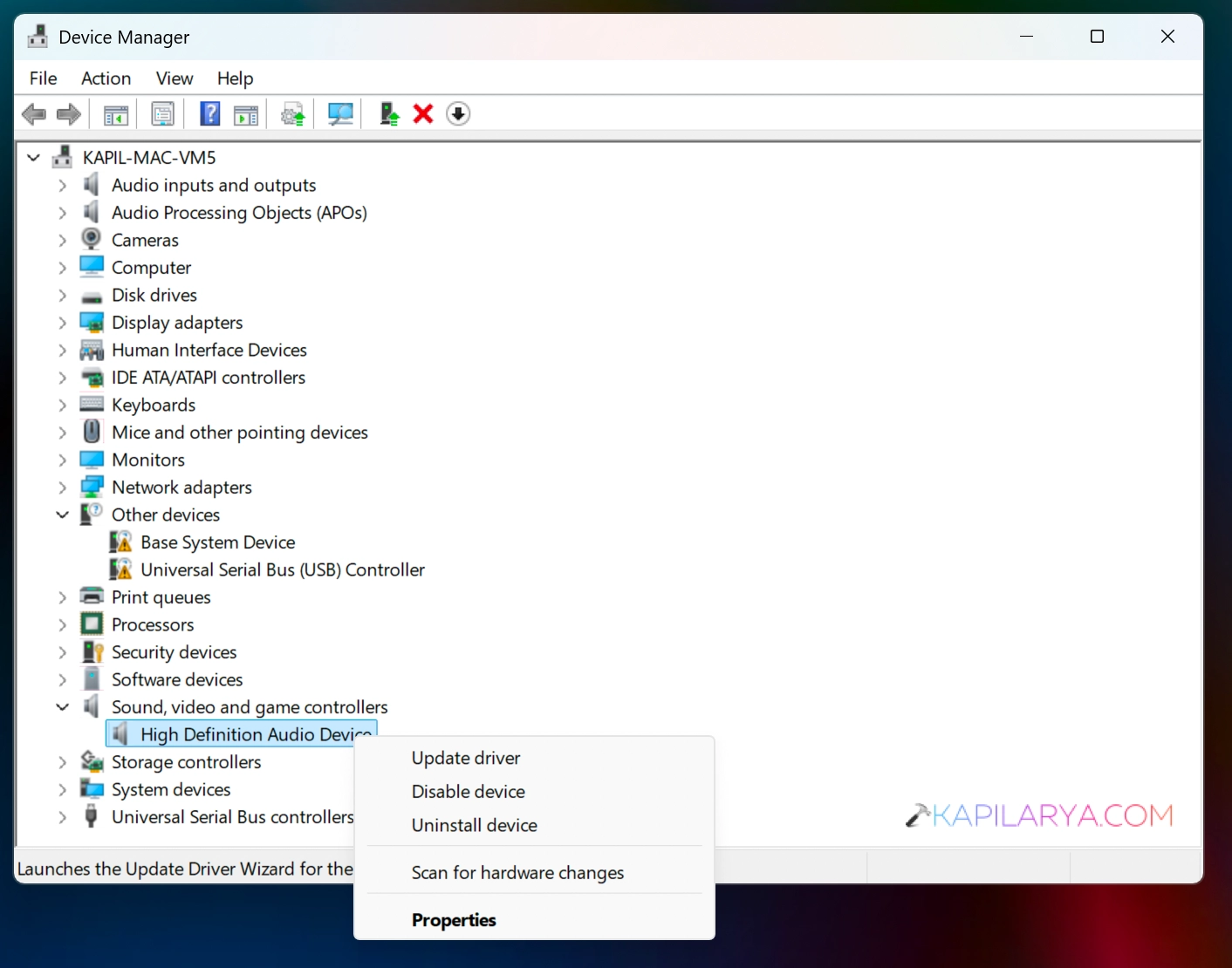
2. Then go to your device manufacturers website and search for the audio driver for your system model. From there you can download the audio driver for your device and install it.
Once you have the latest version of your audio driver installed, this issue can be somehow fixed.
Fix 2: Check audio services
1. Open the Services snap-in by running services.msc command.
2. Once the Services window is there, locate these two services and make sure they have Automatic startup type and they’re Running:
- Windows Audio
- Windows Audio Endpoint Builder
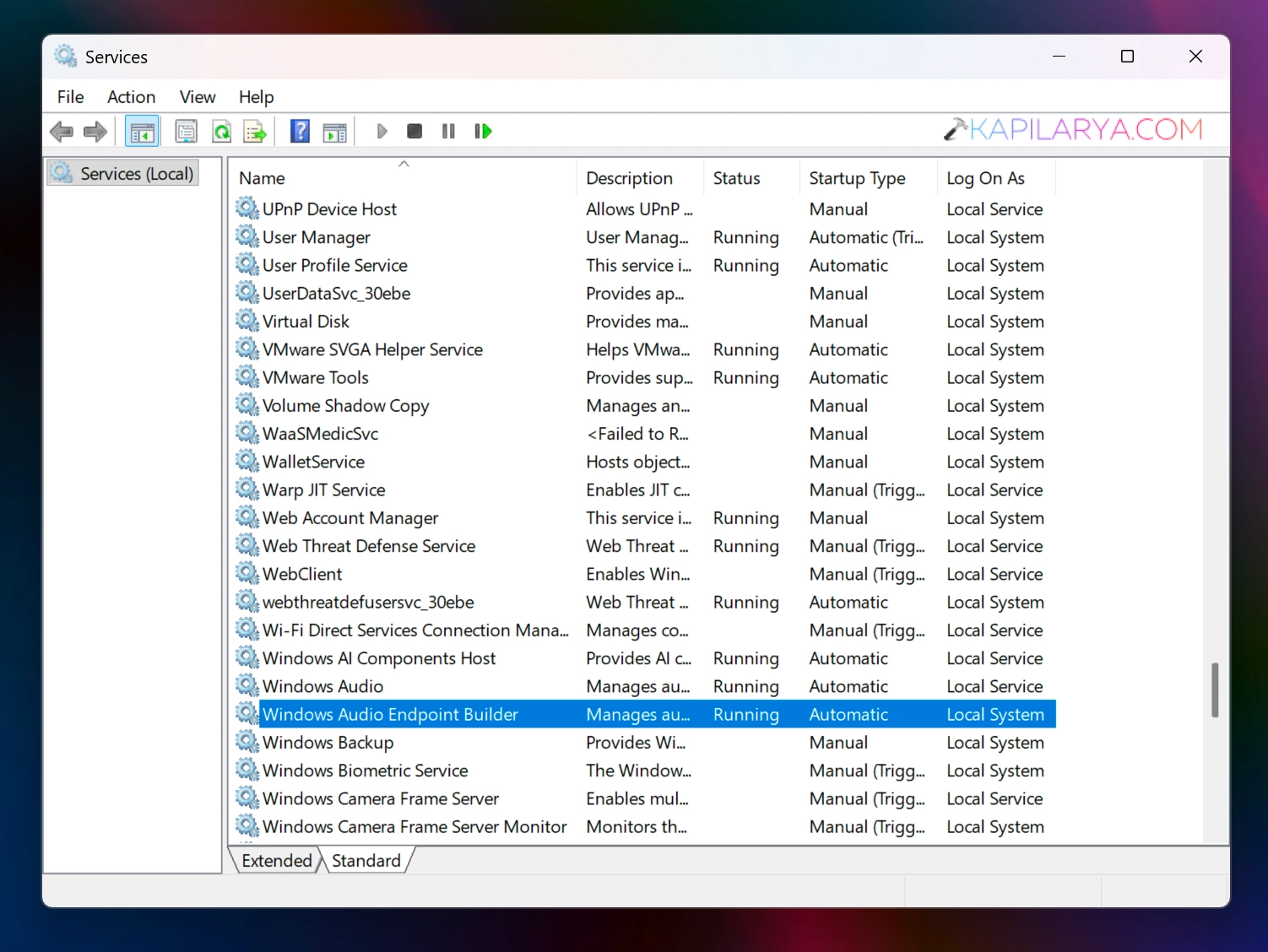
If the root cause is something else then driver and it might be the audio service. Restarting or reconfiguring the audio services can help you resolve this issue.
Fix 3: Run Audio troubleshooter
Lastly you can run the Audio troubleshooter to fix any other issue related to the audio that might be affecting your experience.
1. Open the Settings app and go to System then Troubleshoot > Other troubleshooters.
2. In the list of troubleshooters, locate the Audio trouble shooter.
3. Click on the Run button next to it.
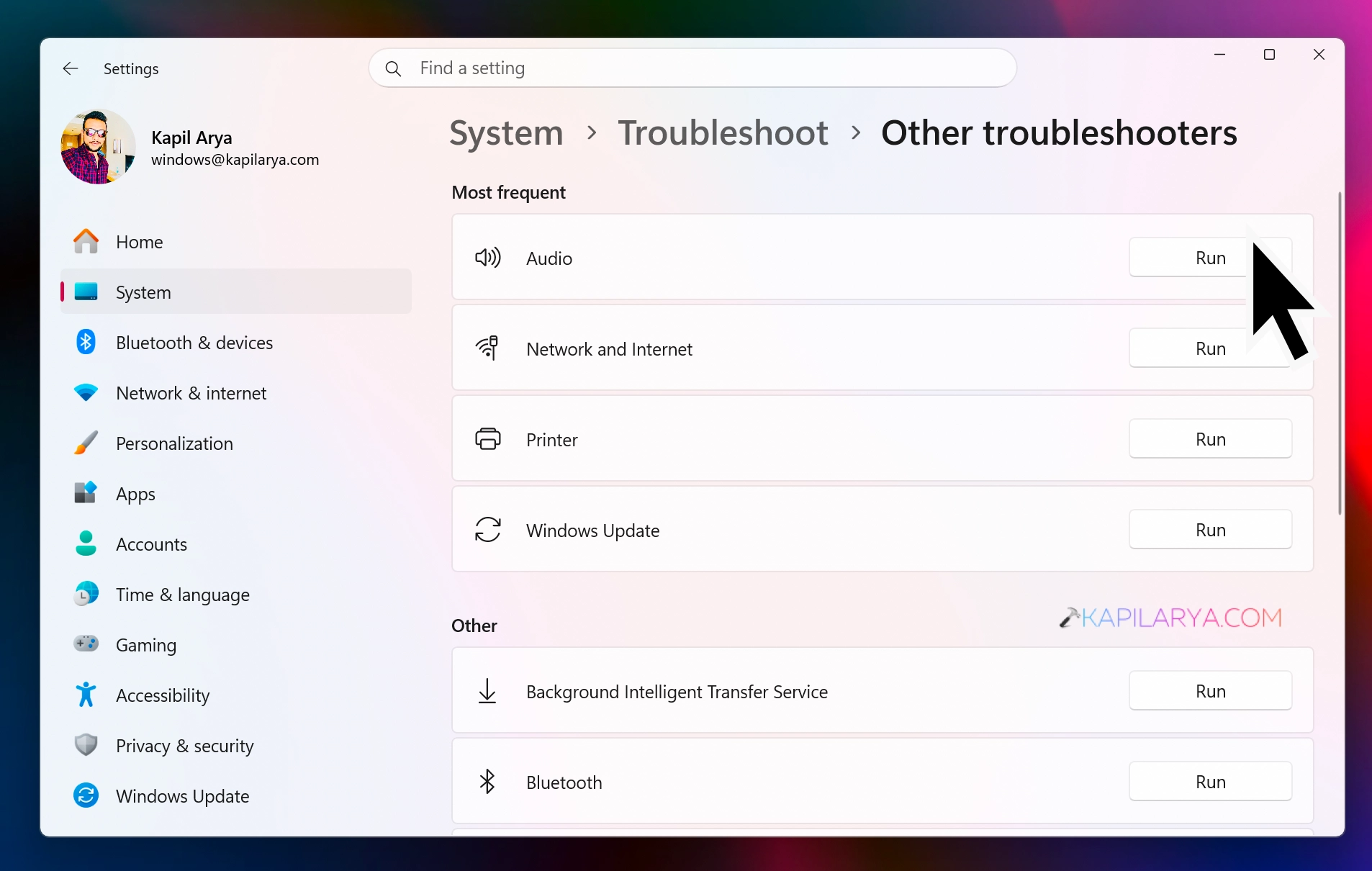
4. Let the troubleshooting be completed with the help of Get help app.
I hope after trying these steps, you would be able to resolve the other issues affecting your audio experience.
Frequently Asked Questions
Windows Audio Endpoint Builder service.