If you’ve recently changed your hardware, you may encounter activation error code 0xC004F211 in Windows 11. You can fix this error through multiple ways.
Before you begin, make sure you’re connected to the Internet and check your Windows edition under Settings > System > Activation. Also, back up your important files before making major changes.
Page Contents
Fix: Activation Error Code 0xC004F211 in Windows 11
Method 1: Enter Your Existing Product Key
1. Open Settings. Go to System > Activation.
2. Select Change product key.
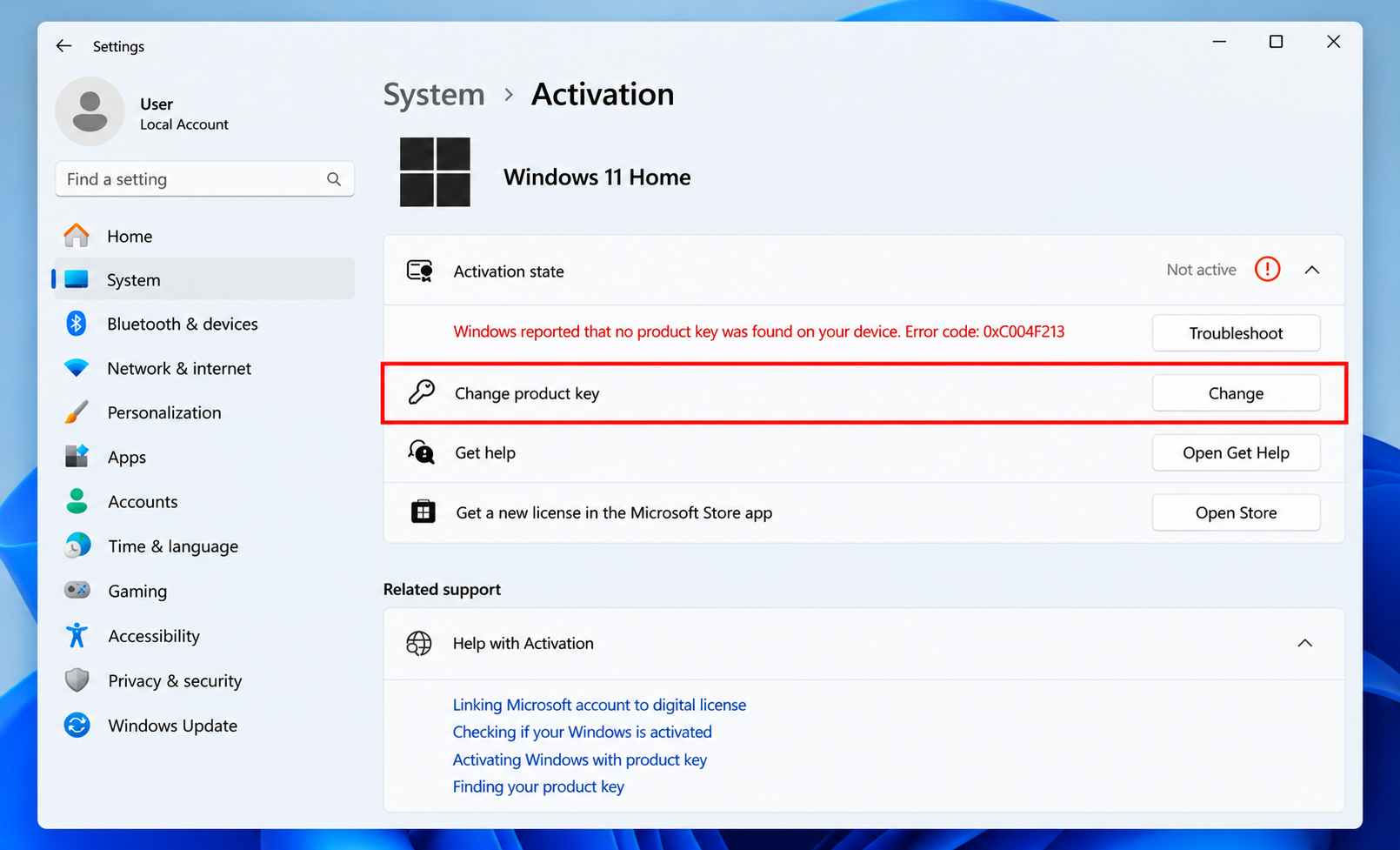
3. Enter your existing 25-character Windows product key.
4. Click Next, then select Activate.
5. Follow the on-screen instructions to complete activation.
If Windows does not accept the key, try the Activation Troubleshooter from method 2.
Method 2: Run the Activation Troubleshooter
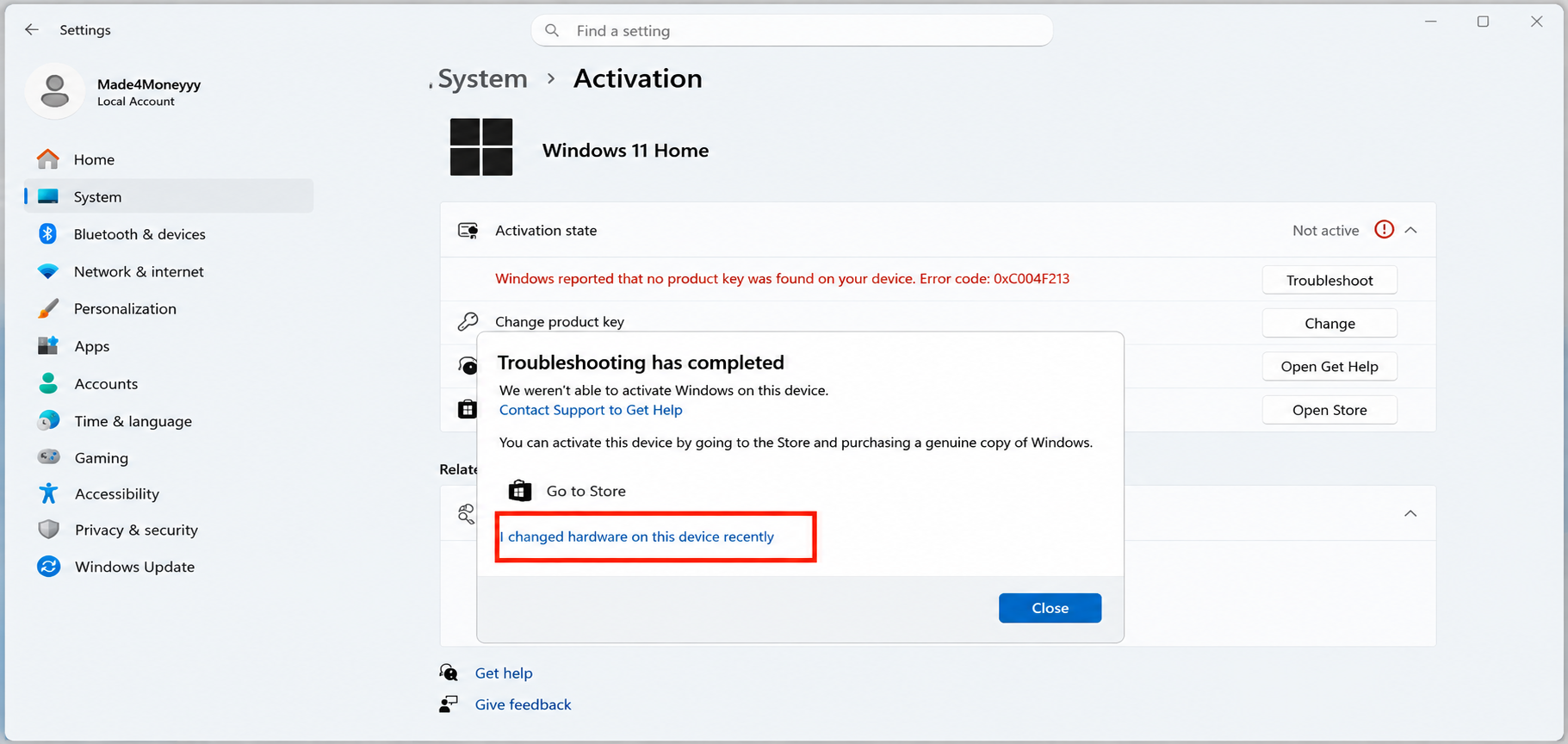
1. Open Settings and go to System > Activation. Click Troubleshoot.
2. Select I changed hardware on this device recently.
3. One done, sign in with the Microsoft account linked to your Windows license.
4. Next, find your previous PC in the list of devices and select it.
5. Check This is the device I’m using right now.
6. Click Activate and follow the on-screen instructions.
If your previous PC doesn’t appear in the list, make sure you’re signed in with the Microsoft account linked to your Windows license. If Windows still won’t activate, proceed to the next method.
Method 3: Activate Windows Using Command Prompt
If Windows does not accept your product key through Settings, use Command Prompt to install the key and activate Windows.
1. Search for Command Prompt in the taskbar.
2. Select Run as administrator and approve the prompt.
3. Type the following command, replacing the Xs with your existing Windows product key, and press Enter: slmgr /ipk XXXXX-XXXXX-XXXXX-XXXXX-XXXXX.
4. Restart your computer.
5. Open Command Prompt as administrator again and run the following command to activate Windows: slmgr /ato
6. To check the activation expiration status, run: slmgr /div
7. If activation succeeds, the license status should show Licensed.
Method 4: Install the Windows Edition That Matches Your License
Windows activation may fail, if the installed edition does not match your license. For example, a Windows 11 Home license cannot activate Windows 11 Pro edition.
1. Click on Open Settings > System > Activation. Check your installed Windows edition and compare it with the edition covered by your license.
2. If you have a Pro license but Windows 11 Home is installed, you can upgrade to Windows 11 Pro first and follow the on-screen instructions.
3. Similarly, if you have a Home license but Windows 11 Pro is installed, back up your files and downgrade to Windows 11 Home using Windows installation media.
4. During setup, select Windows 11 Home. If prompted for a product key, select I don’t have a product key.
5. After installation, sign in with the Microsoft account linked to your license.
7. Now, Open Settings > System > Activation and check whether Windows is activated.
If the correct edition is installed but Windows still shows error 0xC004F211, run the Activation Troubleshooter again.
Method 5: Reactivate a Work or School PC
If your computer is managed by your organization, there is a high chance that they may have already purchased a license. So, contact your IT administrator instead of purchasing a personal license.
1. Contact your IT administrator and explain that Windows shows activation error 0xC004F211 after a hardware change.
2. Tell them if you replaced the motherboard or made another hardware change.
3. Follow your administrator’s instructions to reactivate Windows.
Method 6: Contact Microsoft Support
If the previous methods fail, contact Microsoft Support for help with your license.
1. Open Settings and go to System > Activation. Select Get Help.
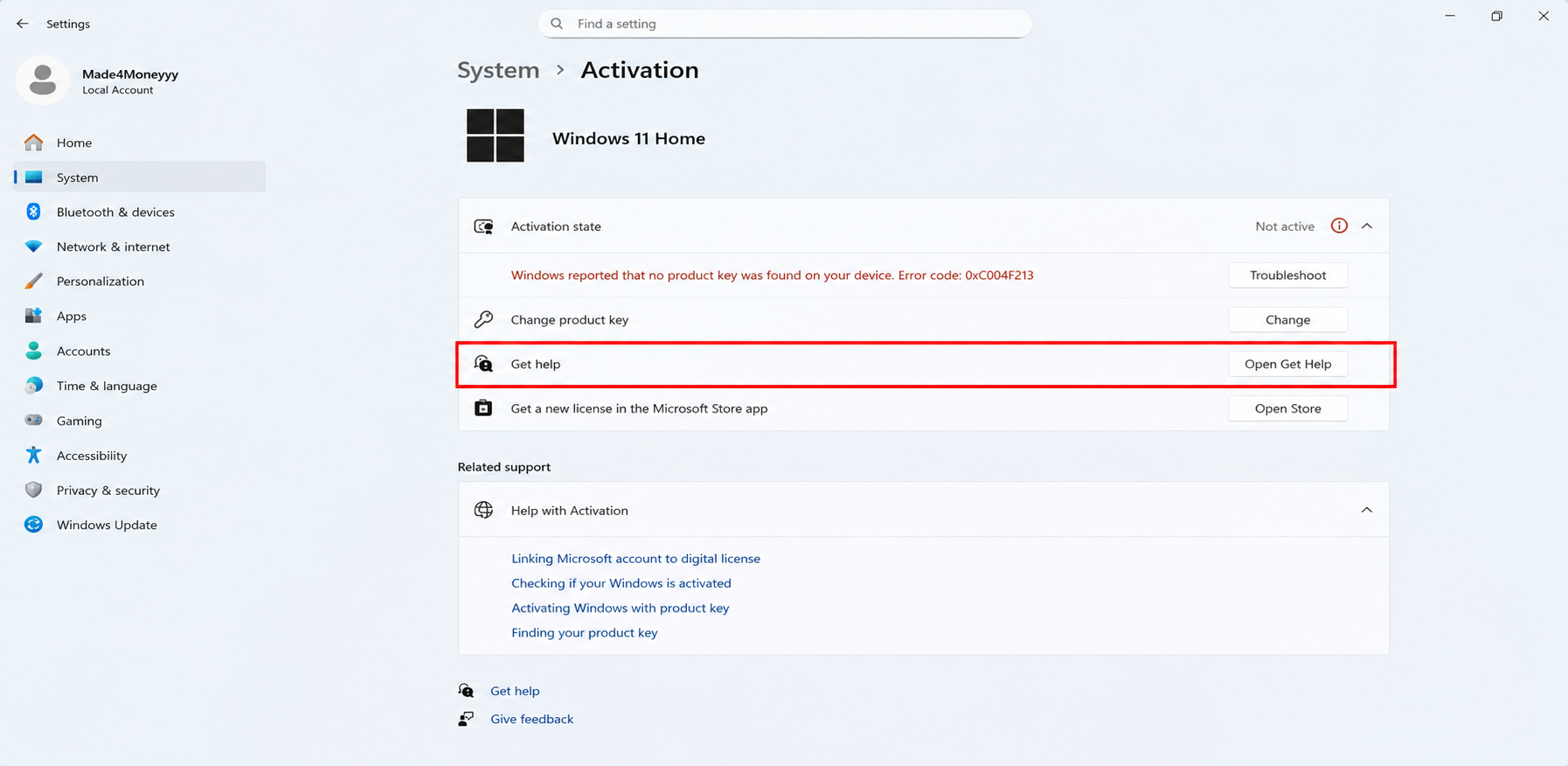
2. Follow the prompts exactly to access Windows activation support.
3. Explain that you are receiving error code 0xC004F211 after a hardware change.
4. Provide your purchase details and the hardware changes you made.
5. Follow the instructions provided by Microsoft Support.
Alternatively, you can also visit the Microsoft Support contact page (https://support.microsoft.com/contactus).
Method 7: Replace license
If you have OEM license, that license is usually tied to the first motherboard it is activated on. And now if you have done the motherboard replacement, the OEM license is no longer valid for the new motherboard. This is because the OEM license does not contains transfer rights unlike the retail license. A retail license slightly costly and have unlimited transfer rights.
So if you have OEM license, and you’ve done that your motherboard replacement, may have to purchase a new license to get it activated on the new motherboard you installed.
That’s it!