The activation in Windows 11 helps you to unlock different features for the operating system. You can activate your Windows 11 system while installing it, or after completing the installation and connecting it to the Internet. You are not allowed to use Windows 11 without activation as it violet’s the licensing agreement. When you have activated copy of Windows 11 operating system, and if you change the hardware, you might need to reactivate. In such a condition, you might receive Windows reported that the hardware has changed error.
Here is the screenshot of such error.
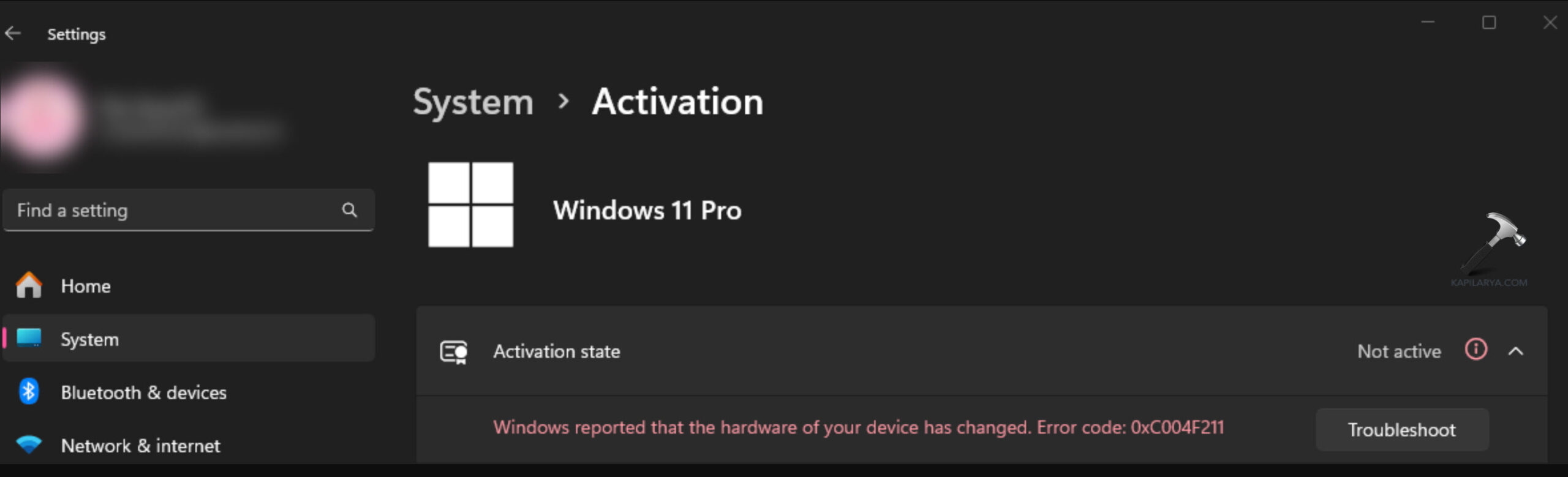
This error is expected to appear when you make the crucial hardware changes, such as changing the motherboard, hard disk etc. In this article, we will see how you can fix out this error and resolve the problem for you.
Page Contents
Windows reported that the hardware has changed in Windows 11
Fix 1: Use Activation troubleshooter
1. Open the Settings app and go to System > Activation.
2. Click on Troubleshoot button next to the error and this will launch the Activation troubleshooter.
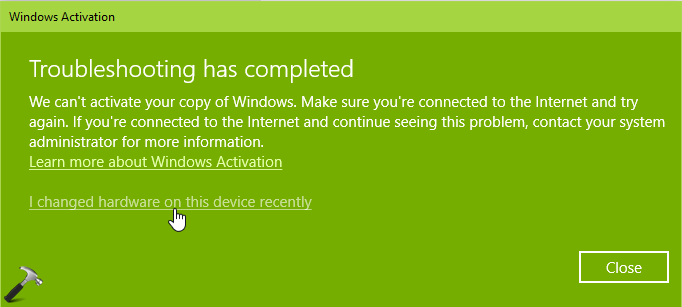
3. You’ll see the troubleshooter says Windows can’t be activated on your device. You have to select I changed hardware on this device recently, and click Next.
4. Now the troubleshooter will ask you to enter your Microsoft account. Just sign into your Microsoft account to pull out the activation information from it.
5. From the list of devices that are linked to your Microsoft account, click on the check box next to This is the device I’m using right now.
6. Finally, click Activate.
7. In few moments, troubleshooter will activate your system and resolve the issue permanently.
Fix 2: OEM vs. Retail license
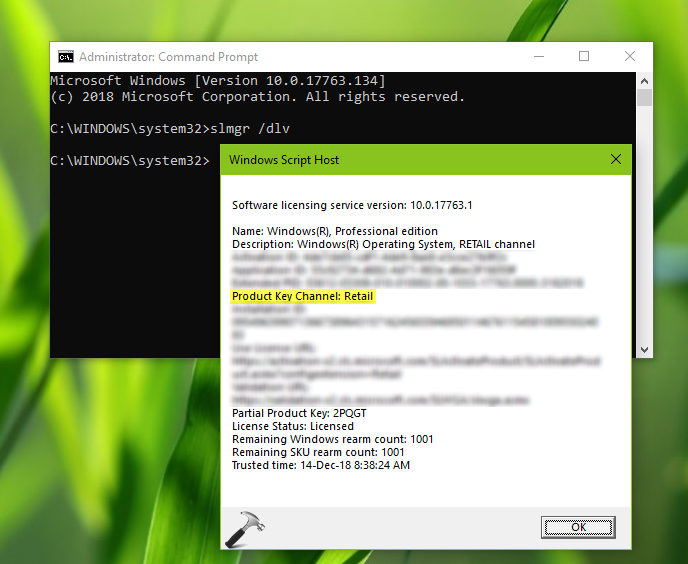
In certain cases, when you change hardware on your system, the re-activation may not work. Because this depends on the license you are using for Windows. Usually, the retail license sold by authorized resellers and Microsoft are entitled to have transfer rights. This means the retail license can be reactivated multiple times on same or different system, and have the transfer rights.
To find out the the license type, check this article.
While on the other hand, usually the OEM licenses that are embedded in pre-installed Windows 11 system by Microsoft Partners such as Dell, HP, Asus, Acer, MSI, Lenovo, etc. doesn’t have transfer rights. This type of license cannot be reactivated, especially when you change the motherboard. These licenses are tied to the motherboard of the system on which it is first activated. This means, if the motherboard for the system is died, so is the license. In other words, for the new motherboard you have replaced, you would also need a new license to activate the Windows 11 system.
Fix 3: Reactivate with retail license product key
The 25-character retail licensed product key you have got can be used to reactivate the system. This product key is unique for your own system. As earlier mentioned in this guide, you can use this retail license key as many as time you want. You can simply follow out these process to reactivate the system.
1. Open the Settings app and go to the Activation page.
2. Then click on the Change button next to Change product key.
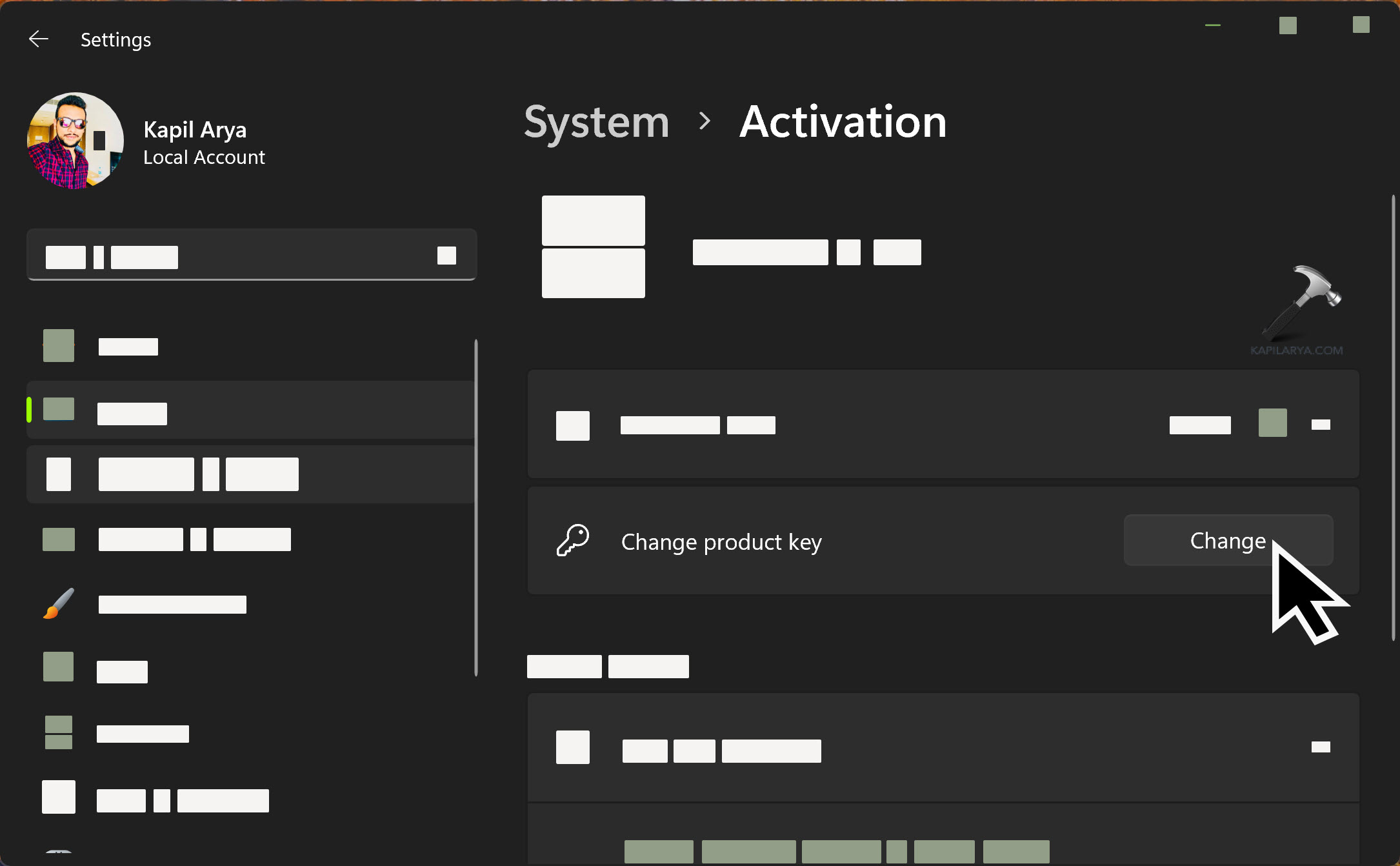
3. Enter your 25-character unique product key and then click. and then click Activate.
4. In few moments, you will see We’ve activated this copy of Windows message.
That’s it!