Installing a Windows update is usually a routine task. But sometimes, after restarting the PC, you may see a message saying that Windows 11 suddenly deactivated after the update.
This can be annoying, especially if your copy of Windows was working perfectly before the update. We’ll the problem is often temporary and can usually be fixed with a few simple steps.
Page Contents
Why Did Windows 11 Deactivate After an Update?
Windows activation issues after an update can occur for several reasons, including:
- Activation files were affected during the update.
- Windows failed to recognise your digital license.
- The update did not install properly.
- License information became corrupted.
- Recent hardware changes triggered activation issues.
- Microsoft activation servers were temporarily unavailable.
Windows 11 Suddenly Deactivated After Update
Let’s see how you can fix it when Windows 11 suddenly deactivates after an update:
Fix 1: Run The Windows Activation Troubleshooter
The built-in troubleshooter can automatically detect and fix common activation problems. Below are the steps:
1. Press Windows + I to open Settings.
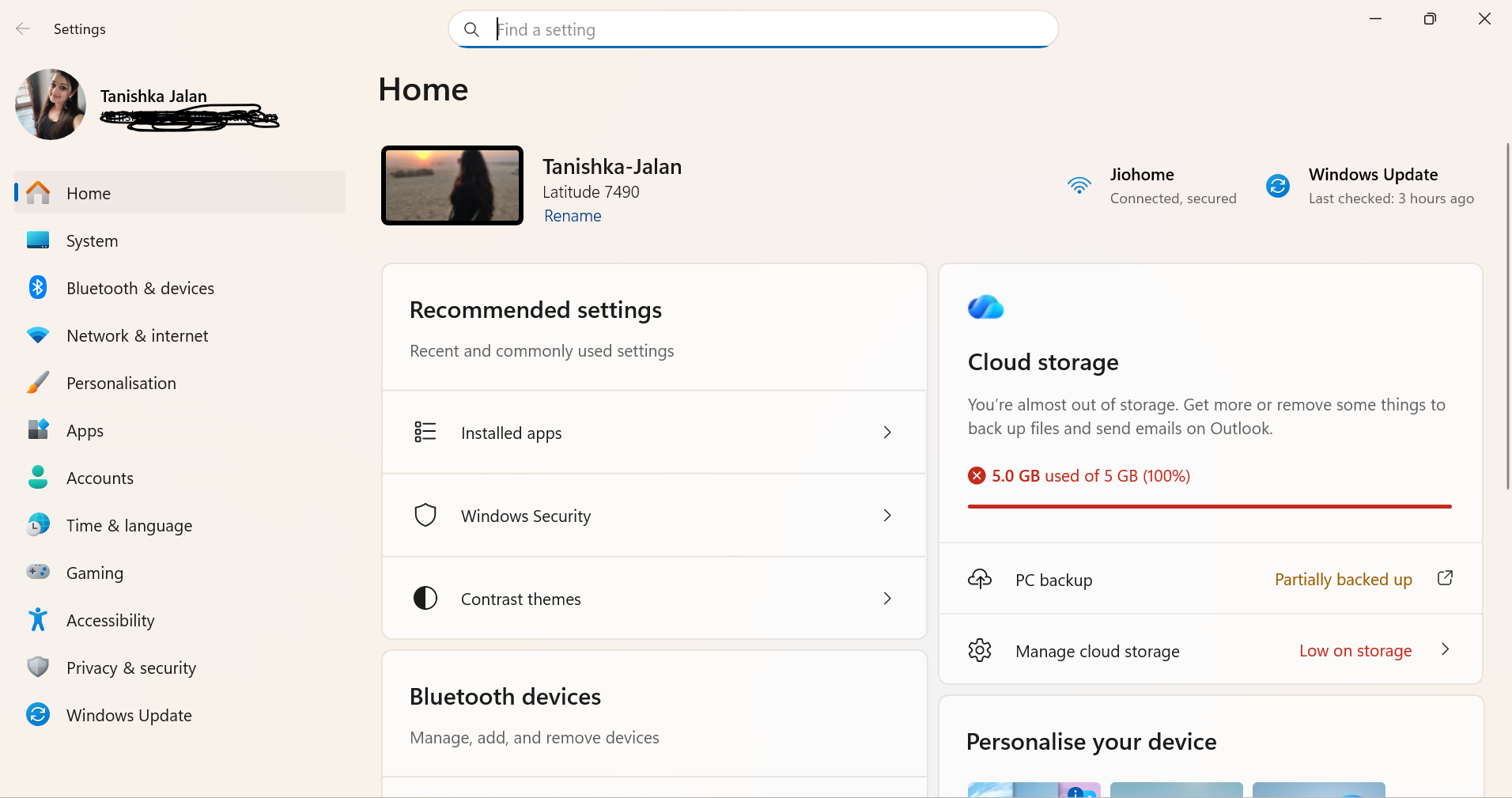
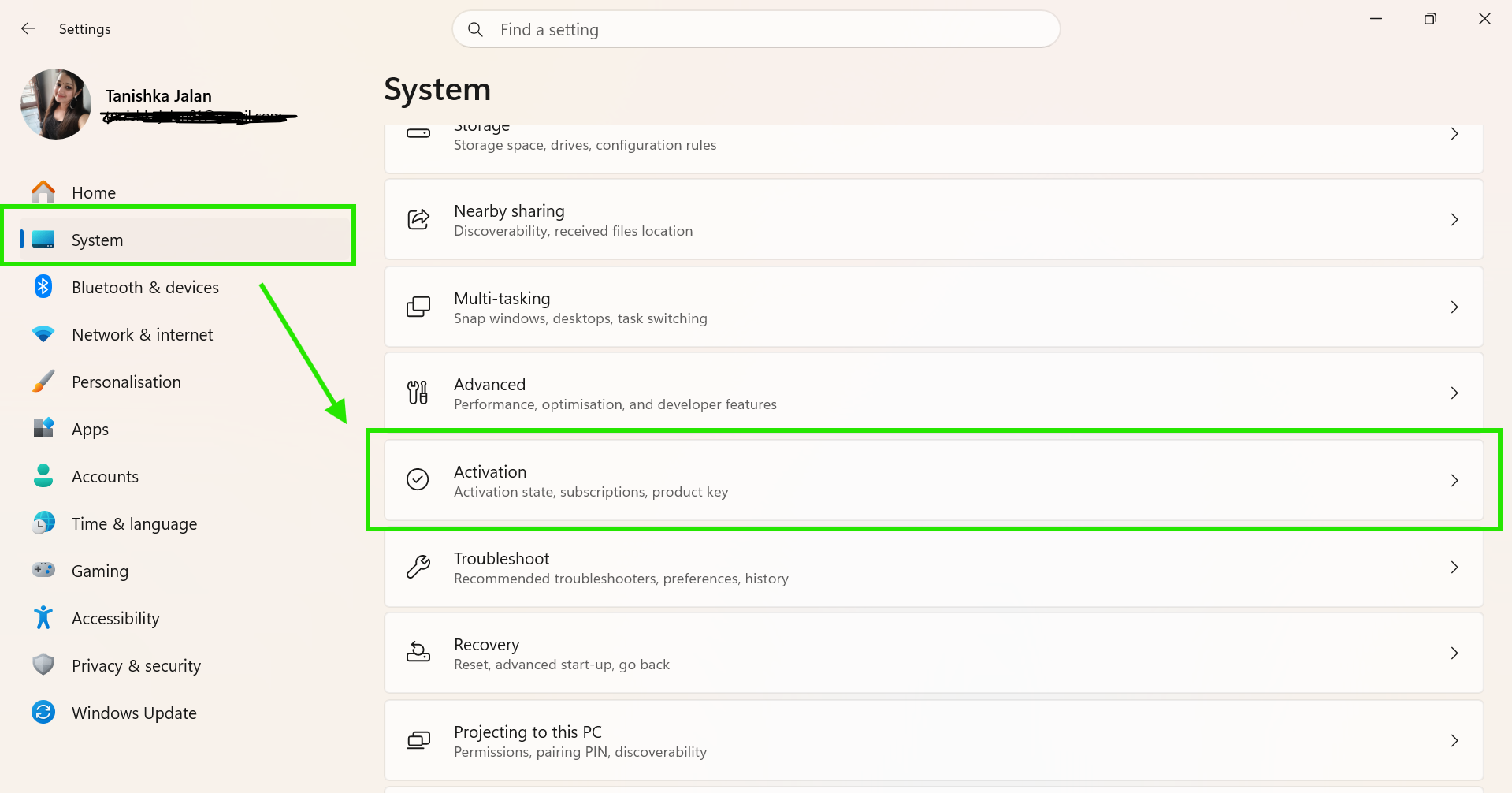
2. Go to System > Activation.
If Windows is deactivated, you will see an error message under the Activation State.
3. Click Troubleshoot.
4. Wait for Windows to scan for activation issues.
5. Follow the on-screen instructions and apply any suggested fixes.
Fix 2: Enter Your Product Key Again
If Windows cannot detect your license after the update, manually entering the product key may help. Here is how to do it:
1. Open Settings.
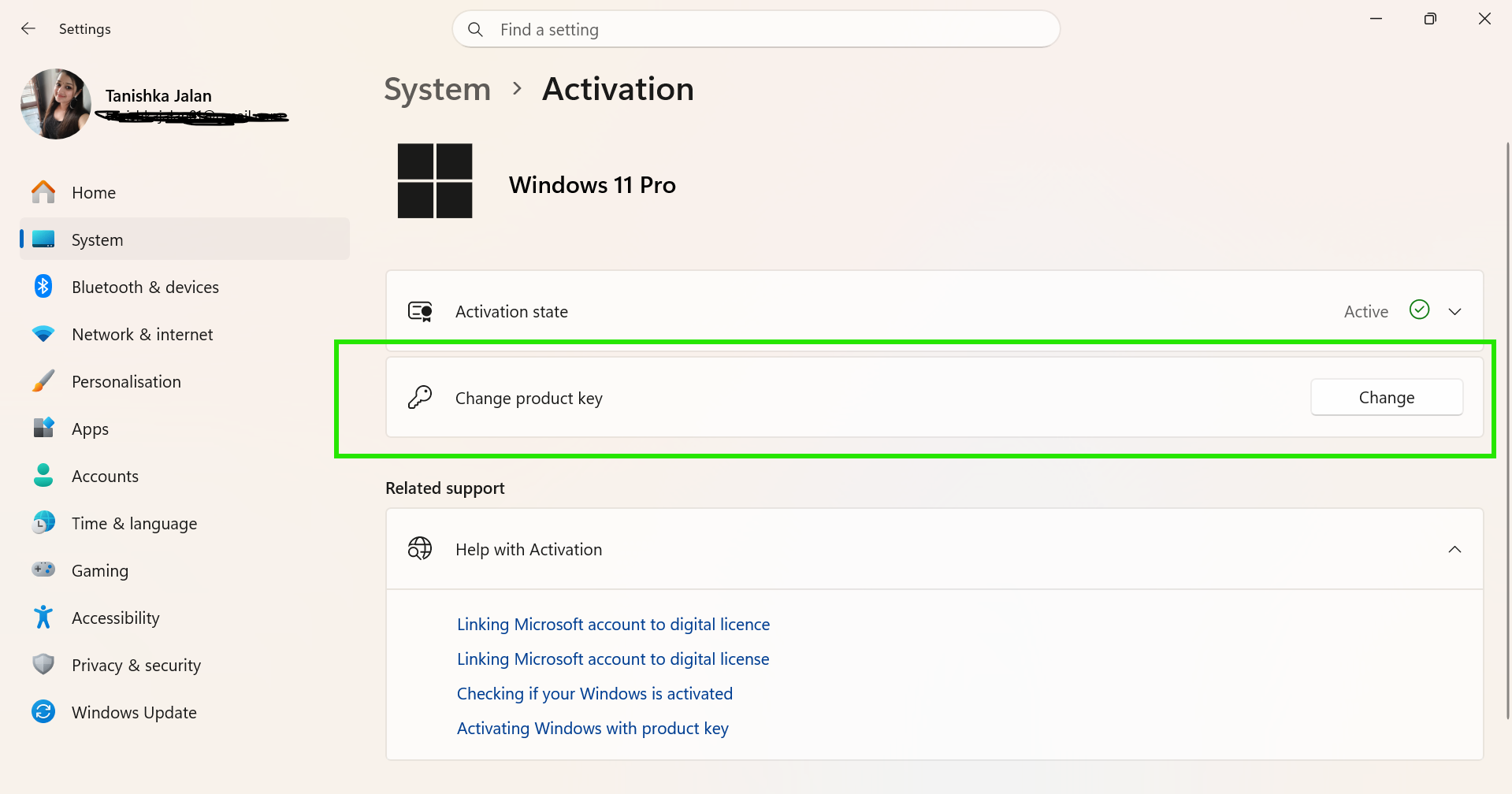
2. Go to System > Activation.
3. Select Change Product Key.
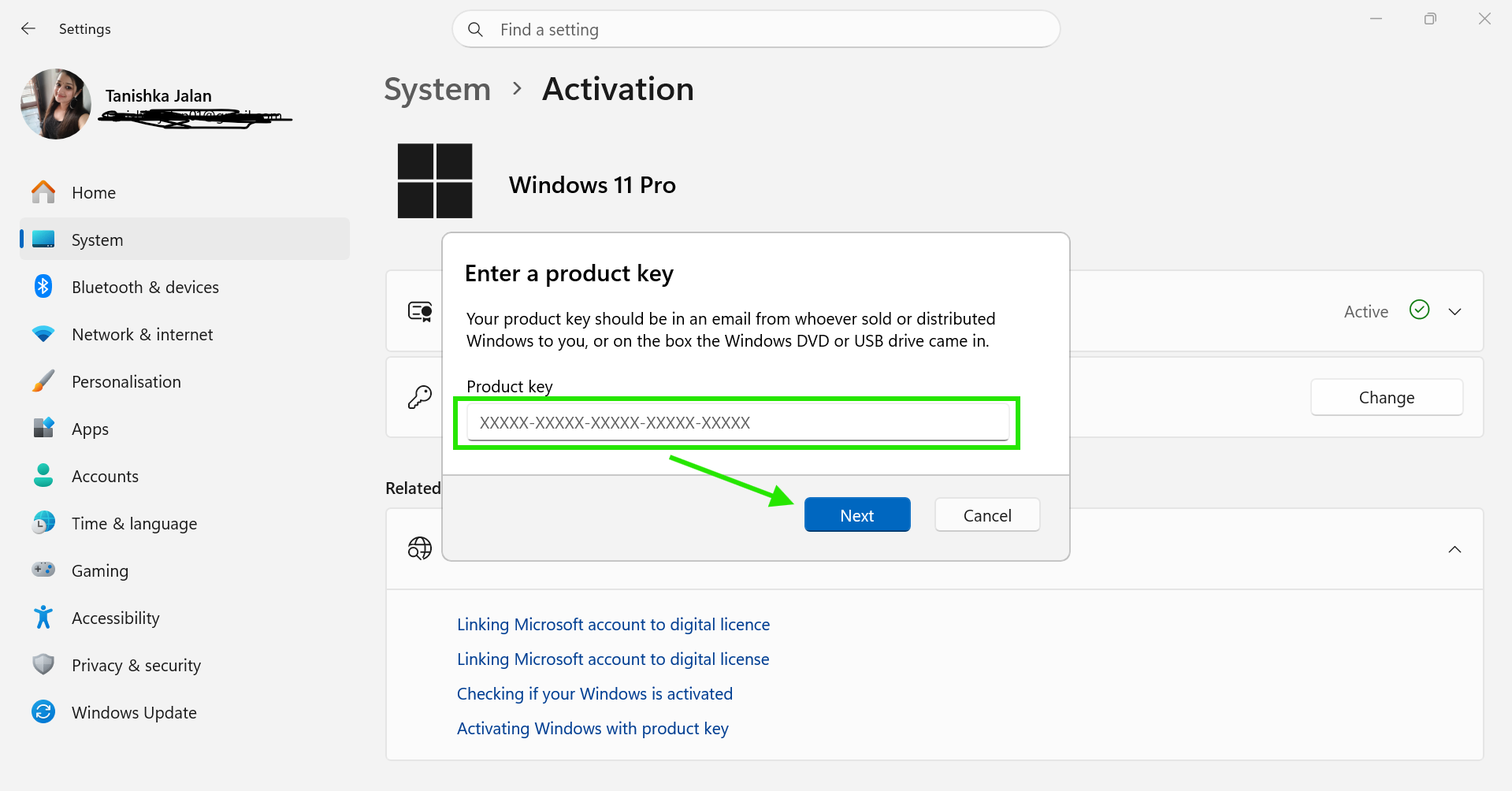
4. Enter your valid 25-character product key.
5. Click Next and complete the activation process.
Fix 3: Go Back To The Previous Build
If the activation issue started immediately after a recent update, rolling back to previous build solve it. Let’s look at the steps:
1. Open Settings.
2. Navigate to System > Recovery.
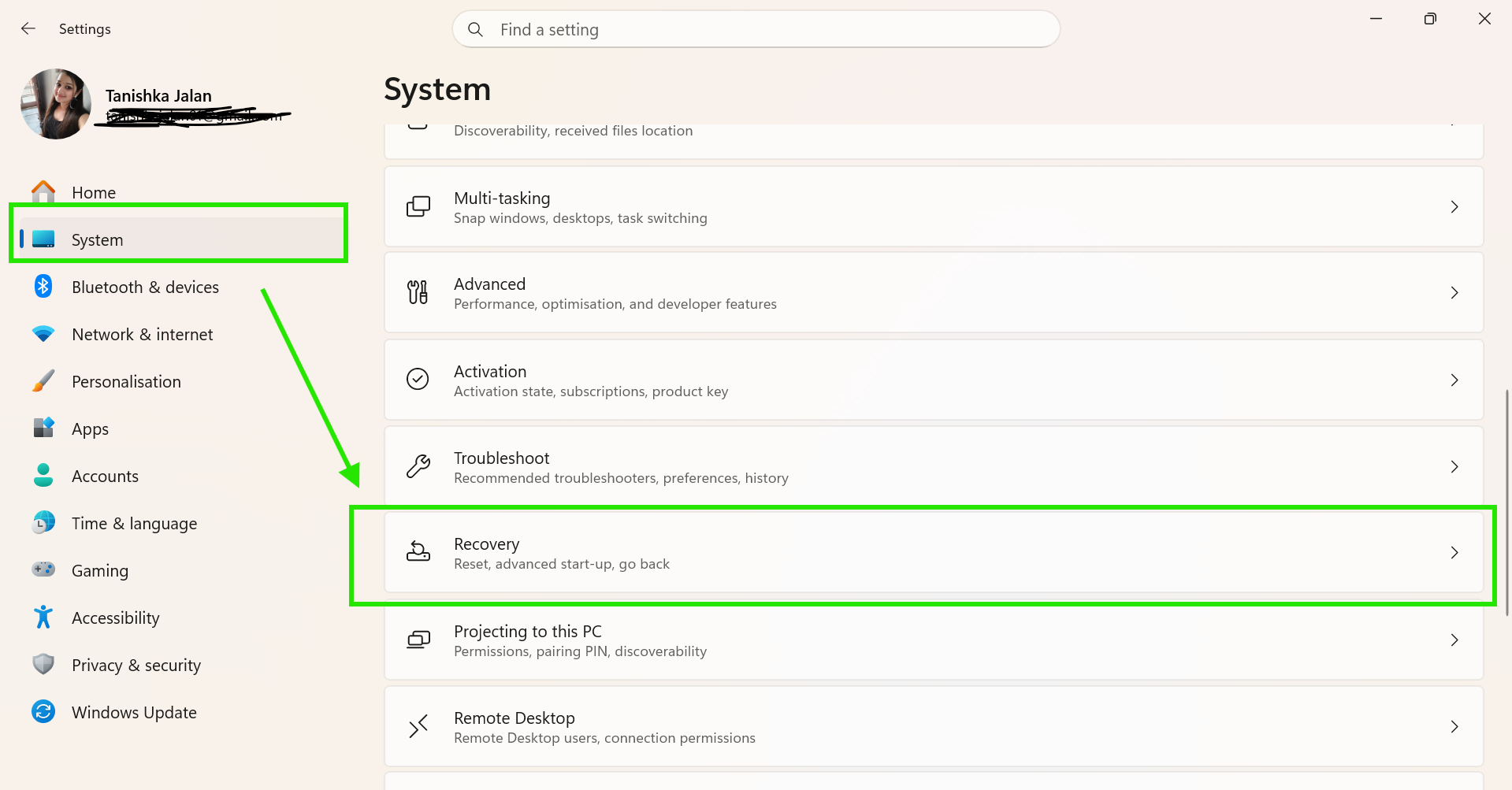
3. Under Recovery Options, select Go Back.
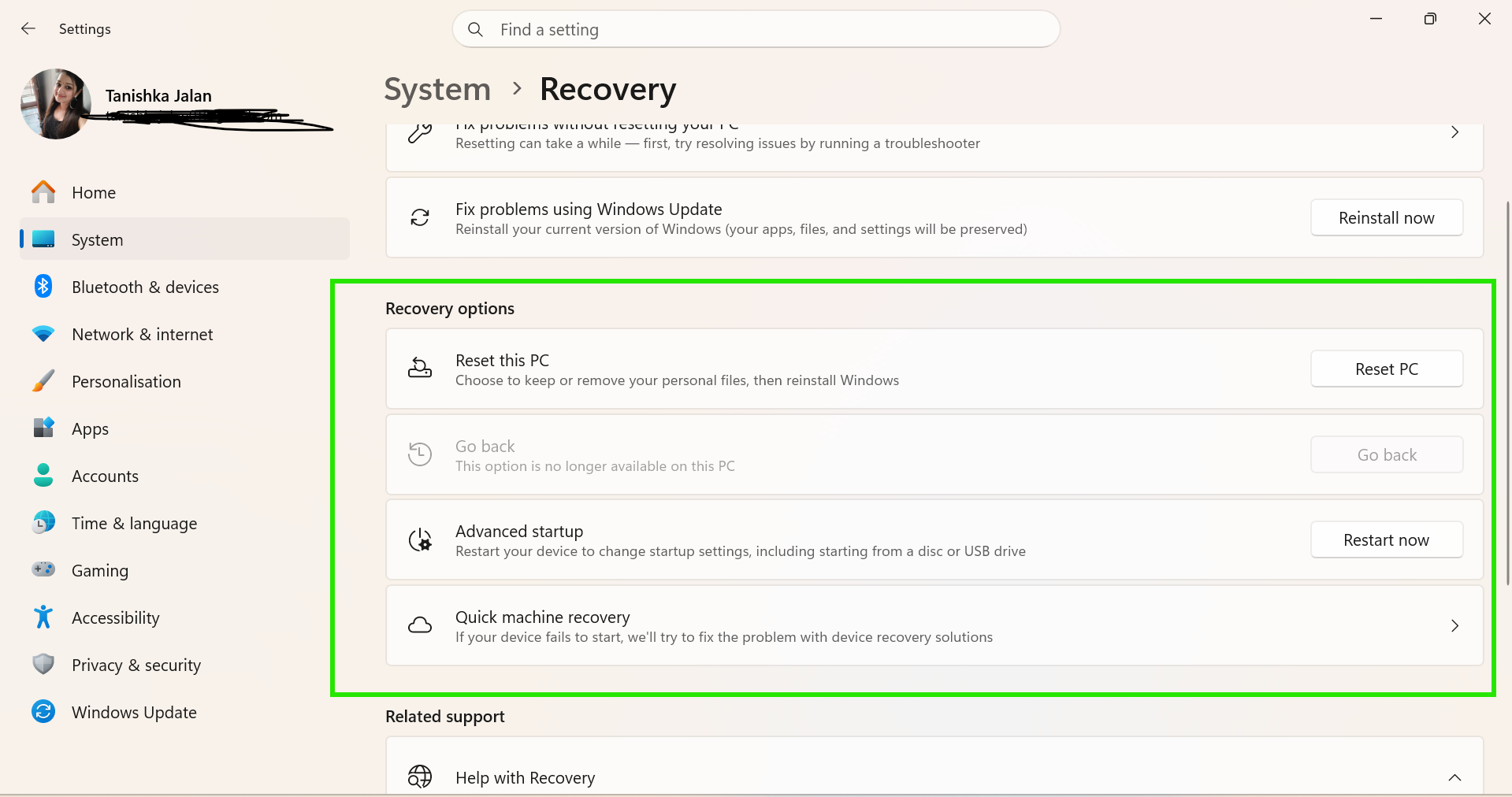
4. Follow the prompts to restore the previous Windows version.
Fix 4: Reset Windows 11
If nothing else works, resetting Windows can restore system files and activation settings. Here are the steps:
1. Open Settings > System > Recovery.
2. Click Reset PC.
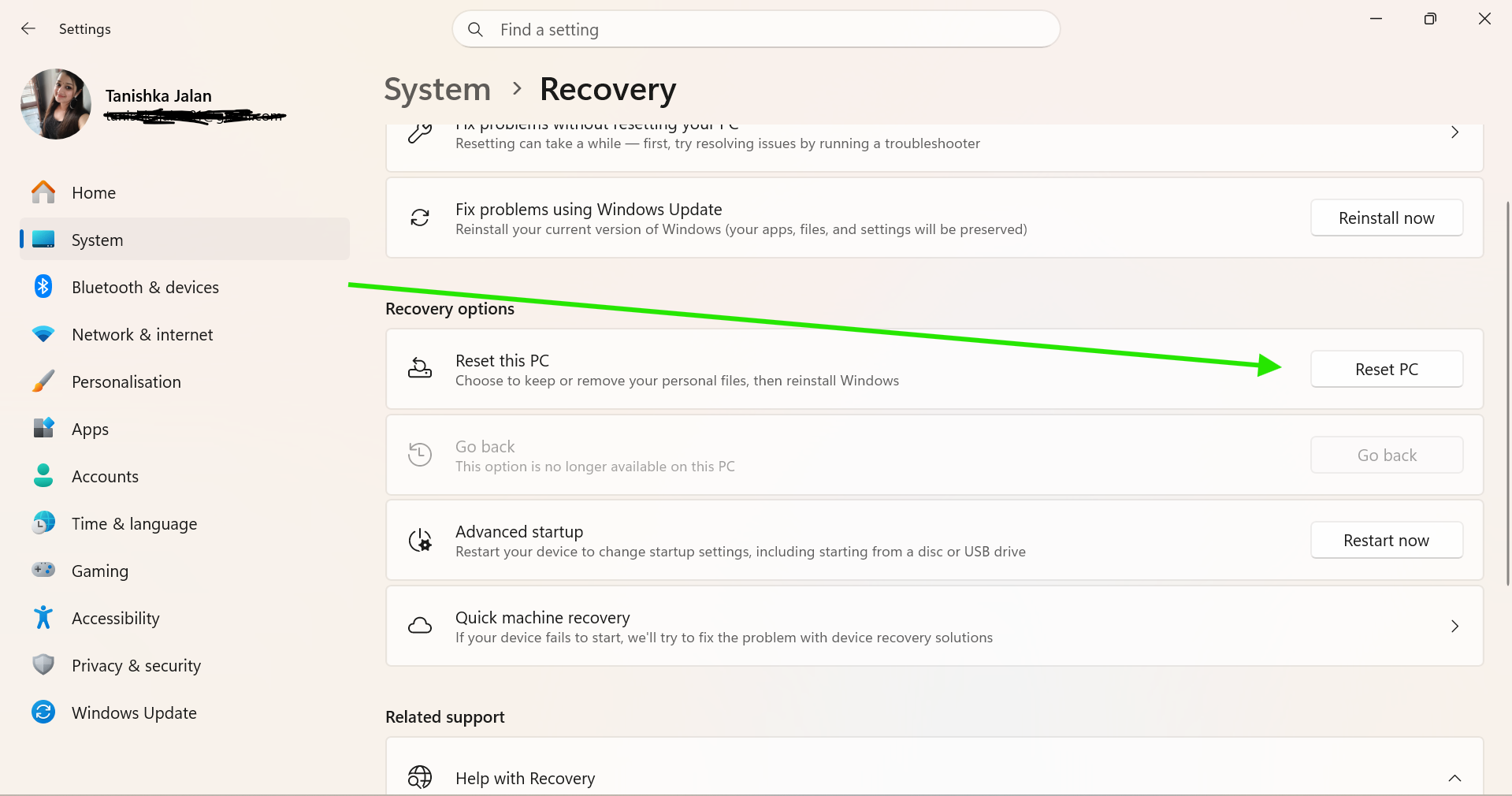
3. Choose whether to keep your files or remove everything.

4. Follow the setup instructions to complete the reset. We recommend to keep your files.
If Windows still won’t activate, you need to contact Microsoft Support (https://support.microsoft.com/en-gb/topic/customer-service-phone-numbers-c0389ade-5640-e588-8b0e-28de8afeb3f2). They’ll help you verify your license and restore activation on your device.
Or, if you have any questions, comment below.