Windows Security shows an Unknown status in Windows 11? This can happen due to various reasons. There’s a possibility of corrupted app files, outdated Windows components. It can also occur due to third-party antivirus conflicts or disabled security services. In some cases, incorrect security policies, or problems caused by a recent Windows Update may also be culprit.
Follow the fixes mentioned below to restore the correct status.
Page Contents
Fixes for Windows Security Showing Unknown Status in Windows 11
Solution 1: Fix Windows Security Unknown Status Caused by Antivirus Conflicts
If you have installed third-party antivirus software, it may affect how Windows Security reports your device’s protection status. Microsoft Defender Antivirus will automatically be disabled when a third-party antivirus product is installed and active.
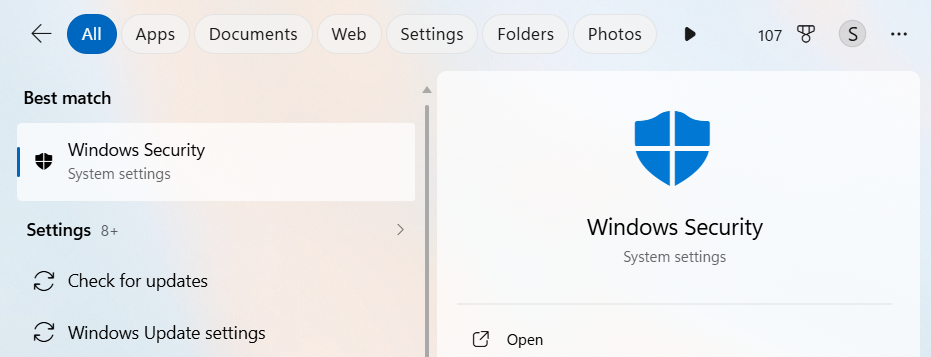
1. To fix this, first, check which antivirus provider is managing your PC. To do so, Open Windows Security from the Start menu.
2. Select Settings in the bottom-left corner.
3. Click on Manage providers.
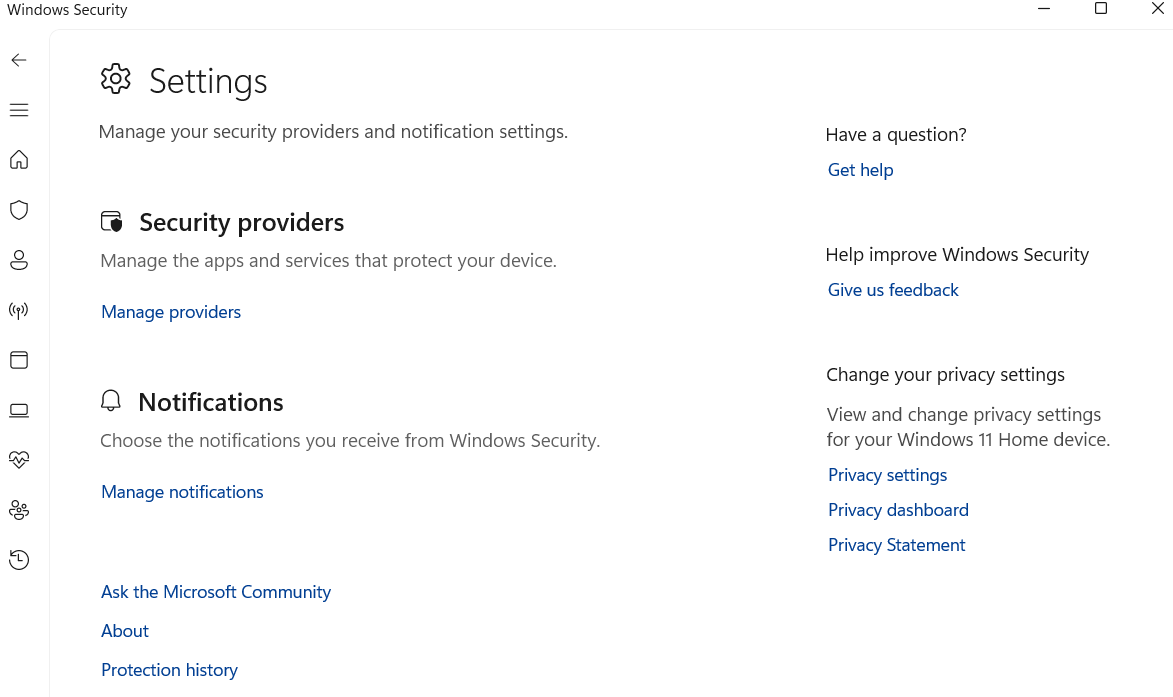
4. Check the antivirus provider listed on the screen.
5. If you use third-party antivirus software, open its application and check whether its protection features are working correctly. If any update is pending, install that first.
Solution 2: Repair or Reset Windows Security
Windows Security will not display the correct protection status if there are corrupted app files or incorrect app data.
1. Press Windows + I to open Settings. Then, navigate to System > System components > Windows Security.
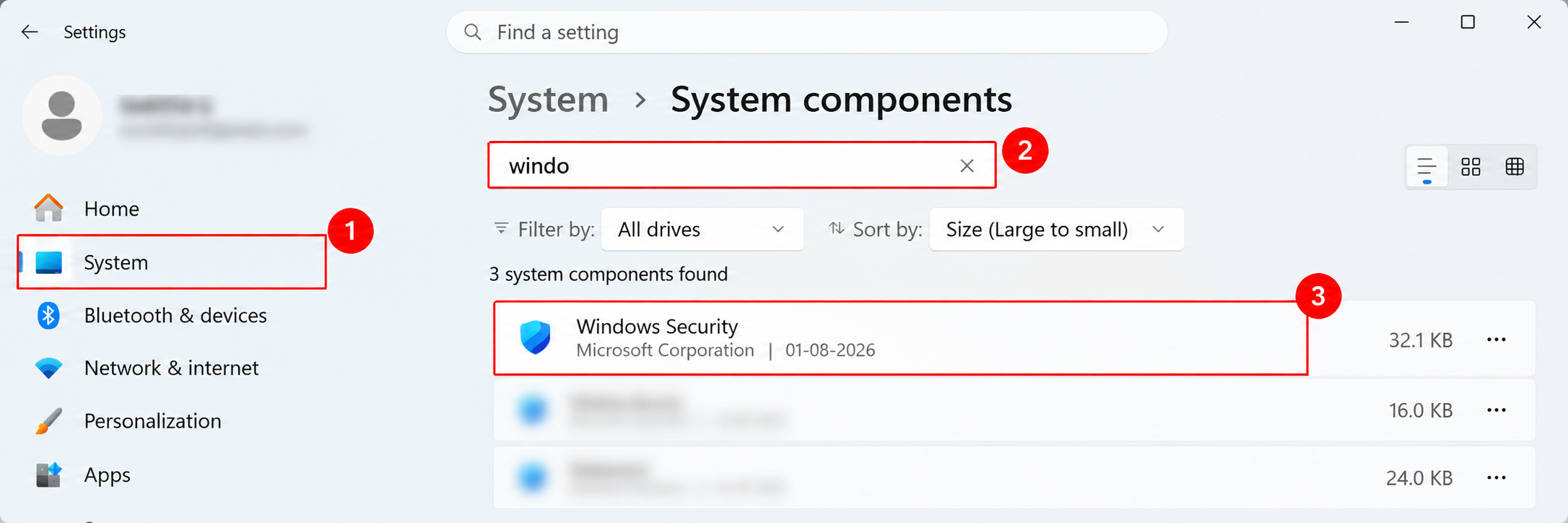
2. Click the three-dot menu next to it and select Advanced options.
3. Then select Repair and wait for Windows to complete the process.
Once done, open Windows Security and check whether the Unknown status is resolved.
If it is not yet resolved, then do the same process and instead of repair, click on Reset.
Solution 3: Check the Windows Security Services
Windows Security uses the background services to collect and display information regarding your device’s protection status. If the required service is not running properly, the app may display outdated or incorrect information.
1. Press Windows + R to open the Run dialog. Type services.msc and press Enter.
2. Locate Security Center in the list. Check its status. It should be running.
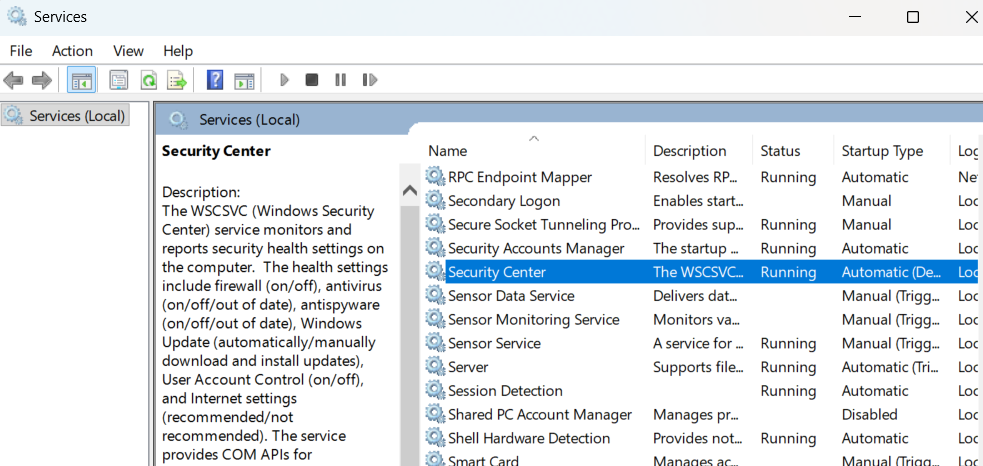
3. If the service is stopped and the Start option is available, right-click it and select Start.
Restart your PC and check Windows Security again.
Solution 4: Re-register the Windows Security
You can use PowerShell to register the Windows Security app again. To do so,
1. From Start, select Terminal in Admin mode.
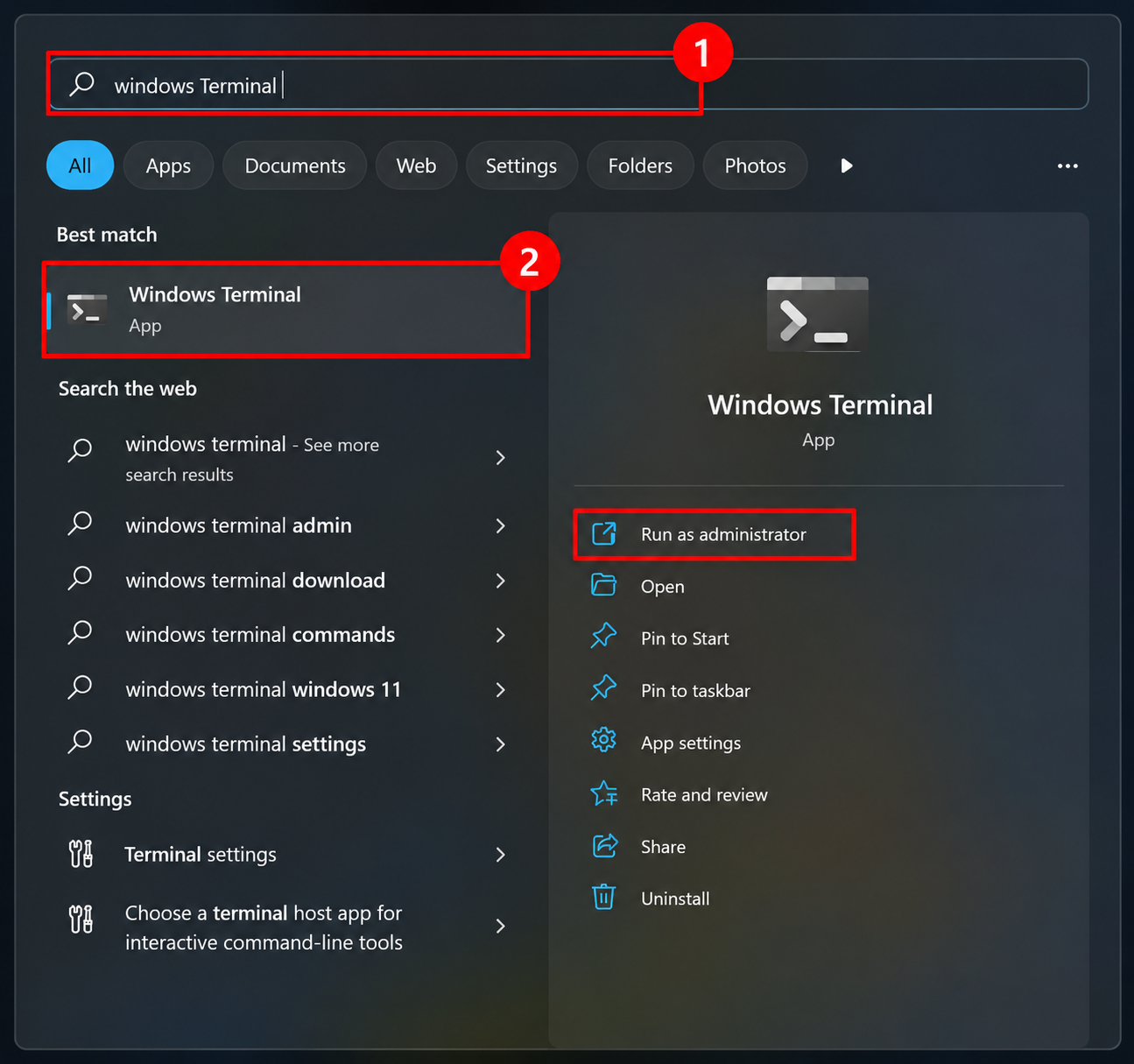
If Terminal opens with a different profile, select Windows PowerShell from the tab menu.
2. Run the following command:
Get-AppXPackage | Foreach {Add-AppxPackage -DisableDevelopmentMode -Register "$($_.InstallLocation)\AppXManifest.xml"}

3. Wait for the command to complete.
Once completed, restart your PC and open Windows Security to check its status.
Solution 5: Check Your Work or School Account Settings
If your PC is connected to a work or school account, your organization will have its own security policies.
1. Press Windows + I to open Settings. Then, click on Accounts > Access work or school.
2. Select the connected work or school account.
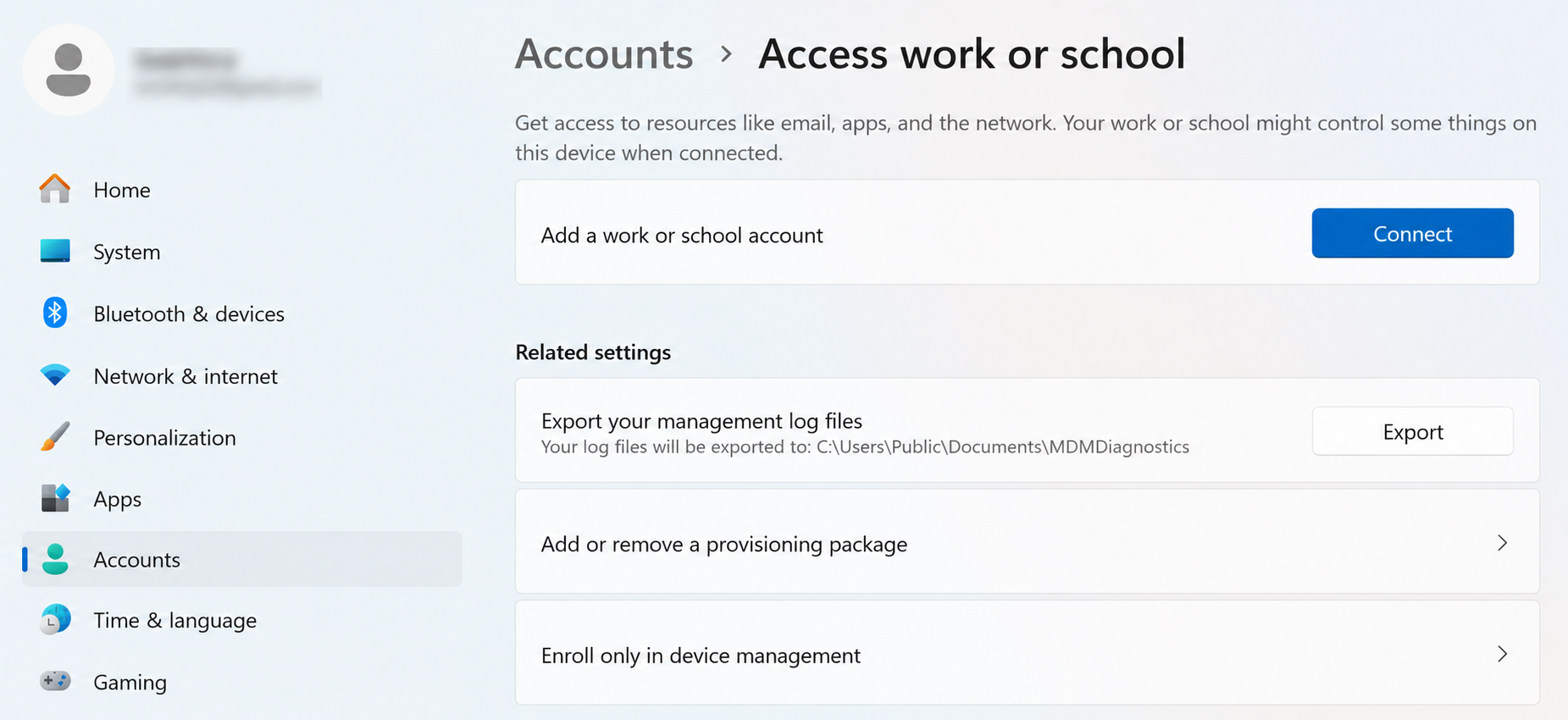
3. If it is connected, then click Disconnect and follow the on-screen instructions.

4. Restart your PC and check Windows Security.
Solution 6: Remove Windows Security Policy Settings
To rectify the issue, you can remove Windows Security policy settings.
1. Press Windows + R, type regedit, and press Enter.
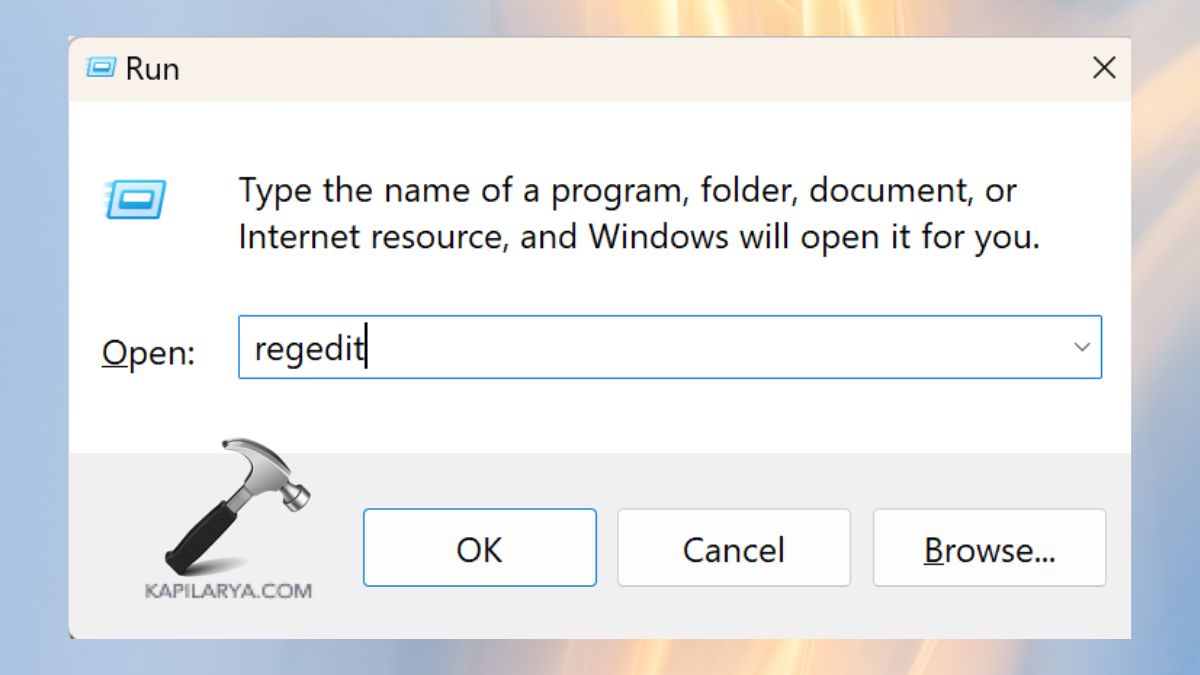
2. In Registry Editor, navigate to:
HKEY_LOCAL_MACHINE\SOFTWARE\Policies\Microsoft\Windows Defender
3. There, right-click on the Windows Defender key and select Export.
4. Save the exported Registry file to your preferred location.
5. Then, navigate to the above mentioned location, and delete the Windows Defender folder.
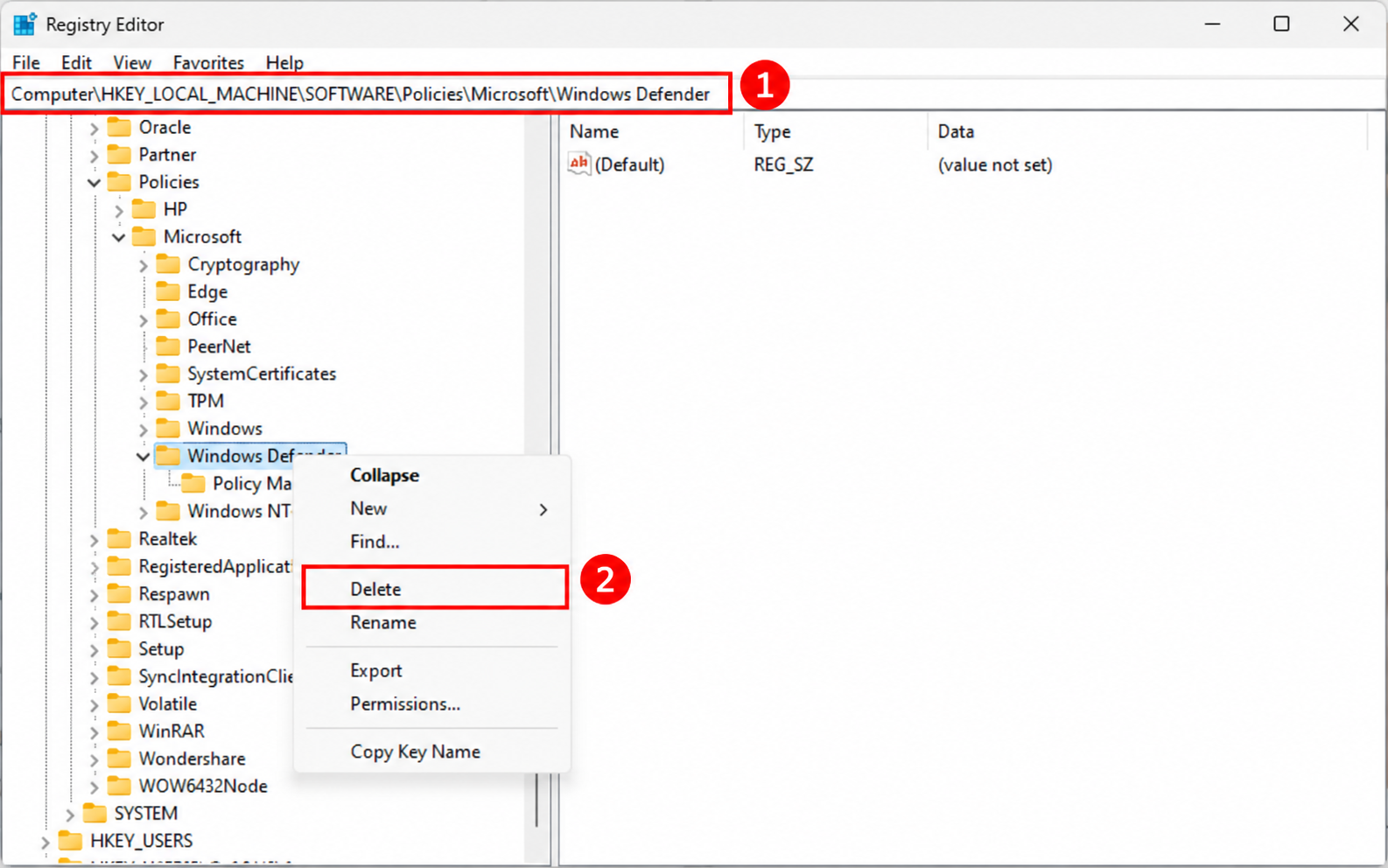
Once done, restart your PC.
Solution 7: Uninstall a Recently Installed Windows Update
If Windows Security started showing Unknown status immediately after installing a Windows update, the update is the reason for your problem. You can uninstall the recently installed update to resolve the issue.
1. Press Windows + I to open Settings. Then, go to Windows Update > Update history.
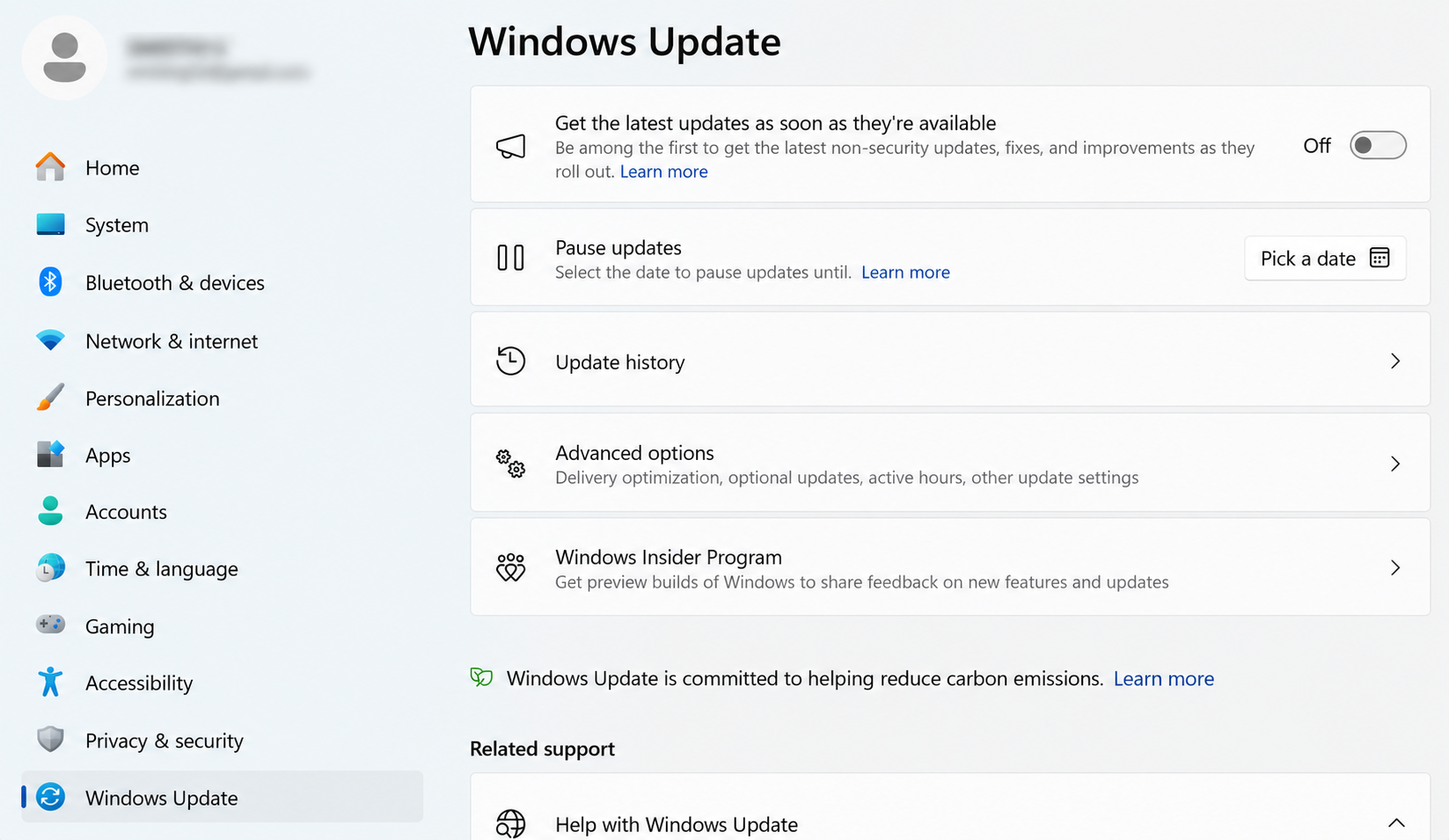
2. Scroll down. In Related settings you will find Uninstall updates.
3. After selecting it, find the lastly install update and click on Uninstall.

4. Follow the onscreen instructions to complete the process and once done, Restart your PC.
That’s it!