

There is no need to tell an average computer user that what a Control Panel is. Additionally, a Modern UI Control Panel introduced in Windows 8 is known as PC Settings. As evident from the name, both the native components of Windows helps users to manage their computer and to configure settings. Recently, some of my friends reported me that they’re unable to access either of the above said components.
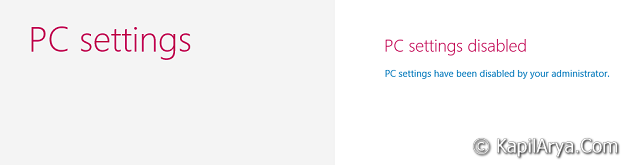
In case, they wish to access PC Settings, they see following screen:
Page Contents
PC Settings have been disabled by your administrator.
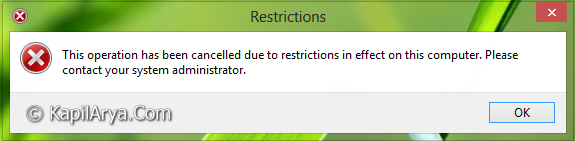
In either case, when they try to access Control Panel, they received following error:
This operation has been cancelled due to restrictions in effect on this computer. Please contact your system administrator.
In order to solve this issue, I recommend my friends the following two fixes. And luckily both of them worked perfectly. So here I’m sharing them with all of you…
FIX : Unable To Access PC Settings & Control Panel In Windows 8/8.1
FIX 1 – Using Registry Editor
Registry Disclaimer: The further steps will involve registry manipulation. Making mistakes while manipulating registry could affect your system adversely. So be careful while editing registry entries and create a System Restore point first.
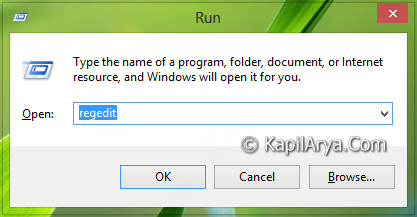
1. Press  + R and put regedit in Run dialog box to open Registry Editor (if you’re not familiar with Registry Editor, then click here). Click OK.
2. Navigate here:
HKEY_CURRENT_USER\Software\Microsoft\Windows\CurrentVersion\Policies\Explorer

3. In the right pane of this location, you’ll see a DWORD named as NoControlPanel, having default value data 1 (as you’re facing the issue). So double click over it to modify:

4. In the above box, replace to Value data to 0 in order to solve your issue. Alternatively, if you delete this DWORD, it will also have same effect and thus will resolve your problem.
5. Now navigate here to verify whether that same DWORD i.e. NoControlPanel exists or not:
HKEY_LOCAL_MACHINE\\SOFTWARE\Microsoft\Windows\CurrentVersion\Policies\Explorer
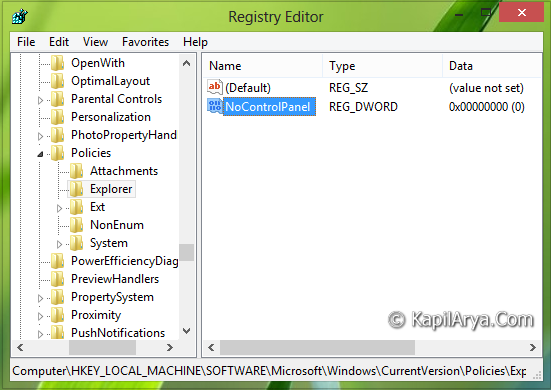
6. If you see the DWORD here as well, delete it. That’s it. Reboot and your problem should be fixed now.
FIX 2 – Using Local Group Policy Editor
1. Press + R and put gpedit.msc in Run dialog box to open Local Group Policy Editor. Click OK.
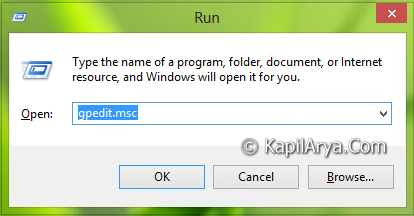
2. Navigate here:
User Configuration -> Administrative Templates -> Control Panel

3. In the right pane of location, you’ll see the setting Prohibit access to Control Panel and PC settings as Enabled since you’re facing the issue. Double click on it to modify:
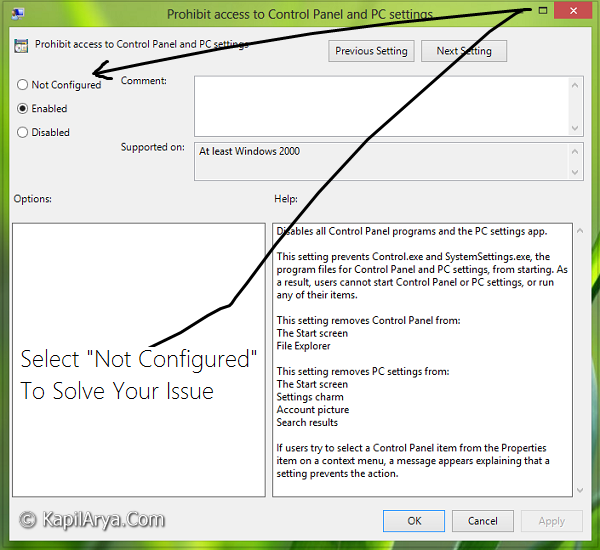
4. In the above window, set the policy to Not Configured or Disabled status. Click Apply followed by OK. That’s it. Reboot and your issue should be fixed now.
Hope you enjoyed the fix and find it useful!


Issue when user is not the admin of PC!!
^^ In that case, you need to ask the admin to fix it :)
Great info. My Reg entry is okay but gpedit.msc does not work as command in Run window.
pc setting does not work and cant get into safe mode either. No error messages received.
^^ Group Policy is only for Windows 8 Pro & Enterprise editions, so if you’re running any other edition than these, command to open GPO will not work.
Delete the registry entires and verify if the issue persists or not.
This had me for a good few hours so thought I’d share in case there are other system administrators out there.
Resist Tidying the start menu with group policy.
We always customise our start menus for deployed machines. In Win8 we decided our staff didn’t need shortcuts to control panel and PC Settings in theirs, after all the charm settings lets you get to PC Settings anyway right? and that search function is so great it will find it anyway….or so you’d think.
If you remove:
C:ProgramDataMicrosoftWindowsStart MenuProgramsPC Settings.lnk
or the Windows System folder, or other shortcuts from here, when you perform a search on your start screen, it will fail to find it.
Also your Charm –> Settings –> PC Settings will give you the load wheel and task manager will show the process start, and finish within a few seconds.
PC setting is not showing any option but the USER & WINDOW UPDATE
HOW CAN I FIX IT???
thanks
^^ You can try the third DISM command mentioned here:
https://www.kapilarya.com/fix-do-inbox-corruption-repair-using-dism-in-windows-8
hello,
I can’t reach regedit in run, when I press ok it shows up for a millisecond then disappears.
^^ Try the second way then, using Group Policy Editor.
Grear Kapil, perfect resolution steps
^^ Glad it helped! :)