

Recently, we told about disabling animations in Windows 8.1 to enhance performance of your system. The same concept is applicable to Office 2016/2013 as well. But disabling animations for Office 2016/2013 has additional aims for doing so, such that:
– While typing, the response is lagging
– Features have becomes sluggish and they didn’t work smoothly
– Crashing of Office 2016/2013 components frequently
If you’re experiencing any one of the above listed symptoms, you can solve your problem by deactivating animations and effects. So basically, killing animations gives you double benefit in case of Office 2016/2013.
But now the question is, how to disable animation in Office 2016/2013? Well, this simple registry manipulation is the answer:
How To Disable Animations In Office 2016/2013
Registry Disclaimer: The further steps will involve registry manipulation. Making mistakes while manipulating registry could affect your system adversely. So be careful while editing registry entries and create a System Restore point first.
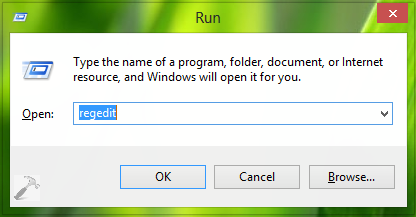
1. Press  + R and put regedit in Run dialog box to open Registry Editor (if you’re not familiar with Registry Editor, then click here). Click OK.
2. Navigate here:
HKEY_CURRENT_USER\Software\Microsoft\Office\15.0\Common
* Above mentioned location is for Office 2013. Replace 15.0 with 16.0 for Office 2016.
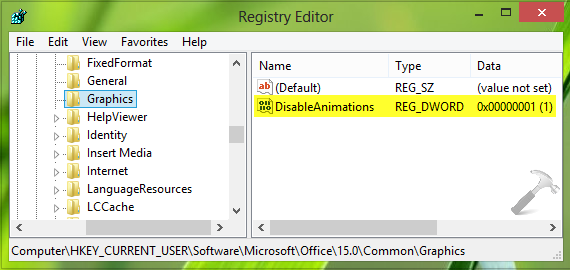
3. Right click over the Common key and select New -> Key. Name the newly created sub-key as Graphics and now come to the right pane of this sub-key such that registry location becomes HKEY_CURRENT_USER\Software\Microsoft\Office\15.0\Common\Graphics (for Office 2013) and HKEY_CURRENT_USER\Software\Microsoft\Office\15.0\Common\Graphics (for Office 2016). In the right pane of this location, right click and select New -> DWORD Value and name the newly created registry DWORD as DisableAnimations. Double click this DWORD to get this:
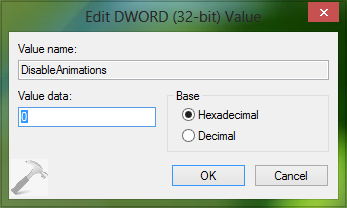
4. In the above shown box, put the Value data as 1 in order to disable animations in all components of Office 2016/2013. You may now close the Registry Editor and reboot the machine to make changes effective.
That’s it!





Can’t find DisableAnimations. Pls help
^^ Create it manually :)