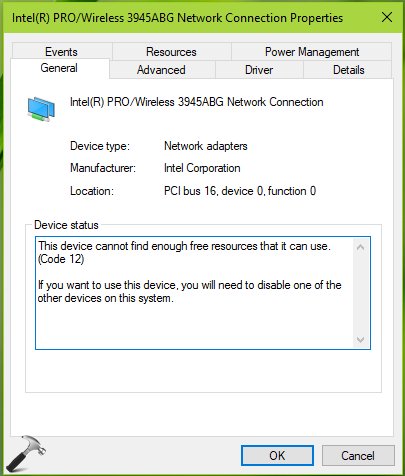
Your device was working fine yesterday. And today, your Windows 11 shows This device cannot find enough free resources error. The device appears in Device Manager with a yellow warning icon. If this is familiar, you’re dealing with the Code 12 error in Windows 11.
Page Contents
What Is A Device Code 12 Error?
Code 12 is a Device Manager error. It appears when Windows cannot assign enough hardware resources to a device. It usually happens when two devices try to use the same memory address, I/O port, or other system resource.
As a result, the affected device may stop working correctly.
What Causes The Code 12 Error?
The error occurs due to several reasons, which are:
- Resource conflicts between hardware devices.
- Corrupted or outdated device drivers.
- Incorrect driver installation.
- BIOS issues are preventing proper resource allocation.
- Windows is assigning conflicting settings to devices.
Fix: This Device Cannot Find Enough Free Resources Error In Windows 11
Here are the fixes that will definitely help.
Fix 1: Update Device Drivers And BIOS
Outdated drivers or firmware can create resource conflicts. Here is what you need to do:
1. Visit your device manufacturer’s website, install latest drivers for your system model.
2. Install the update and restart your PC.
3. Check for available BIOS updates from your PC or motherboard manufacturer.
4. Install the BIOS update carefully by following the official instructions.
Fix 2: Reinstall The Problem Device
A fresh driver installation can resolve incorrect resource assignments. So, follow the steps:
1. Open Device Manager.
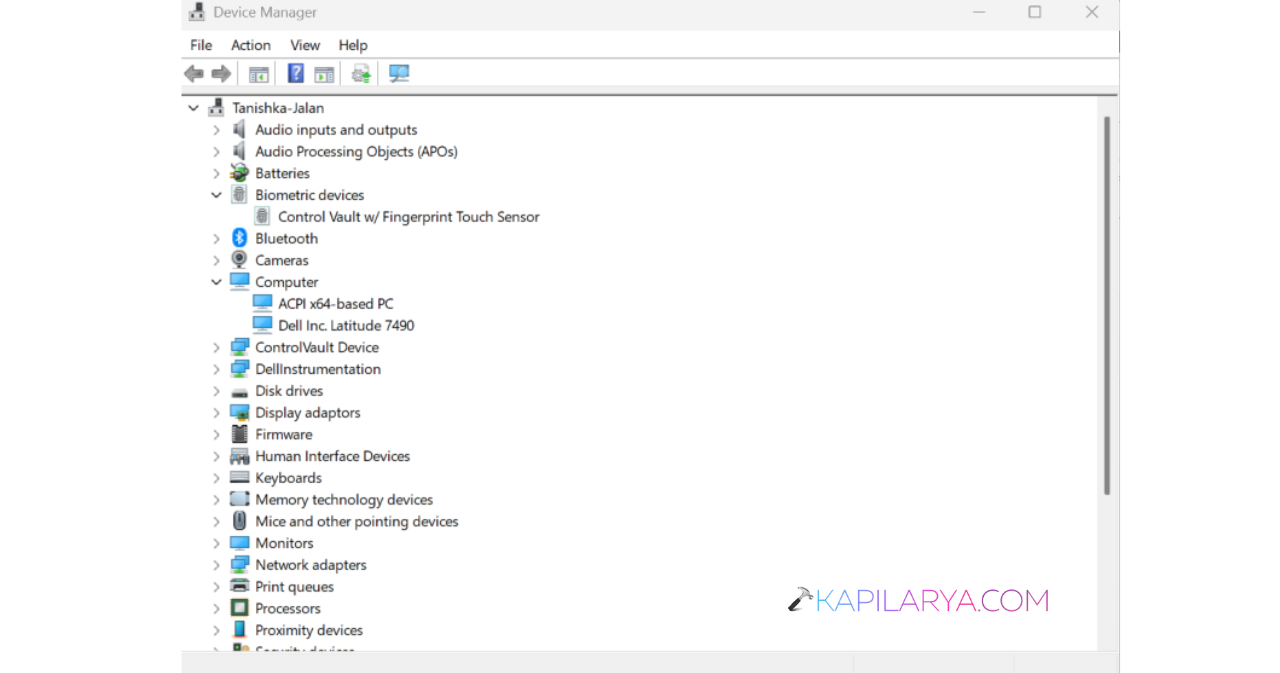
2. Right-click the affected device and select Uninstall device.
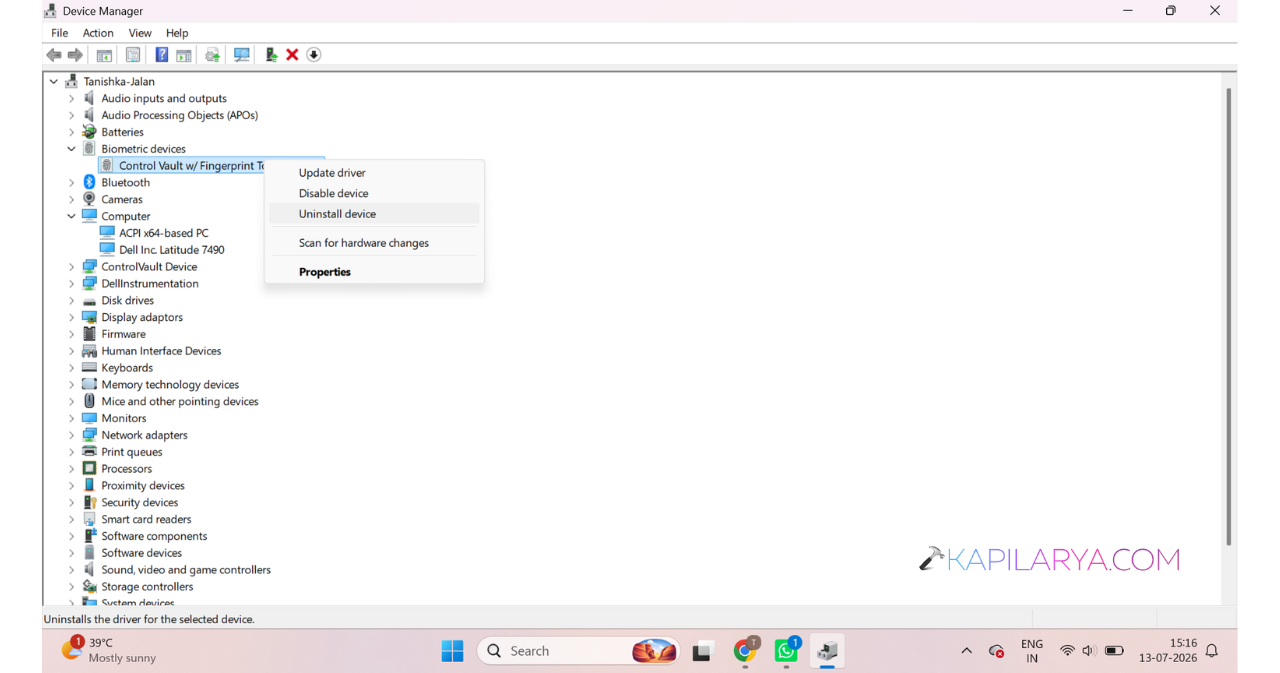
3. Confirm the removal.
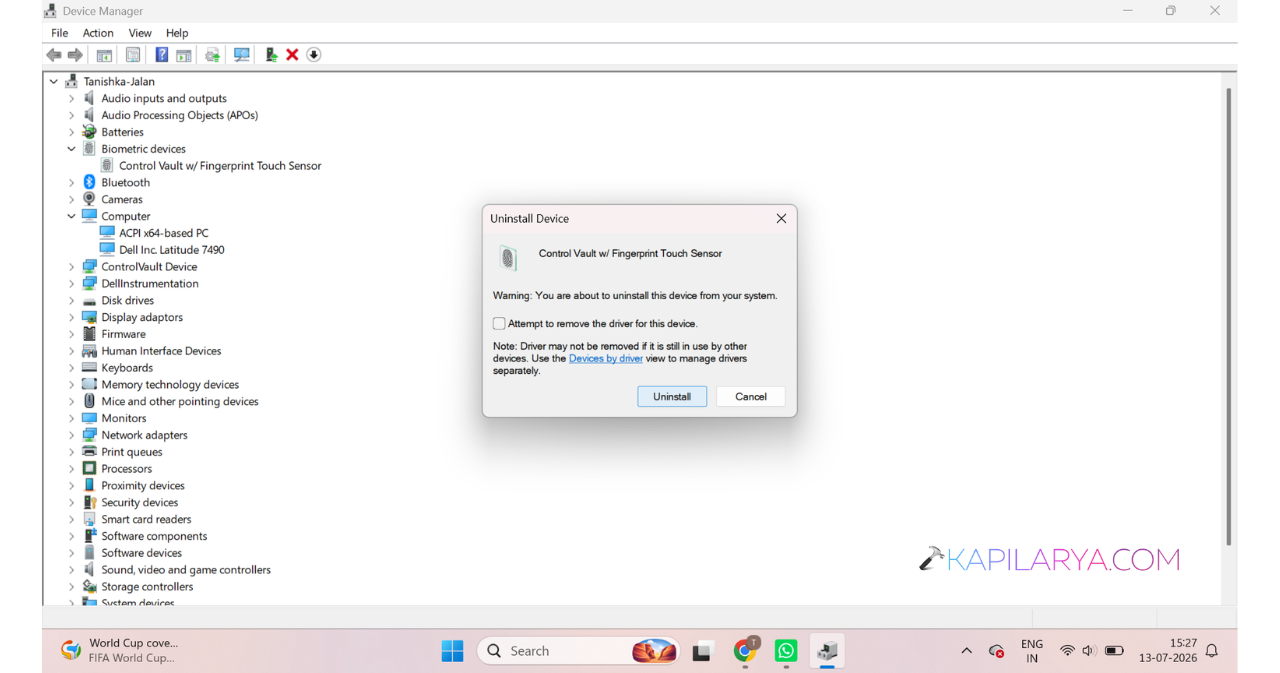
4. Restart your computer.
5. Let Windows reinstall the device automatically.
Fix 3: Run The Windows Troubleshooter
Windows can sometimes detect and fix hardware conflicts automatically.
1. Open Device Manager.
2. Right-click the device and select Properties.
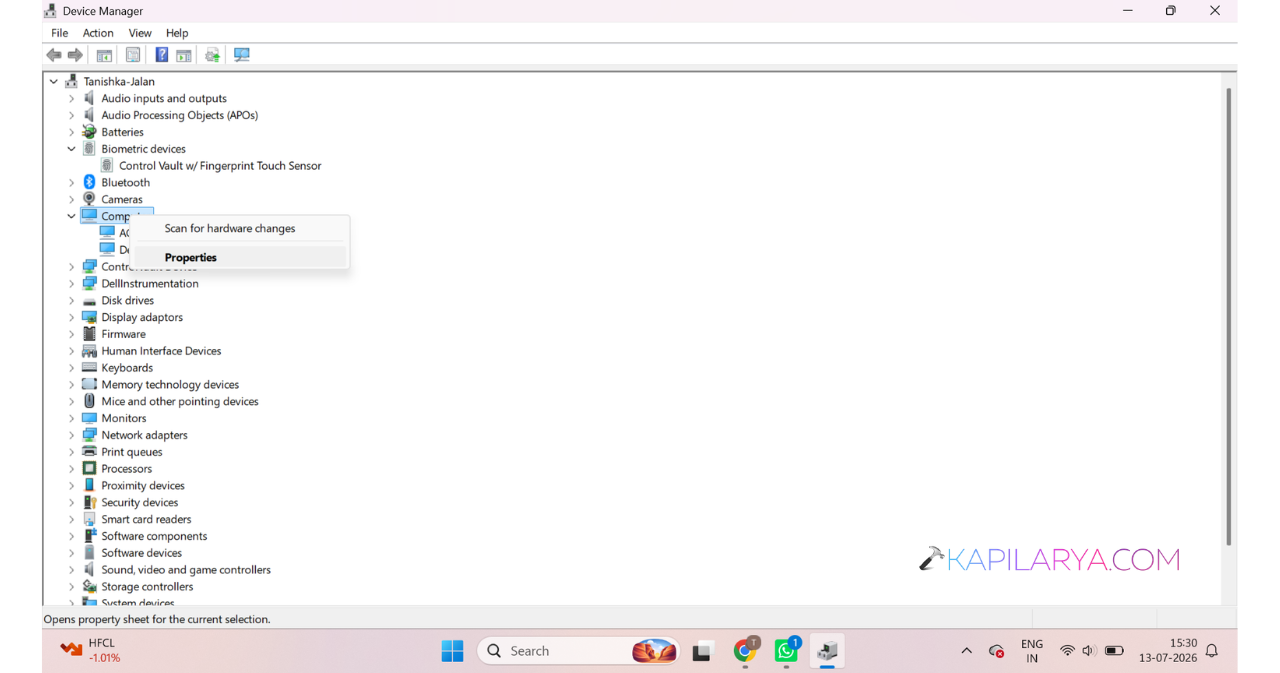
3. Under the General tab, click Troubleshoot (if available).
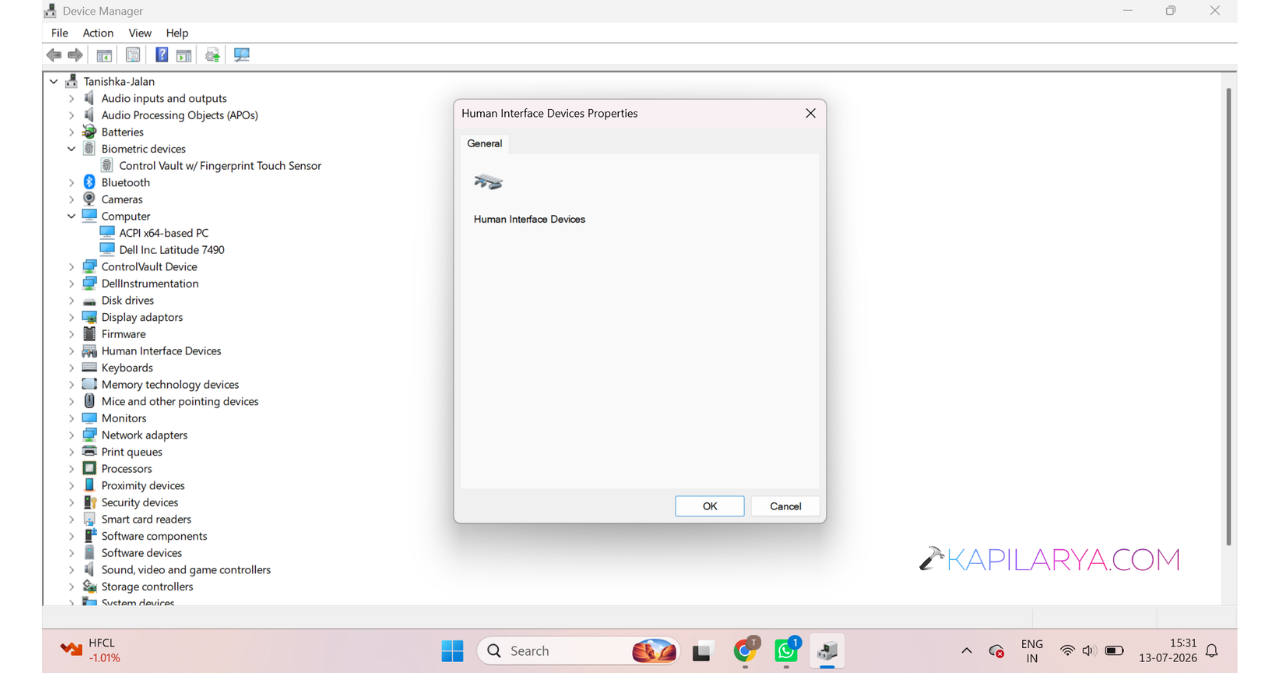
4. Follow the on-screen instructions.
Fix 4: Change Resource Settings Manually
You can manually assign different resources if Windows fails to do so.
1. Press Win + X and select Device Manager.
2. Locate the device showing the Code 12 error (it usually has a yellow warning icon).
3. Right-click the device and select Properties.
4. Go to the Resources tab.
5. Uncheck Use automatic settings.
6. Select the conflicting resource.
7. Click Change Settings and choose an available resource.