

If you see Windows Update error code 0x800f0900 on your Windows 11/10 PC, it means the update process was interrupted or some update files got corrupted. This issue can appear during cumulative, feature, or security updates.

Page Contents
Windows Update error code 0x800f0900 – 5 tested fixes
Below are five reliable fixes to help you fix the error. It’s often caused by damaged system files, misconfigured update services, or an unstable internet connection. Try each fix one at a time and restart your PC between attempts.
Fix 1: Run SFC and DISM (repair system files)
Running these tools repairs corrupted system files and Windows image components that block updates.
1. Open Command Prompt as administrator.
2. Run:
sfc /scannow
And wait for completion.
3. Then run:
DISM /Online /Cleanup-Image /RestoreHealth
4. Restart and retry Windows Update.

Fix 2: Reset Windows Update components manually
Resetting the update services and caches forces Windows to recreate corrupted folders used during updates.
1. Open Command Prompt as administrator.
2. Run these commands one by one, pressing Enter after each:
net stop wuauserv
net stop cryptSvc
net stop bits
net stop msiserver
ren C:\Windows\SoftwareDistribution SoftwareDistribution.old
ren C:\Windows\System32\catroot2 Catroot2.old
net start wuauserv
net start cryptSvc
net start bits
net start msiserver
3. Close the window and restart your PC.

This process stops the update services, renames the cache folders, and restarts everything clean, removing corrupted data that often causes error 0x800f0900.
Fix 3: Install the update manually
Manually installing the problematic KB can bypass the error when the update itself is available.
1. Go to https://catalog.update.microsoft.com.
2. In the search box, type the KB number of the failed update (for example, KB5039212).

3. Download the package that matches your Windows version and system type.
4. Open the downloaded .msu file and follow the installation prompts.
5. Restart your PC once it’s done.
Fix 4: Run the Windows Update troubleshooter
The built-in troubleshooter can automatically detect and repair common update-related problems.
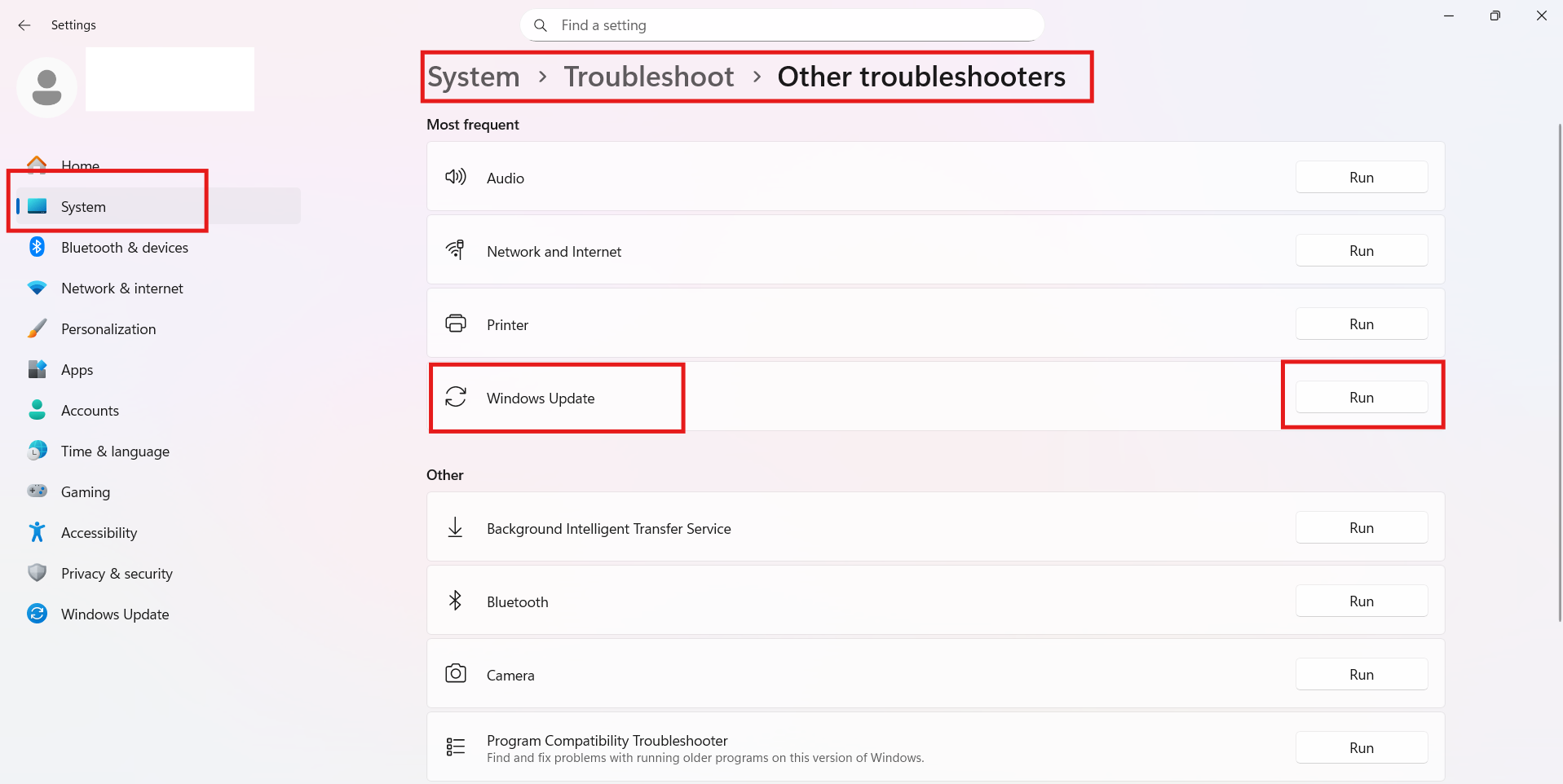
1. Open Settings, then go to System. After that, click on Troubleshoot and then Other troubleshooters.
2. Under Windows Update, click Run.
3. Wait for Windows to detect and fix errors.
4. Restart your PC and try installing the update again.
Fix 5: Use the Windows 11 Installation Assistant or ISO
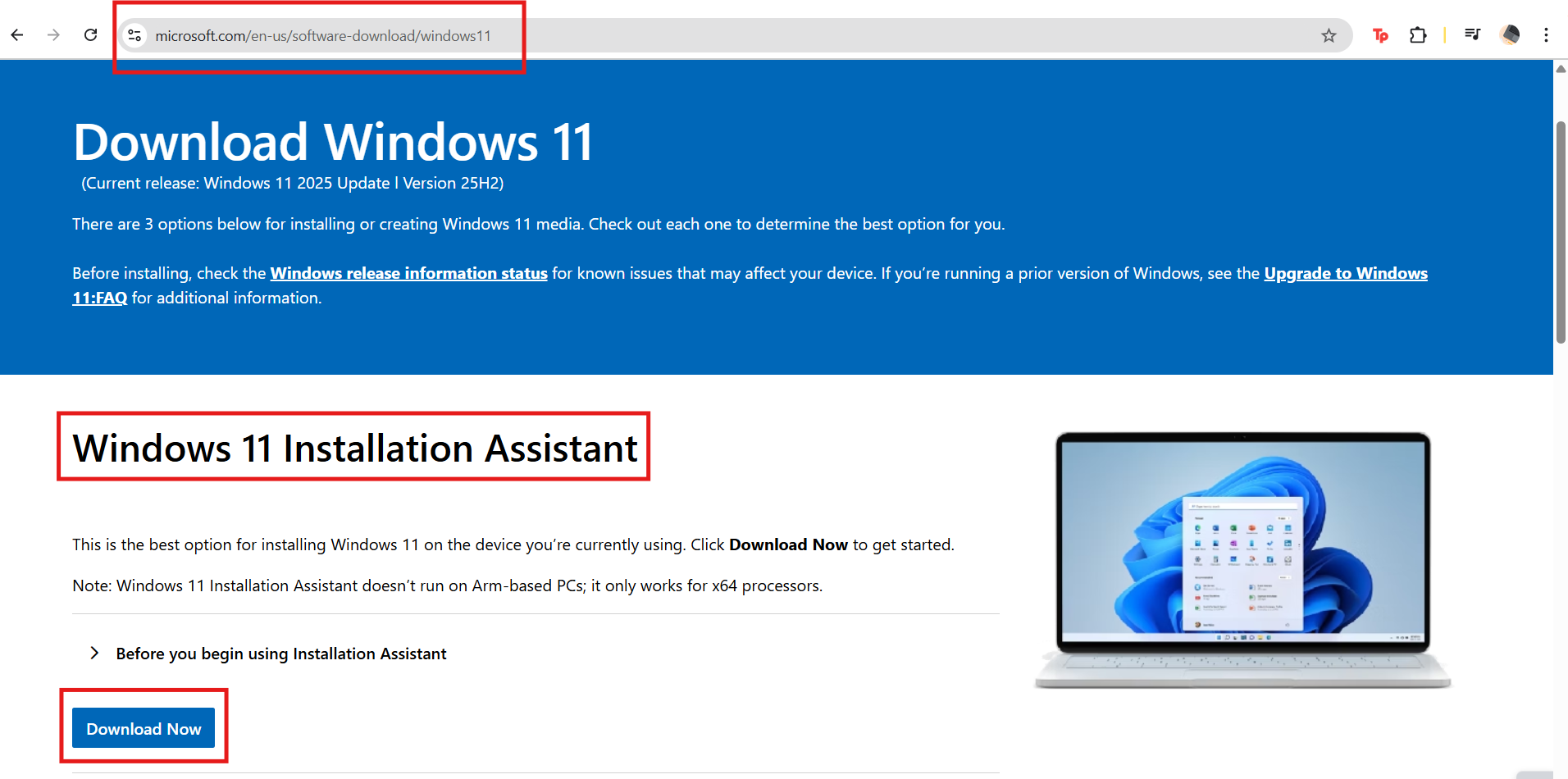
If none of the fixes above work, reinstall updates manually. Download the latest ISO or Installation Assistant from Microsoft’s official website (https://www.microsoft.com/en-us/software-download/windows11) and perform an in-place upgrade. This refreshes system files while keeping your data intact.
Quick tips
1. Ensure plenty of free disk space and a stable internet connection.
2. Temporarily disable third-party security software while troubleshooting.
3. If unsure, back up your files before attempting a repair install.






All this is worthless, and none of this works. No one has a basic problem with Microslop. They are just forcing all the end users to give up data and be tied to an online account. Windows 12 will be strictly online, available only with a paid subscription. No one cares for this company now after stepping on our toes. Do better in the future.