If you need to fix VPN error 812 on Windows 11 or 10, this brief guide walks through the most common causes and how to resolve them. Error 812 – “Connection prevented because of a policy configured on the remote access server”; this usually means the server’s access policy rejects your connection (wrong authentication method, group membership, or device compliance).
Page Contents
Fix VPN error 812 on Windows 11/10
Often, the problem is server-side (NPS/RADIUS or RRAS policy), but client settings and account properties can also block access. Before changing server policies, confirm your username/password, certificate validity, and the authentication method your VPN is using. Work through the fixes below one at a time and test the VPN after each.
Note: It is recommended to check the NPS event logging / Event Viewer for the exact failure reason (RADIUS reject code / NPS event)
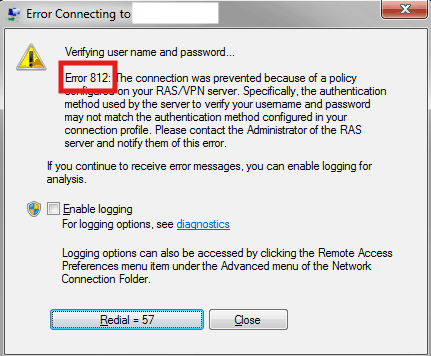
Fix 1: Verify user credentials and account status
Incorrect passwords, locked accounts, or expired credentials will fail policy checks.
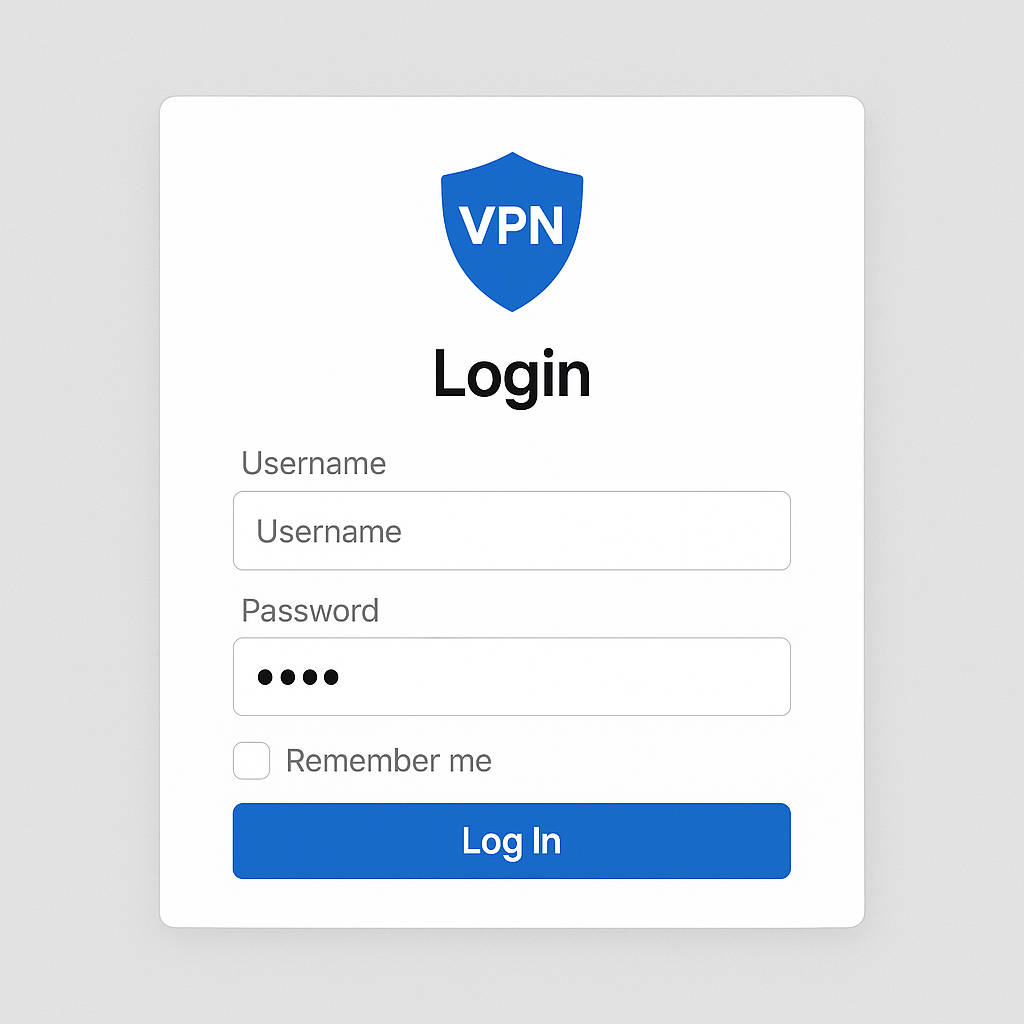
1. Confirm your username and password by logging into the web portal.
2. Ask the admin to verify if your account is not locked or expired in Active Directory.
3. If needed, reset your password and try connecting again.
Fix 2: Ensure the correct authentication protocol is set on the client
The server may insist on a specific protocol (for example, MS-CHAP v2 or certificate-based EAP).
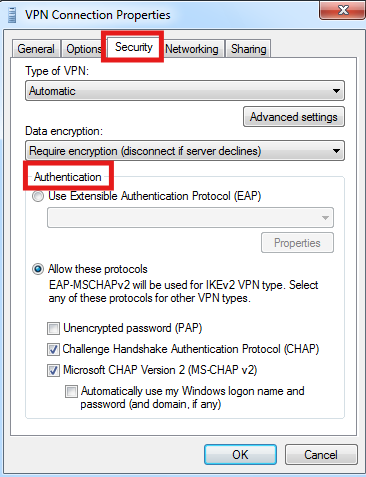
1. Open your VPN connection properties and edit the Security settings.
2. Select the authentication method required by your organization (for example, MS-CHAP v2 or Smart Card/EAP).
3. Save and reconnect.
Fix 3: Check account dial-in and group membership (server-side)
Remote access policies often filter by AD group membership or dial-in permissions.
1. Have the admin confirm your account is a member of the allowed group.
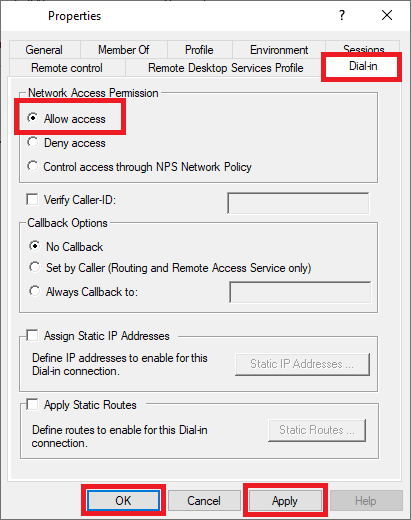
2. Ensure the user’s Dial-in properties allow remote access if your environment still uses that setting.
3. Reattempt the connection.
Fix 4: Review NPS/RADIUS and RRAS policies (server-side) to fix VPN error 812
Policy order and filters like NAS Port Type or Health policies can block valid clients.
1. On the server, open NPS and review policy conditions and ordering.
2. Remove overly restrictive NAS Port Type filters or move the correct policy higher.
3. Test with a known-good account.
Fix 5: Validate certificates and machine compliance
Certificate problems or conditional access (device not compliant) can trigger error 812.
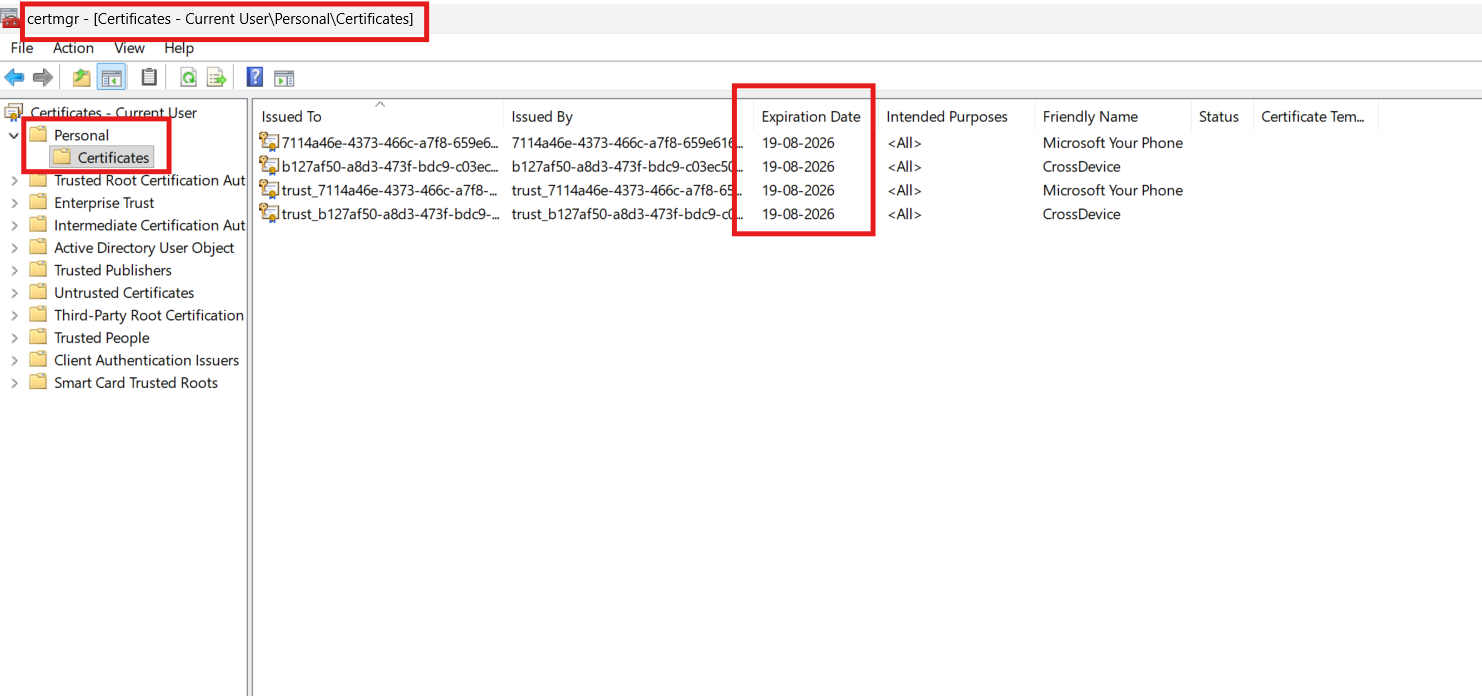
1. Check that client and server certificates are valid and trusted.
2. If using device certificates, confirm the device is domain-joined and compliant with conditional access.
Fix 6: Restart RRAS/NPS services and test from another client
Transient service or configuration issues may require a service restart or client test.
1. Restart RRAS and NPS services on the VPN server.
2. Try connecting from a different PC to isolate whether the issue is client- or server-specific.
Quick tips
1. Confirm the exact VPN error and timestamp in the server event log for precise troubleshooting.
2. If you manage the server, enable logging on NPS to see which condition failed.
3. Test with a local admin account temporarily to rule out group policy blocks.
4. Co-ordinate with your IT admin since many fixes require server-side changes.