Previously, we’ve seen how to create VPN profile in Windows, in this article:
How To Setup VPN Connection In Windows 10/8/7
So setting a VPN connection is quite easy in Windows. If you’ve already setup VPN connection, to reiterate, VPN connection provides a more secure connection between your company’s network and the Internet. Windows 10 can allow or prevent you from using VPN while roaming.
If you’re looking forward to disable VPN while on roaming, here’s how you can do that.
Page Contents
How To Disable VPN While Roaming In Windows 10
Method 1 – Via Settings App
1. Right click Start Button or press  + X keys and select Settings.
2. In the Settings app, navigate to Network & Internet > VPN.
3. Now in right pane of VPN, under Advanced Options, turn Off the Allow VPN while roaming option to disable VPN during roaming.
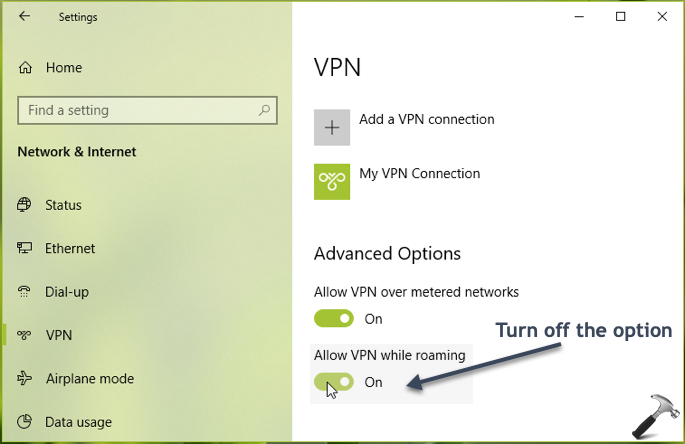
The setting should be applied with immediate effect. You can close Settings app and return to Desktop.
You can also configure this setting via registry manipulation as mentioned in Method 2.
Method 2 – Via Registry
Registry Disclaimer: The further steps will involve registry manipulation. Making mistakes while manipulating registry could affect your system adversely. So be careful while editing registry entries and create a System Restore point first.
1. Press + R and type regedit in Run dialog box to open Registry Editor (if you’re not familiar with Registry Editor, then click here). Click OK.

2. In left pane of Registry Editor window, navigate to following registry key:
HKEY_LOCAL_MACHINE\SYSTEM\CurrentControlSet\Services\RasMan\Parameters\Config\VpnCostedNetworkSettings
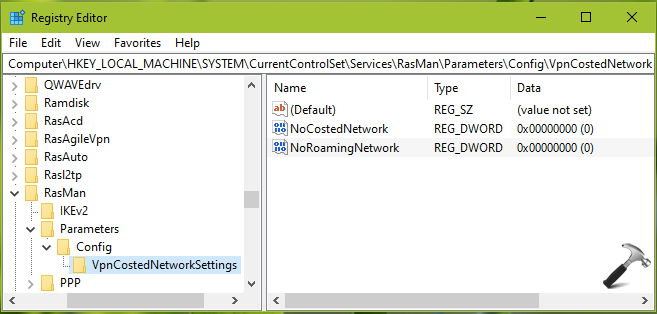
3. Now in the right pane of VpnCostedNetworkSettings registry key, look for the registry DWORD named NoRoamingNetwork. If the DWORD doesn’t exists by default, you can right click in blank space and select New > DWORD Value. Double click on the DWORD to modify its Value data:
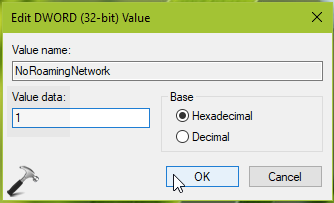
4. Finally, set the Value data to 1 and click OK. Close Registry Editor and reboot to make changes effective.
After restart, you should have VPN disabled while roaming.
That’s it!

![Fix VPN error 812 on Windows 11/10 [6 practical fixes]](https://www.kapilarya.com/assets/VPN-6-768x684.jpg)