Sometimes you may need to delete a file in Windows 11/10 but it won’t delete. Rather Windows will show you a message that you don’t have permissions, or if the file is in use. In other cases, the file is being deleted and you see no progress for long time. This might be frustrating for users and they seek to force delete the file, which this article will explore.
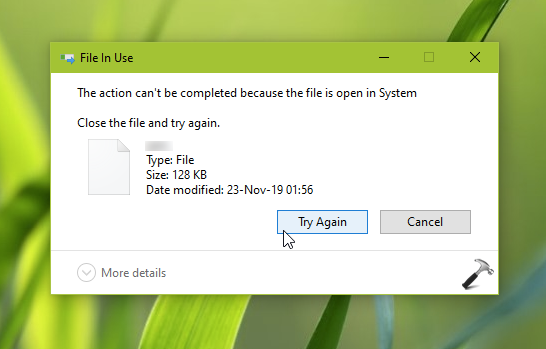
So when you see the file in use message but you’re pretty sure that file is not being used anywhere and you want to force delete the file, try either of methods mentioned below.
Page Contents
How to force delete a file in Windows 11/10
Method 1: Using Command Prompt
1. Open Command Prompt as administrator.
2. In Command Prompt window, navigate to that file’s folder location, which you want to force delete. Once you’re in that folder, type del /p /f <FILE NAME> and press Enter key. Or alternatively, you can directly execute del /p /f <FILE LOCATION> command. As we’ve used /p parameter, so you will be asked for confirmation while force deleting the file. If you like, you can skip /p paramater and directly use del /f <FILE LOCATION>. Note that /f parameter is used to force delete the file specified.
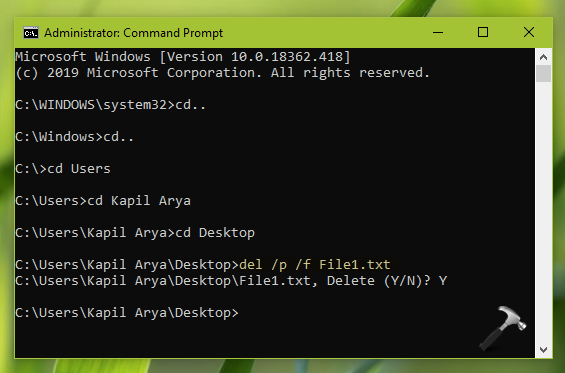
3. Once the command is executed successfully and you manually verified that file is deleted, close Command Prompt.
Method 2: Using Windows PowerShell
1. Right click Start Button or press  + X keys and select Windows PowerShell (Admin). In previous Windows OS, you can use Windows Search for ‘powershell’ term and select Windows PowerShell from results and select Run as administrator.
2. In administrative Windows PowerShell window, type/paste following and press Enter key:
Remove-Item –path '<FILE LOCATION HERE>' - force
* Substitute <FILE LOCATION HERE> with exact file location you want to force delete. For example, Remove-Item –path 'C:\Users\Kapil Arya\Desktop\File1.txt' - force. If the command doesn’t consists of space, you can remove quotes. For example, Remove-Item –path C:\Users\KapilArya\Desktop\File1.txt - force should work but Remove-Item –path C:\Users\Kapil Arya\Desktop\File1.txt - force will not execute unless you put file location in quotes.
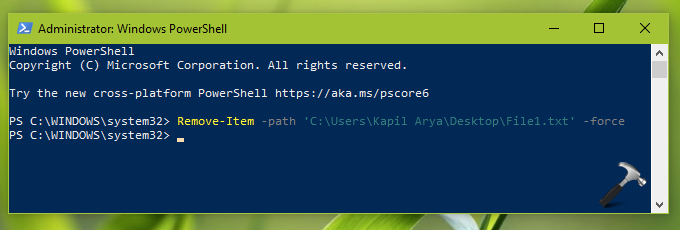
3. Once the command is executed successfully, you can close Windows PowerShell.
That’s it!