If the Recycle Bin Missing in Windows 11 desktop, it can make it difficult to restore deleted files or manage removed items. In most cases, the icon is simply hidden or disabled in settings. This article will help you to restore Recycle Bin.
Page Contents
Fix: Recycle Bin Missing in Windows 11
However, it may also disappear because of corrupted system files or configuration changes. Fortunately, several simple fixes can help restore the Recycle Bin quickly.
Fix 1: Enable the Recycle Bin from Desktop Icon Settings
The most common reason the Recycle Bin disappears is that it was disabled in Windows settings.
1. Right-click on an empty area of the desktop and select Personalize.
2. Click Themes.
3. Scroll down and select Desktop icon settings.
4. Check the box next to Recycle Bin.
5. Click Apply, then OK.
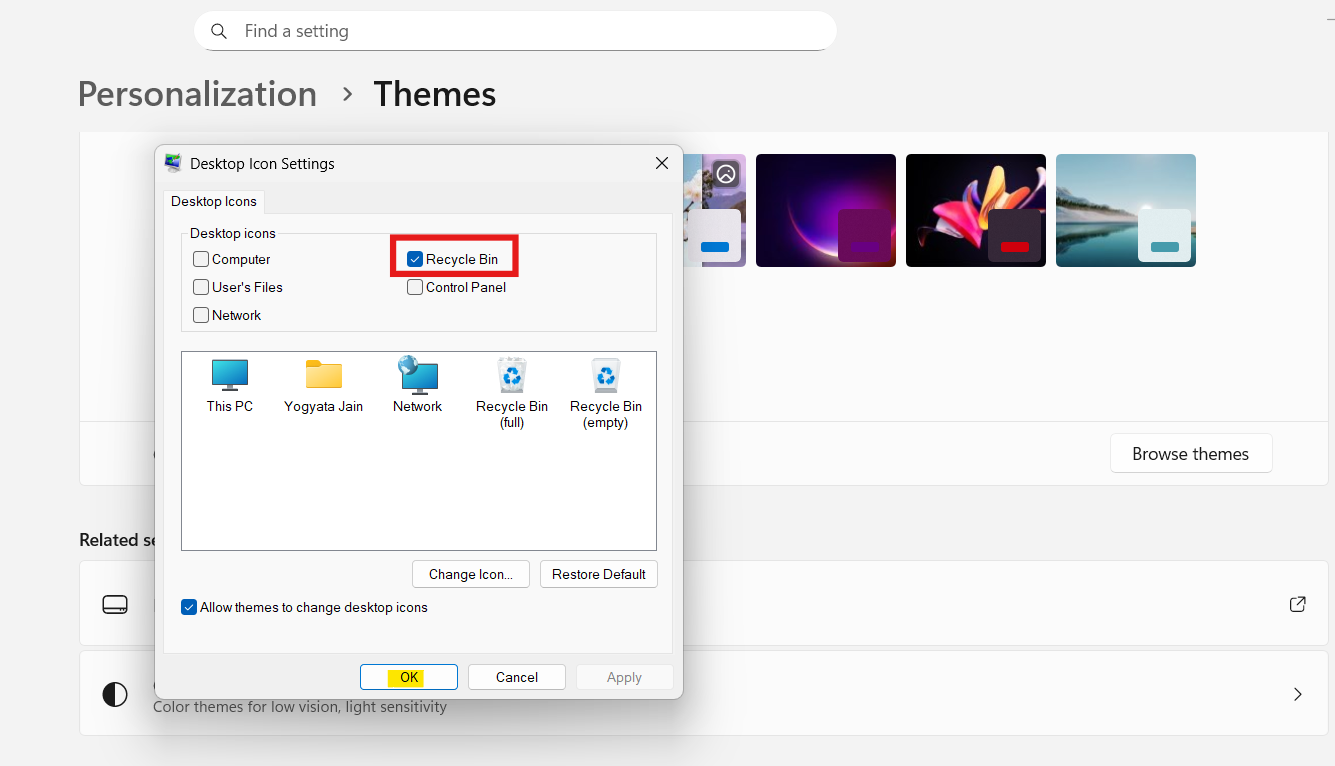
The Recycle Bin icon should immediately reappear on the desktop.
Fix 2: Recreate the Recycle Bin Folder Manually
If the icon does not return, you can manually recreate the Recycle Bin shortcut.
1. Right-click on your desktop and choose New, then Folder.
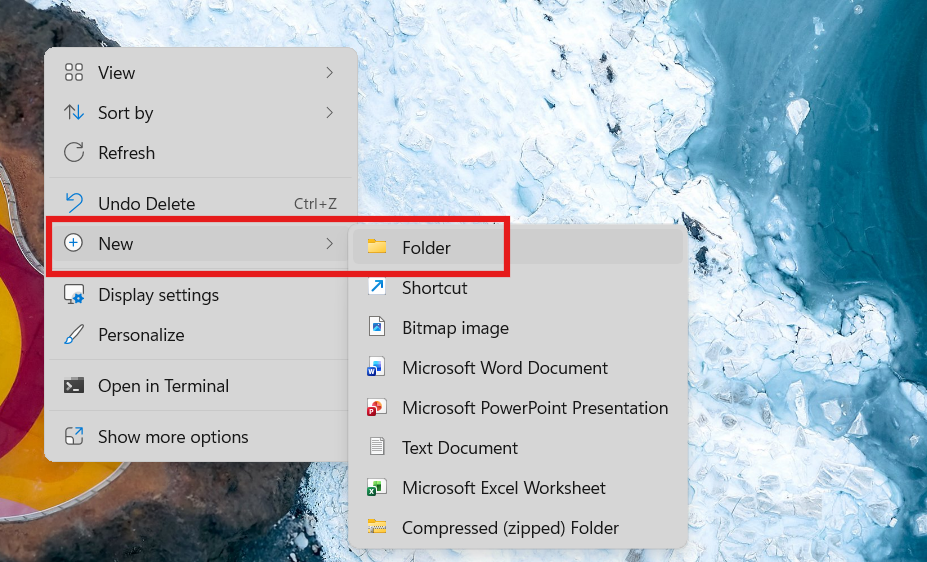
2. Rename the folder exactly as shown below:
Recycle bin.{645FF040-5081-101B-9F08-00AA002F954E}
3. Press Enter.
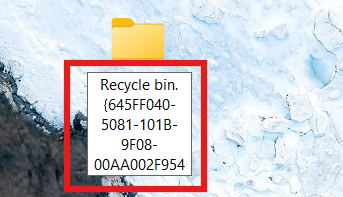
Windows will automatically convert the folder into the Recycle Bin icon.
Fix 3: Run the System File Checker (SFC)
Corrupted system files can also cause Windows system icons to disappear.
1. Press Windows + S and search for Command Prompt.
2. Right-click it and select Run as administrator.
3. Type the following command:
sfc /scannow
4. Wait for the scan to complete.
5. Restart your computer.

This scan repairs missing or corrupted Windows components.
Fix 4: Restore the Recycle Bin Using Command Prompt
Sometimes the system folder responsible for the Recycle Bin becomes corrupted.
1. Open Command Prompt as administrator.
2. Run this command:
rd /s /q C:\$Recycle.Bin
3. Restart your computer.
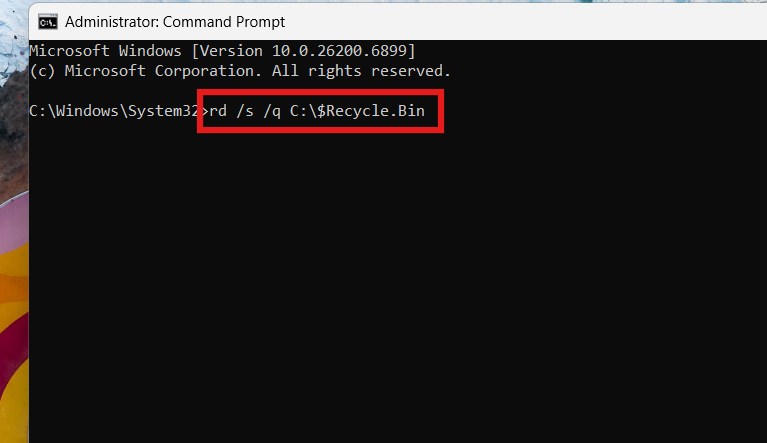
Windows will automatically recreate a fresh Recycle Bin folder when the system starts again.
Fix 5: Access the Recycle Bin from File Explorer
Even if the desktop icon is missing, the Recycle Bin may still exist in the system.
1. Press Windows + E to open File Explorer.
2. Type Recycle Bin in the address bar and press Enter.

You can manage deleted files from there while restoring the icon using the fixes above.
Summary
If the Recycle Bin missing, the problem is usually caused by disabled desktop icon settings, corrupted system files, or a damaged Recycle Bin folder. Re-enabling the icon from Desktop Icon Settings, recreating the folder manually, running SFC, or resetting the system Recycle Bin folder typically restores it quickly.