

Windows Explorer process is not a new thing to Windows users. This process has been part of Windows family since a very long time. Windows Explorer is basically a user shell because of which we see Desktop, taskbar and other visual elements on our Windows system. If your system is lagging or freezing, you might be often recommended to restart Explorer process. In you’ve just made a registry change to HKEY_CURRENT_USER branch, you might need to restart Explorer to apply the changes. In this article, you’ll read how to restart Windows Explorer in Windows 11.
Restarting the Windows Explorer means first we’ll terminate the currently running Windows Explorer process. All the dependent processes will also be terminated. And then we’ll restart Windows Explorer process, and all dependent process should also restart. Here’s how you can do this on your system.
Page Contents
How to restart Windows Explorer in Windows 11
Method 1 – Restart Windows Explorer using Task Manager
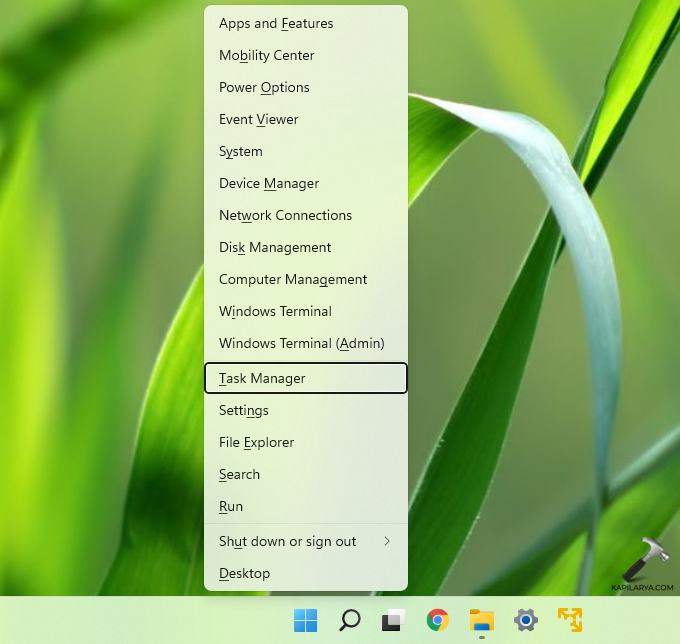
1. Press  + X keys and select Task Manager.
2. In the Task Manager window, under Processes tab, scroll down and locate Windows Explorer process.
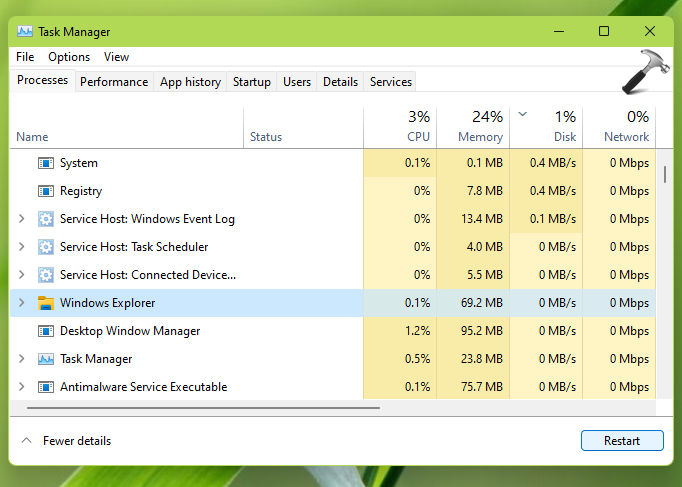
3. Click on Windows Explorer process once and hit Restart button.
You will then see visual elements on the screen going off and then coming back automatically. This confirms that Windows Explorer process has been terminated and then Windows Explorer was restarted. You can now close Task Manager and return to your work.
Method 2 – Restart Windows Explorer using Command Prompt
One of the most popular alternate way to restart Windows Explorer process is using Command Prompt. Here is how to restart Windows Explorer using commands.
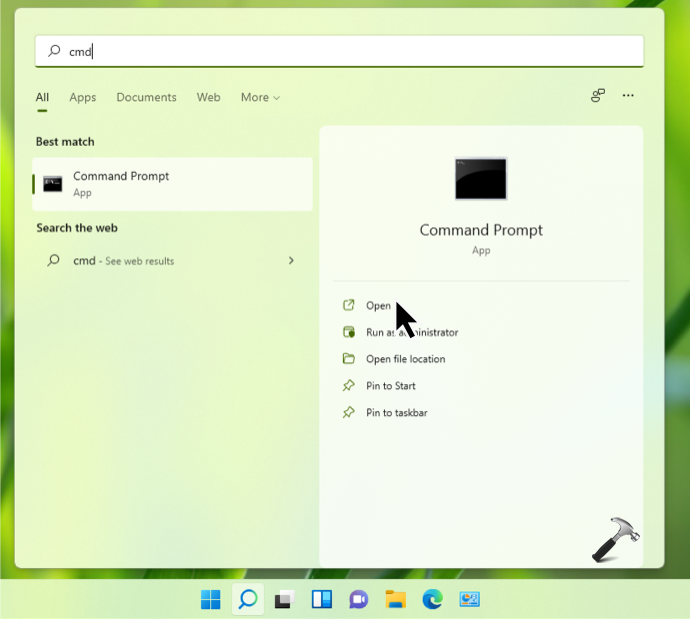
1. Click on the search icon on the taskbar and type cmd or Command Prompt. From search results, you will see Command Prompt as the best match. Click on the Open option below it.
2. In the command prompt window, type following command and press Enter key:
taskkill /f /im explorer.exe

3. When you execute command in the step 2, you’ll see that Windows Explorer process is terminated because taskbar, Desktop background etc. are now gone and showing black color. To restart the Windows Explorer, type following command and press Enter key:
start explorer.exe
In this way, the Windows Explorer process has been restarted in your Windows 11. You can now close Command Prompt and return to your work.
That’s it!
Read next: How to move taskbar to top in Windows 11.





You didn’t mention from what build onwards it works. It doesn’t work in the 22H2 build my employer is using.