

In the modern hybrid world, when closing the distance at the workplace, a shared workspace, and traveling are the new norm, it is necessary to secure your Windows 11 PC remotely. Users leave their systems logged in when taking a coffee, a break, or even on the move. It is then that security risks skyrocket.
Remote locking will guarantee that you have complete protection of your emails, documents, financial information, and business files, even in cases where you forget to lock your system manually. This tutorial will provide an end-to-end steps on how to remotely lock a PC with Windows 11.
Page Contents
Why You May Need to Lock Your Windows 11 PC Remotely
“Did I leave my PC unlocked?” Are you wondering the same?
Remote locking will literally come in handy there. The use of intelligent features in Windows 11 means that you can encircle your PC even at a distance of miles. Remotely locking your PC will prevent the dangers of being exposed to such risks like:
- Hacking into personal or office data.
- Non-secure passwords, personal information or documents.
- Misuse of a logged-in system.
- Working in the open places, they are vulnerable to security breaches.
So, now we shall discuss the three most effective forms of putting a lock on a Windows 11 PC remotely or automatically, but in a context that is very unique and easily understood.
Ways to Lock your Windows 11 PC remotely
Method 1: Best Method- Lock Windows 11 Using Your Microsoft Account
The technique is ideal when your PC is lost, stolen, or when you simply forgot to lock up your PC before going out. It can be locked at the touch of a button on your phone or a different laptop.
1. You must open any browser, either on your computer or your phone.
2. Visit the Microsoft Device Management page at https://account.microsoft.com/devices.
3. Use the same Microsoft account that is associated with your Windows 11 computer.
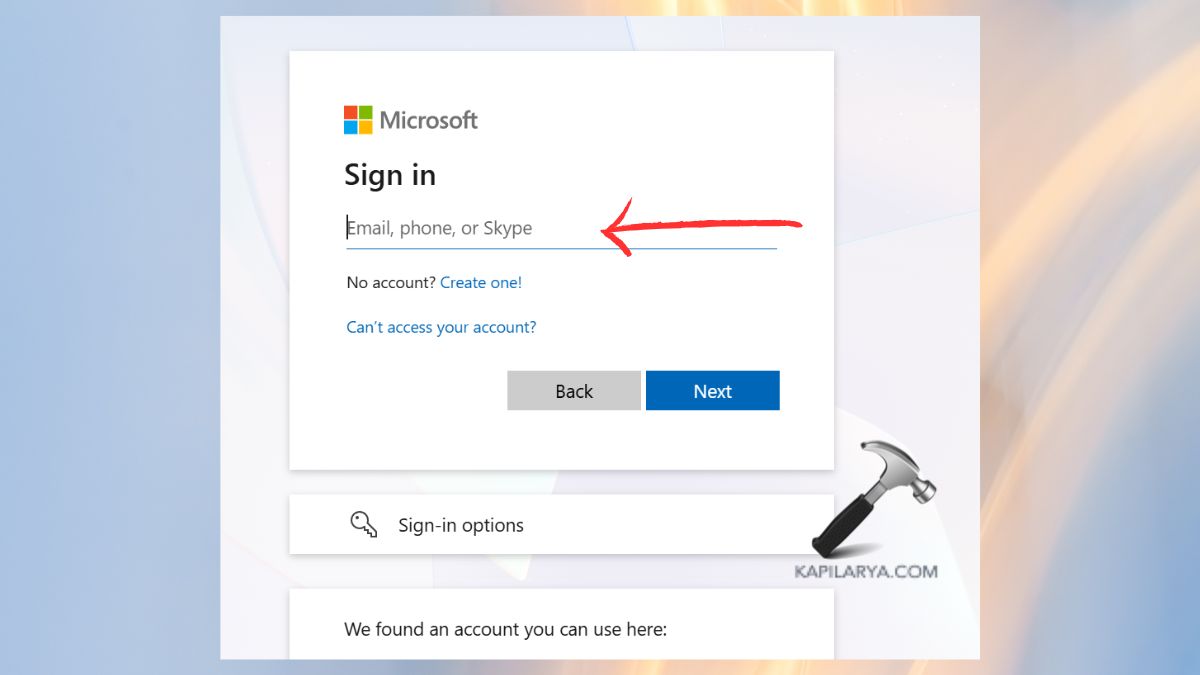
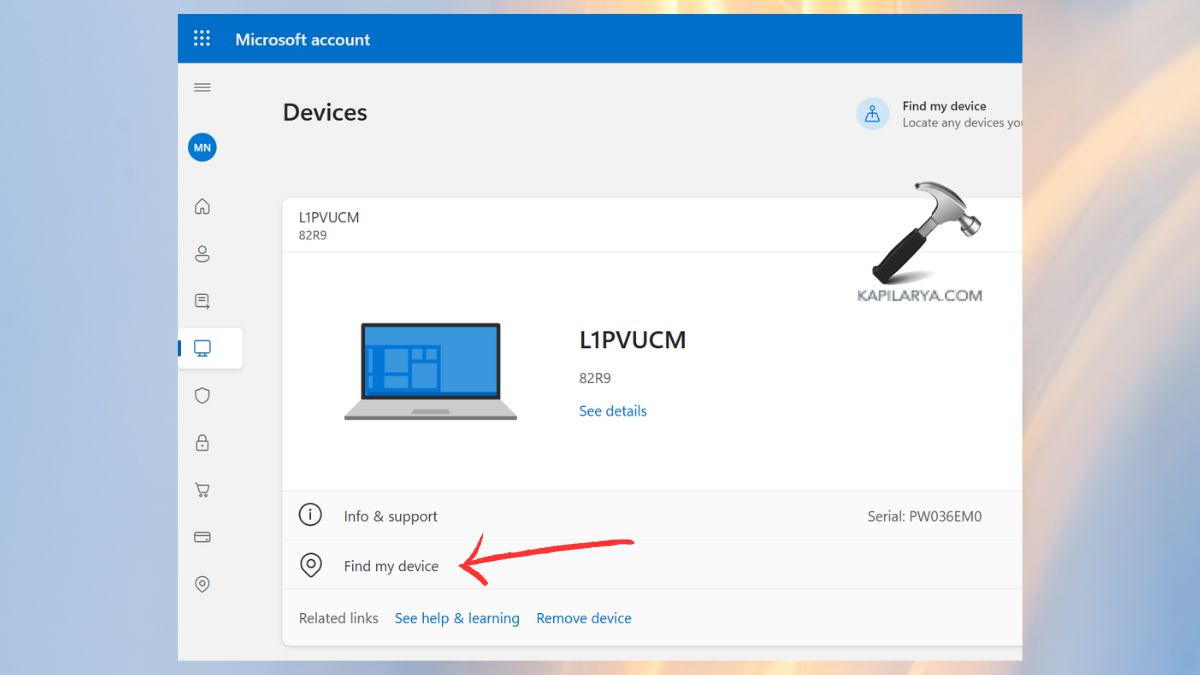
4. Choose the device on the list. Click Find my device.
5. Then, select the Lock option.
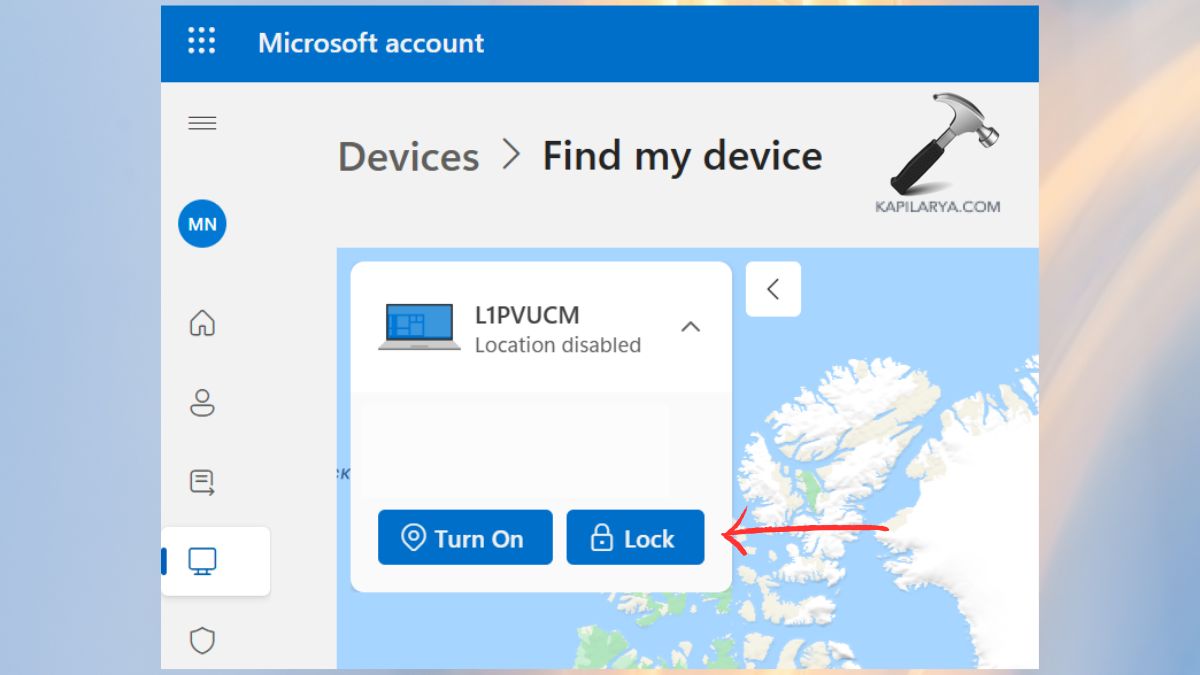
Authenticate your action after signing in once again. Your Windows 11 computer is now locked immediately in the cloud.
Method 2: Lock Windows 11 via Remote Desktop
Remote Desktop lets you have more control should you be habitually connecting to your PC remotely. After being connected, all you have to do is lock your system with a simple command.
1. Make sure that the Remote Desktop is on your Windows 11 PC. If not download it from Microsoft Store.
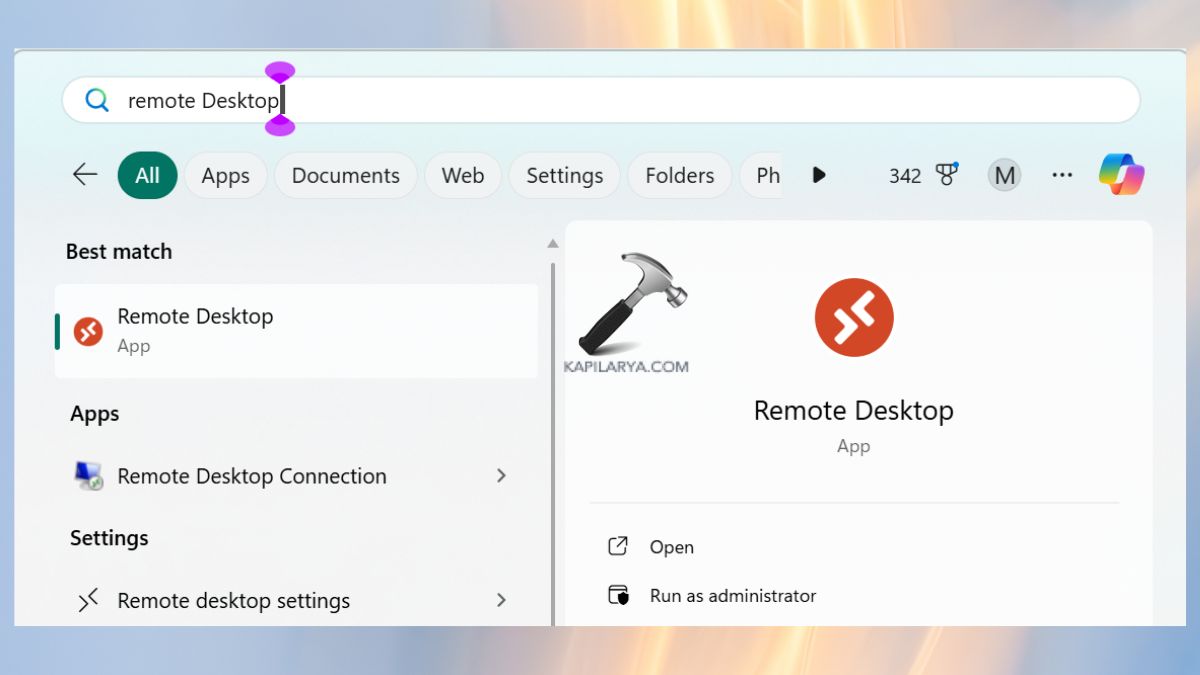
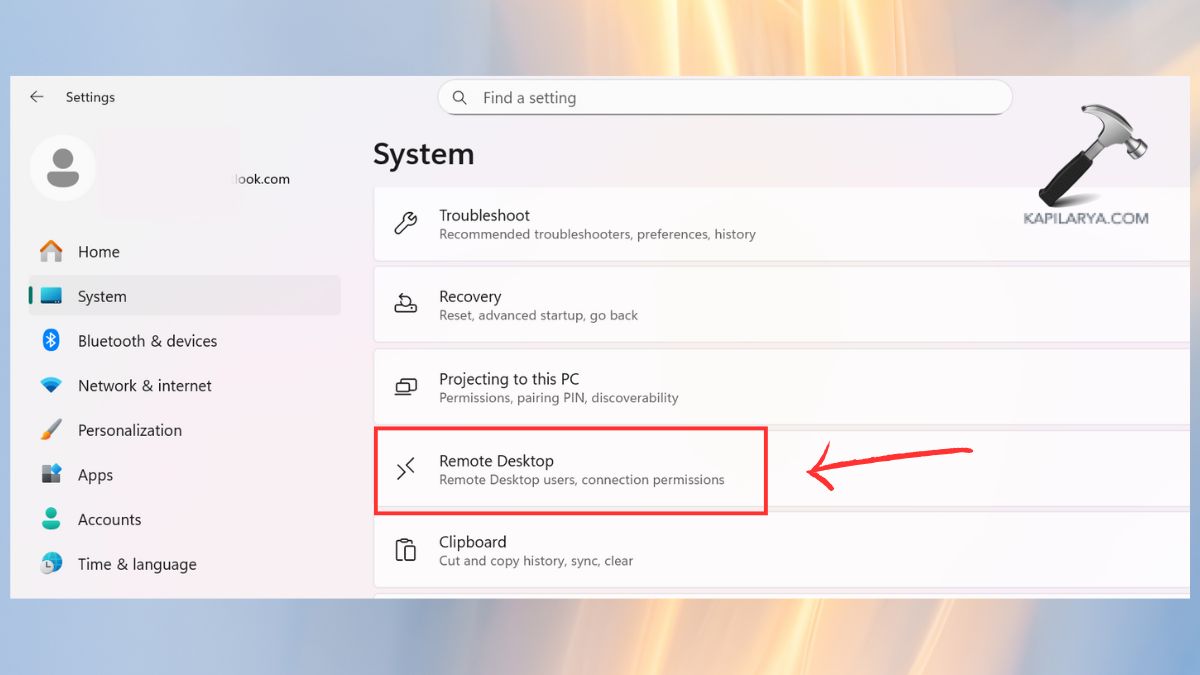
2. Open Windows 11 Settings > System > Remote Desktop.
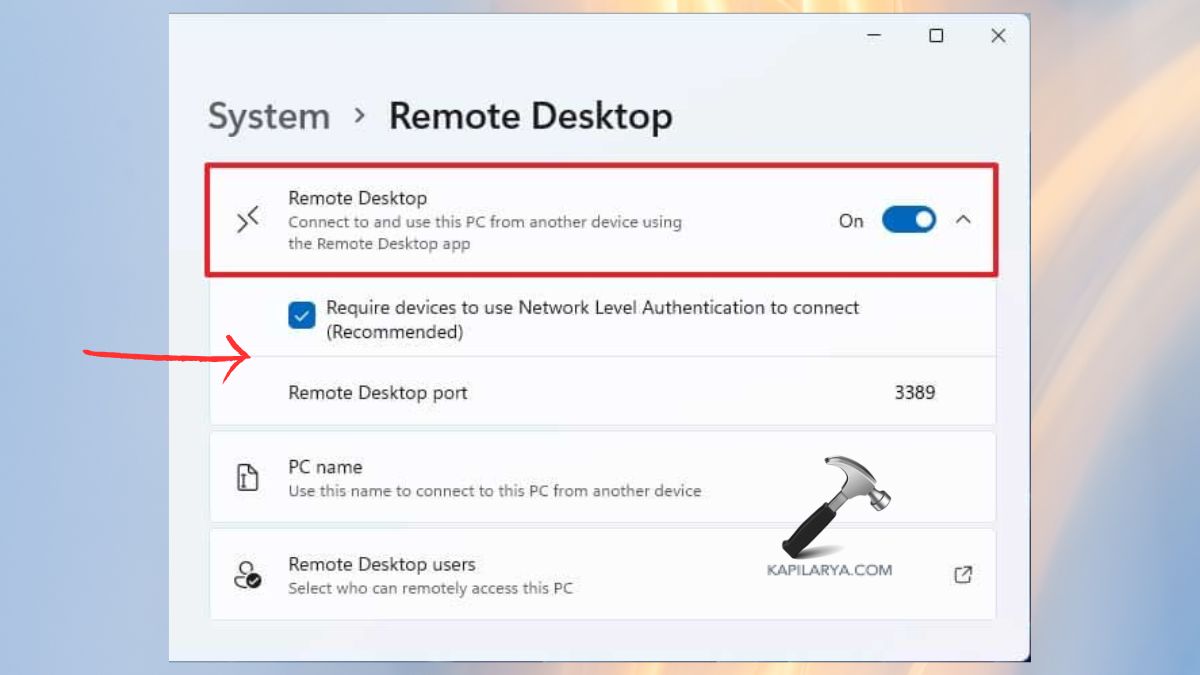
3. Now, toggle on the Enable Remote Desktop.
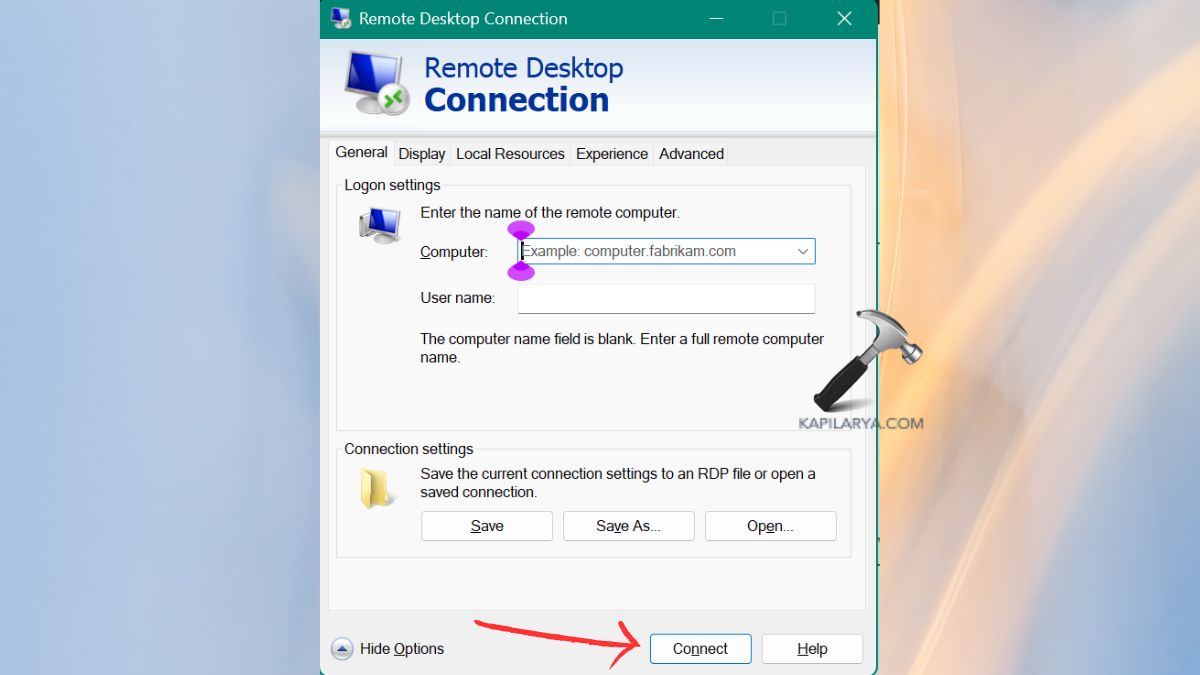
4. On another Windows device / mobile, open the Remote Desktop Connection tool. Input your PC name or IP address, and log in using your information.
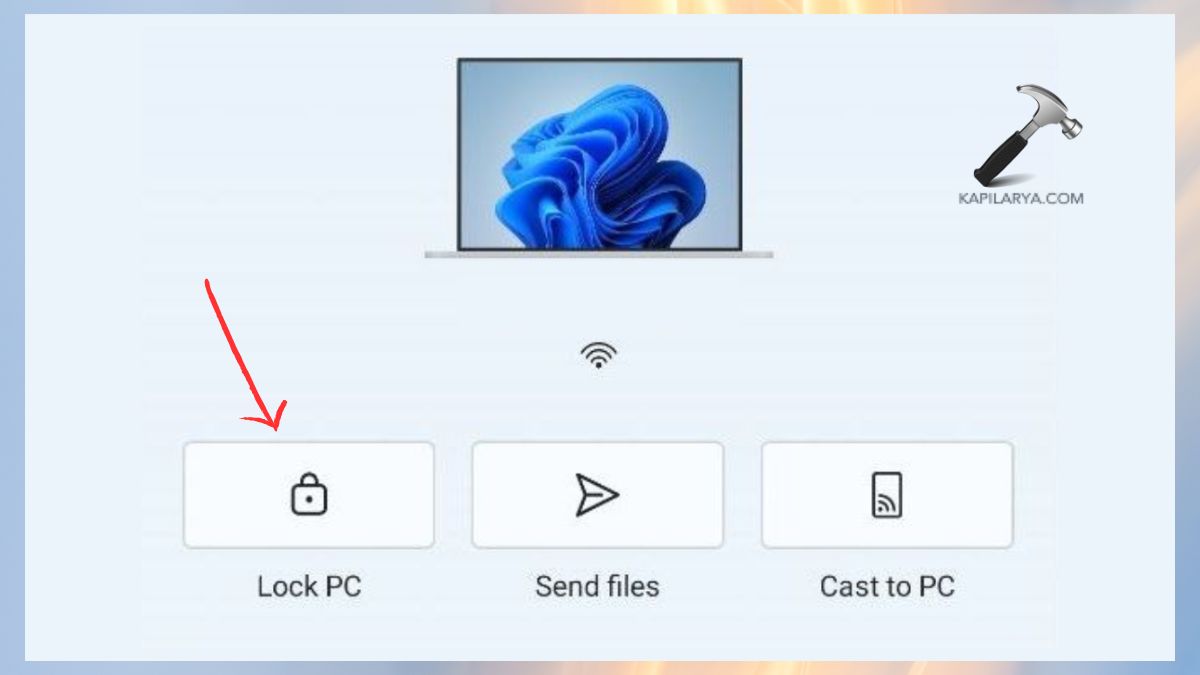
5. When attached, press: “Ctrl + Alt + End” (This will give access to the secure options menu ). Choose Lock from the menu.
Method 3: Use Dynamic Lock for Automatic Locking
Dynamic Lock is a Bluetooth-based feature that notifies when one leaves their Windows 11 device. Windows will lock your PC in case that your phone loses its signal.
Here is how you can switch on Dynamic Lock:-
1. Enable Bluetooth on your phone.
2. In Windows 11, open up Settings and then go to Bluetooth and devices. Enable it and integrate your PC with your smartphone with “Add Device”.
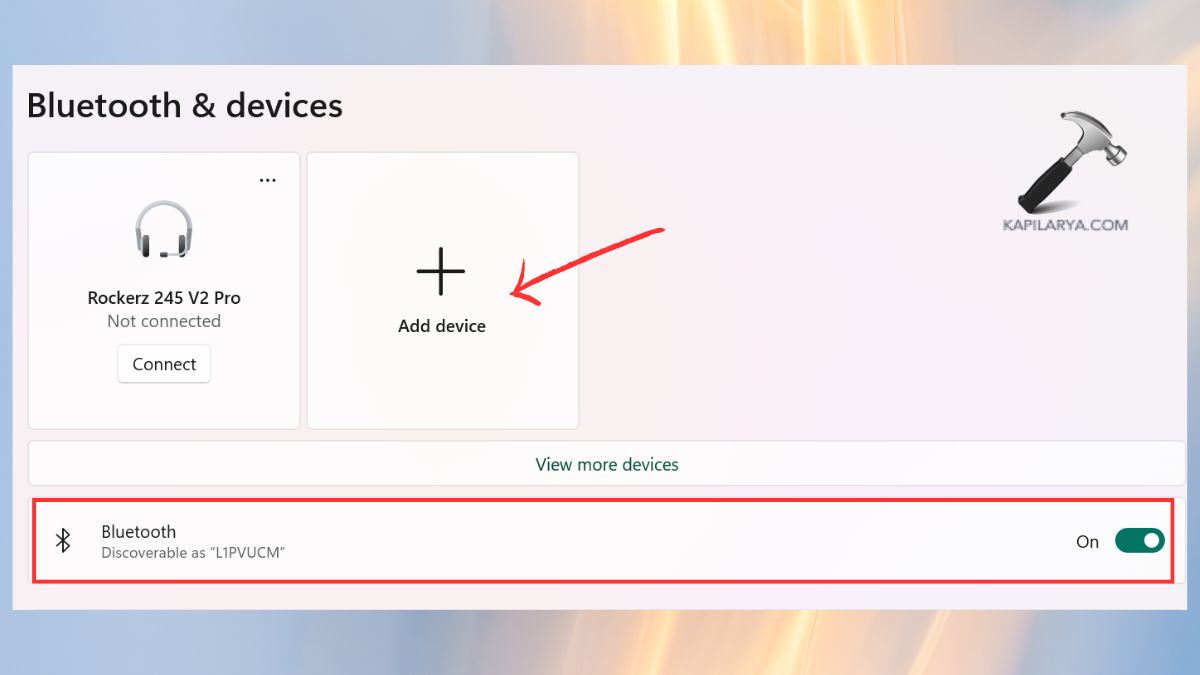
3. Now open Settings > Accounts. Click Sign-in options.

4. Go down and check the Dynamic Lock is on. Check the box: “Allow the Windows to automatic lock of your device when away.

Frequently Asked Questions (FAQs)
Can I lock my Windows 11 PC without being near it?
Yes. You may use your Microsoft account online so that you can instantly lock your gadget anywhere.
Does locking my PC remotely log out all apps?
No. Even after locking up the screen, it does not stop the running apps, thus making it impossible to access the physical device.
Can I lock my PC if Bluetooth or the internet is off?
- Dynamic Lock is supported by Bluetooth.
- Remote Lock using a Microsoft account needs the internet.
- When in offline status, the PC will lock immediately it goes online.
Is remote locking safe?
Absolutely. It is very safe and reliable as it involves the security systems and encryption of Microsoft.
That’s it!




