Fix: This computer can’t connect to the remote computer

In this article, learn how to fix "This computer can’t connect to the remote computer" error in Windows 11/10 system.

Kapil Arya
11x Microsoft MVP · Admin
2 min read
Add as a preferred
source on Google

Previously, we have shared you this guide to show how to connect Windows remotely to other machines. Well, recently we came around a strange issue regarding Remote Desktop feature. In this scenario, while connecting to other Windows 11/10 machines, we received This computer can’t connect to the remote computer error:
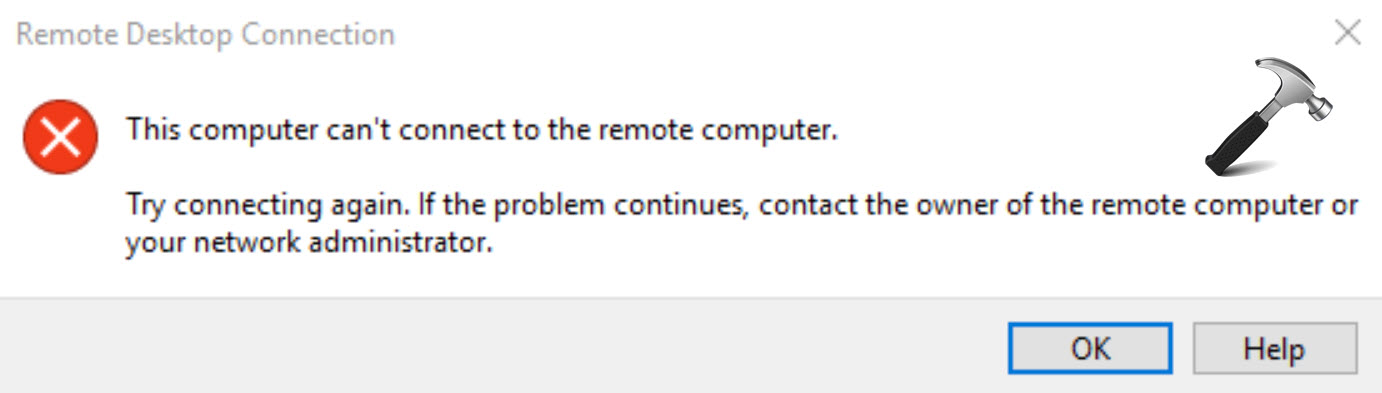
This computer can’t connect to the remote computer.
This computer can’t connect to the remote computer. Try connecting again. If the problem continues, contact the owner of the remote computer, or your network administrator.

This error is however one of the common errors with Remote Desktop feature. If you’re also facing this issue, you can try below mentioned registry tweak on client machine and see if it works you.

Fix: This computer can’t connect to the remote computer in Windows 11/10

🛈 Registry Disclaimer: The further steps will involve registry manipulation. Making mistakes while manipulating registry could affect your system adversely. So be careful while editing registry entries and create a System Restore point first.

1. Press Windows Key + R and type regedit in Run dialog box to open Registry Editor. Click OK.
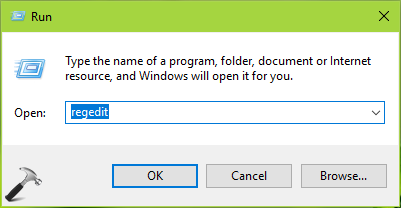
Windows 10 Registry Editor

2. In left pane of Registry Editor window, navigate to following registry key:

HKEY_CURRENT_USER\Software\Microsoft\Terminal Server Client
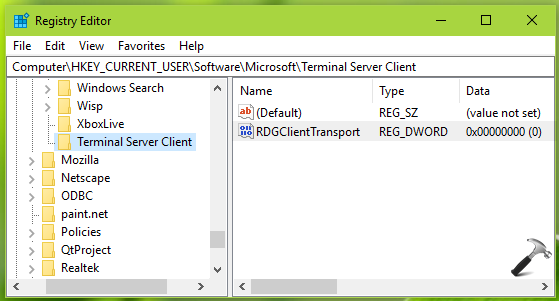
FIX Your Computer Can't Connect To The Remote Computer Error In Windows 10

3. Now in the right pane of Terminal Server Client registry key, right click and select New > DWORD Value. Name the newly created registry DWORD (REG_DWORD) as RDGClientTransport. Double click on the DWORD to modify its Value data:
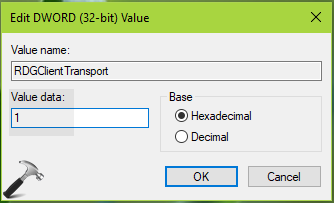
FIX Your Computer Can't Connect To The Remote Computer Error In Windows 10

4. Finally, set the Value data to 1 and click OK. Close Registry Editor and reboot the machine.

After restarting your system, you’ll find that the error no longer occurs.

🛈 TIP: You can also apply this registry tweak from Command Prompt. Simply open administrative Command Prompt and type/paste reg.exe Add "HKCU\Software\Microsoft\Terminal Server Client" /V "RDGClientTransport" /T REG_DWORD /D "1" and press Enter key. Once the command executed successfully, close Command Prompt and reboot to get fixed.

Hope this helps!

Share this article
https://www.kapilarya.com/this-computer-cant-connect-to-the-remote-computer

Shareable URL

Article by

Kapil Arya
11x Microsoft MVP · Admin

Kapil holds Microsoft MVP title in Windows IT Pro expertise, 11-times in a row (2014-2025). He is 8-times Windows Insider MVP as well, and author of 'Windows Group Policy Troubleshooting' book. In 2015, Microsoft India accomplished him as 'Windows 10 Champion'. Being passionate Windows blogger, he loves to help others on fixing their system issues. Kapil has worked with official Microsoft Community Engagement Team (CET) on several community projects. You can subscribe him for news/updates and fixes for Windows.

Leave a Comment

Your email address will not be published. Required fields are marked *