If you see errors like: This device is currently in use when trying to eject a USB drive in Windows 11, it means some process is still accessing the device. Even if nothing obvious is open, background services, File Explorer, or antivirus scans can block safe removal.

Page Contents
Windows 11 Fix: Can’t Eject USB drive
This issue often occurs because files are still being used or not properly closed by the system or apps. In some cases, Windows may also be indexing, scanning, or syncing files in the background, which keeps the drive busy without showing any visible activity. Below are 6 effective methods to safely eject your USB drive.
Fix 1: Close All Apps Using the USB
The most common cause is a program still accessing files.
1. Close File Explorer, media players, or backup apps.
2. Check background apps like antivirus or indexing.
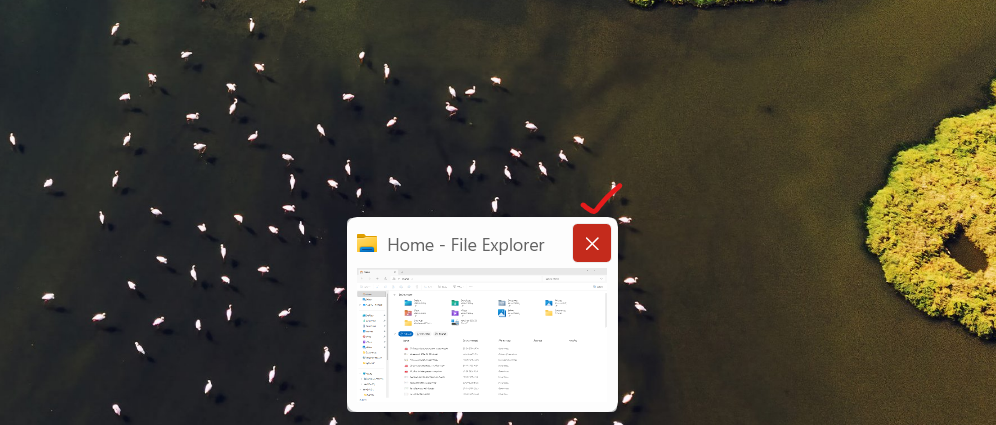
Even hidden processes can keep the drive busy.
Fix 2: Restart Windows Explorer
Sometimes, File Explorer itself locks the drive.
1. Press Ctrl + Shift + Esc to open Task Manager.
2. Find Windows Explorer.
3. Right-click and choose Restart.
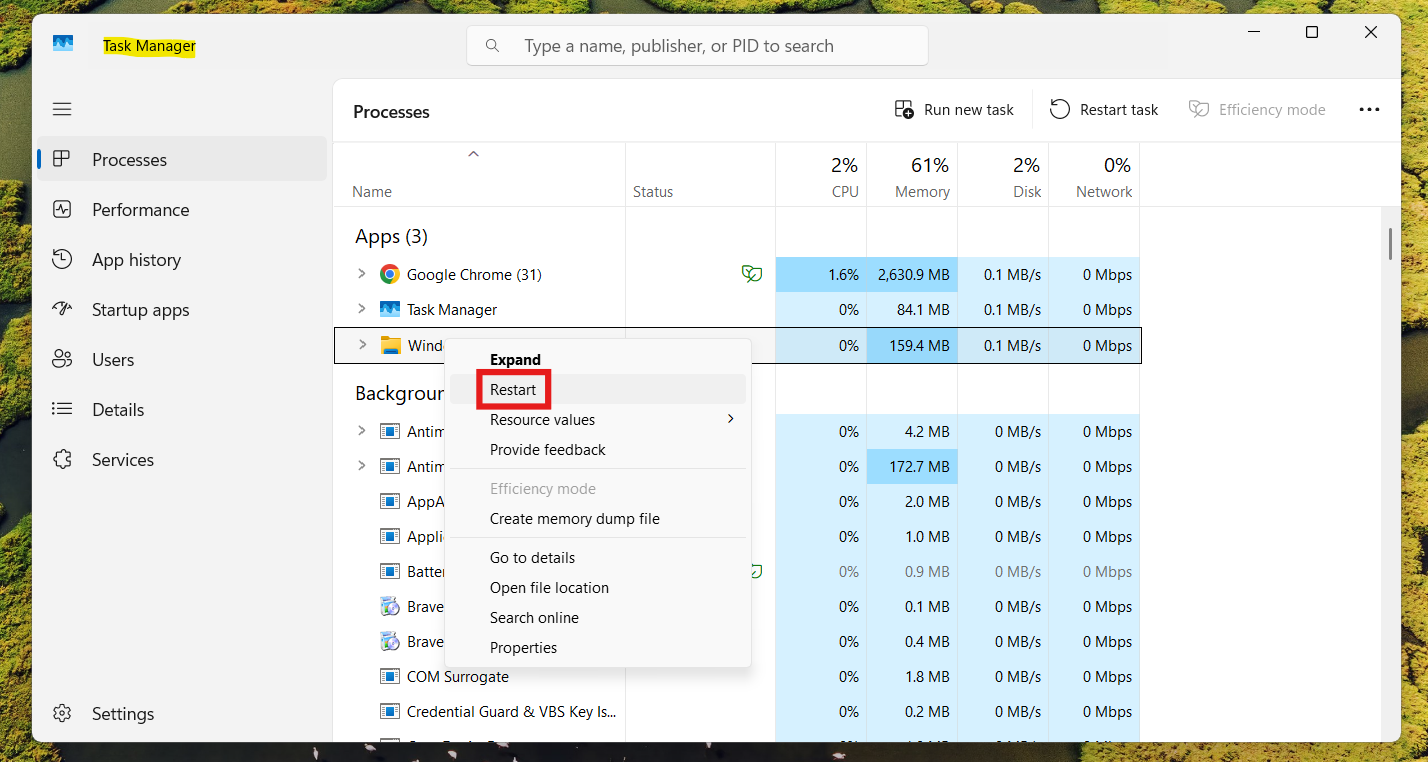
This refreshes file handles and often releases the USB drive.
Fix 3: Use Safely Remove Hardware Properly
1. Click the USB icon in the system tray.
2. Select Eject your device.
3. Wait for the message: Safe to remove hardware.
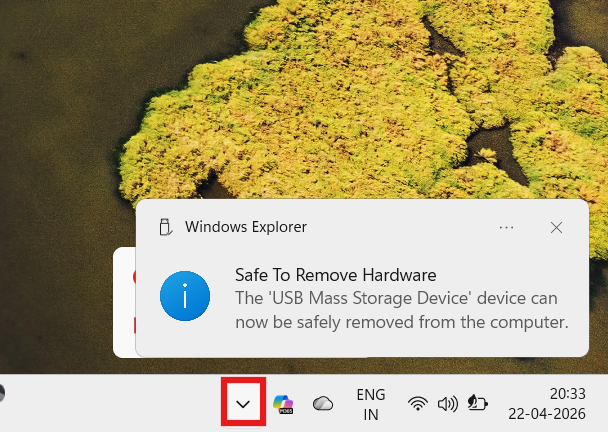
If the icon is hidden, enable it from taskbar settings.
Fix 4: Restart Your PC
If nothing works:
1. Restart your computer.
2. Do not open any apps.
3. Try ejecting again.
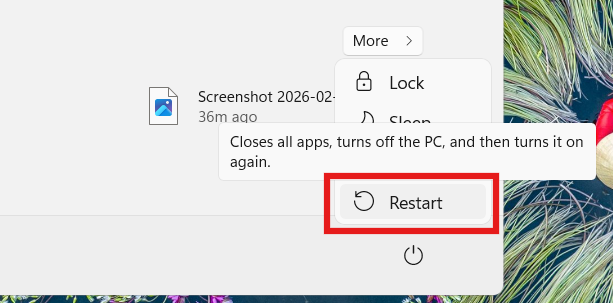
A restart clears all processes using the USB drive.
Fix 5: Disable Background Services (Antivirus/Backup)
Some services constantly access external drives.
1. Temporarily disable:
- Antivirus
- Backup tools
- Indexing services

Then try ejecting again.
Fix 6: Use Disk Management
If the drive still won’t eject:
1. Press Win + X and choose Disk Management.
2. Right-click the USB drive.
3. Select Eject.
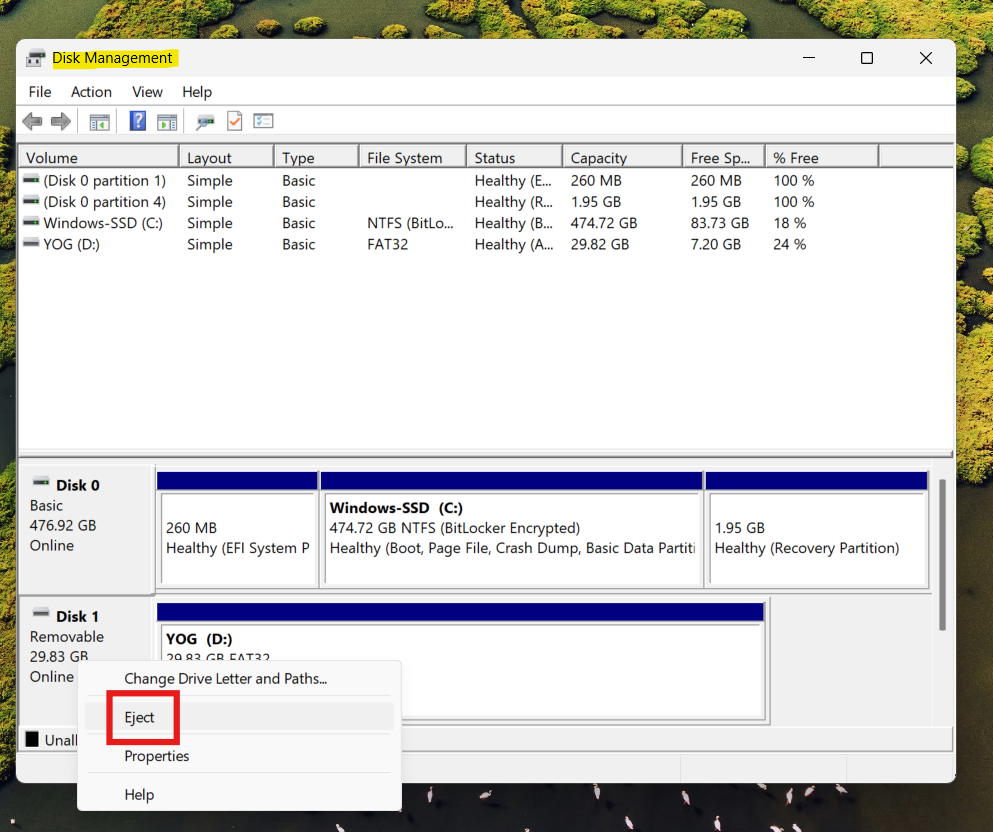
This safely disconnects the drive from the system.
Important Note
Modern Windows versions use Quick Removal mode, meaning you can unplug USB drives if no data is being transferred, but it’s still safer to eject properly to avoid corruption.
Summary
If you can’t eject a USB drive in Windows 11, the issue is usually caused by background processes or system services still using it. Closing apps, restarting Explorer, disabling services, or using Disk Management are the most effective fixes. In most cases, one of these methods will safely release the drive.