Consider a scenario. You plugged in a USB drive to the system, it has a drive letter for example, A. Now you unplugged the USB. Later, you again plugged the same USB drive but now it has drive letter B and not previously assigned letter A. If your USB drive letter keeps changing like this in Windows 11/10, this article will help you to fix it.
The USB drive letter may keeps changing because of following reasons:
- Another USB drive or storage device is connected before your USB drive.
- Windows automatically reassigns drive letters after a restart.
- The USB drive is ejected and reconnected to a different USB port.
- A new hard drive, SSD, or removable device creates a drive letter conflict.
- Windows Update may reset or change drive letter assignments.
- Corrupted disk or partition information can cause incorrect drive letter allocation.
- Multiple external storage devices connected simultaneously may confuse Windows automatic assignment process.
Page Contents
Fix: USB Drive Letter Keeps Changing In Windows 11
Let’s take a look at the solutions to fix the issue: USB Drive letter keeps changing in Windows 11.
Fix 1: Assign A Permanent Drive Letter In Disk Management
The easiest solution is to manually assign a drive letter that Windows is less likely to reuse.
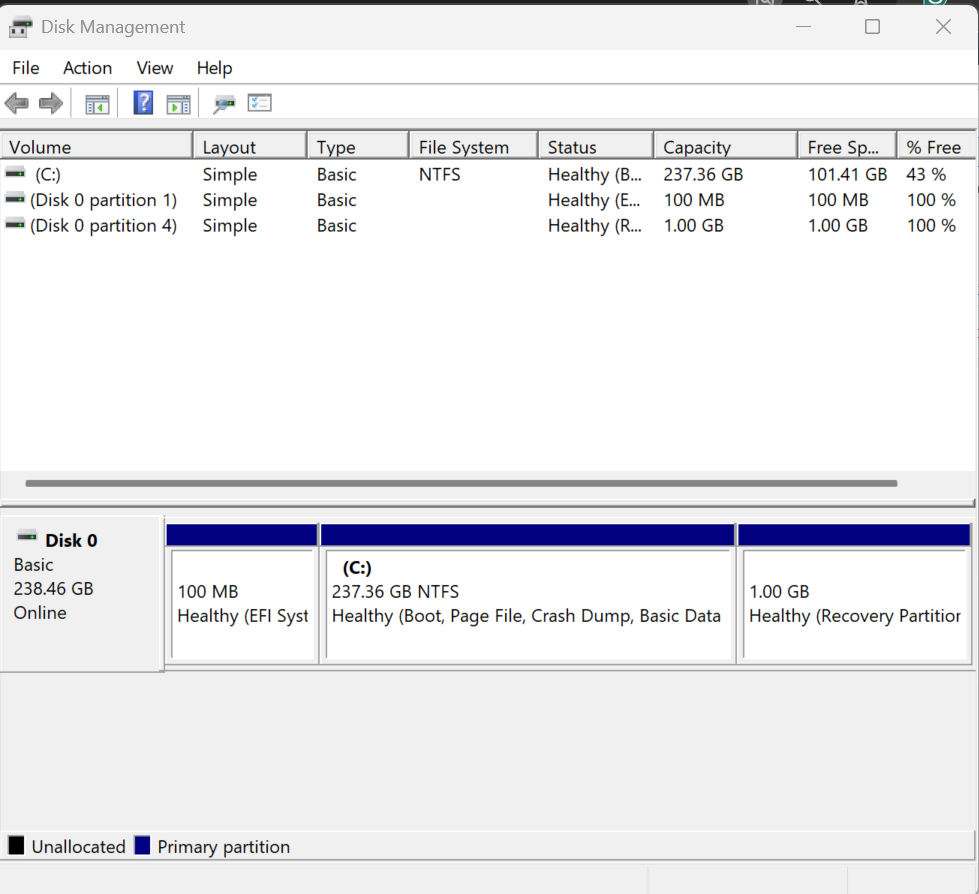
1. Press Windows + X and select Disk Management.
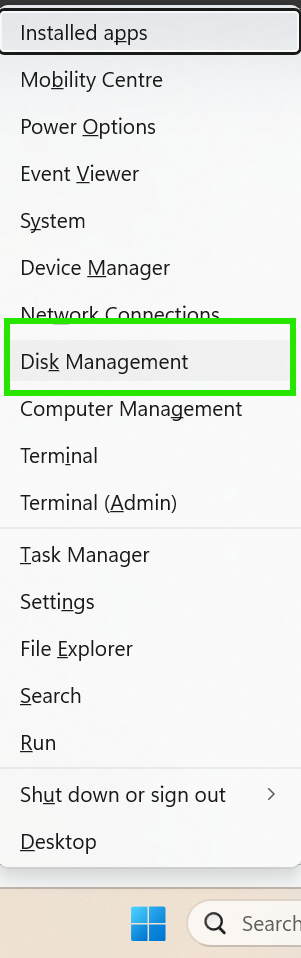
2. Find your USB drive in the list.
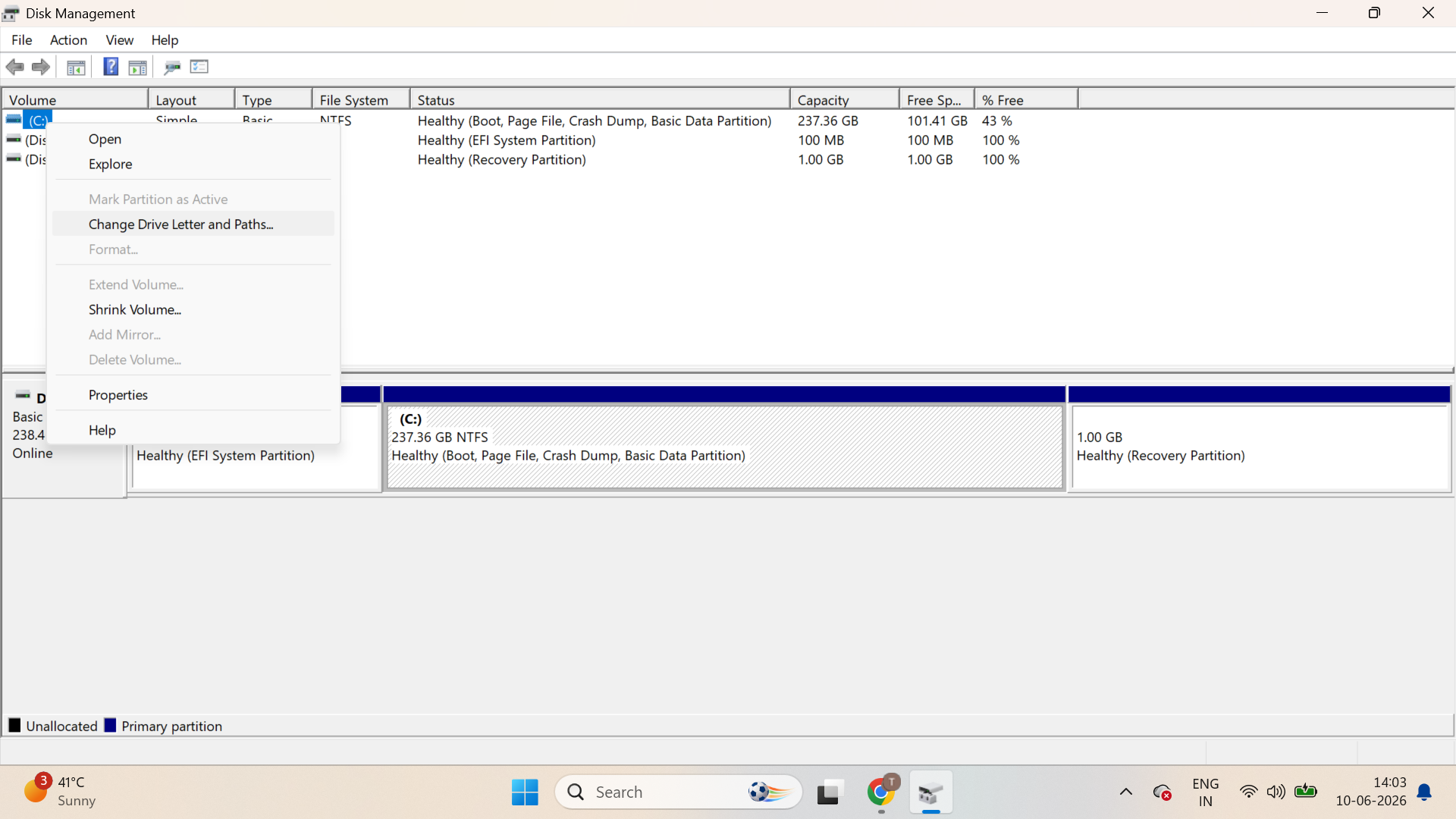
3. Right-click the USB partition and select Change Drive Letter and Paths.
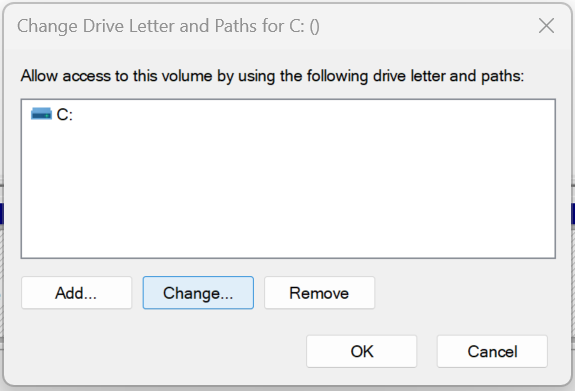
4. Click Change.
5. Choose a letter near the end of the alphabet, such as M, N, or P.
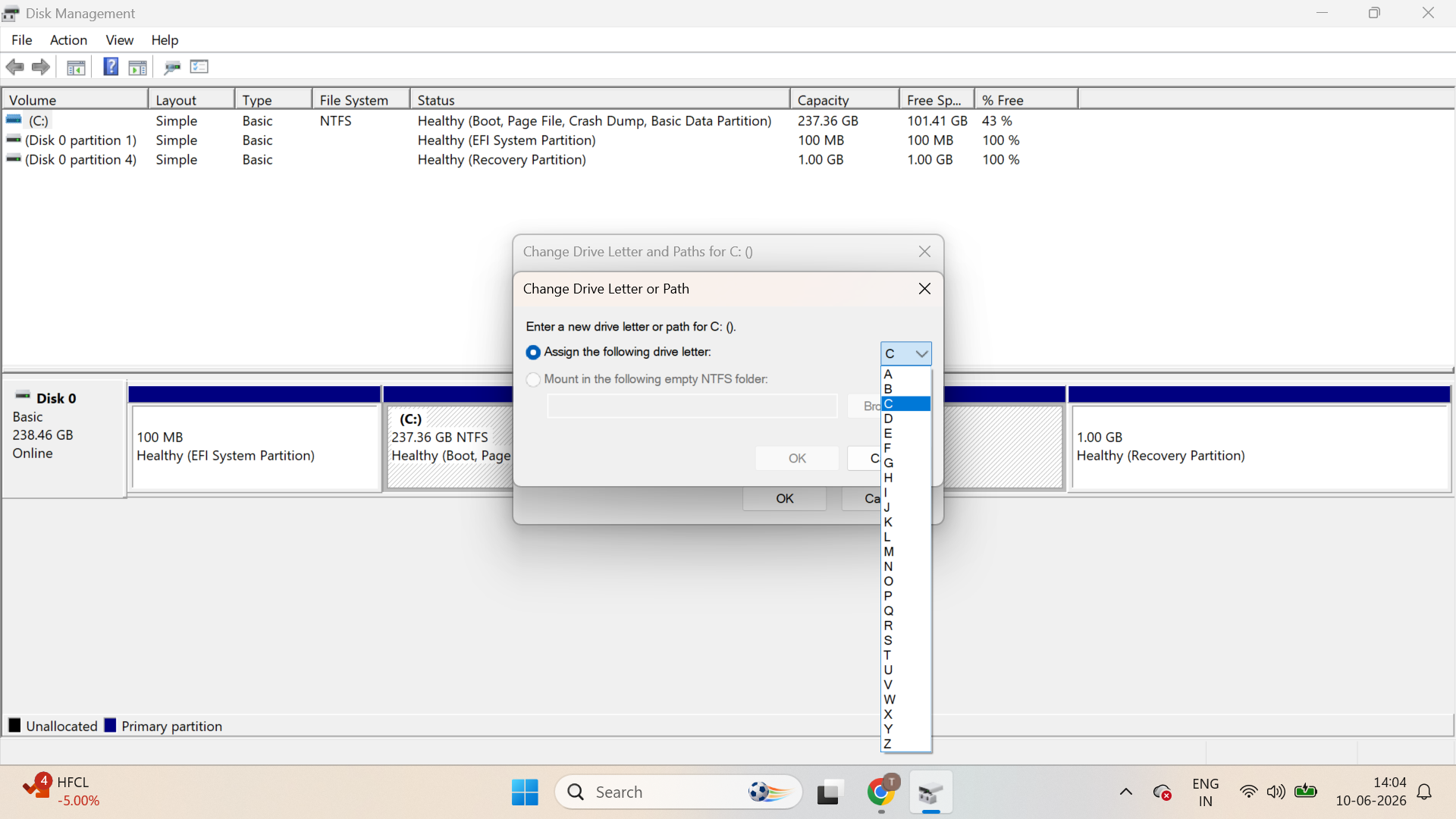
6. Click OK, then confirm the change.
Reconnect the USB drive and check whether the letter remains the same.
Fix 2: Reassign The Drive Letter Using DiskPart
DiskPart is a built-in command-line tool that can manually assign a drive letter.
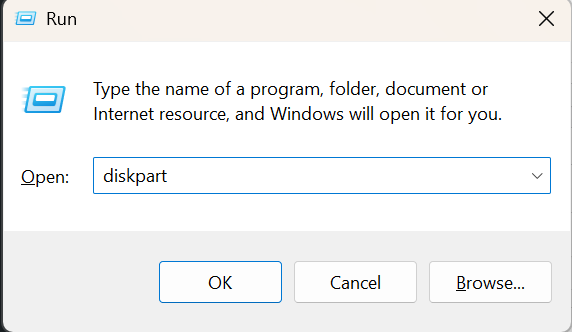
1. Press Windows + R, type diskpart, and press Enter.
2. Type list volume and press Enter.
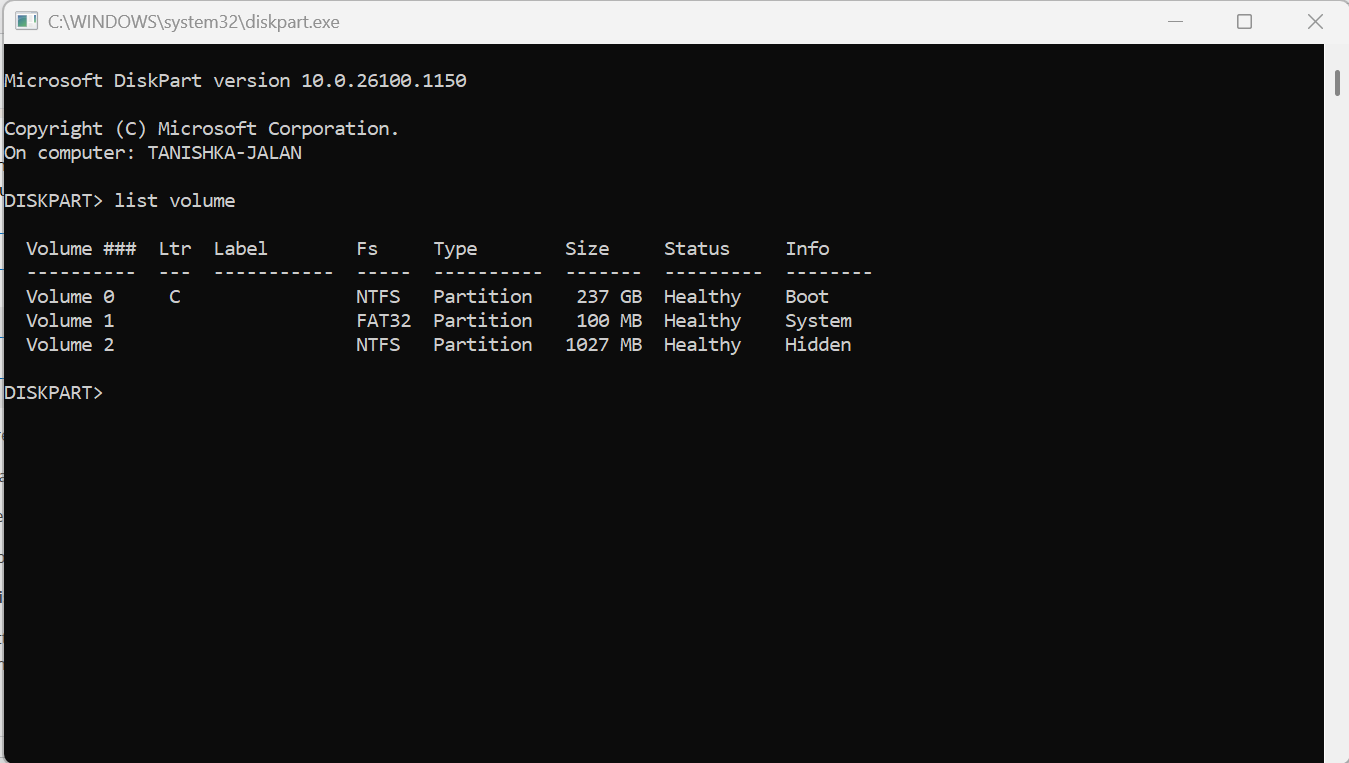
3. Identify your USB drive and note its volume number.
4. Type select volume X (replace X with the correct number).
5. Type assign letter=F (replace F with your preferred letter).
6. Press Enter and close DiskPart.
Fix 3: Disconnect Other External Storage Devices
Sometimes Windows changes drive letters because multiple storage devices are connected.
1. Safely remove unnecessary USB drives, memory cards, or external hard disks.
2. Restart your computer.
3. Connect only the affected USB drive.
4. Verify whether Windows keeps the assigned drive letter.
This helps prevent letter conflicts between devices.
So, when the USB drive letter keeps changing, it is usually caused by device conflicts or automatic letter assignments. Try out the fixes above to resolve the issue quickly in Windows 11.
Feel free to drop us a comment, if you still need help!