

Today in this article we’re addressing a strange problem that occurs while you print an Microsoft Excel sheet. This is related to print titles for your worksheets and became massive issue while you’re printing a large number of sheets.
In this scenario, whenever you try to print or want to see print preview for any Excel sheet, you get this warning message:
Page Contents
Print titles must be contiguous and complete rows or columns.
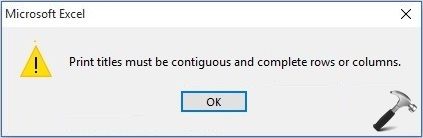
The reason behind this warning may be incomplete rows or columns in your document. If you’re getting this message with single worksheet, you can bypass it by clearing out Print Titles (navigate to PAGE SETUP > Print Titles). But if you have lots of worksheets, it is not feasible to clear out print titles for each sheets manually. Hence, for such cases, you can try this easiest solution and resolve the problem for yourself.
FIX : Print Titles Must Be Contiguous And Complete Rows Or Columns Warning In Microsoft Excel
1. Open your worksheet in Microsoft Excel.
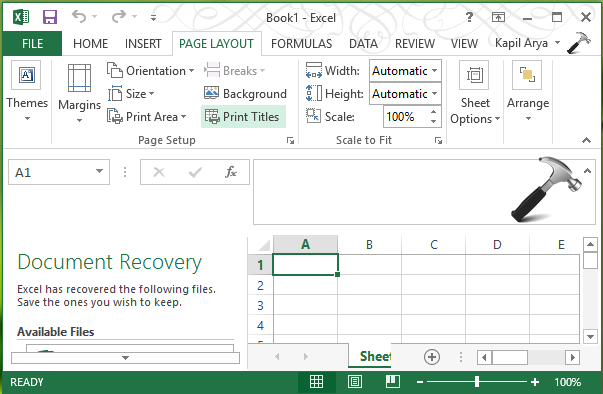
2. Now click on PAGE LAYOUT tab. Then click Print Titles icon there.
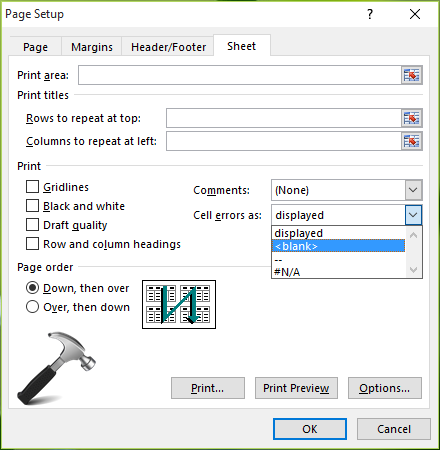
3. Next, in the Page Setup window shown below, switch to Sheet tab first. Then under Print heading, click the drop down against Cell error as and select <blank>. Click OK to close Page Setup window.
Finally, restart Microsoft Excel and open the worksheet with which you were having the issue. You’ll find that now you can print or see print preview without getting any warning.
That’s it!
Also see: How to repair Office offline?


Very very helpful Thank You.!!!
^^ Thanks for your feedback 😊
Thanks for your information
^^ 👍
Thanks For You.
^^ Welcome Aman!
It still did not work :(
Thanks for giving idea for solve problem
^^ Cool 😎
thanks sir…..
^^ You’re most welcome, loganthan!
Thanks Sir…. it’s working
^^ Awesome 😎
Thank you very much dear sir………….
^^ Glad it helped 😎
supr…
Thank you. It’s very very helpful
^^ Happy to help!
Thank you. Would you explain how I got the error? In order to avoid it. Please Thank you
^^ As mentioned in article also, you can avoid incomplete rows or columns to safeguard from this issue.
Very helpful to solve the problem. Thank you Mr. Kapil.
^^ Glad to help Sachi!
Its working..
Thanks brother..
^^ Glad to help 😎
Very Very Helpful, Thanks
^^ Glad to help 😎