

In Windows 10, you can activate Developer mode any time to install and test the apps developed by you. Also you can run the apps from Visual Studio in debug mode. Developer mode can be enabled from Settings app > Update & security > For developers > Developer mode. According to Microsoft, when you turn on Developer mode, following operations are performed by Windows:
- Installing Windows device portal and configuring firewall rules for it
- Configuration of firewall rules for Secure Shell (SSH) services to allow remote installation of apps
- Enabling Windows subsystem for Linux that allows you to run Bash on Ubuntu inside Windows operating system (OS)
But some of the users has reported that when they try to enable Developer mode, following error message appears:
Page Contents
Developer Mode package failed to install. Error code: 0x80004005
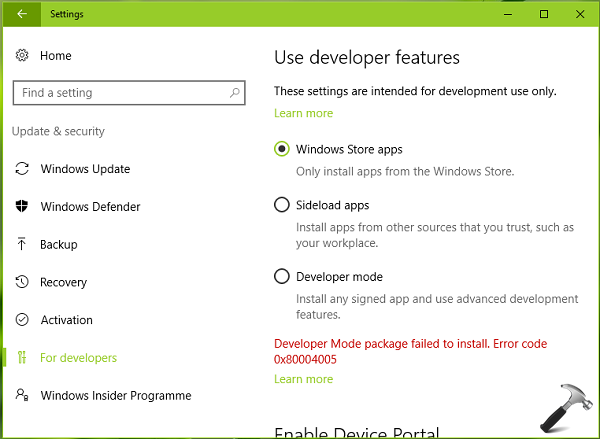
Users have been facing this issue in preview builds released last year, and same is continued, even with the Anniversary Update (AU) build. If you’re also facing this weird problem which interrupts you to test your developer abilities, try following the steps mentioned here and see if they helps you:
FIX : Developer Mode Package Failed To Install. Error Code: 0x80004005
Registry Disclaimer: The further steps will involve registry manipulation. Making mistakes while manipulating registry could affect your system adversely. So be careful while editing registry entries and create a System Restore point first.
1. Press  + R and put regedit in Run dialog box to open Registry Editor (if you’re not familiar with Registry Editor, then click here). Click OK.
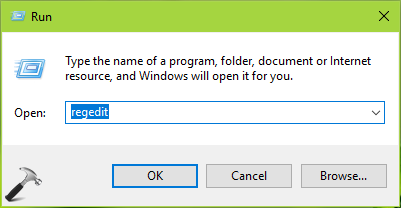
2. Navigate to following registry key:
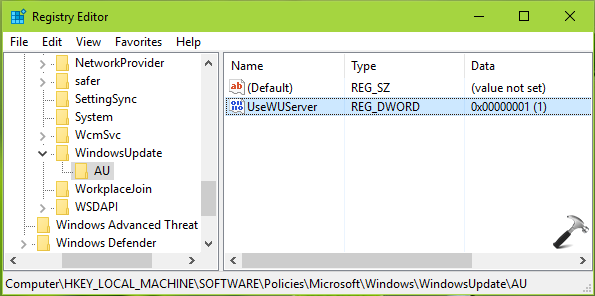
HKEY_LOCAL_MACHINE\SOFTWARE\Policies\Microsoft\Windows\WindowsUpdate\AU
3. In the corresponding right pane of AU registry key, you’ll see a registry DWORD (REG_DWORD) named UseWUServer which might be set to 1. Double click on it to modify its Data.
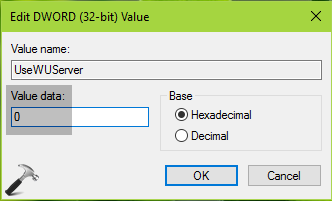
4. Then in Edit DWORD Value box, put the Value data as 0. Click OK and close the Registry Editor window.
You can now reboot your machine and try enabling Developer mode, it should get activated this time.
Hope this helps!






Hey, good work and thanks for sharing it, helped me to get my PC on developer mode!
^^ Glad we could help 😎
Worked for me on Windows 10 Enterprise x64, v1607, OS Build 14393.82
Thank you very much for the post!
^^ Perfect ☺️
Thank you very much! Worked like a champ
^^ Awesome 😄
Hi in my pc i am not WindowsUpdate folder plz help me how i can Create it ?
^^ Right click Windows registry key (HKEY_LOCAL_MACHINE\SOFTWARE\Policies\Microsoft\Windows). Select New > Key and name newly created sub-key as WindowsUpdate. Similarly create AU registry key.
now it says installing developer mode package and just hangs like that forever
^^ Make sure you’re connected to a fast Internet connection and suggest you to give it some time, it may work!
This process didn’t work for me in our Domain Environment. The registry key gets reset after a reboot.
Instead of rebooting, I changed the registry key mentioned above, then restarted the Windows Update service. I was then able to enable Developer Mode.
^^ Great, thanks for adding this!
Thank you for the fix. It worked perfectly for me.
^^ 😊
Thank you! This worked for me.
^^ Happy to help ☺️
Thanks, it worked. Small note: enabling developer options (if your company uses WSUS) also works without reboot, if you restart the ‘windows update’ service (eg via services.msc) after changing the mentioned registry key.
^^ Glad it worked, thanks for the feedback 😊
Thanks for the fix. It worked like a charm.
^^ Thanks for your feedback 😊
THANKS!!!!! Worked for me (Windows 1607 enterprise), 11/22/2016
^^ Glad it worked ☺️
Worked for me, thanks. Whats the magic here? What does the registry key do?
^^ Glad it worked, the logic is mentioned in earlier comments 😊
I can see the error msg while following the above steps: while changing the value from 1 to 0 I got and error popup, saying: cannot edit UseWUserver: Error writing the value’s new contents.
Could you please help me in it?
^^ Take the ownership of AU registry key then try again: https://www.kapilarya.com/manually-take-ownership-windows-8
My “UseWUserver: Error writing the value’s new contents.” error is solved by using admin rights and able to enable developer mode without an error. However I still see the error
“Ask the developer for a new app package. This package may conflict with a package already installed, or it depends on things not installed here (package dependencies), or is made for a different architecture (0x80073CF3)” while installing the app.
I have created a appxbundle file using debug mode on my development windows 10 machine and successfully installed on it. However I wanted to test it on another windows 10 machine/laptop, there I am facing this error.
Your help is greatly appreciated.
^^ Please check the suggestions mentioned here and see if the thread helps you in this case: github.com/ST-Apps/PoGo-UWP/issues/1870
When I look through the registries, I do not have WindowsUpdate one. I add it but still get the same error that developer mode package failed to install
^^ Which build you’re on?
i dont have windows update folder |=
^^ Create manually, refer previous comments.
Thanks so much, this worked perfectelly!
^^ Glad to help, Agustina!
This worked for me, too! Thanks! Just a question. Is it safe to keep this at zero? Or after enabling developer mode successfully, should we revert this to 1?
^^ It’s safe to keep it at zero 😊
Hello Kapil. I followed your instructions changing the registry key DWord named UseWUServer to a value of 0. This fixed the problem and I successfully installed the Developer Mode package on my laptop running an Enterprise version of Windows 10.
By making this registry change, will it affect in any way the usage of a WSUS server pushing patches and upgrades? And since the Developer Mode package is installed, can I safely revert to the previous registry key?
^^ It may affected. Can you try reverting registry value now and see if you still have Developer Mode enabled.
i done everything as above you mentioned ,but it could not fixed. it showing ” developer mode is turned on . however , remote deployment and windows device portal couldn’t installed so they are not available . error code 0x800f0908. pls help me
Hi
I have done everything you suggested. But The Windows Developer Mode Status always shows “installing… ” When I check in manage Optional Feature the process is installing, I had to wait a day for it. But it keeps installing, and nothing changes.
Thanks,
^^ Which version you’re on? Try to be on V1803, which is latest right now.
Thanks so much, this worked perfectly..
^^ Glad to help Mahesh 😊
I dont have Windows Uptade Folder HELP
^^ Create manually!
When i click on the registry to create a New Key it says impossible to create a new key. Writing error in the registry.
I can’t create a key on the registy
^^ Take ownership of registry key first and then proceed: https://www.kapilarya.com/how-to-manually-take-ownership-of-registry-key-in-windows-10
Thank you
You saved my life
^^ Glad to help 😊