

You can easily join or leave a domain in Windows 10 from Settings app > SYSTEM > About > Join a domain. If your system is a part of domain and you can’t log in because your system doesn’t recognizes either the domain or your credentials for the domain, then this post is for you. Under such a condition, you’ll be likely to hit this error at the sign-in screen:
Page Contents
The specified domain either does not exist or could not be contacted.

Here, we have two cases. First, your machine appears to be part of connected domain but if you’ve just connected to a domain and you’re trying to log in without reboot, this error is expected to occur. Hence you should reboot and after restart, try to enter the domain credentials to log in as domain user. Second, even if your machine is part of domain, it still have local accounts that you can log in. On the logon screen, you can select either of the local accounts, sign-in to them and remove the machine from domain. If this doesn’t works out, you can always use System Restore or System Image Restore to go back to last working condition of your system.
Generally, this problem might occur, if SYSVOL folder is not shared on the Domain Controller (DC) and/or the DNS server your machine communicating with is your Internet Service Provider’s DNS server. Here is how you can fix it:
FIX : The Specified Domain Either Does Not Exist Or Could Not Be Contacted In Windows 10
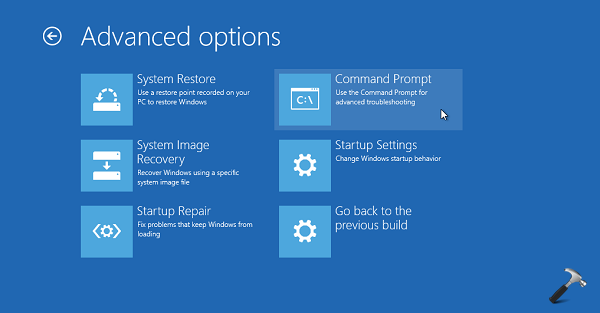
1. Boot into System Recovery Options. Hit the Command prompt entry at following screen:
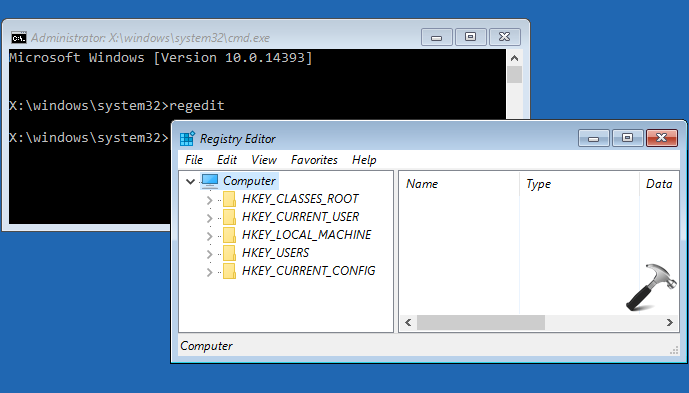
2. After this, system will reboot into Command Prompt recovery mode. In the Command Prompt window, type regedit and hit Enter to open Registry Editor.
3. Then navigate to following registry key:
HKEY_LOCAL_MACHINE\System\CurrentControlSet\Services\Netlogon\Parameters
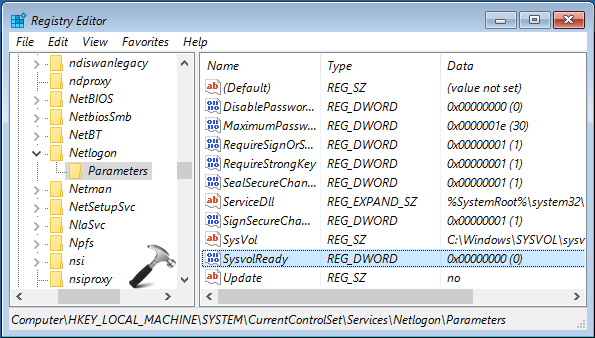
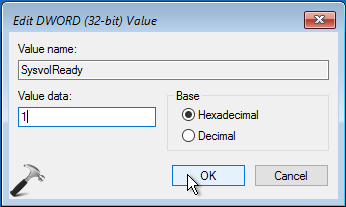
4. In the right pane of above shown window, look for SysvolReady named registry DWORD (REG_DWORD) with its Data set to 0. Double click on it and change the Value data to 1 and click OK.
Close the Registry Editor and restart your system and/or DC. After reboot, the issue should be resolved.
Hope this helps!







SysvolReady is missing in parameters (windows 10)
^^ Create it manually.
I dont have this file name SysvolReady. HOW?
^^ You can add the DWORD Value manually.
When I click on the command prompt it says I need an administrator sign and it says that I don’t have one.
i have the issue but command prompt is not opening, how can i fix it
Bro do you have a tutorial video on YouTube to this problem?