

We all know that root services in Windows allows the associated features to work properly. These root services may depend on other services which are called dependency services. So you may not be able to use some feature, whose root service couldn’t start/stop, in case if the dependency service for it also not working. In simple words, if you can’t start/stop a service just because its dependency service or their group is not coordinating, following error you may receive:
Page Contents
Windows could not start the <service name> on Local Computer.
Error 1068: The dependency service or group failed to start.
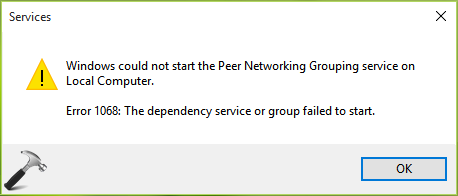
If you’re experiencing this error for the very first time, you must reboot your computer and retry starting the concerned service. Rebooting the machine will solve most of such cases. However, if you still have the issue, run the System File Checker scan and see if it helps.
Else try following methods to suppress the problem:
FIX: Error 1068: The Dependency Service Or Group Failed To Start In Windows 10/8.1/8/7
FIX 1 – Identify Dependency Services & Start Them
1. Open Command Prompt and type following command after substituting service name:
sc enumdepend <Service Name>
You’ll find service name on its property sheet (double click on the service to get this). For example, for Peer Name Resolution Protocol service, I would run sc enumdepend PNRPsvc command.
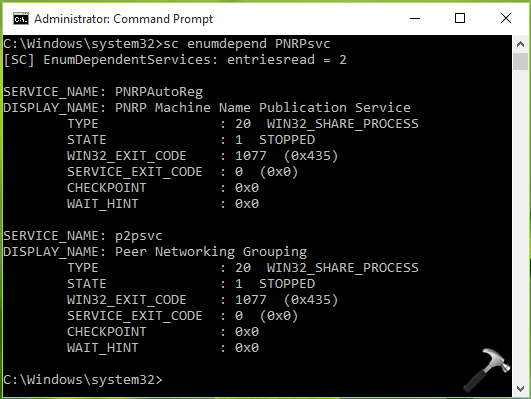
2. So you now have list of dependency service(s), go to Services snap-in and start them so that you can start the issued service.
FIX 2 – Add LocalService User & NetworkService User To Administrators Group
1. Open administrative Command Prompt.
2. Type/paste following commands and press Enter after each:
net localgroup administrators localservice /add
net localgroup administrators networkservice /add
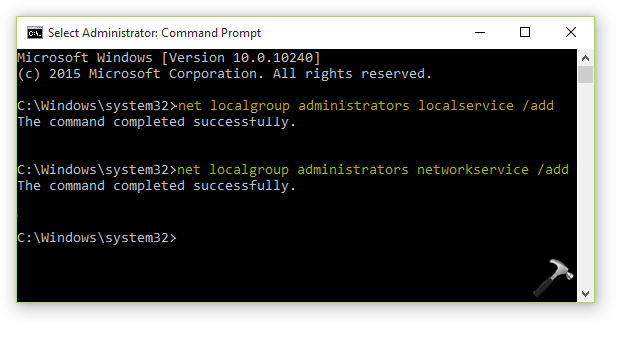
3. Close Command Prompt and reboot the machine. After restarting the system, the issue would no longer appear.
Hope this helps!






Hi, I have tried both the above, Fix 2 was applied and the response was
System error 5 has occurred
Access is denied
Do you have any further suggestions?
Kind regards
Jodi
^^ Make sure you’re running Command Prompt as administrator and your account is also administrative.
My laptop is not starting booting after deleting dependency service and adding netman.
^^ Which service is causing this issue on your system?
I have just an admin account on my PC and have forgot the PW. how to rest or recover the PW
^^ If you’re using Microsoft account, try to reset the password online using another device, visit this link: account.live.com/password/reset. Else, if you’re local account, you can reset using security questions: https://www.kapilarya.com/use-security-questions-to-reset-account-password-in-windows-10