

We all know keyboard is one of the most crucial element of computing devices. Whether its a physical keyboard available with device or its on-screen keyboard, it must be working perfectly so that we can type or make input fairly.
But sometimes users may face issues with keyboard which may include:
- Keyboard inputs are not recorded
- Some specific keys are not working
- Keyboard inputs are recorded wrong
- Function keys not working
We’ve already shared the fixes for additional issues:
- If number lock is not working, see this fix
- If keyboard Windows key is not working, see this fix
So in case if you’re also facing above mentioned symptoms regarding keyboard on your Windows 10, here is what you can do to fix.
Page Contents
FIX: Keyboard Not Working In Windows 10/8.1/8/7
FIX 1 – Using Keyboard Troubleshooter
1. Right click Start Button or press  + X keys and select Settings.
2. In the Settings app, navigate to Update & Security > Troubleshoot.
3. Then in Troubleshoot, under Keyboard, click on Run the troubleshooter.
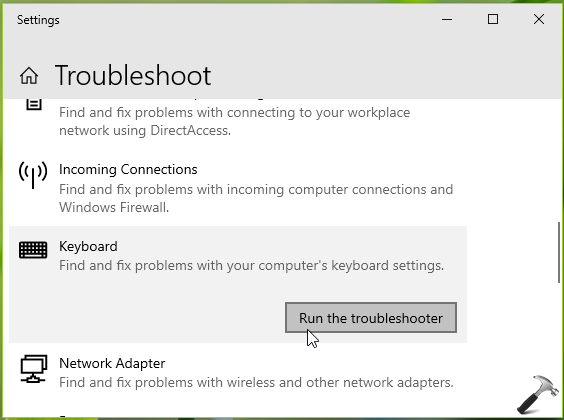
The troubleshooter should automatically fix up the issues you were facing with keyboard.
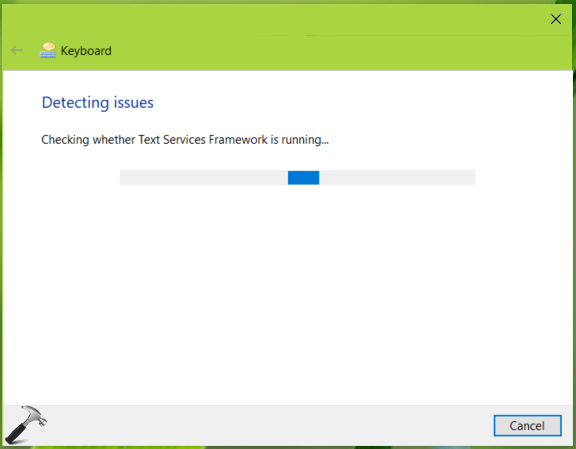
If troubleshooter says everything is okay but you still have problems, check FIX 2.
FIX 2 – Update/Reinstall Your Keyboard
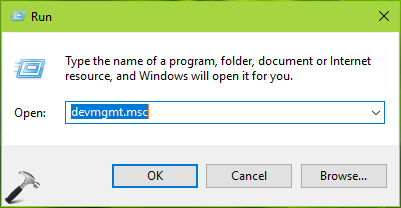
1. Press + R and type devmgmt.msc in the Run, hit Enter key to open Device Manager snap-in.
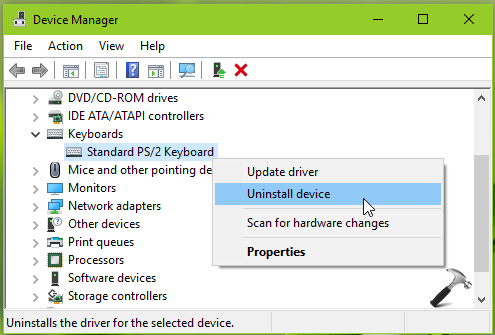
2. In the Device Manager window, expand Keyboards and right click on Standard PS/2 Keyboard and select Update driver.
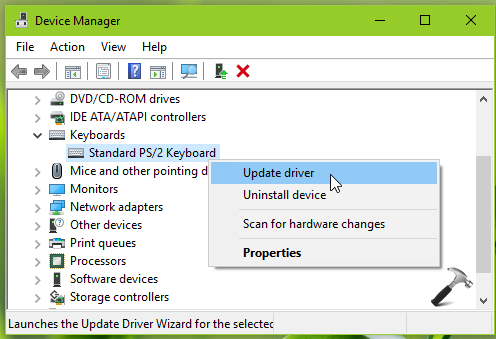
Follow on-screen instructions to update the driver. After updating the driver, check if you still have the issue.
If issue still persists, carry on with next steps.
3. Right click on Standard PS/2 Keyboard and select Uninstall device.
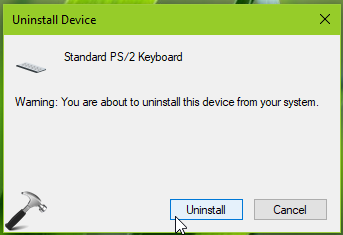
4. In the Uninstall Device confirmation box, click Uninstall.
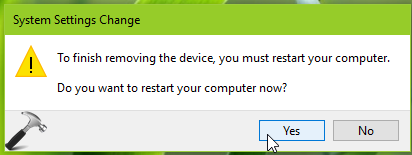
5. Then you may be prompted to restart the machine, so select Yes on confirmation prompt.
After reboot Windows should automatically detect and reinstall your keyboard. We believe after this issue you were facing with keyboard should be resolved.
Hope this helps!



Dear Kapil i am facing same issue on my windows 10 HP laptop. Number (five) and (six) on upper keys and number (six) and plus key on numeric keyboard are not working after the update. I tried the above hack but still the problem is not resolved. Please help
^^ Try uninstalling the update and see if that helps: https://www.kapilarya.com/how-to-uninstall-windows-updates-in-windows-10.
the third one worked for me!! thank you so much!!!
^^ Glad to help 😊
None of these worked for me. Can you tell me which update I should delete? I don’t know what day this started.
its still not working…
this doesn’t work for me
Thank so much bro…u saved my life
^^ Glad to help!
Windows 7 Logitech k800 wireless keyboard and gateway desktop
Can’t get any keys to print!
Kapil I really need your help. I have a Lenovo ideapad and my number 5 and 6 arnt working but I need those numbers for my system password to even get me into windows. I tried and external keyboard but that doesn’t work .
I am from Brazil and I very happy with your tips. Thank you!! It’s working again!!!
^^ Glad to help Gustavo!
Had this problem and had recently watched a video from linus tech tips on how shutdown saves the device state for a quick boot up next time. So if you want to boot your computer from scratch you need to do a restart and not a shutdown. Doing a restart fixed the problem for me.
Kapil, this issue just started for me after only a few days of a recent update as it was all working fine a few days ago while working on my taxes. Any new information on this would be greatly appreciated. Thank you!
kIND ATTENTION Mr.Kapil
I am having HP laptop. For the last few days the following keys are not responding.
letter G,H & backspace. I tried all the solutions given by you. Still same problem continues. Kindly suggest some solution,
K.S.GANESH
^^ Check the keyboard driver and update it. By the way, which Windows 10 version you’re on?
I’ve tried many fixes yet my ESC, 1, q, a, z, ~/`, caps lock, and tab key still work abnormally ☹️
kapil i have problem with esc key . when pressing esc key , both tab and caps lock keys are activating instead of esc key. kindly share the soilution for this
Not working sir i did all of them
Hello, I am looking for a solution for my Microsoft wireless keyboard 850 that is for my desktop computer. I have run all of the diagnostic tests, fresh batteries, USB, etc. I am seeking help in this forum using my iPad, because any solutions that are suggested to fix the problem always suggest typing On the keyboard, which is not working!
This is a newer keyboard, purchased less than eight months ago. Is it possible I may need to just replace this unit?
^^ Check with the device manager, if the keyboard driver is working perfectly, else update/reinstall it.