

Microsoft Edge or Edge is the default browser we all get in Windows 10. Its quick, smart and handy browser to surf web, view PDFs etc. If you’re using Edge as your primary browser, you may want to keep it running smoothly.
But sometimes you might get introduced to trouble with this browser. There might be different type of issues you may face with this browser, which may include:
- Edge opens and crashes or closes itself
- You can’t view PDFs using Edge
- Edge doesn’t saves password
- Issues with favorites on Edge
- Trouble with InPrivate mode on Edge
If you’re facing either of above mentioned symptoms or multiple issues with Edge, you need to fix all of them by re-registering or resetting the browser.
Here are the methods you can use to fix issues with Edge browser.
Page Contents
How To Re-register/Reset Microsoft Edge In Windows 10
METHOD 1 – Reset Microsoft Edge In Windows 10
1. Right click Start Button or press  + X keys and select Settings.
2. In the Settings app, navigate to Apps > Apps & features.
3. Then in right pane of Apps & features, select Microsoft Edge and click Advanced options.
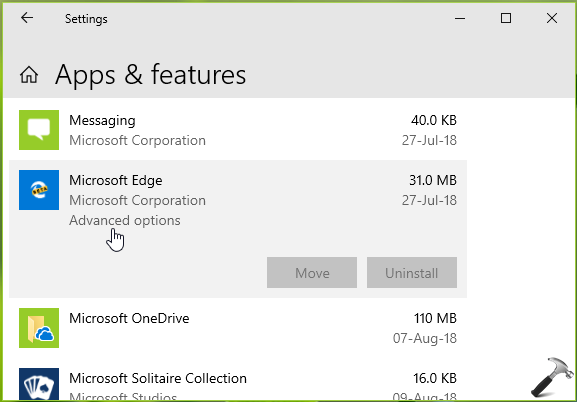
4. On next screen, click Repair button first and see if this fixes the issue you’re facing with Edge. If issue still persists, you have to use Reset button.

Once done, you can close Settings app and return to Desktop, if you like.
METHOD 2 – Re-register Microsoft Edge In Windows 10
Another alternative to reset is re-register the app. This will reinstall the app with factory defaults. You can perform these steps to reinstall Edge:
1. Make sure Edge is closed and not even running in background. For this, open Task Manager, select Microsoft Edge and click End task.

2. Search for Windows PowerShell using Cortana or Windows Search.
3. From results, right click on Windows PowerShell and select Run as administrator.
4. Then type or paste following cmdlet and press Enter key:
Get-AppXPackage -AllUsers -Name Microsoft.MicrosoftEdge | Foreach {Add-AppxPackage -DisableDevelopmentMode -Register “$($_.InstallLocation)\AppXManifest.xml” -Verbose}
Let the command complete.
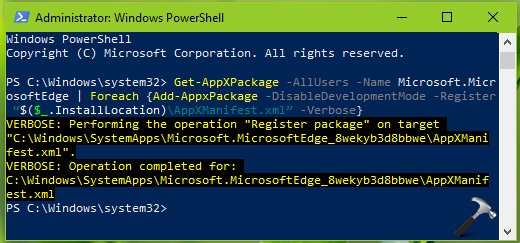
5. Close Windows PowerShell and check Edge, it should be working fine now.
Checkout this video for live demo:
That’s it!





The above procedure did not help. Edge still fails to launch.
^^ Try repair upgrade: https://www.kapilarya.com/how-to-repair-windows-10-using-in-place-upgrade
try everthing still unable to use ebay with edge browser but yet it
works fine with opera browser i dont get it