

You’re always recommended to install latest Windows Updates available to you. At most of time, the updates installed smoothly. However, at some times, you may have trouble installing updates. In such a case, you’re suggested to Windows Update troubleshooter/diagnostic to find and fix issues with Windows Update, automatically.
However, in some cases, troubleshooter may identify issues but unable to fix them. One such common issue which troubleshooter fails to fix is:
Page Contents
Windows Update Components must be repaired
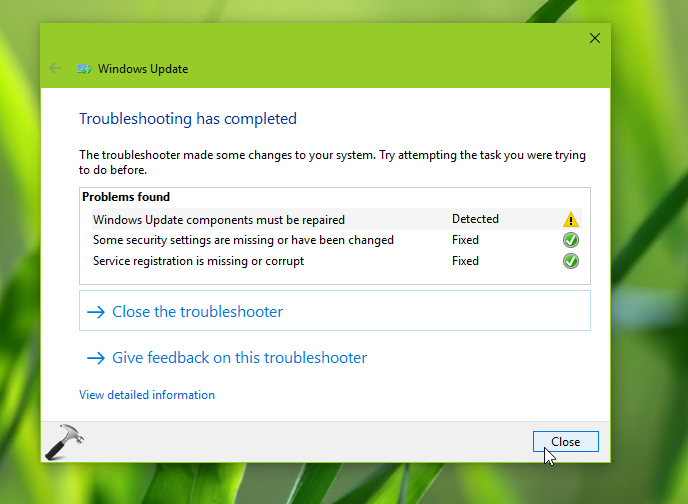
If you’re also in situation, where troubleshooter is unable to resolve your Windows Update related issue, you need to fix it manually at your end.
You can try below mentioned steps to repair or reset Windows Update components, as suggested by Microsoft.
FIX: ‘Windows Update Components Must Be Repaired’ In Windows 10
FYI: You must create a System Restore point first, before proceeding with below mentioned steps.
1. Right click Start Button or press  + X keys and select Command Prompt (Admin) to open Command Prompt as administrator.
2. In administrative or elevated Command Prompt window, type these commands and press Enter key after each:
net stop bits
net stop wuauserv
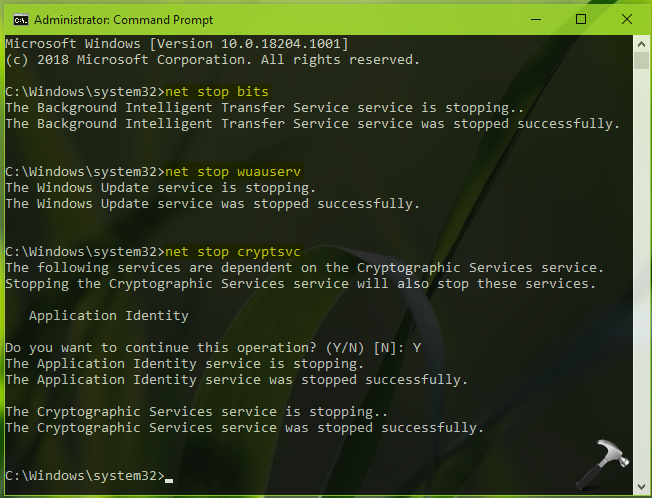
net stop cryptsvc
When you run net stop cryptsvc command, you’ll be asked to stop Application Identity service as well (Application Identity service is dependent upon Cryptographic Services). Type Y, when prompted (refer below screenshot).
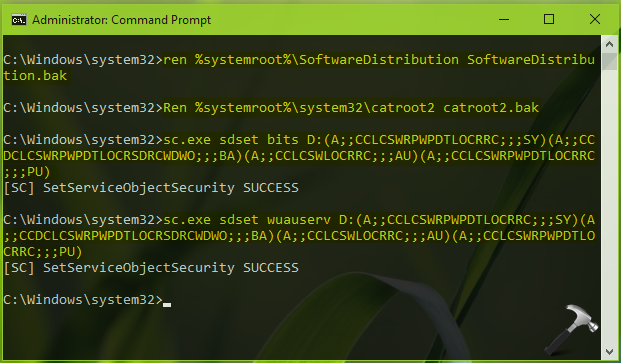
3. Then execute following commands to reset updates database, reset default security descriptors for update services:
ren %systemroot%\SoftwareDistribution SoftwareDistribution.bak
Ren %systemroot%\system32\catroot2 catroot2.bak
sc.exe sdset bits D:(A;;CCLCSWRPWPDTLOCRRC;;;SY)(A;;CCDCLCSWRPWPDTLOCRSDRCWDWO;;;BA)(A;;CCLCSWLOCRRC;;;AU)(A;;CCLCSWRPWPDTLOCRRC;;;PU)
sc.exe sdset wuauserv D:(A;;CCLCSWRPWPDTLOCRRC;;;SY)(A;;CCDCLCSWRPWPDTLOCRSDRCWDWO;;;BA)(A;;CCLCSWLOCRRC;;;AU)(A;;CCLCSWRPWPDTLOCRRC;;;PU)
4. Moving on, execute following commands now:
cd /d %windir%\system32
Now we need to re-register Windows Update components.
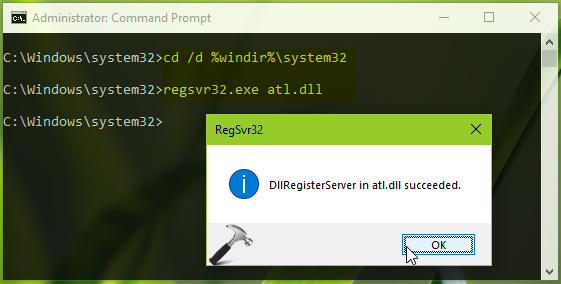
5. To re-register Windows Update components, type below mentioned commands one-by-one and press Enter key after each. You’ll get DllRegisterServer in <component name> succeeded message (refer above screenshot), when these components are registered successfully.
regsvr32.exe atl.dll
regsvr32.exe urlmon.dll
regsvr32.exe mshtml.dll
regsvr32.exe shdocvw.dll
regsvr32.exe browseui.dll
regsvr32.exe jscript.dll
regsvr32.exe vbscript.dll
regsvr32.exe scrrun.dll
regsvr32.exe msxml.dll
regsvr32.exe msxml3.dll
regsvr32.exe msxml6.dll
regsvr32.exe actxprxy.dll
regsvr32.exe softpub.dll
regsvr32.exe wintrust.dll
regsvr32.exe dssenh.dll
regsvr32.exe rsaenh.dll
regsvr32.exe gpkcsp.dll
regsvr32.exe sccbase.dll
regsvr32.exe slbcsp.dll
regsvr32.exe cryptdlg.dll
regsvr32.exe oleaut32.dll
regsvr32.exe ole32.dll
regsvr32.exe shell32.dll
regsvr32.exe initpki.dll
regsvr32.exe wuapi.dll
regsvr32.exe wuaueng.dll
regsvr32.exe wuaueng1.dll
regsvr32.exe wucltui.dll
regsvr32.exe wups.dll
regsvr32.exe wups2.dll
regsvr32.exe wuweb.dll
regsvr32.exe qmgr.dll
regsvr32.exe qmgrprxy.dll
regsvr32.exe wucltux.dll
regsvr32.exe muweb.dll
regsvr32.exe wuwebv.dll
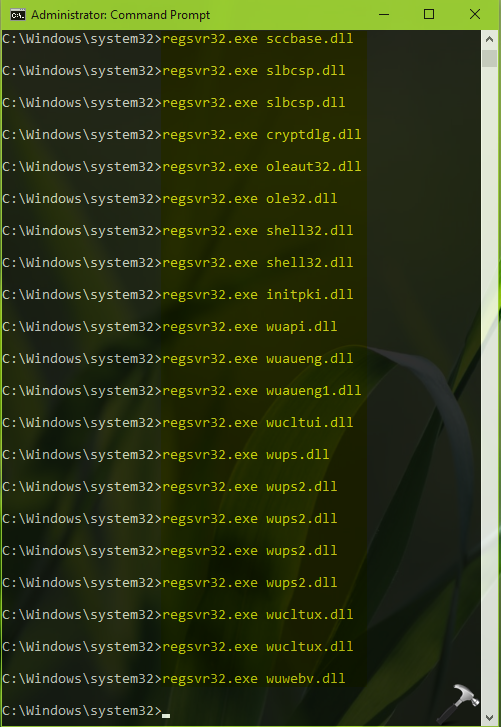
6. Then execute following command:
netsh winsock reset
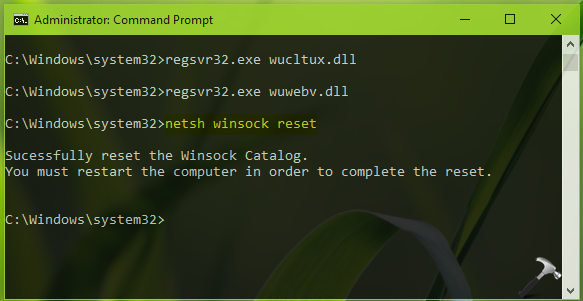
Close Command Prompt and reboot your system now.
7. After reboot, open administrative Command Prompt (repeat step 1) and type these command followed by Enter key:
net start bits
net start wuauserv
net start cryptsvc
net start appidsvc
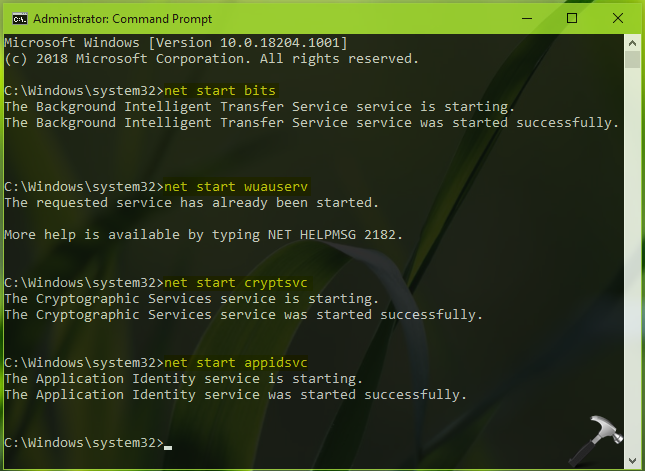
Close Command Prompt. You’ve successfully repaired or reset Windows Update components. The issues you were facing earlier with Windows Update feature must be resolved now.
That’s it!






Thank you so much it’s work
^^ Glad it worked!
Thank you for making this available
^^ Glad it helped!
thanks bro…….
it work 100%…awesome
^^ Thanks for your feedback!
Did not work
Same for me. Did not work
PS C:\WINDOWS\system32> ren %systemroot%\SoftwareDistribution SoftwareDistribution.bak
ren : Cannot rename because item at ‘%systemroot%\SoftwareDistribution’ does not exist.
At line:1 char:1
+ ren %systemroot%\SoftwareDistribution SoftwareDistribution.bak
+ ~~~~~~~~~~~~~~~~~~~~~~~~~~~~~~~~~~~~~~~~~~~~~~~~~~~~~~~~~~~~~~
+ CategoryInfo : InvalidOperation: (:) [Rename-Item], PSInvalidOperationException
+ FullyQualifiedErrorId : InvalidOperation,Microsoft.PowerShell.Commands.RenameItemCommand
PS C:\WINDOWS\system32> Ren %systemroot%\system32\catroot2 catroot2.bak
Ren : Cannot rename because item at ‘%systemroot%\system32\catroot2’ does not exist.
At line:1 char:1
+ Ren %systemroot%\system32\catroot2 catroot2.bak
+ ~~~~~~~~~~~~~~~~~~~~~~~~~~~~~~~~~~~~~~~~~~~~~~~
+ CategoryInfo : InvalidOperation: (:) [Rename-Item], PSInvalidOperationException
+ FullyQualifiedErrorId : InvalidOperation,Microsoft.PowerShell.Commands.RenameItemCommand
PS C:\WINDOWS\system32> sc.exe sdset bits D:(A;;CCLCSWRPWPDTLOCRRC;;;SY)(A;;CCDCLCSWRPWPDTLOCRSDRCWDWO;;;BA)(A;;CCLCSWLOCRRC;;;AU)(A;;CCLCSWRPWPDTLOCRRC;;;PU)
>>
At line:1 char:23
+ sc.exe sdset bits D:(A;;CCLCSWRPWPDTLOCRRC;;;SY)(A;;CCDCLCSWRPWPDTLOC …
+ ~
Missing closing ‘)’ in expression.
At line:1 char:48
+ sc.exe sdset bits D:(A;;CCLCSWRPWPDTLOCRRC;;;SY)(A;;CCDCLCSWRPWPDTLOC …
+ ~
Unexpected token ‘)’ in expression or statement.
At line:1 char:51
+ sc.exe sdset bits D:(A;;CCLCSWRPWPDTLOCRRC;;;SY)(A;;CCDCLCSWRPWPDTLOC …
+ ~
Missing closing ‘)’ in expression.
At line:1 char:84
+ … ;CCLCSWRPWPDTLOCRRC;;;SY)(A;;CCDCLCSWRPWPDTLOCRSDRCWDWO;;;BA)(A;;CCLC …
+ ~
Unexpected token ‘)’ in expression or statement.
At line:1 char:87
+ … CLCSWRPWPDTLOCRRC;;;SY)(A;;CCDCLCSWRPWPDTLOCRSDRCWDWO;;;BA)(A;;CCLCSW …
+ ~
Missing closing ‘)’ in expression.
At line:1 char:106
+ … SY)(A;;CCDCLCSWRPWPDTLOCRSDRCWDWO;;;BA)(A;;CCLCSWLOCRRC;;;AU)(A;;CCLC …
+ ~
Unexpected token ‘)’ in expression or statement.
At line:1 char:109
+ … )(A;;CCDCLCSWRPWPDTLOCRSDRCWDWO;;;BA)(A;;CCLCSWLOCRRC;;;AU)(A;;CCLCSW …
+ ~
Missing closing ‘)’ in expression.
At line:1 char:134
+ … TLOCRSDRCWDWO;;;BA)(A;;CCLCSWLOCRRC;;;AU)(A;;CCLCSWRPWPDTLOCRRC;;;PU)
+ ~
Unexpected token ‘)’ in expression or statement.
+ CategoryInfo : ParserError: (:) [], ParentContainsErrorRecordException
+ FullyQualifiedErrorId : MissingEndParenthesisInExpression
PS C:\WINDOWS\system32> sc.exe sdset wuauserv D:(A;;CCLCSWRPWPDTLOCRRC;;;SY)(A;;CCDCLCSWRPWPDTLOCRSDRCWDWO;;;BA)(A;;CCLCSWLOCRRC;;;AU)(A;;CCLCSWRPWPDTLOCRRC;;;PU)
>>
At line:1 char:27
+ sc.exe sdset wuauserv D:(A;;CCLCSWRPWPDTLOCRRC;;;SY)(A;;CCDCLCSWRPWPD …
+ ~
Missing closing ‘)’ in expression.
At line:1 char:52
+ sc.exe sdset wuauserv D:(A;;CCLCSWRPWPDTLOCRRC;;;SY)(A;;CCDCLCSWRPWPD …
+ ~
Unexpected token ‘)’ in expression or statement.
At line:1 char:55
+ sc.exe sdset wuauserv D:(A;;CCLCSWRPWPDTLOCRRC;;;SY)(A;;CCDCLCSWRPWPD …
+ ~
Missing closing ‘)’ in expression.
At line:1 char:88
+ … ;CCLCSWRPWPDTLOCRRC;;;SY)(A;;CCDCLCSWRPWPDTLOCRSDRCWDWO;;;BA)(A;;CCLC …
+ ~
Unexpected token ‘)’ in expression or statement.
At line:1 char:91
+ … CLCSWRPWPDTLOCRRC;;;SY)(A;;CCDCLCSWRPWPDTLOCRSDRCWDWO;;;BA)(A;;CCLCSW …
+ ~
Missing closing ‘)’ in expression.
At line:1 char:110
+ … SY)(A;;CCDCLCSWRPWPDTLOCRSDRCWDWO;;;BA)(A;;CCLCSWLOCRRC;;;AU)(A;;CCLC …
+ ~
Unexpected token ‘)’ in expression or statement.
At line:1 char:113
+ … )(A;;CCDCLCSWRPWPDTLOCRSDRCWDWO;;;BA)(A;;CCLCSWLOCRRC;;;AU)(A;;CCLCSW …
+ ~
Missing closing ‘)’ in expression.
At line:1 char:138
+ … TLOCRSDRCWDWO;;;BA)(A;;CCLCSWLOCRRC;;;AU)(A;;CCLCSWRPWPDTLOCRRC;;;PU)
+ ~
Unexpected token ‘)’ in expression or statement.
+ CategoryInfo : ParserError: (:) [], ParentContainsErrorRecordException
+ FullyQualifiedErrorId : MissingEndParenthesisInExpression
So I received an error message for a bunch of the re-register commands…
The module “browseui.dll” was loaded but the entry-point DSllRegisterServer was not found….
The ones below are the ones that received this error and of course I have no idea what it means
msxml.dll
mshtml.dll
shdocvw.dll
broweui.dll
gpkcsp.dll
sccbase.dll
slbcsp.dll
initpki.dll
wuaueng.dll
wuaueng1.dll
wucltui.dll
wuweb.dll
qmgr.dll
gmgrprxy.dll
wucltux.dll
muweb.dll
wuwebv.dll
Fortunately my laptop booted without issues but I still can’t install KB5007186 although all other updates seem to work okay.