Though in Windows 10, you can change your Desktop wallpaper by right click over your desired image file and select Set as desktop background. You can also change Desktop wallpaper from Settings app > Personalization > Background > Choose your picture. If you can’t change Desktop background, refer this article:
Fix: Unable to change Desktop background wallpaper in Windows 10
However, some users may have special requirement of changing the Desktop background via registry. This article show provides a way to those users and shares the required steps. You can also create batch file or script using below mentioned registry manipulation and apply it on multiple machines.
How To Change Windows 10 Desktop Wallpaper Using Registry
Registry Disclaimer: The further steps will involve registry manipulation. Making mistakes while manipulating registry could affect your system adversely. So be careful while editing registry entries and create a System Restore point first.
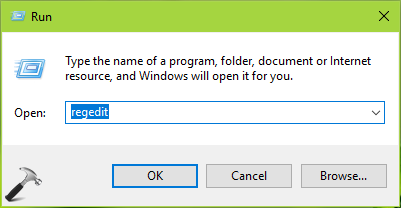
1. Press  + R and put
 regedit in Run dialog box to open Registry Editor (if you’re not familiar with Registry Editor, then click here). Click OK.
2. In left pane of Registry Editor window, click on following registry branch:
HKEY_USERS
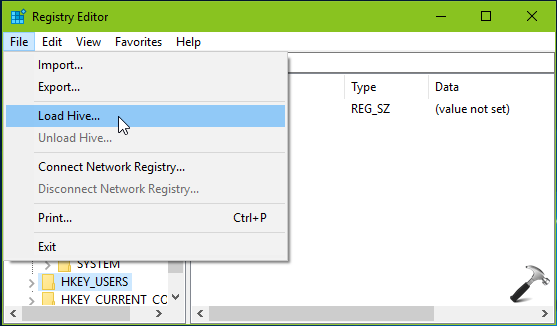
3. Then click on File > Load Hive. Under Load Hive, assuming Windows is installed on C: drive, browse to C:\Users\Default. Note that Default is hidden folder, so make sure you’ve allowed to show hidden items in File Explorer. Inside Default folder, select NTUSER.DAT file and click Open.
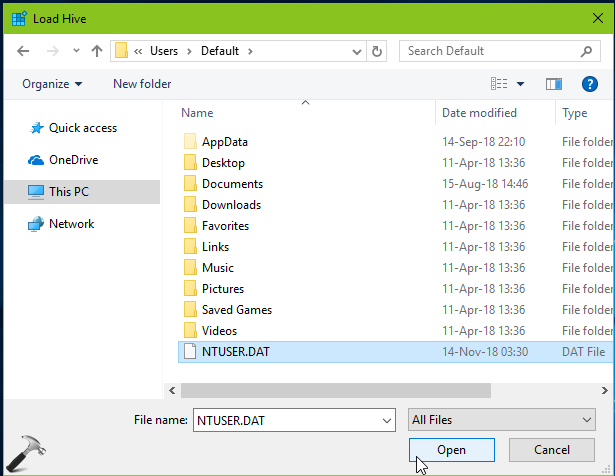
4. Now name the loaded hive as Default_User.
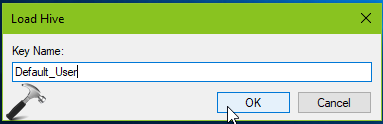
5. Then go to following registry location:
HKEY_USERS\Default_User\Control Panel\Desktop
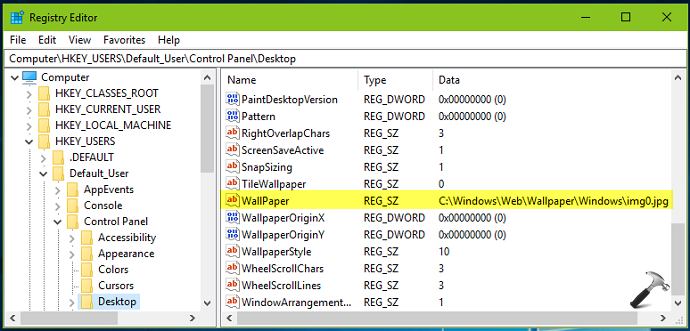
6. In the right pane of Desktop registry key, you will found Wallpaper named registry string (REG_SZ). Double click on this registry string to modify its Value data:
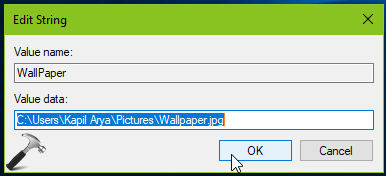
7. Set the Value data as location of your desired image, which you want to set as Desktop wallpaper. Click OK. Then click File > Unload Hive.
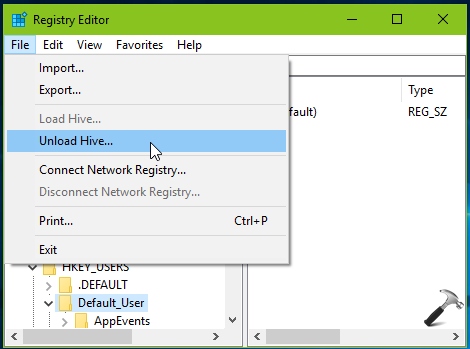
8. In the confirmation box, select Yes to unload hive.
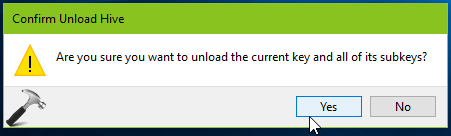
Close Registry Editor and reboot the machine to make changes effective.
After reboot, you’ll see your desired image whose location you provided in registry Value data is now set as Desktop wallpaper.
That’s it!