Recently, we’ve faced a strange problem with Internet on one of our system. The system was connected to a wireless network. But at some time, the network connection was lost. However, the system also had wired connectivity so we didn’t noticed it. The problem got our attention, when we ran netsh wlan show hostednetwork command to display wireless hosted network information but it simply returned following message:
Page Contents
The Wireless AutoConfig Service (wlansvc) is not running.
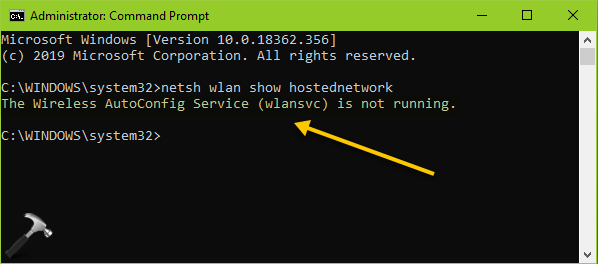
Then we run Network Adapter troubleshooter, which also confirmed same thing:
The Windows Wireless Service is not running on this computer
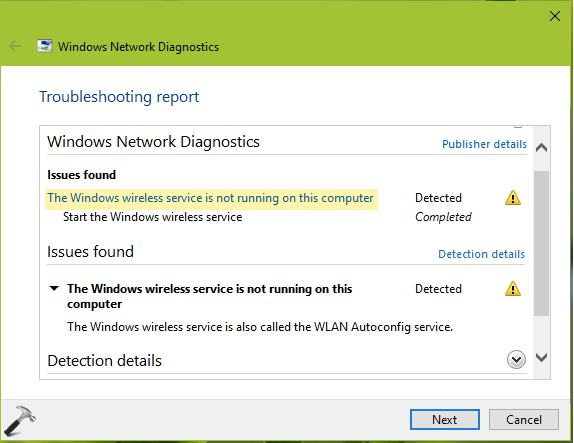
If you’re also facing the similar issue described above, then this fix will surely help you. The root cause here is Windows Wireless Service i.e. WLAN AutoConfig, which is supposed to be running but it isn’t. So here is how you can fix it.
FIX: Windows Wireless Service Is Not Running On This Computer
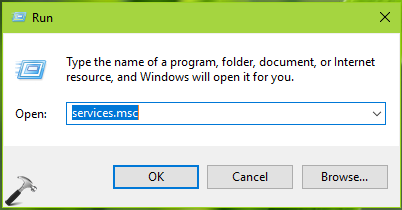
1. Press  + R and type
 services.msc in the Run dialog box, hit Enter key to open Services snap-in.
2. In Services snap-in window, locate the WLAN AutoConfig service. Since you’re facing this issue, possibly the service might not be running. As you can see in the screenshot below, it is set to Disabled Startup Type. Simply double click on this service to modify its status.
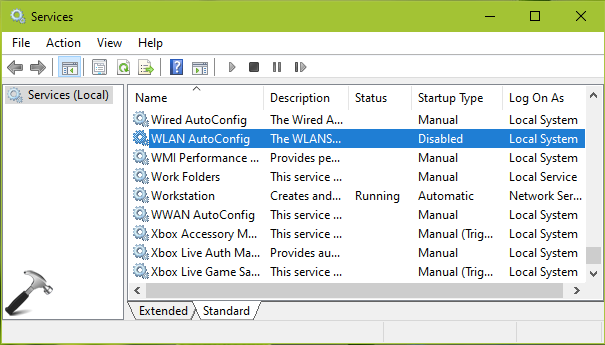
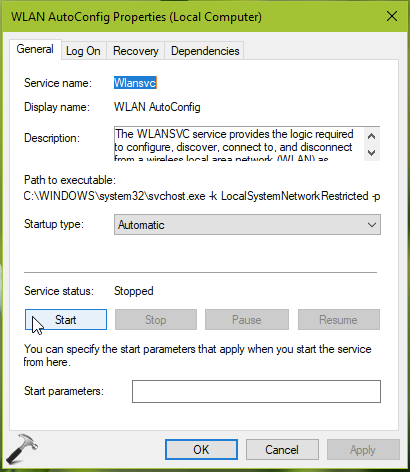
3. On the service property sheet, set its Startup type to Automatic. Then click on Start button, and service will be running then, and it will solve the issue.
In case if you’re unable to modify Startup type of the service, you need to follow these additional steps:
1. Open Registry Editor by running regedit command.
2. Go to HKEY_LOCAL_MACHINE\SYSTEM\CurrentControlSet\Services\Wlansvc.
3. In right pane, double click on Start registry DWORD and make sure it is set to 2 on as the Value data.
4. Then go back to Services snap-in and start WLAN AutoConfig service.
Hope this helps!