In our past, we shared how you can setup VPN in Windows. We’ve also seen how you can allow VPN over Metered connections. Using VPN allows you to connect to your ISP or company with higher security. Though challenges may come through while working with VPN, but they’re not as big and you can handle them smartly. In this article, we’ll be talking about one such challenge which you may meet on your Windows.
While connecting to VPN, you might receive following message:
Page Contents
The network connection between your computer and the VPN server was interrupted. This can be caused by a problem in the VPN transmission and is commonly the result of internet latency or simply that your VPN server has reached capacity. Please try to reconnect to the VPN server. If this problem persists contact the VPN administrator and analyze the quality of network connectivity.
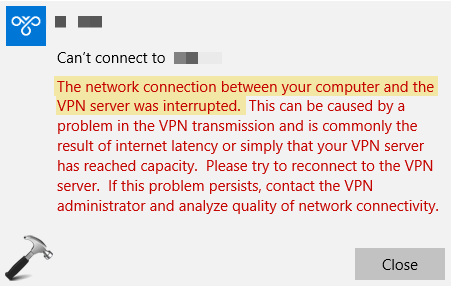
The above error, also known as VPN error 807, occurs because of VPN server interrupts and not responding to your computer connection. If you’re also facing this issue, and looking forward to a fix, try below suggestions and see if they helps.
The Network Connection Between Your Computer And The VPN Server Was Interrupted
Disable Your Antivirus/Firewall
You can try to disable your antivirus software and firewall temporarily and see if that helps. If you’re not using any third-party AV and using Windows Defender Antivirus, refer this guide to disable it. To disable Windows Defender Firewall, checkout this article.
Re-check Your VPN Profile Details
Make sure you setup VPN profile with correct VPN IP address, username and it valid password. These details are very important in authorizing your VPN connection to the server. So double check them and ensure their correctness.
Connect To Server With Lower Latency
Usually a VPN server close to your geographical location may provide you enhanced performance because of lower latency. Hence, you need to check with VPN service provider and see if you can switch to server with lower latency.
Change The Type Of VPN To PPTP
Point-to-Point Tunneling Protocol (PPTP) is one of the older VPN protocol still in use. It is commonly used protocol and fast in nature. However, it is least secure because of underlying authentication protocols. So if security is not an issue for you, try changing to VPN type to PPTP and see if that fixes the issue. To change VPN type, run ncpa.cpl command. Right click on your VPN connection, select Properties. Switch to Security tab and select Type of VPN to Point-to-Point Tunneling Protocol (PPTP).
Other Suggestions
Additionally, you can try removing ‘http: //’ and ‘/’ from VPN server address. Also, you can try clearing your browsing history, cookies.
We believe something from above should help you to crack this issue.
Hope this helps!
![Fix VPN error 812 on Windows 11/10 [6 practical fixes]](https://www.kapilarya.com/assets/VPN-6-768x684.jpg)