In today’s online world, privacy is the most important parameter about which everyone is concerned. When you visit websites, the trackers on them may capture your surfing behaviour. For example, the links you click and show interest on. Websites can then use the tracked data to show personalized content and ads. It is quite possible that you may tracked across different websites you visit. To avoid or control this, you can configure tracking prevention in Chromium based Microsoft Edge browser.
The tracking prevention feature have the ability to block trackers to the network and browser-based storage on the system. With this Microsoft gives you limit to block trackers at three levels and uphold the privacy promise:
| # | Tracking Prevention Level | Importance |
|---|---|---|
| 1 | Basic | This level only protects you from malicious trackers such as finger-printers and crypto-miners. It will not block tracking, in case if you’re okay with personalized ads and from being tracked. |
| 2 | Balanced (Default) | This is default level of tracking which blocks harmful tracks. You’ll see less personalized content and ads when this tracking prevention is set. |
| 3 | Strict | At the Strict level, you’l; be able to block most of the trackers and see minimal ads and personalized content. You might see website compatibility issues but if you remain much safer on privacy. |
Here’s how you can configure tracking prevention in Chromium based Microsoft Edge.
How To Configure Tracking Prevention In Microsoft Edge (Chromium)
- Open Microsoft Edge. Click on triple dots to open fly-out menu and select Settings.
- In the Settings screen, click on hamburger icon and click Privacy, search, and services.
- Under Tracking prevention, turn on the option first to enable this feature. Then select your desired level of tracking prevention. If you like, you can let Strict level always enabled, while browsing in private mode.
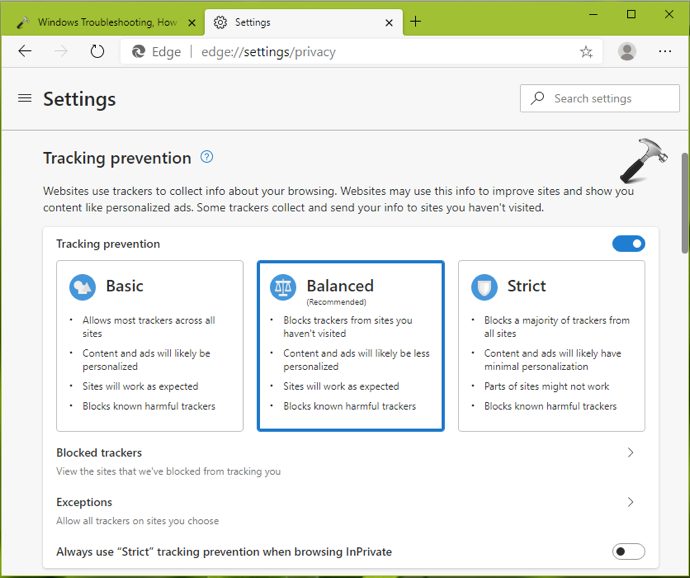
You can later spot blocked trackers and also add exceptions, if any.
Your settings should be saved and applied immediately.
That’s it!