

In Windows 10, there are multiple sign-in options available. Having ability to sign in with multiple options likely reduces chances for the clients from getting locked out. Apart from the traditional password, you can use other options for logging in. As of this writing, the multiple sign-in options includes Password, Windows Hello PIN, Picture Password, Windows Hello Face, Windows Hello Fingerprint and Security Key. You can access them at Settings app > Accounts > Sign-in options. In this article, we will learn how you can enable or disable these sign in options in Windows 10.
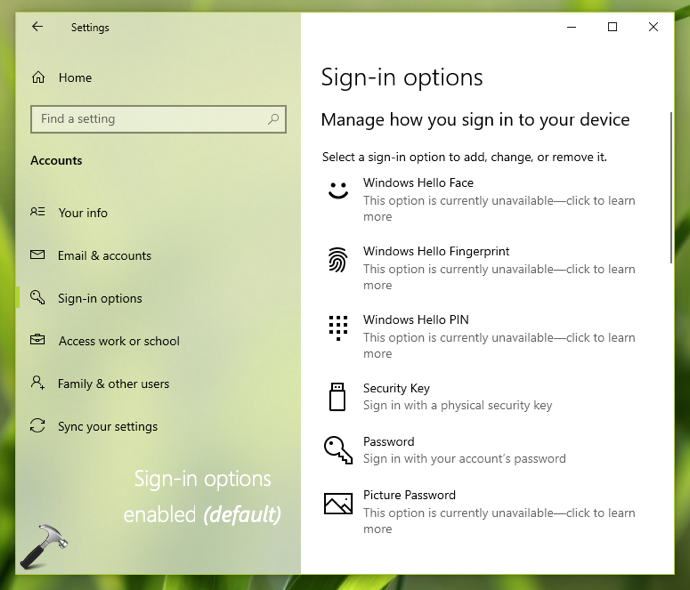
See, it is good to have a multiple sign in options available for the clients. By default, Windows 10 have this sign-in options enabled. However, if you are managing an environment where are you do not want your clients to change sign-in options, this article will be helpful for you. Some of the organizations may have a typical requirement to let their clients login with a specific sign-in option. And in such cases, the organization may want to block other sign-in options for their clients.
So if you are an IT admin in such an organization, you can deploy the below mentioned registry manipulation to achieve this.
Enable/Disable Sign-in Options In Windows 10
1. Press  + R and put regedit in Run dialog box to open Registry Editor (if you’re not familiar with Registry Editor, then click here). Click OK.
2. In left pane of Registry Editor window, navigate to following registry key:
HKEY_LOCAL_MACHINE\SOFTWARE\Microsoft\PolicyManager\default\Settings\AllowSignInOptions
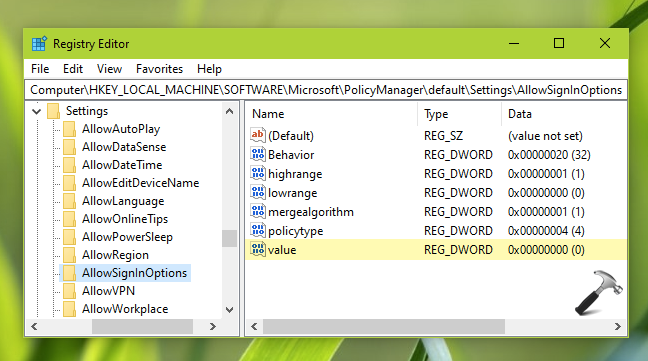
3. In the right pane of AllowSignInOptions, locate value named registry DWORD (REG_DWORD). By default, it Value data is set to 1 which indicates sign-in options are enabled. Double click on it and set the Value data to 0 to disable sign-in options.
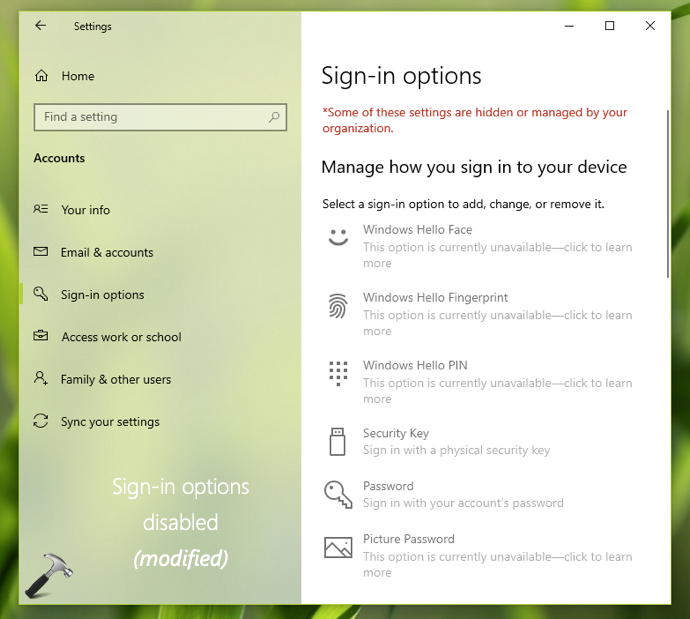
4. Close Registry Editor and run gpupdate /force command. Then you can go to Settings app > Accounts > Sign-in options and you’ll be find that sign-in options are now disabled, if you set Value data to 0 in previous step.
To deploy the registry settings to multiple client machines, you can use Group Policy. Refer this step-by-step guide to deploy the registry key.
That’s it!
![Windows needs your current credentials [Fix]](https://www.kapilarya.com/assets/password_icon_1783831080.jpg)






Dear Kapil Arya , I need help about my sign-in options on my laptop. When I signed in using my PIN , I got a message that stated: ” The sign-in options is disabled because of failed sign-in attempts or repeated shutdowns . Use different sign-in options , or keep your device powered on for at least 2 hours and then try again “. I followed this instruction for several attempts but did no resolve my problem. Your steps shown above to disable sign-in options is very informative and quite similar with my problem . Based on my problem , I mentioned above , can you help me resolve my problem to use my PIN for signing in ? Thank you very much .
^^ You can use other sign-in option, such as password and then your remove existing PIN from Sign-in options, re-add it finally.