In Microsoft Teams, your team can be made up of different channels. Channels are the place where your work is actually done. Channels are where the content such as text, audio, and video conversations are open to the whole team. Files and apps are stored and shared in channels. Teams channels can be standard or private. A private channel can be created to maintain privacy for specific work with particular clients. Also, if you’re working with Microsoft Teams in offline mode, you can switch between chats and channels and keep working. In this article, we’ll see how you can configure channel moderation in Microsoft Teams.

When you are using standard channel, you can turn on channel moderation as team owner. It can help you to control who can create new posts or reply to existing posts in a channel. You can also allow a specific team member to moderate a channel, if you don’t expertise for that channel. In this way, you can share the responsibility with team member for managing content in that channel.
Now let us see how you can configure channel moderation in Microsoft Teams.
Configure channel moderation in Microsoft Teams
1. Open Microsoft Teams desktop client.
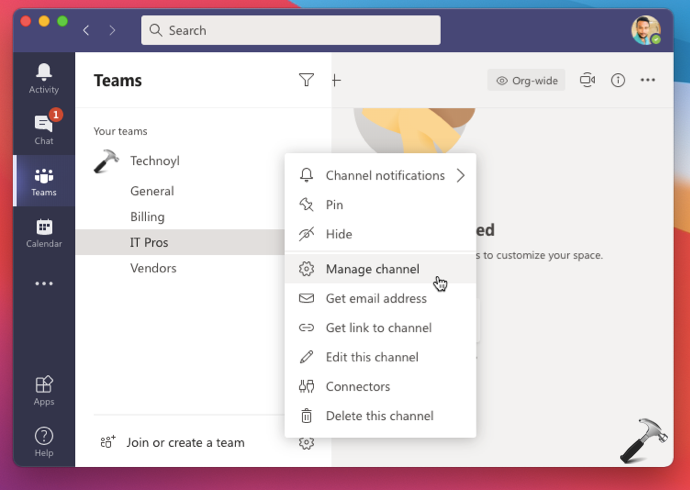
2. Click on Teams. Under Teams, click on ··· next to existing channel and select Manage channel.
3. Next, under Channel settings, set the Channel moderation to On. By default, it is set to Off. Now from here, you can click on Manage and assign your team members as the moderators, if you like. You can also manage your team member permissions, for example, allow or prevent members to reply channel messages etc.

The settings you configure should be saved automatically and applied. You can then get back to your teams and enjoy the channel moderation benefits. Interested readers can refer to this Microsoft documentation for more information on channel moderation.
That’s it!
Related: Chat In Channel Meetings Is Only Available To Team Members.