

Usually, your Microsoft Office installation is configured to update automatically. This means your Microsoft Office package will update itself, whenever a new public update is released for its version. In case if you have realized that your Office installation is no longer updating automatically, this post may help you. In this article, we will see how to fix the problem of Microsoft Office won’t update automatically. This guide applies to Microsoft Office 2021, 2019, 2016 and of course 2013 edition.
In this case, when you go to the Account page of any of the Microsoft Office apps you have installed, you will see that This product will not be updated under Office Updates. This can be seen in below screenshot.
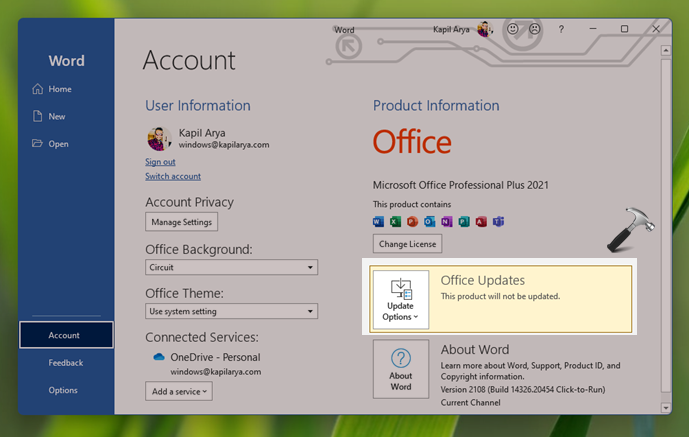
So here is how you can fix this problem.
Page Contents
Fix: Microsoft Office won’t update automatically
FIX 1: Using Office settings
- Open any Microsoft Office app you have installed and go to Account page.
- Click on the Update options dropdown.
- Now select the Enable updates option. Once this option is enabled, you are entitled to receive automatic update for your office installation package.
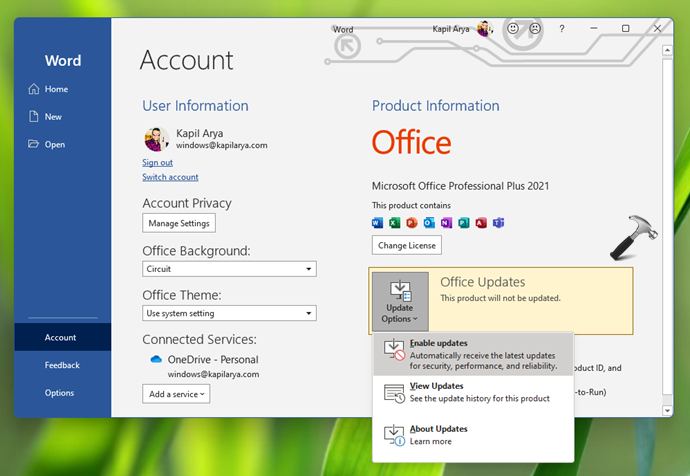
If you can’t follow the steps mentioned above, refer FIX 2 mentioned next.
FIX 2: Using registry
 Registry Disclaimer: It is recommended to create a System Restore point first, if you’re not familiar with registry manipulation.
1. Run regedit command to open Registry Editor.
2. In left pane of Registry Editor window, navigate to:
HKEY_LOCAL_MACHINE\SOFTWARE\Policies\Microsoft\Office\16.0\common\OfficeUpdate
If you’re on Office 2013, replace 16.0 with 15.0 in above registry location.
3. In the right pane of OfficeUpdate registry key, create a new registry DWORD named EnableAutomaticUpdates and set it to 1.
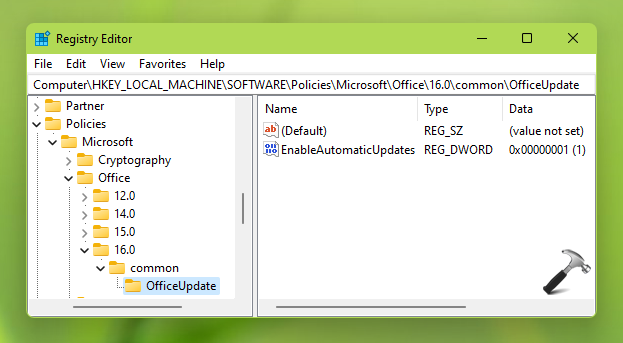
4. Close Registry Editor and reboot your system.
If you are an IT admin, you can also deploy this registry key using Group Policy. Alternatively, if you’ve latest Office Group Policy templates installed, configure the update policies at Computer Configuration > Policies > Administrative Templates > Microsoft Office 2016 (Machine) > Updates in the Group Policy Management Console. This will help you to allow your clients to update automatically.
That’s it!
Read next: How to activate Microsoft 365 E5 Developer subscription.





Method 3.
Use quick repair from programs and features , make sure internet should be connected.
^^ Thanks for adding this!