Did you ever get the irritating This message cannot be sent just now error when using Microsoft Outlook? I understand. This is a frequent Outlook bug that may suddenly emerge and interrupt your work, especially when you are about to send some crucial messages.
In this article, we will be guiding you through 9 solutions you can apply to rectify this Outlook sending error. We covered all the troubleshooting tips, like repairing the PST and OST files to resetting the Windows 11 settings and connectivity. In case you have been trying to find a solution to the Outlook can send emails error, this article is your quick fix.
Page Contents
Fix: ‘This message can’t be sent right now’ error in Outlook
Fix 1: Check Internet Connectivity
A weak/unstable Internet connection is one of the most underestimated causes of the Outlook error- “This message can not be sent now”.
1. Verify that you are in Wi-Fi or Ethernet that is of good strength.
2. Check the availability of websites.
3. Restart your modem or router.
4. Try suspension of VPNs or proxy.

Even a temporary loss of connectivity can interfere with sending mail in Outlook.
Fix 2: Check Outlook and Account Settings
The failure to send an email can be due to misconfigured settings.
1. In Windows, go to File > Account Settings > Account Settings.

2. Click twice on your email account.

3. Click on “Next” and verify these settings:
a. The information of Incoming and Outgoing servers.
b. Encryption methods (SSL/TLS) and Port numbers.
Click Test Account Settings just to be sure that everything is going well.

Appropriate configuration of accounts is vital in solving Outlook errors when sending messages.
Fix 3: Repair Microsoft Outlook
Internal program files are sometimes corrupted and require either a repair or reinstall.
1. Use Windows 11 Settings, go to Apps > Installed Apps.
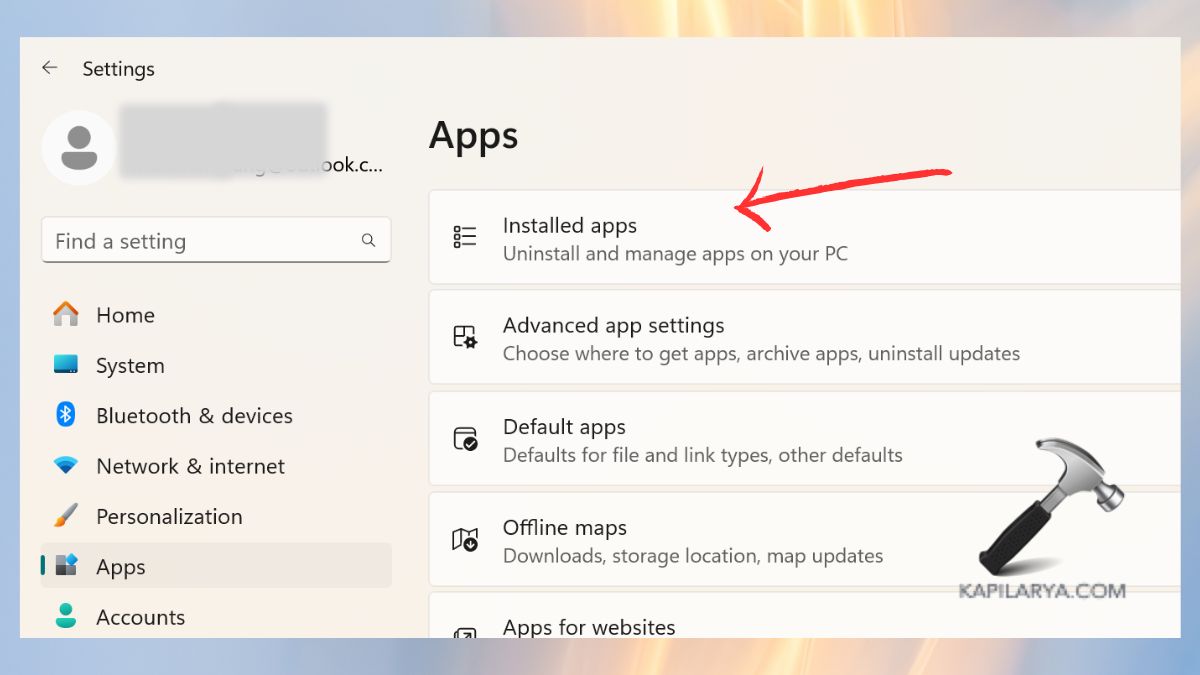
2. Find Microsoft Office and click on the three-dot icon, then choose Advanced Options.

3. Select Quick Repair or Online Repair.

Fix 4: Disable Spam Filters in Antivirus Software
A few third-party antivirus software programs may prevent the outgoing email messages in Outlook by mistaking them as spam.
1. Launch your antivirus panel. Or open the Windows 11 Security Settings > Virus & threat protection.
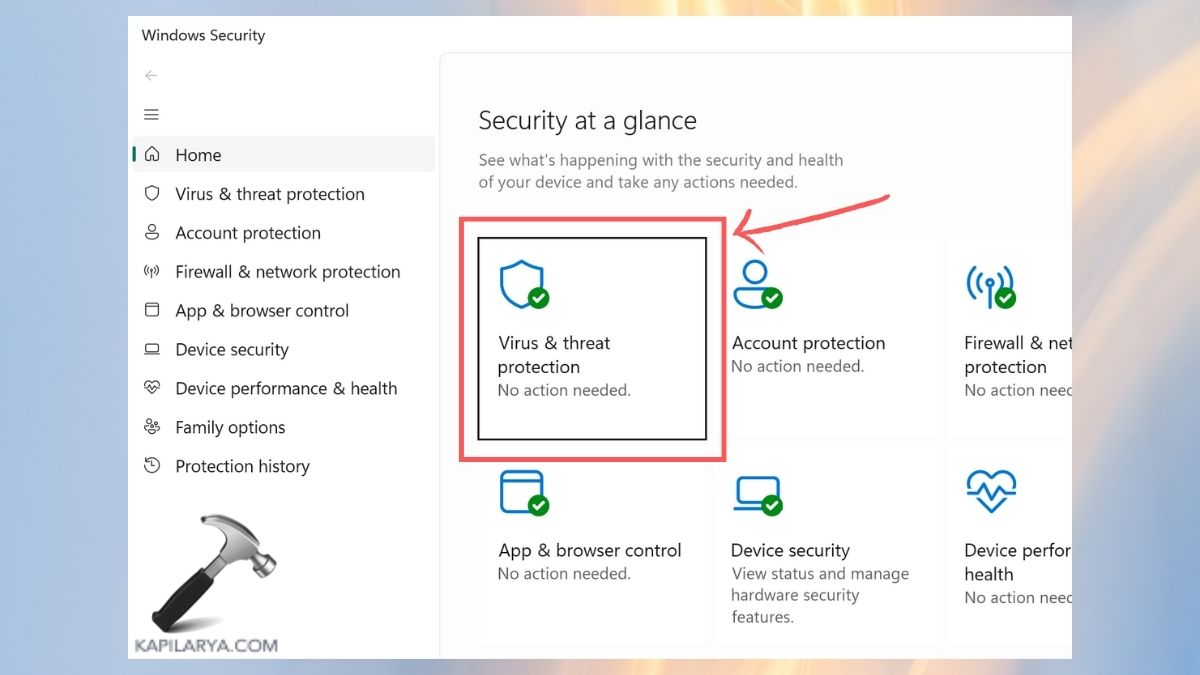
2. Find email/spam filtering preferences. Turn off or whitelist Outlook. Or from Windows Security, turn off Real-time Protection.
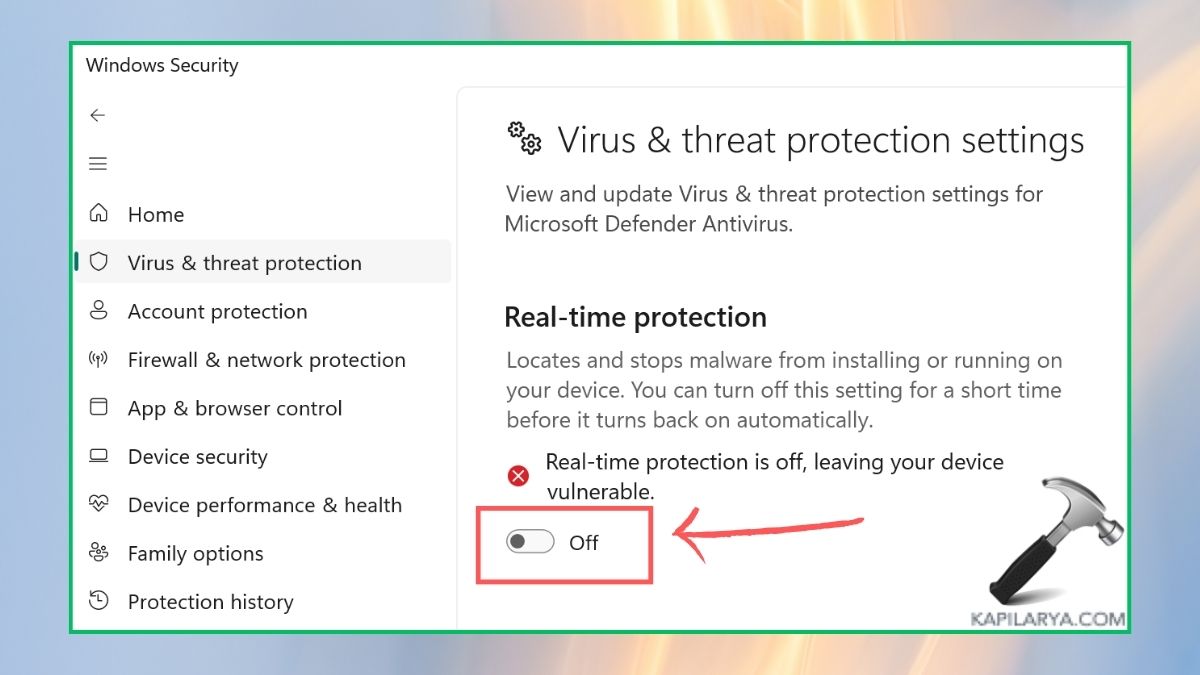
3. Send the email again with such modifications. Disabling the antivirus on a temporary basis to test is also possible.
Fix 5: Reduce Outlook Data File Size
Send/receive problems on Outlook can be caused by huge files of Outlook data.
1. Click on File, then Tools, and Clean Up Old Items.
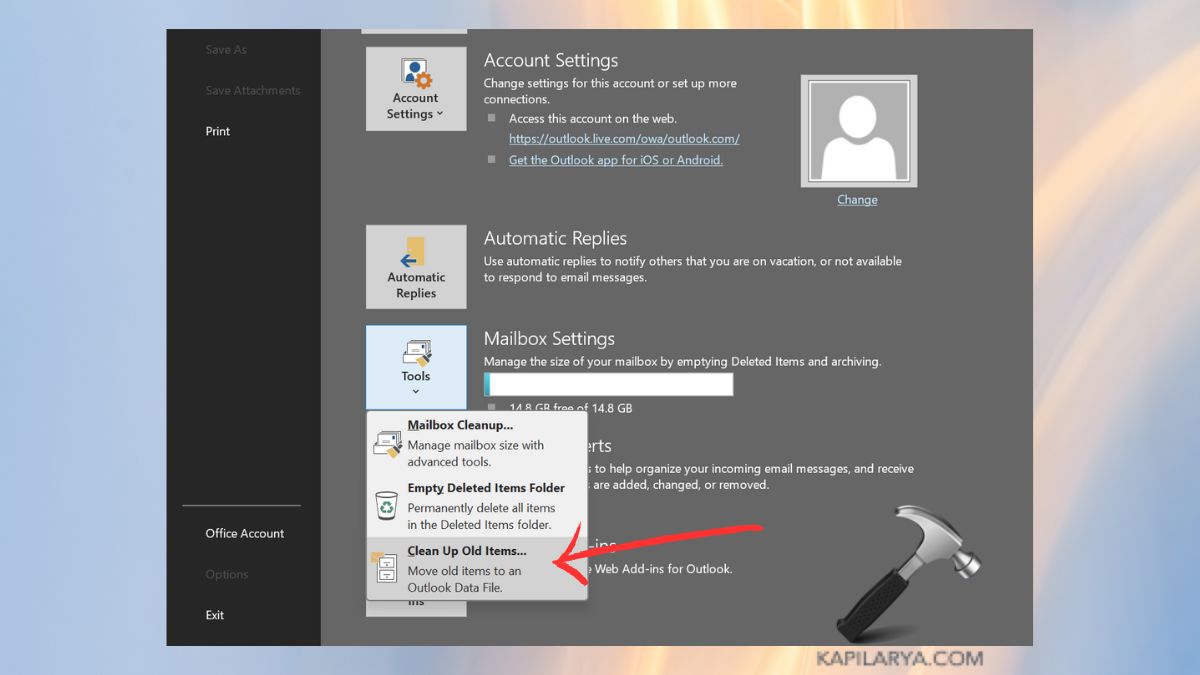
2. Remove non-needed attachments and junk.
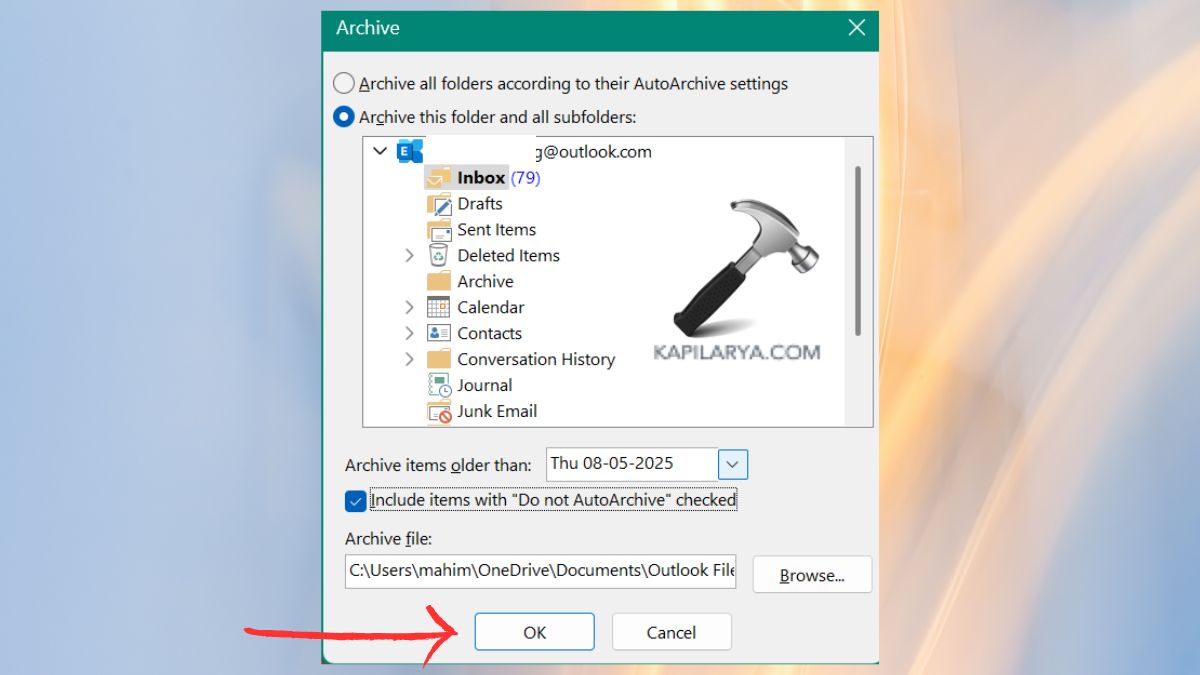
3. To compress your data file, you should go to the following path:
“File > Account Settings > Data Files”. Double-click the email.
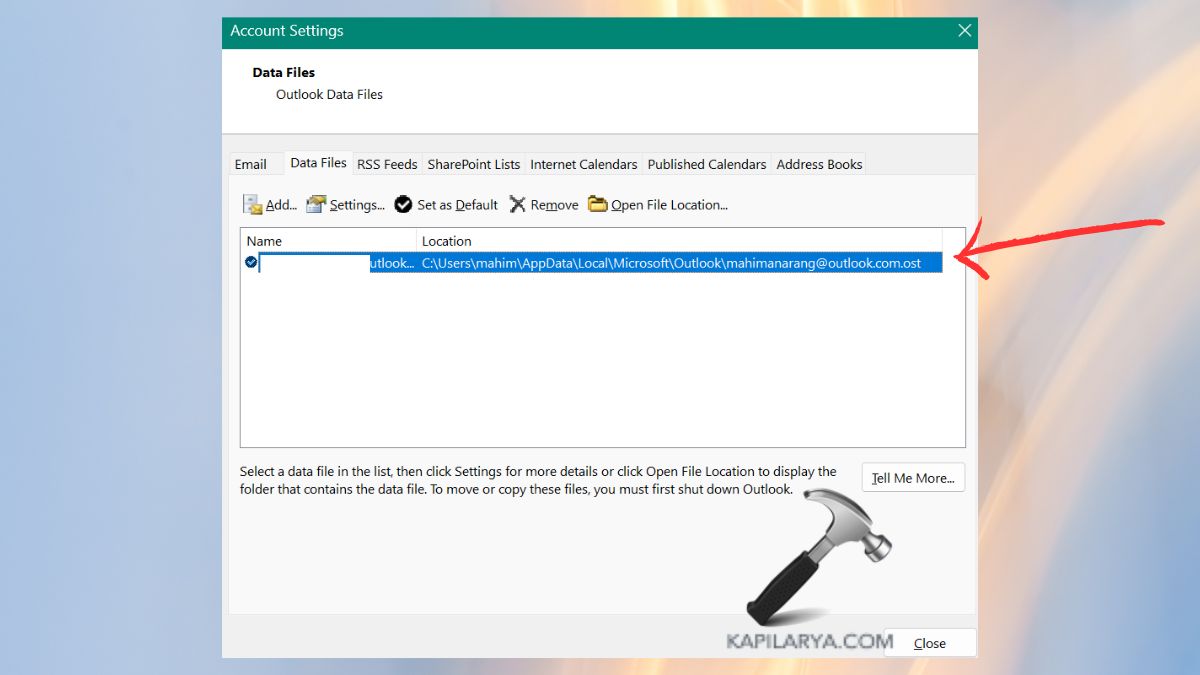
4. In the Advanced tab, click on “Outlook Data File Settings”.

PST/OST files are smaller, which enhances Outlook performance and removes errors sending messages.
Fix 6: Check and Disable Faulty Add-ins
Errors in bad or dated add-ins may clash with the email sending process of Outlook.
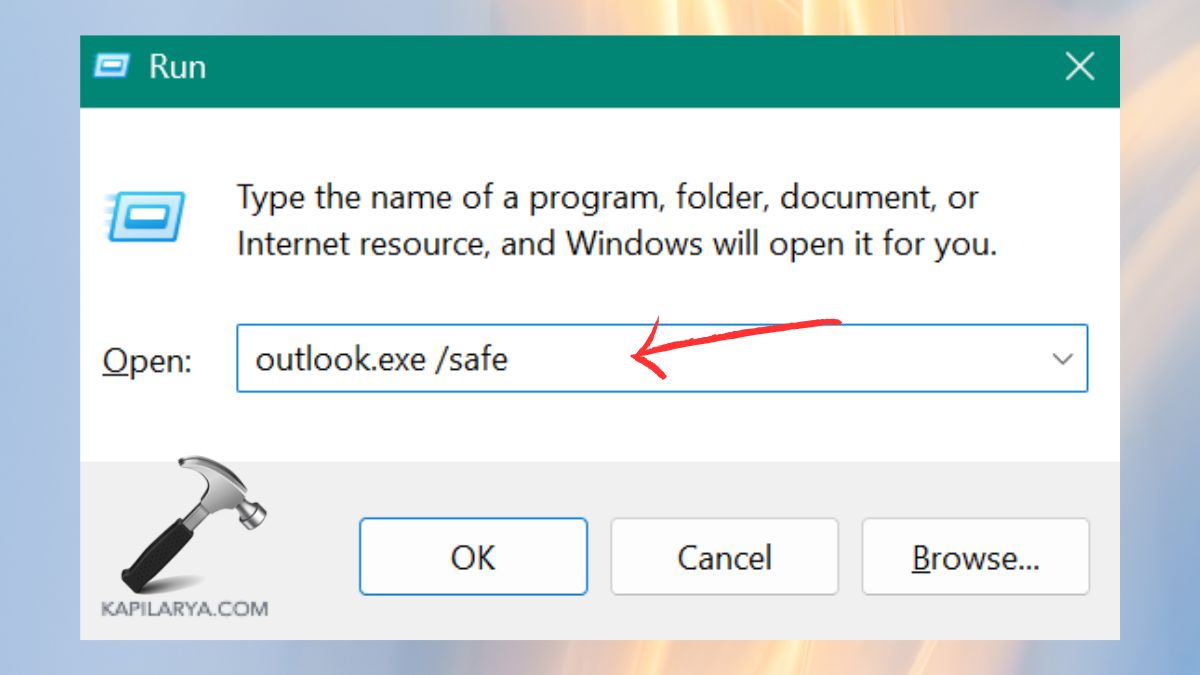
1. Press Win + R, paste, and press Enter.
outlook.exe /safe
2. In the menu, go to File > Options > Add-ins. On the bottom, right-click to select COM Add-ins > Go. Uncheck those add-ins that seem dodgy or extraneous and press OK.
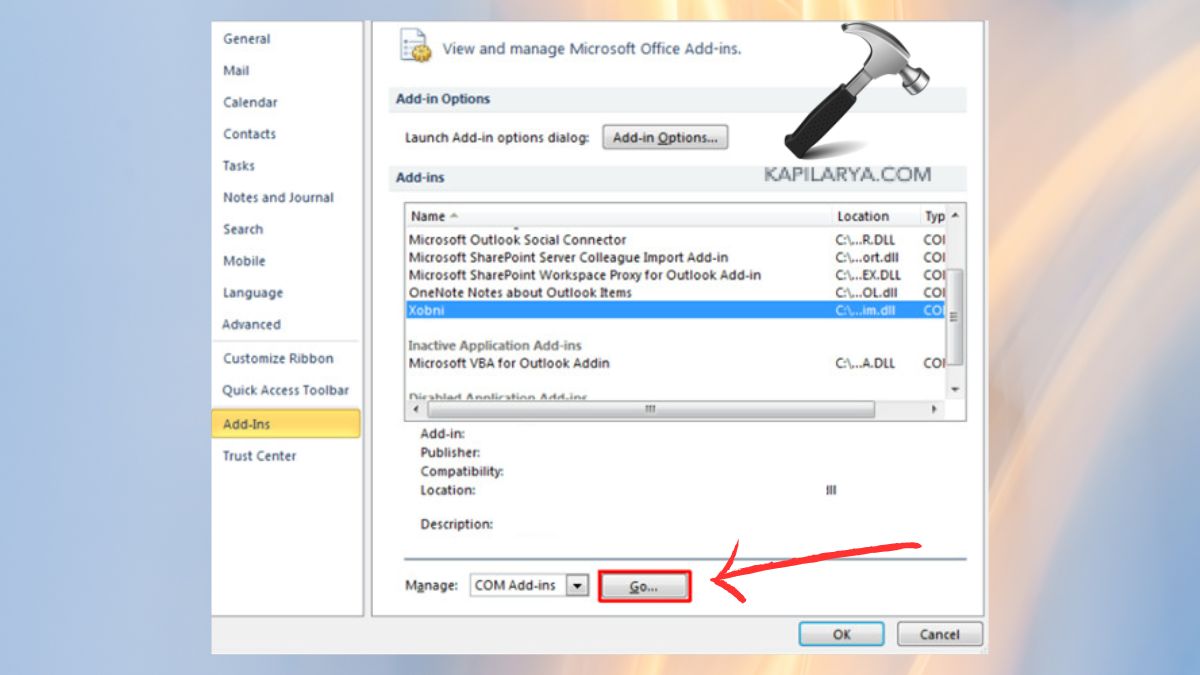
Reload Outlook and see whether e-mails are sent now.
Fix 7: Rebuild the OST File (Offline Storage Table)
Damaged or obsolete OST files will not allow one to send emails.
1. Close Outlook.
2. Get to the path
C:\Users\YourUsername\AppData\Local\Microsoft\Outlook
Track down the OST file and delete it.

3. Reopen Outlook – which will recreate a new OST and synchronize the data. The above technique also frequently clears ongoing sync and send problems in Outlook.
Fix 8: Use Microsoft Support and Recovery Assistant (SaRA)
SaRA is a diagnostics package, which is set by Microsoft, and assists in automatically identifying and correcting problems in Outlook.
1. You can download and install SaRA through the official Microsoft site (https://aka.ms/SaRASetup).

2. Open the tool, and choose “Get Help” Outlook.

3, Select the problem: “Can’t send or receive email in Outlook”. Complete the fix by following the on-screen instructions.

It is an intelligent tool for resolving latent or complex Outlook issues in a minimum time.
Frequently Asked Questions (FAQs)
#1 Why am I seeing “This message can’t be sent right now” in Outlook?
This is normally the case when there is corruption in PST/OST files, a weak network connection, improper account settings, or an antivirus conflict.
#2 Will reinstalling Outlook delete my emails?
No. Your emails are saved in your PST/OST file. Nevertheless, reinstallation is always a good time to have a backup.
#3 Can antivirus software block Outlook from sending emails?
Yes, particularly when the email scanning/spam filtering is turned on. Attempt to disable those or put Outlook into the exclusion list.
#4 Is there an official Microsoft tool to fix Outlook issues?
Of course, the Microsoft Support and Recovery Assistant (SaRA) utility can identify and resolve many common Outlook issues, such as problems when sending.
That’s it!