

If your MS Office 2010 programs gets unresponsive often or freezes frequently or suddenly crashes, this article is going to help you a lot. Recently it has been found that starting the programs of MS Office 2010 in safe mode make holds the programs well and do not let them to crash or freeze.
Page Contents
How To : Start PowerPoint 2010 In Safe Mode
In this article, we’ll tell you how to enable or use the safe mode for PowerPoint 2010? Let’s see how…
Way – 1
1. Press the Windows key, and navigate to Start -> All Programs -> Microsoft Office -> Microsoft Office PowerPoint 2010. Click the program and simultaneously hold the CTRL key untill following pop-up windows appears:

2. That’s it! Now press Yes option and PowerPoint will open in safe mode. You can apply this method on other office products like Excel, Outlook, Groove, InfoPath, OneNote, Word etc.

Way – 2
1. Press the  + R combination on keyboard, type following command in Run dialog box:
“C:\Program Files\Microsoft Office\Office14\WinPowerPoint.exe” /safe
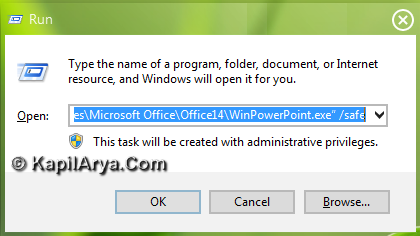
2. If you are prompted for UAC permissions viz. most probably username and password, just enter and press OK. That’s it.
3. One another alternative is to search the following slug in search box:
winword.exe /safe

That’s it!







thankss for cool tip!
hi kapil… very thanks for the article. I like the theme you are using in screenshot can you tell where to get this theme…
thanks in advance
rgds. francis
^^ Its the Windows 8 Metro UI Theme. To get, try googling!
Create a dword named safe inside HKEY_LOCAL_MACHINESOFTWAREMicrosoftOffice14.0PowerPoint and set the value to 1….