

Does the Task Manager keep crashing in Windows 11? This is a very annoying problem with many Windows users, in which the task manager may freeze or automatically close, or simply may not open at all. Task Manager is, as well, one of the most important programs to observe the performance of your system and to control background applications and to close unresponsive ones; this is why it is truly irritating when it does not work well.
Here, we are going to take you through the step-by-step solutions to resolve the issue of Task Manager crashing in Windows 11. You can follow these steps step-by-step to restore your Task Manager to normalcy.
Page Contents
Fix Task manager keeps crashing in Windows 11
Fix 1: Scan Your PC for Viruses and Malware
Task Manager may sometimes crash due to corruption of system processes caused by malware or viruses in Windows 11. Conducting a full scan is beneficial to eliminate any viral files that disrupt the system.
1. Press Win + I to open Settings. Click on Privacy & Security > Windows security > Virus and threat protection.
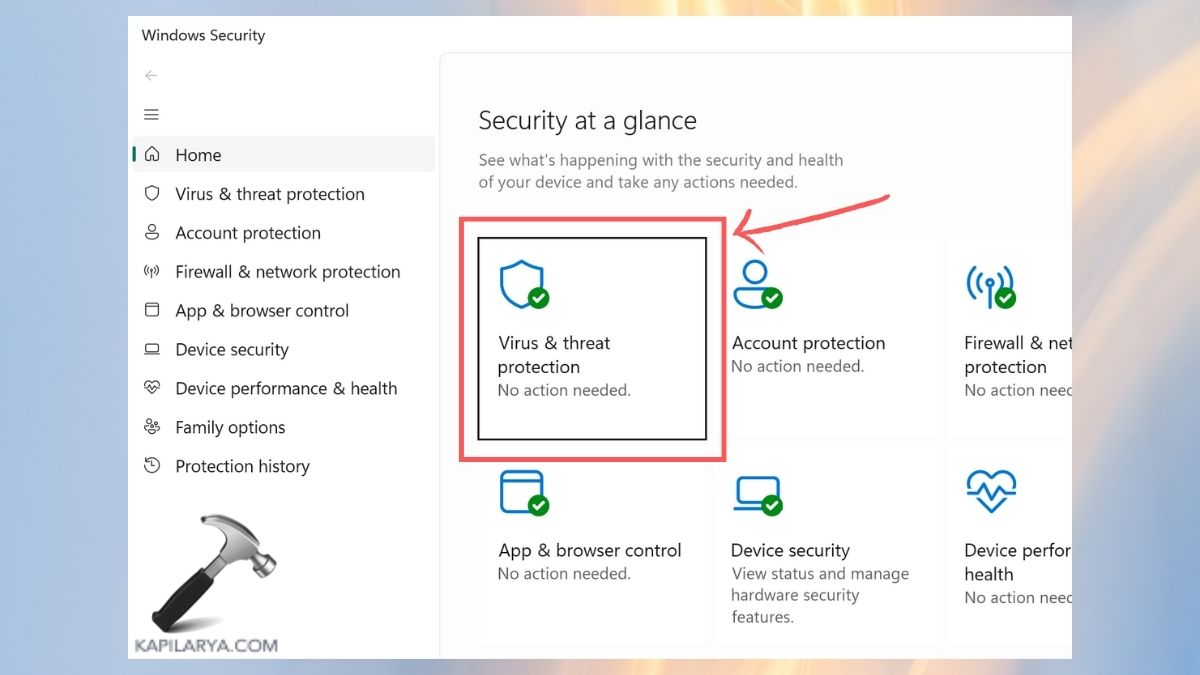
2. Press the Quick Scan button, or press Full Scan to have the system fully checked.

3. Then, finally reset your PC after the scan.
Fix 2: Run SFC and DISM Scans
A significant cause of the crash of the Task Manager in Windows 11 is corrupted system files. Fortunately, Windows has in-built utility such as System File Checker (SFC) and Deployment Image Servicing and Management (DISM) to repair the same.
1. Press Win + S and type “cmd” or “Command Prompt”. Open Command Prompt as a right-click option > Run as administrator.

2. Enter this command and press Enter.
sfc /scannow
Allow the scan to complete and fix any of the errors detected.

3. Following the SFC scan, enter the following one by one and press Enter after each.
DISM /Online /Cleanup-Image /CheckHealth
DISM /Online /Cleanup-Image /ScanHealth
DISM /Online /Cleanup-Image /RestoreHealth

4. When it is ready, do a reset on your PC and check whether Task Manager functions correctly.
Fix 3: Perform a Clean Boot in Windows 11
Sometimes, third-party applications or startup programs clash with the process that occurs in the system and result in a crash of the task manager. Clean Boot simply assists in the detection of the offender.
1. Click Win+R, enter this command, and press Enter.
msconfig
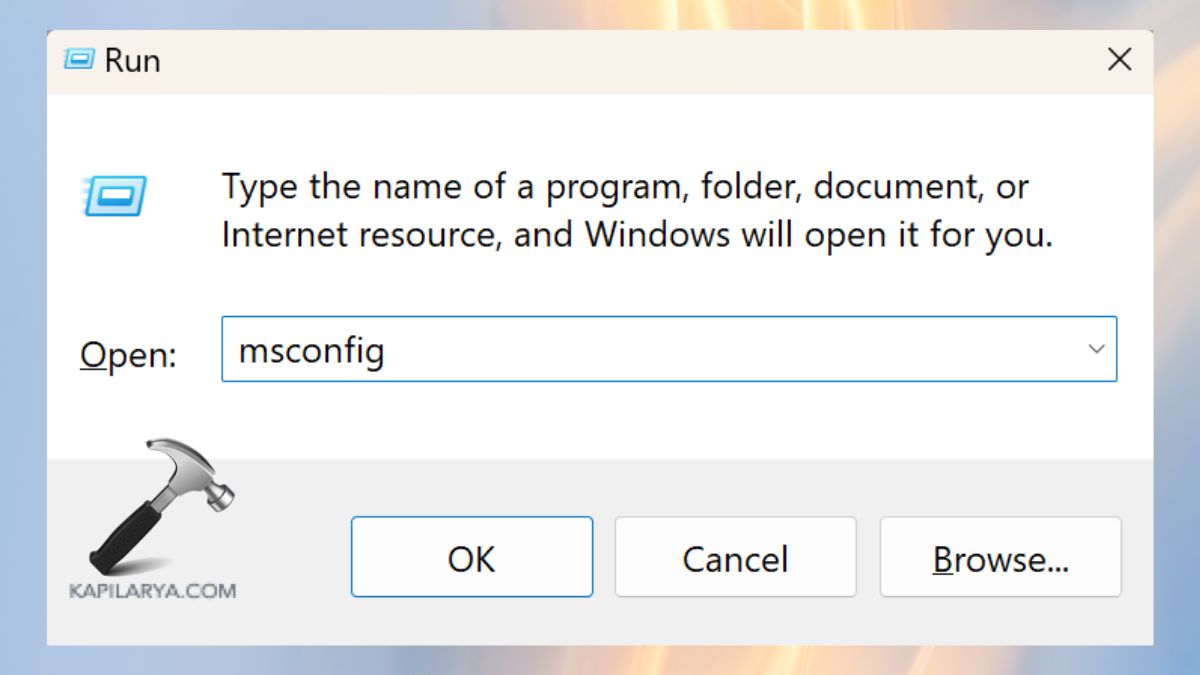
2. Go to the Services tab. Check Hide all of Microsoft services and thereafter disable all.

3. Click Startup and open Task Manager.

4. You should now disable all the startup programs one by one.
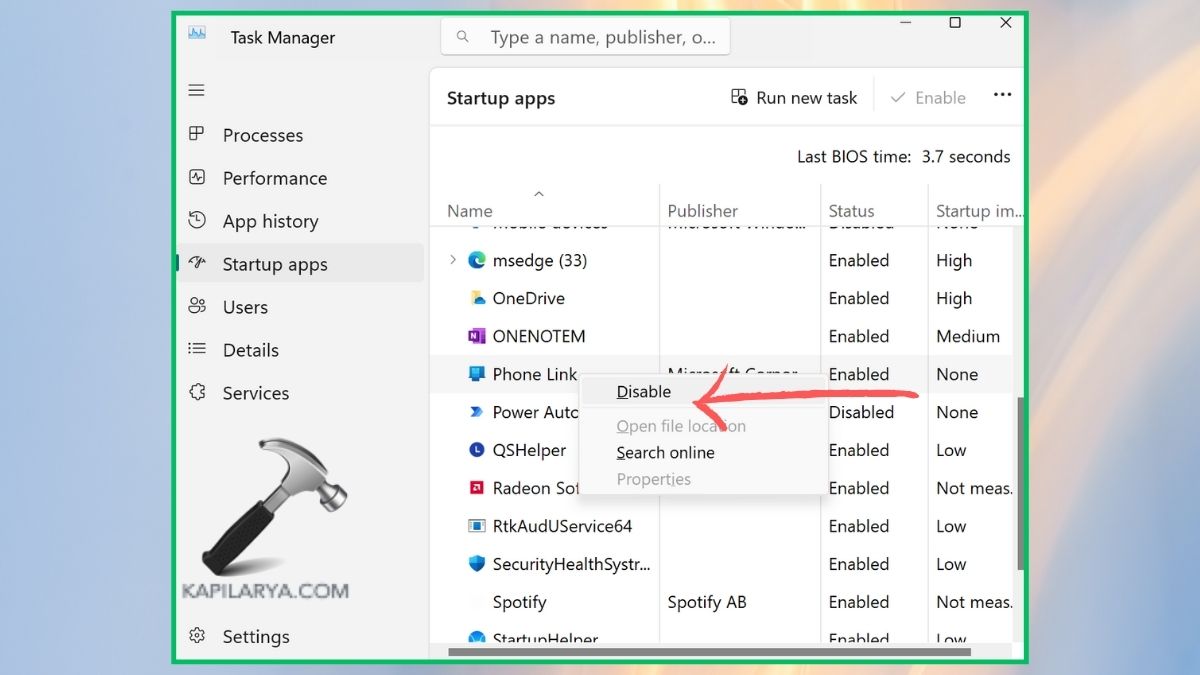
5. Restart your PC. In case Task Manager is okay after restarting, then enable each service individually so as to identify the problem program.
Fix 4: Check for Corrupted System Files and Updates
Windows updates do not always install correctly and this causes a system malfunction and Task Manager problems. Ensure that your system is upbeat.
1. Click on Win + I > visit Windows Update.
2. Click Check for updates.
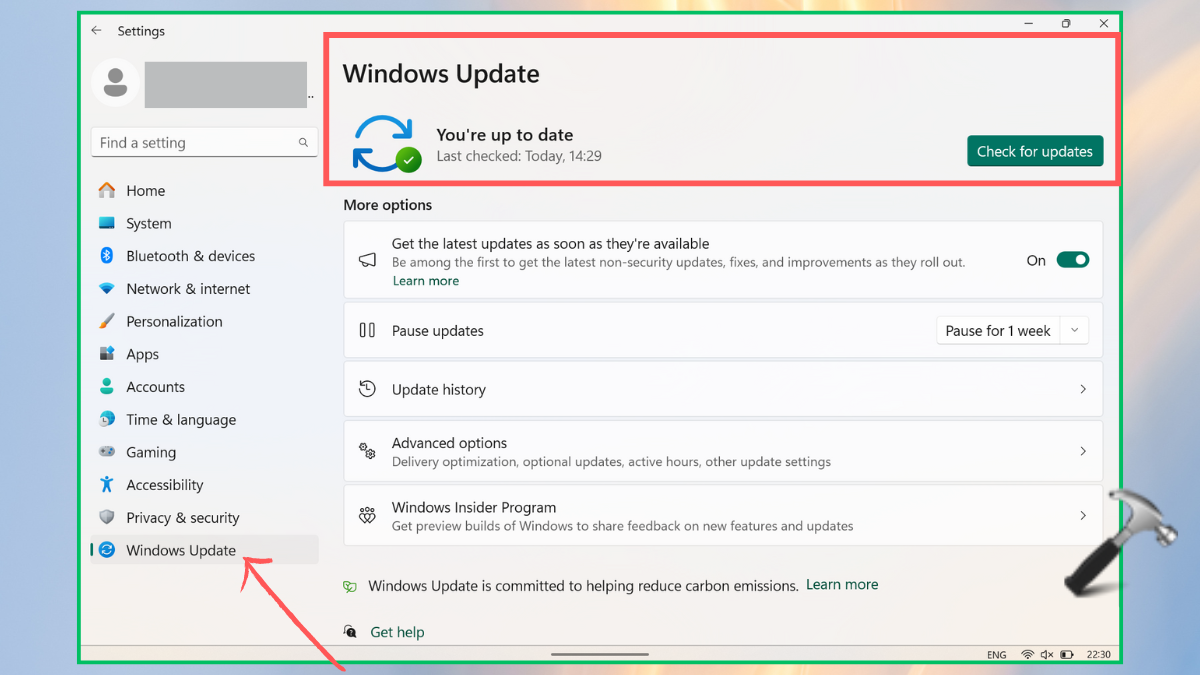
Make sure that you install all the updates and re-boot your computer.
Fix 5: Use System Restore
When the Task Manager used to work well previously and has just begun to crash, System Restore can be used to restore your PC to a stable position.
1. Click on the Start menu, type “create a restore point” and open it.

2. Click on System Restore which is found under System Protection. Select one of the restore points at which the Task Manager had been running well.

3. Use your PC instructions to fix your PC. Once restoration has been done, verify by opening the Task Manager again.
Fix 6: Reset Your PC (Without Losing Data)
In case all the above fail to work, you can use the Reset this PC option. It reformats Windows but saves your personal files.
1. Open Windows Settings application > select System option > Recovery.

2. In the Recovery options, select the Reset PC option.
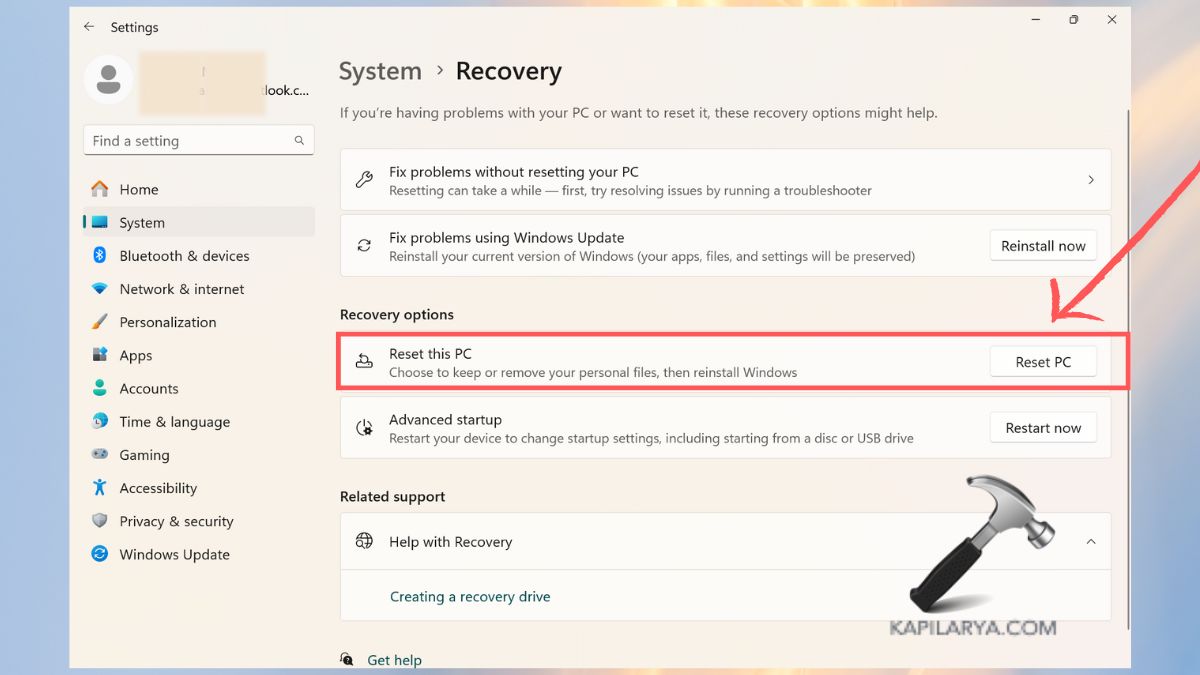
3. Choose Keep my files. Then, continue the prompts towards the process of reset.

When this has been done, the Task Manager ought to recommend working as is normal once again.
Frequently Asked Questions (FAQs)
That’s it!


