Turn on Bluetooth in Windows 11 quickly using one of the built-in methods below. Whether you prefer the Settings app, the Quick Settings panel, Device Manager, a hardware switch, or restarting the Bluetooth service, this guide shows clear, numbered steps for each approach.

Page Contents
How to turn on Bluetooth in Windows 11
Try the following methods in the order that’s easiest for you, and test your device after each one.
Method 1: Use Quick Settings (fastest way)
Quick Settings gives instant access to Bluetooth without opening Settings. Use this when you want to pair or toggle Bluetooth quickly.
1. Click the network, sound, or battery icon on the right side of the taskbar to open Quick Settings.
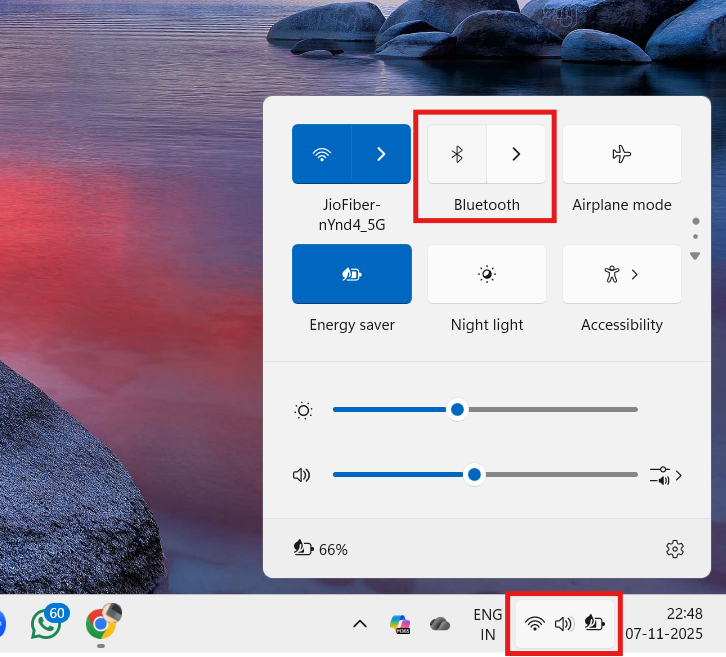
2. If you don’t see Bluetooth, click the pencil or Expand button to show more icons.
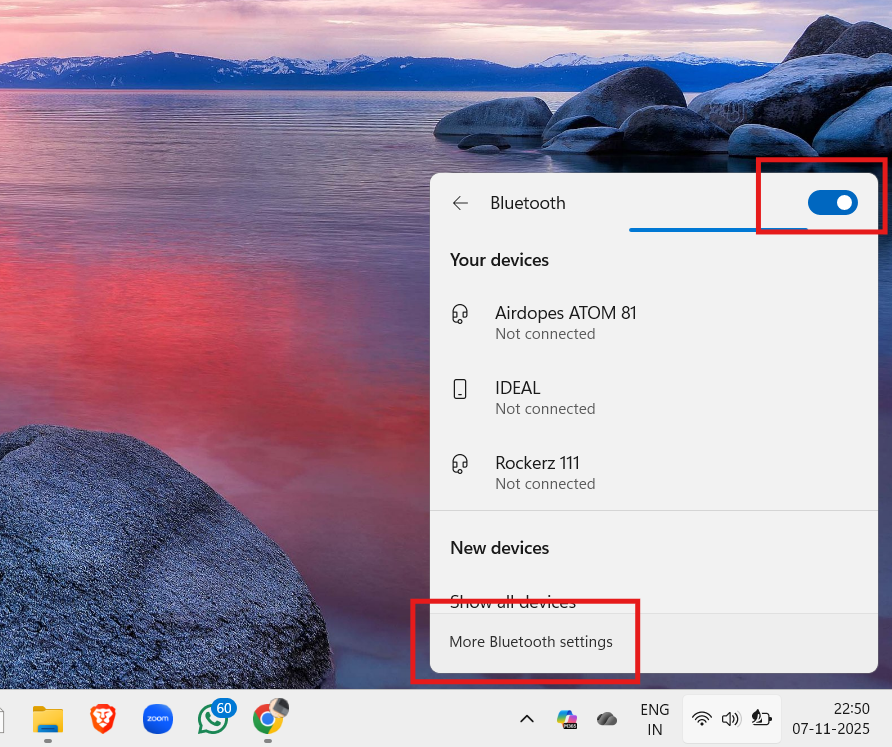
3. Click the Bluetooth tile to turn it on.
4. Right-click the tile and choose More Bluetooth settings to pair a device.
Method 2: Enable through Bluetooth & devices
Settings provides full control for pairing, visibility, and device management.
1. Open Settings (Windows + I).
2. Select Bluetooth & devices.
3. Turn on the Bluetooth toggle.
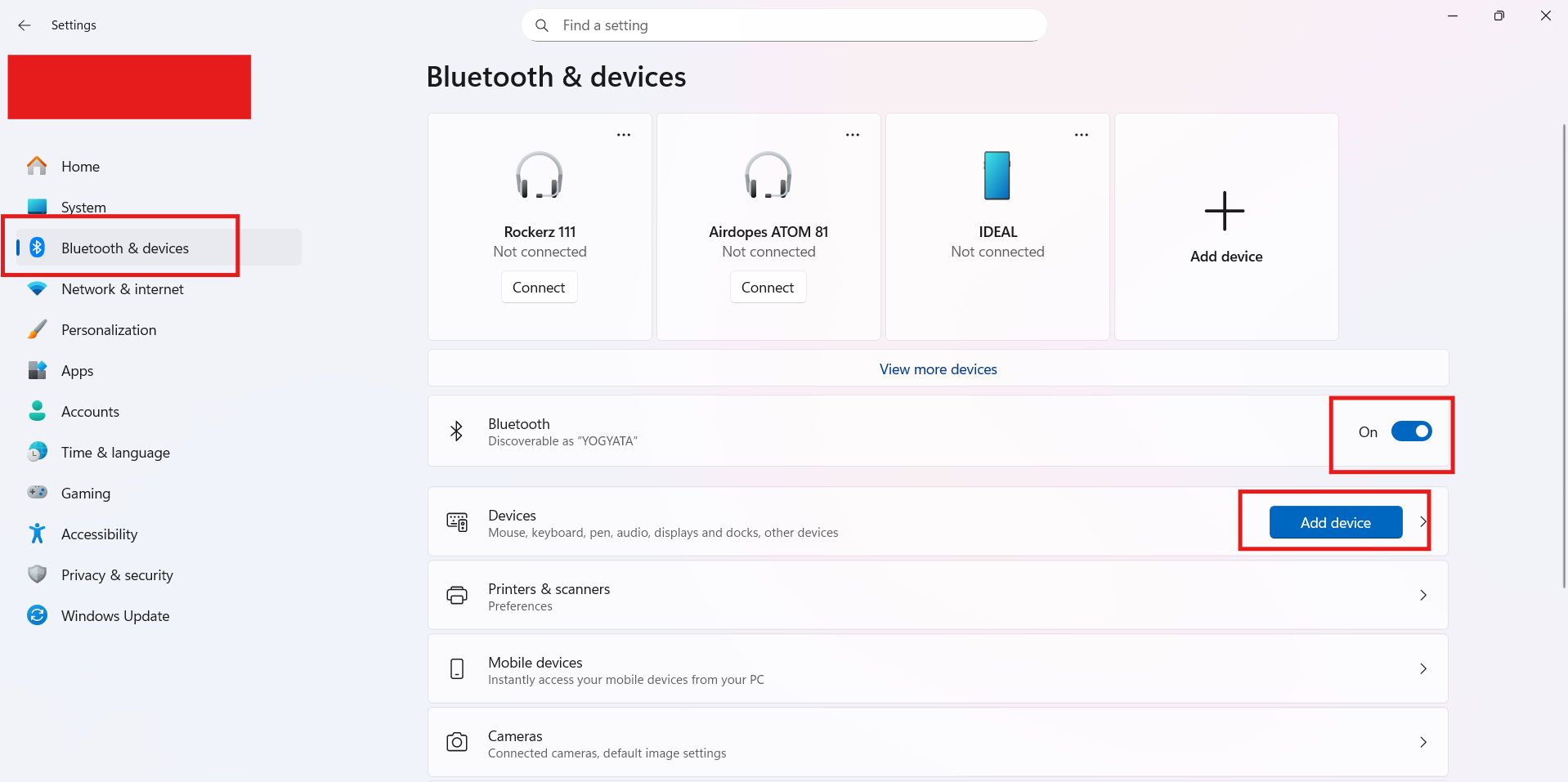
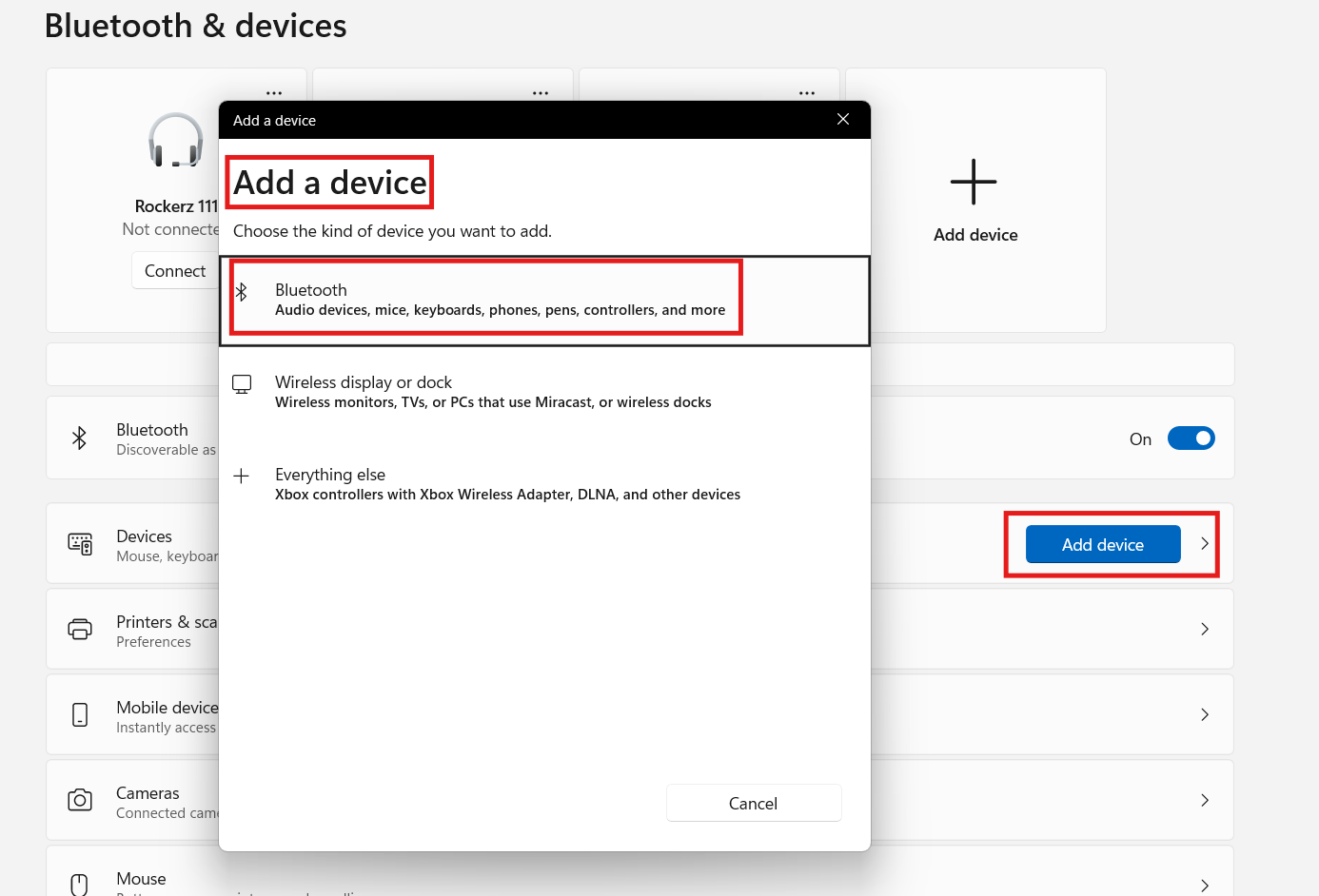
4. Click Add device, choose Bluetooth, and follow the pairing prompts.
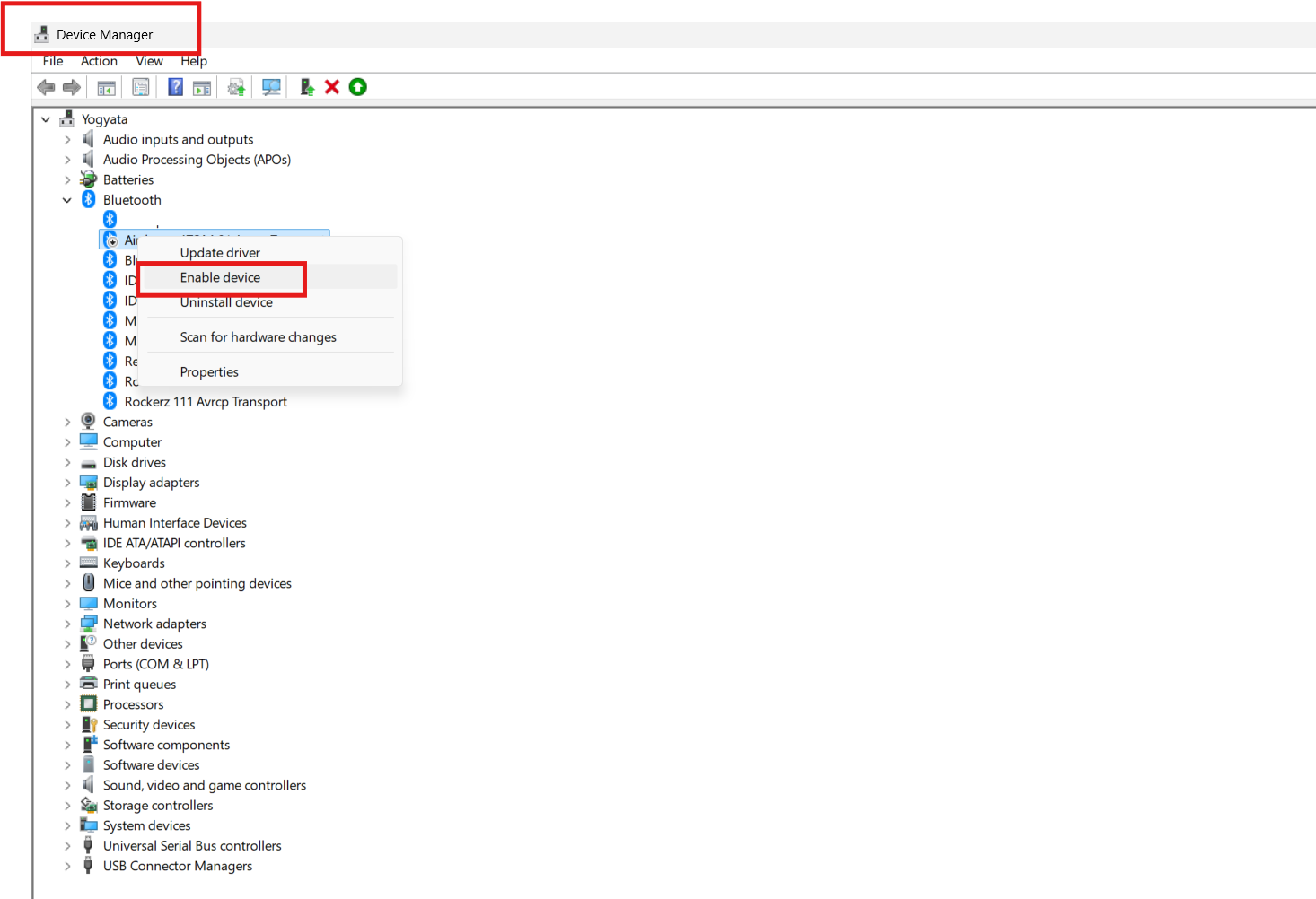
Method 3: Enable the adapter in Device Manager
If Bluetooth is missing or disabled, re-enable the adapter in Device Manager.
1. Press Windows + X and select Device Manager.
2. Expand Bluetooth (or Network adapters on some systems).
3. Right-click the Bluetooth adapter and choose Enable device (or Update driver in some devices).
4. Restart the PC if Windows prompts you.
Method 4: Turn on the hardware switch or keyboard shortcut
Some laptops have a physical switch or a function key combo to toggle Bluetooth and wireless radios.
1. Check your laptop’s sides or near the keyboard for a wireless or Bluetooth switch.
2. If your keyboard has wireless function keys, press Fn + (wireless icon key) to toggle Bluetooth.
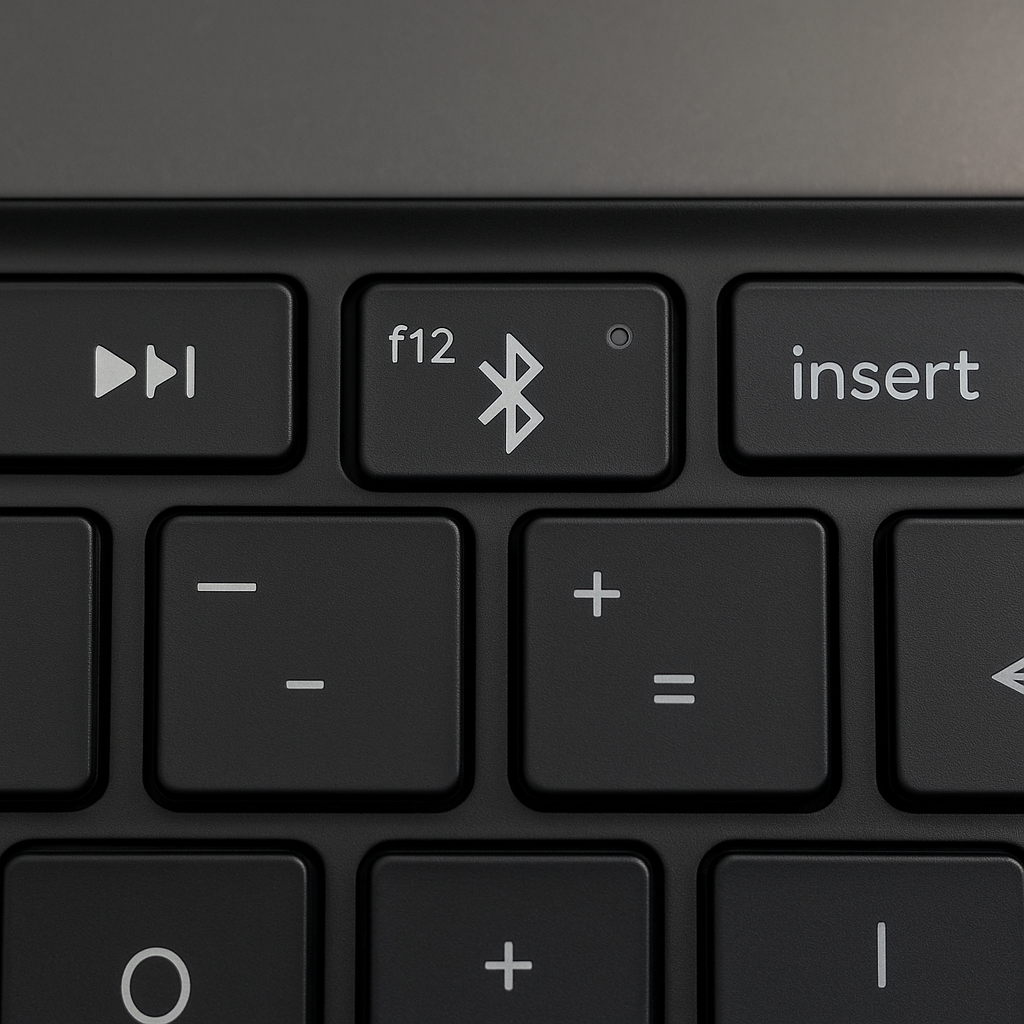
3. Reopen Settings or Quick Settings to confirm Bluetooth is enabled.
Method 5: Restart the Bluetooth Support Service
When Bluetooth software is unresponsive, restarting the service often fixes it.
1. Press Windows + R, type services.msc, and press Enter.
2. Find Bluetooth Support Service, right-click, and choose Restart.
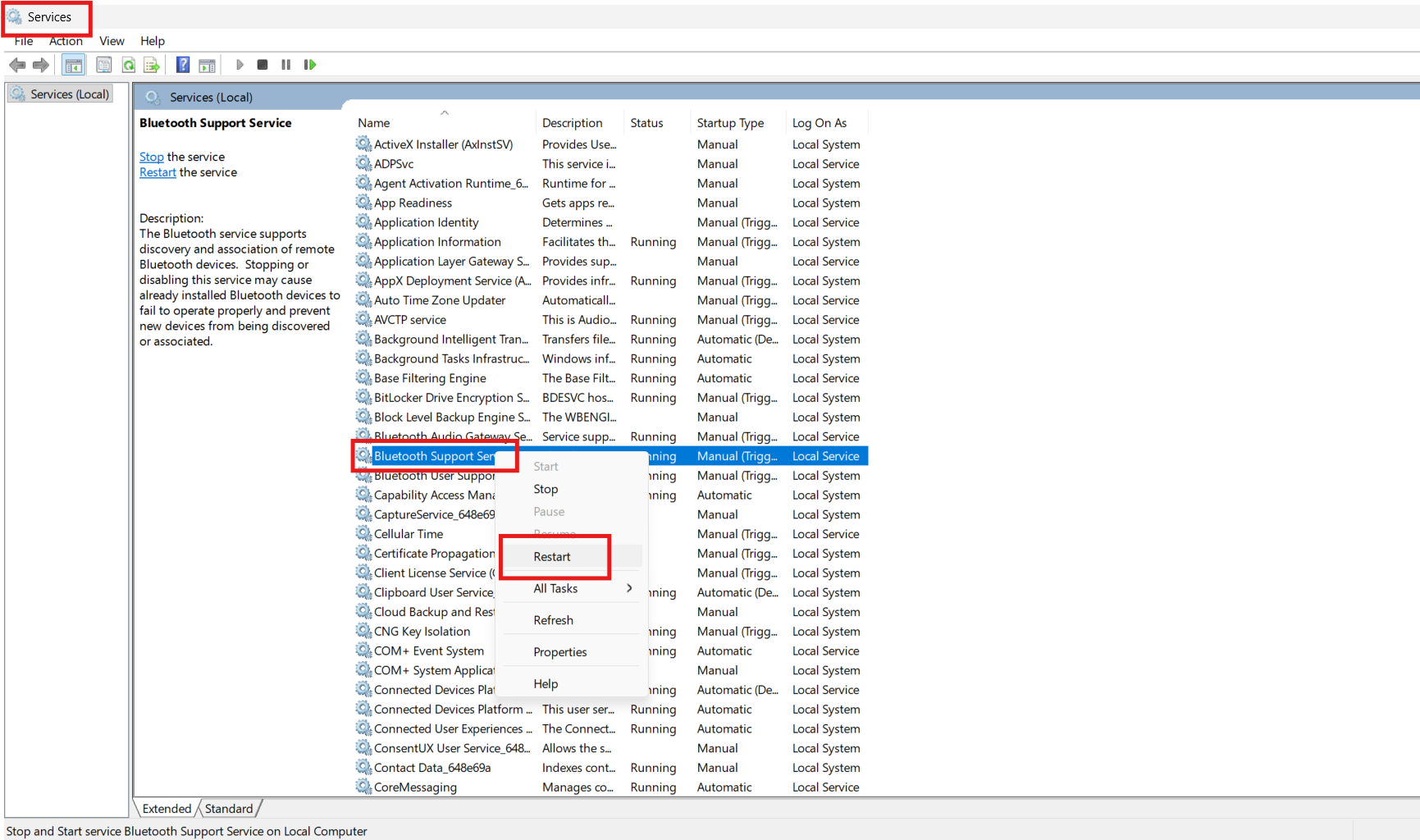
3. Set Startup type to Automatic if it isn’t already, then test Bluetooth.
Quick tips
- Make sure the Airplane mode is off.
- Turn Bluetooth off and on again after pairing issues.
- Update Bluetooth drivers from the PC maker if problems persist.
- Use the Bluetooth troubleshooter (Settings, then Troubleshoot) for automated fixes.