Has Windows 11 had an issue, that is the Trusted Platform Module (TPM) malfunction error? This fault all of a sudden appears on your monitor, particularly when you are opening the Microsoft 365 applications, such as Outlook or Teams. The presence of TPM problems in Windows 11 is not as rare as it may seem to users. The TPM contributes significantly to the security of the devices, Windows log-ins, Office log-ins, and encryption. We will define the error with TPM malfunction in this guide, its key causes and simple step-by-step measures to eliminate the problem in the short term.
Page Contents
What is the Trusted Platform Module Malfunction Error?
Trusted Platform Module (TPM) Malfunction Error in Windows 11 refers to the occurrence when the system is unable to connect and verify the TPM 2.0 security chip, which also holds encrypted credentials, Windows Hello PIN information, device-identity key, and Microsoft 365 authentication keys. In case of TPM failure, Windows and office applications will be unable to authenticate your identity, so that you will fail to log in, activate programs, and programs would also crash.
It is a frequent issue during the signing in of Outlook, Teams, OneDrive or installing Windows Hello. It commonly occurs because of corrupted TPM data, expired credentials, a failed NGC folder, a mistake with Microsoft 365 authentication, or corrupted Microsoft Entra ID (Azure AD) device registration.
Trusted Platform Module Malfunction Errors
The users normally face the error of TPM malfunction and certain codes like:
- TPM keys or credentials 80090016 are corrupted.
- The error 80090030 is a problem of device registration, or Entra ID sync.
- C0090016 TPM communication failure.
- 80090034 Malformed/ mismatched TPM authentication data.
Fix (TPM) Trusted Platform Module Malfunction in Windows 11
Simply put, the TPM malfunction error implies that Windows 11 would not be able to confirm you as a user, which will lead to a freezing of Microsoft 365 and Windows Hello. It can also be fixed by clearing corrupted credentials, re-installing TPM drivers, resetting the activation data or repairing the identity settings of the device. For this, follow the eight ways.
Fix 1: Remove Office Credentials
TPM malfunction errors can be quelled by problematic or outdated Microsoft 365 credentials.
1. Open Control Panel > Click Credential Manager.

2. Select Windows Credentials. Look for entries like these.
MicrosoftOffice16_Data
MicrosoftOffice15_Data
Click Remove all Microsoft Office credentials. Turn your PC off and put your name in Office applications again.

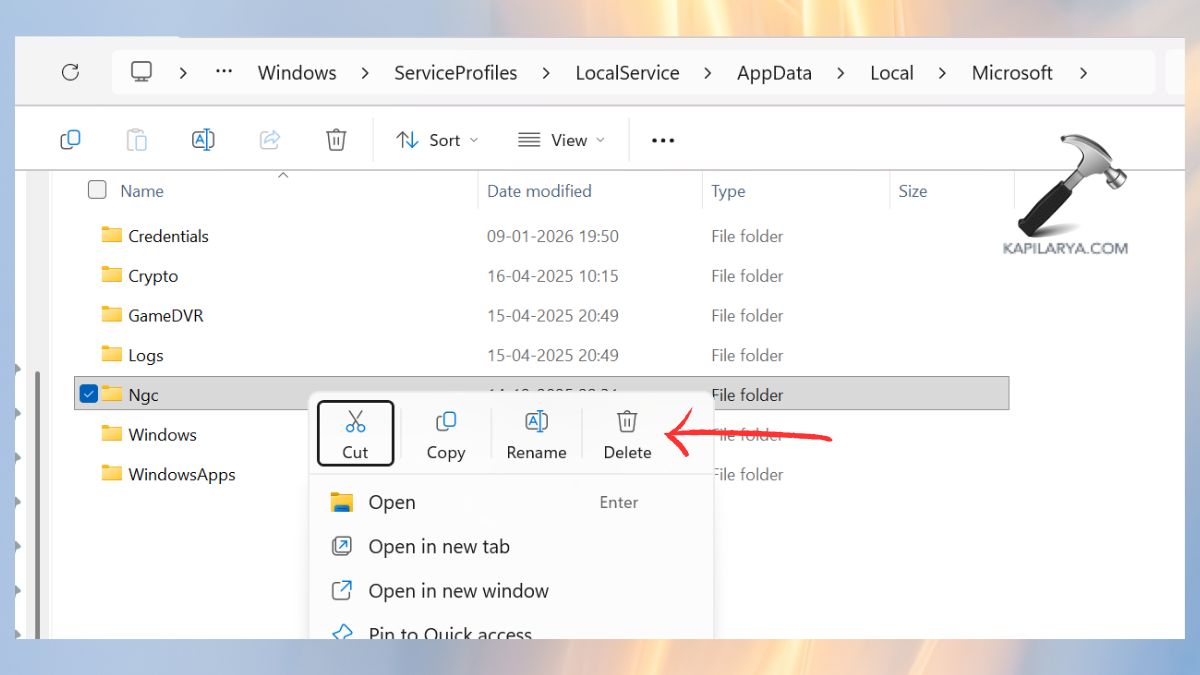
Fix 2: Take Ownership of the NGC Folder and Delete It
Altered NGC folder renders TPM to fail authenticating PIN login.
1. Press Win + R, type this path:-
C:\Windows\ServiceProfiles\LocalService\AppData\Local\Microsoft
Locate the NGC folder.
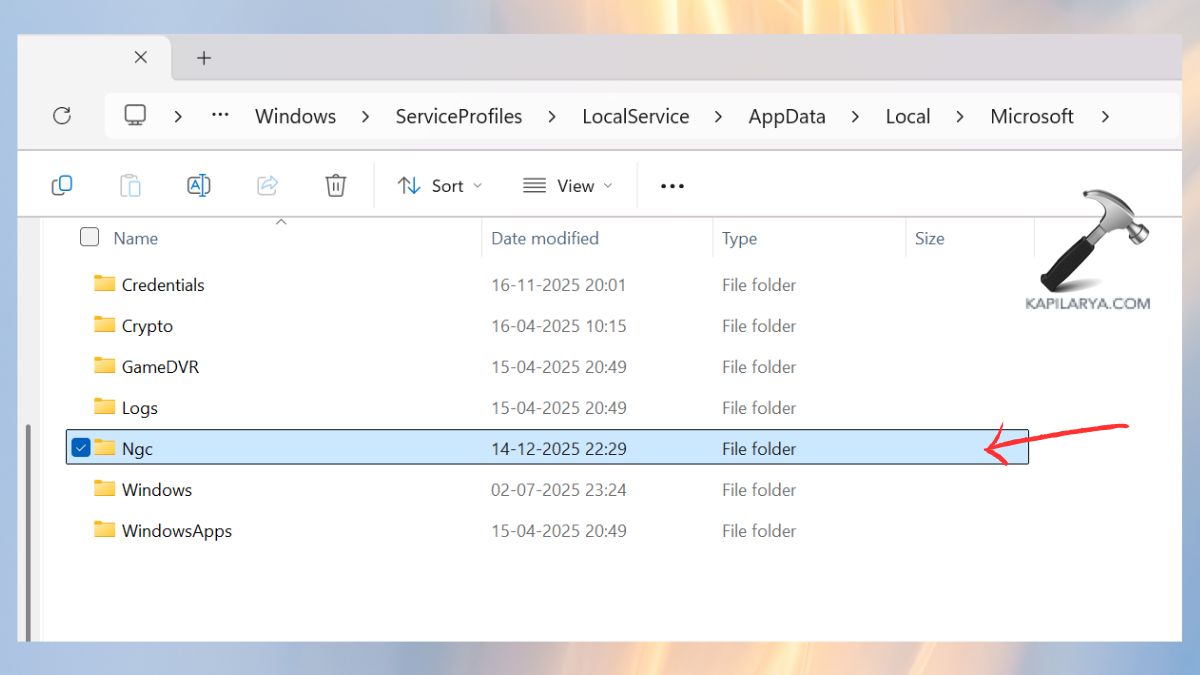
2. Open right-divided menu > Properties > Security > Advanced.

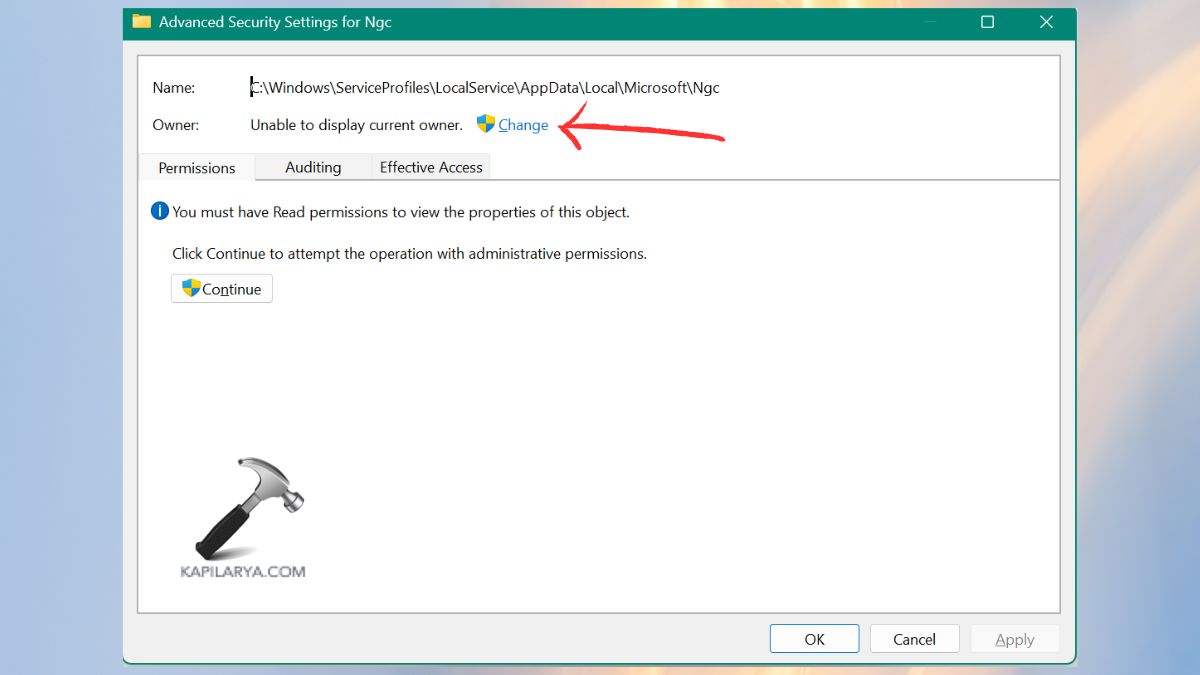
3. Click “Change” for Owner > type in your username > Apply.
4. Set “Replace owner on subcontainers and objects”.
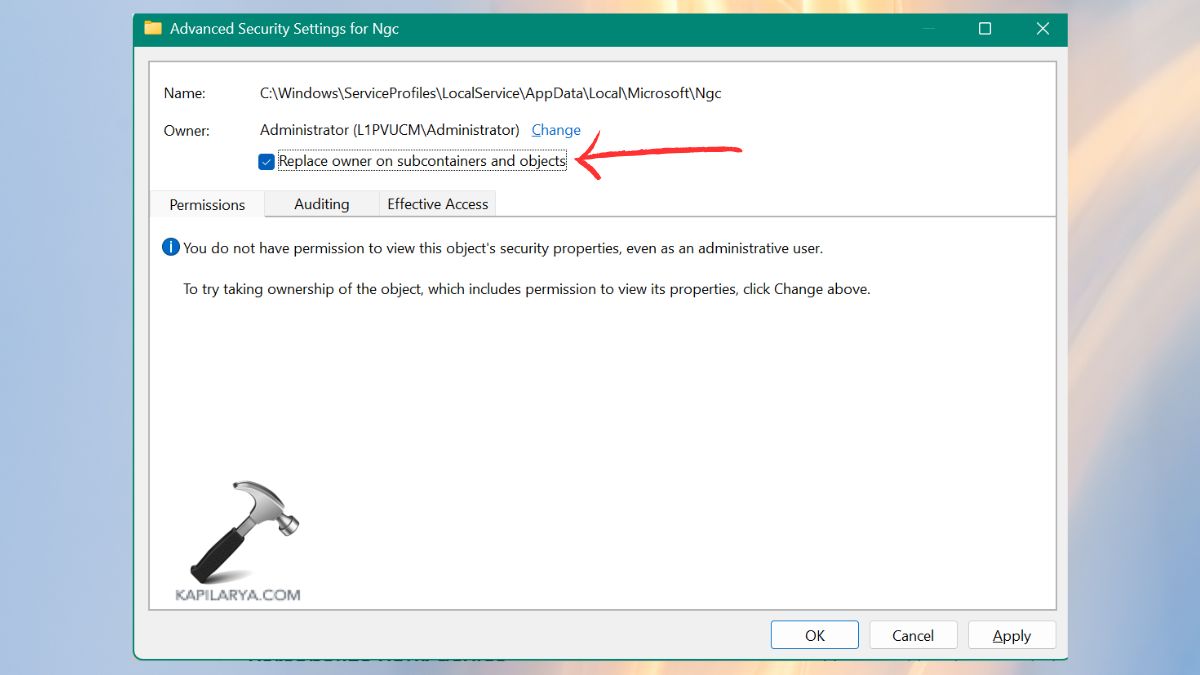
5. Delete the NGC folder. Boot the PC and configure once more.
Fix 3: Clear the Trusted Platform Module
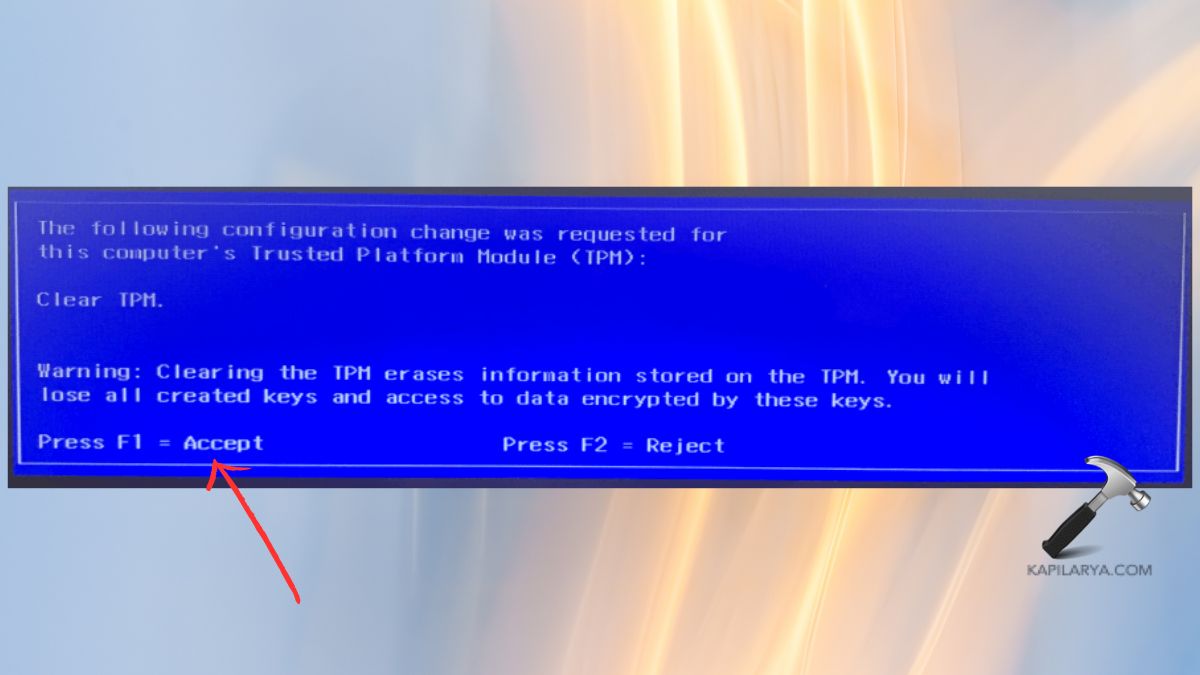
This restoring corrupted TPM data puts it back to the default state. Clearing TPM will clear stored keys used in encryption. BitLocker keys need to be backed up.
1. Press Win + I > System > Recovery.

2. Press Advanced Startup > Restart.
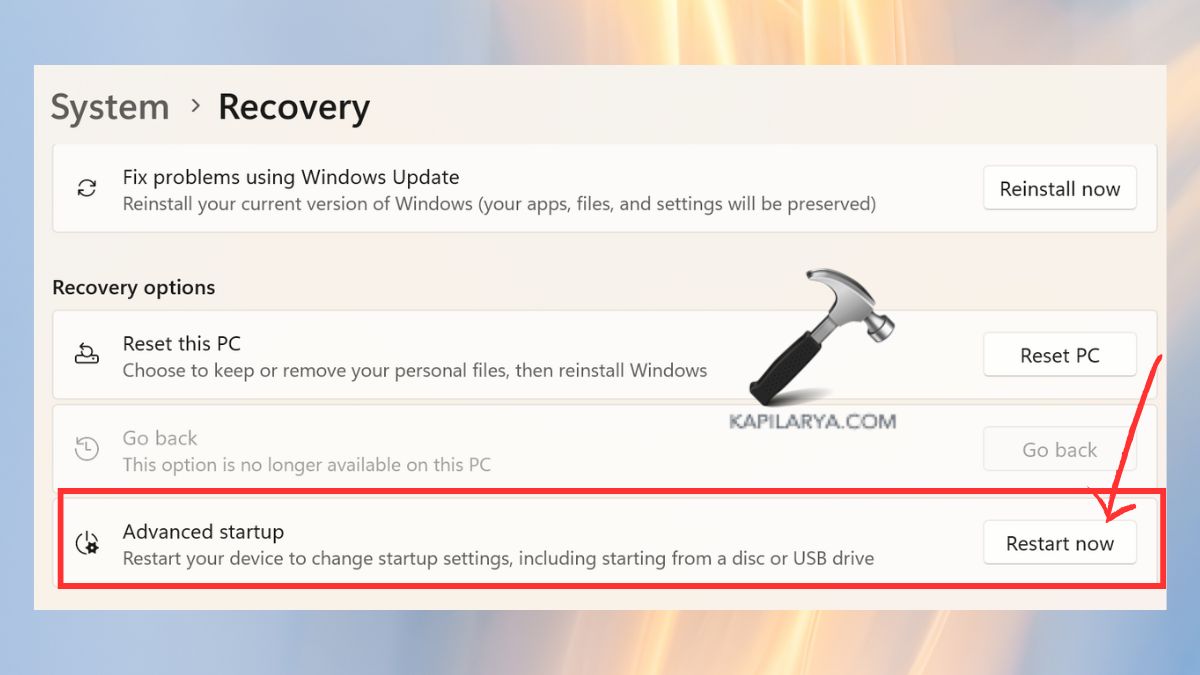
3. Go to Troubleshooting > Advanced Options > UEFI Firmware settings > Restart.

Enter BIOS/UEFI.
4. Find Security or TPM Settings. Select Clear TPM or Reset TPM. Save and exit the BIOS.
Fix 4: Reset Microsoft 365 Activation State
In case the occurrence of the TPM malfunction is exclusive to the Office apps, the state of activity can be destroyed.
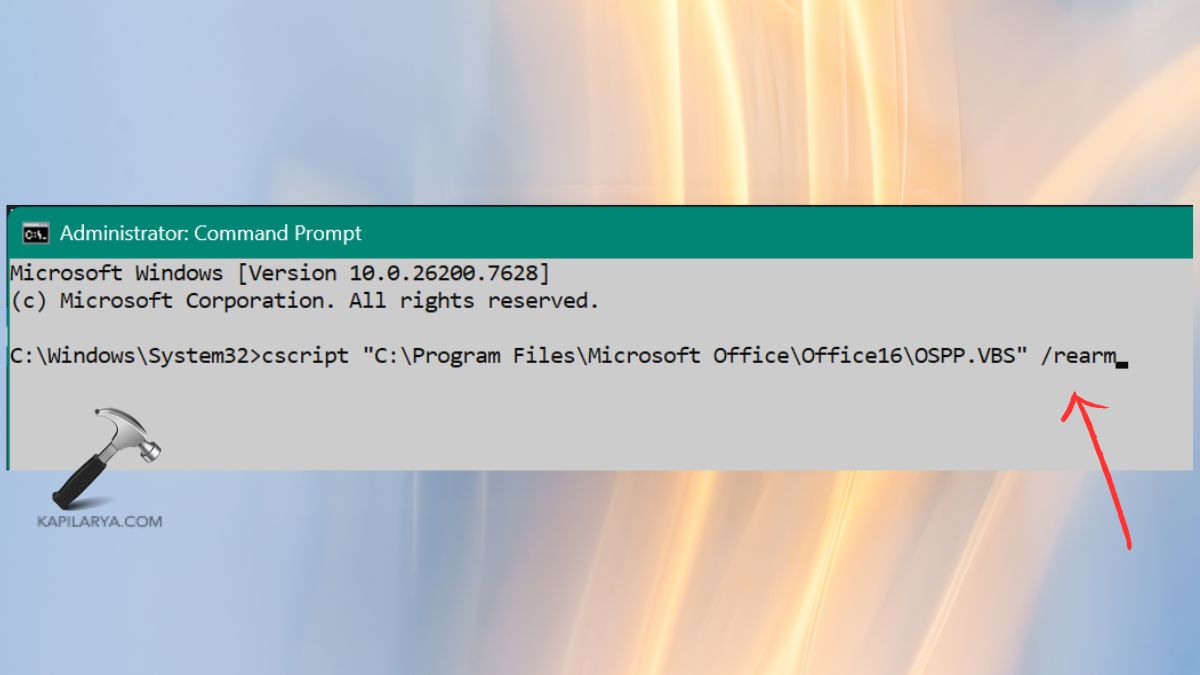
1. Press Win + X > Terminal (Admin).

2. Run the command.
cscript "C:\Program Files\Microsoft Office\Office16\OSPP.VBS" /rearm
Restart your PC. After that, visit any Office application and re-sign in.
Fix 5: Troubleshoot Microsoft Entra Hybrid Join
Devices attached to Azure AD/Entra ID can lose their contact and cause errors in TPM.
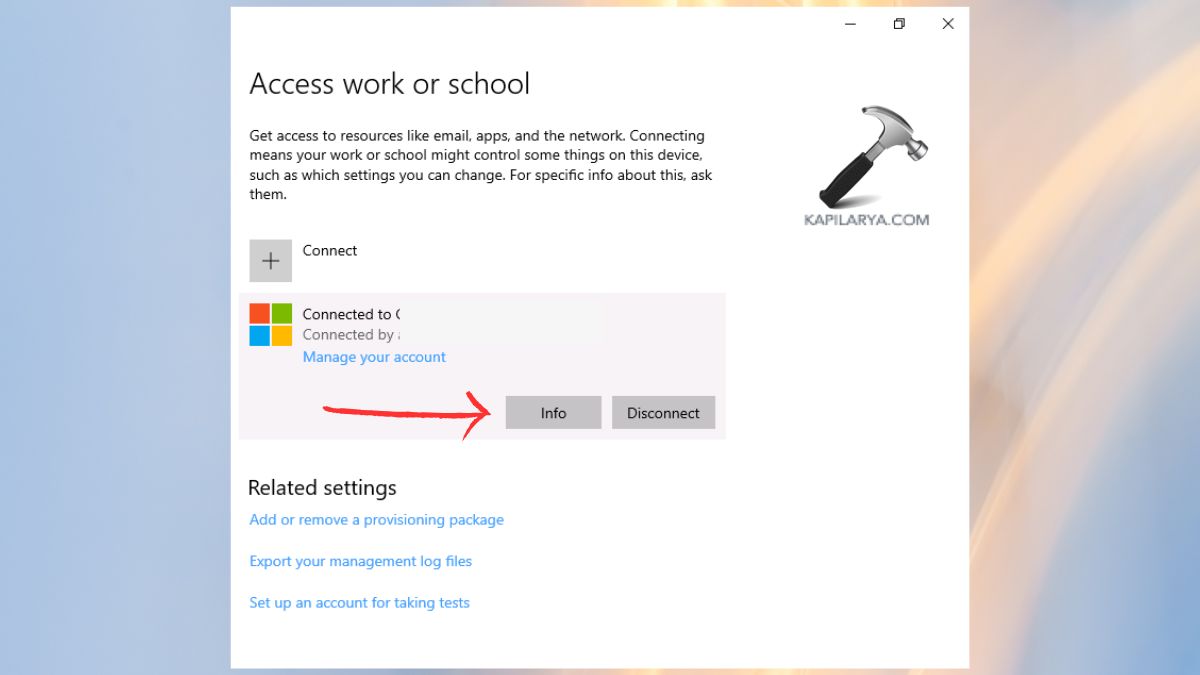
1. Click on Settings > Accounts > Access work or school.

2. My account connected to the account top right > Info.
Press Sync. In case of troubles, disconnect and reconnect the work/school account.
Fix 6: Enable Memory Integrity
TPM can be impaired by disabling Memory Integrity.
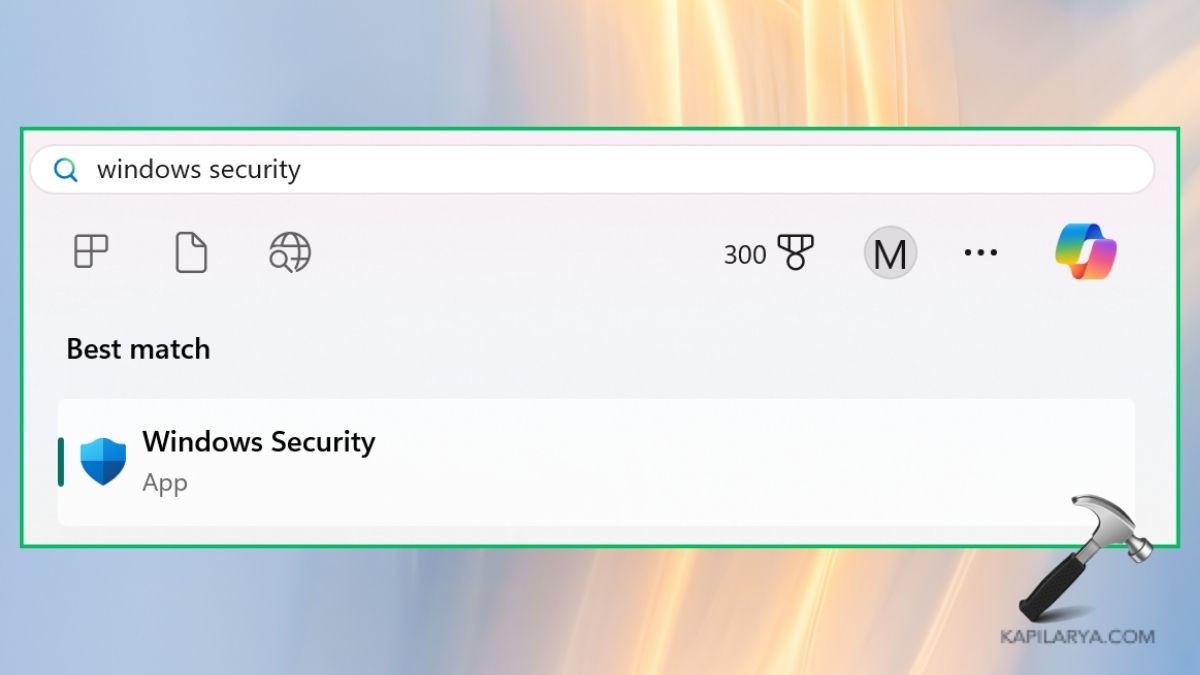
1. Open Windows Security.
2. Do navigation to “Core Isolation details” followed by Device Security.
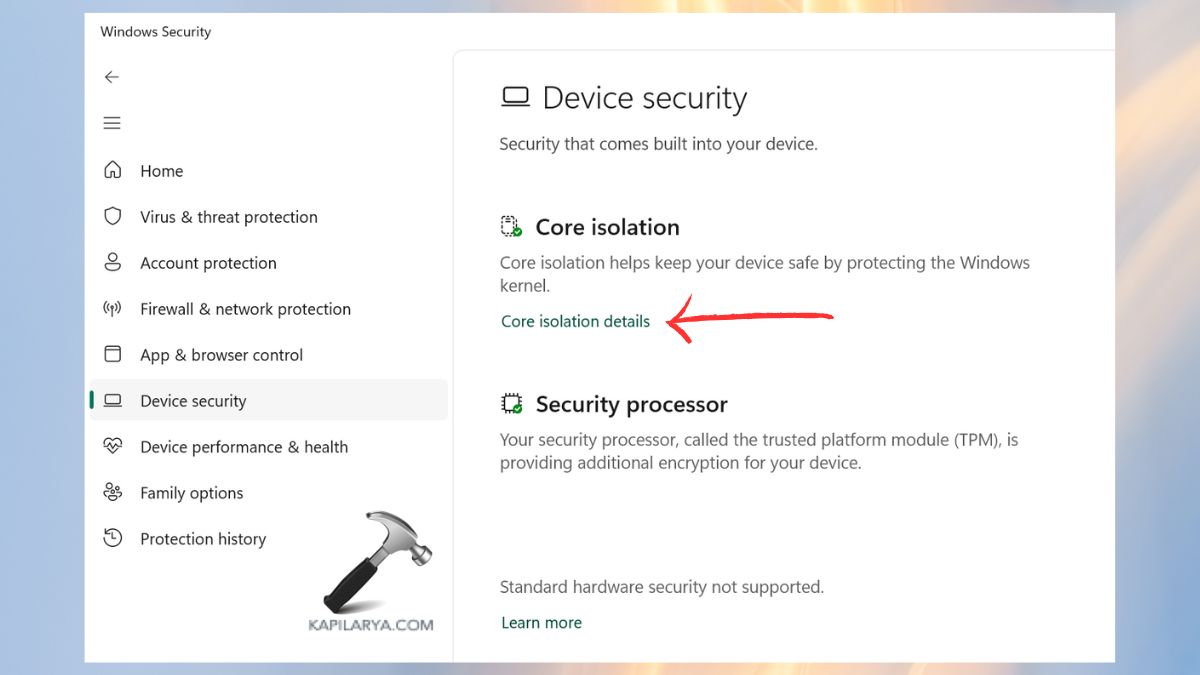
3. Enable Memory Integrity. Restart your PC.

Fix 7: Update TPM 2.0 Driver
TPM malfunction errors are mostly due to outdated drivers.
1. Press Win + X > Device Manager.

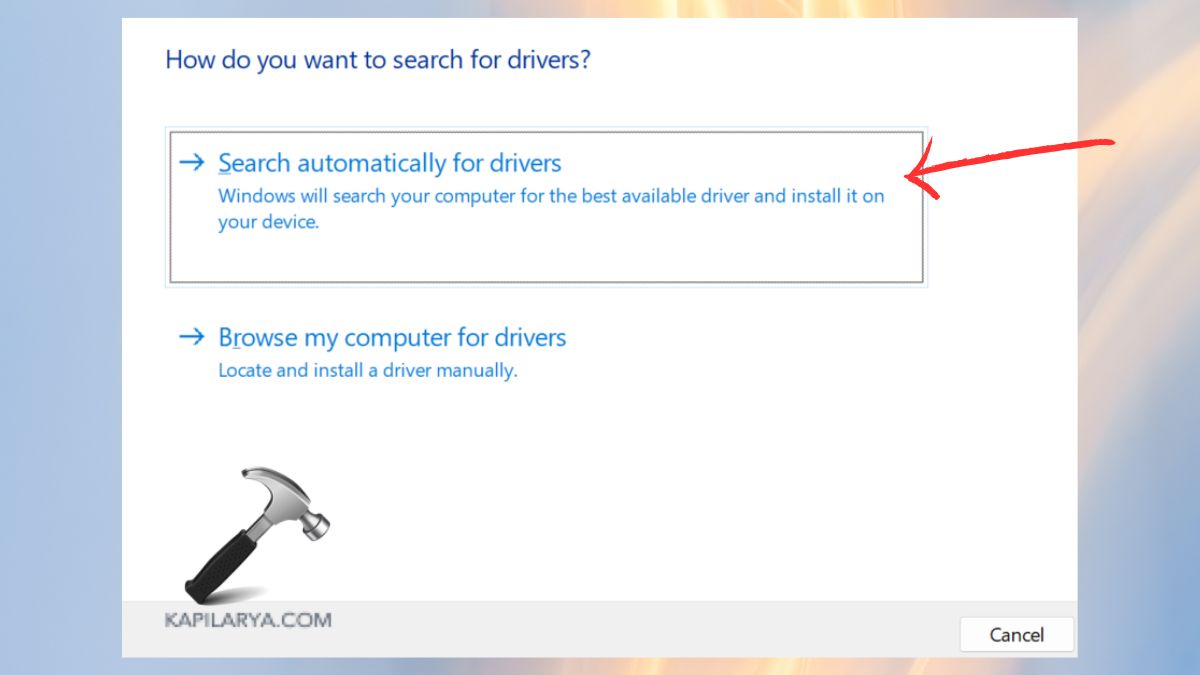
2. Expand Security devices. Right-Click Trusted Platform Module 2.0 > Update driver.
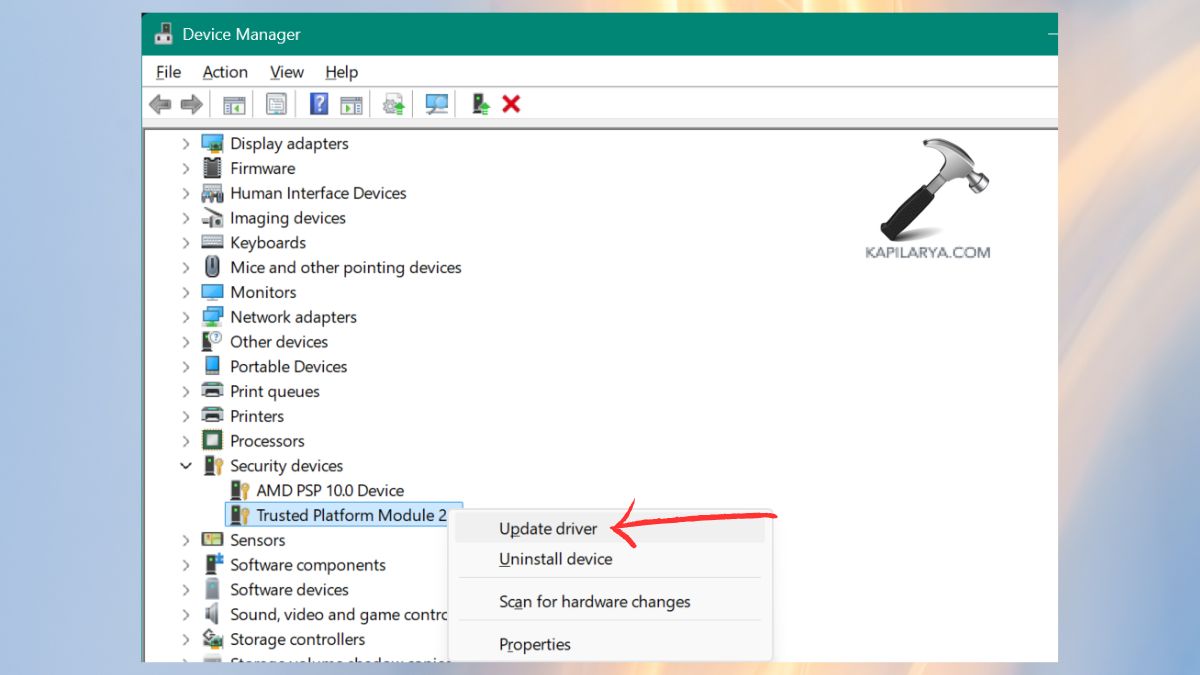
3. Select option Search automatically regarding drivers. Restart your PC.
Frequently Asked Questions (FAQs)
Is it safe to clear the TPM on Windows 11?
Yes, however, it eliminates stored keys that are used in encryption and sign-ins. TPM should always have BitLocker recovery key back-ups before it is cleared.
Why does my TPM keep malfunctioning?
It commonly occurs on the basis of corrupted TPM keys, the old drivers, Microsoft 365 credentialing issues, or wrong Azure AD join-status.
Can I use Windows 11 without a TPM?
No, Windows 11 security features and authentication, such as Windows Hello based on TPM 2.0.
Does resetting the NGC folder fix TPM errors?
Yes, particularly when it has something to do with the failure of Windows Hello PIN or biometric logins.
That’s it!
![Solved: Memory integrity is turned off in Windows 11 [2026 FIX]](https://www.kapilarya.com/assets/Memory-1-768x509.jpg)