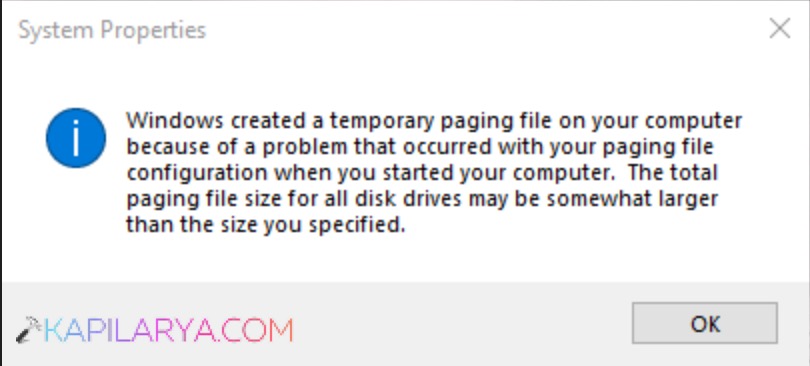
If you see the message – Windows created a temporary paging file on your computer because of a problem with your paging file configuration, it usually means the virtual memory (pagefile.sys) settings are misconfigured or corrupted in your Windows 11.
Page Contents
Fix: Windows Created a Temporary Paging File on Your Computer
The paging file acts as virtual memory when your RAM runs low, and if Windows cannot use the configured page file properly, it creates a temporary one instead. Fortunately, you can resolve the issue using the fixes below.
Fix 1: Reset the Paging File
Resetting the paging file allows Windows to recreate the pagefile.sys with fresh settings.
1. Press Win + R, type systempropertiesadvanced, and press Enter.
2. Under Performance, click Settings.
3. Open the Advanced tab and click Change under Virtual memory.
4. Uncheck Automatically manage paging file size for all drives.
5. Select No paging file, click Set, and restart your PC.
6. After restarting, enable Automatically manage paging file size again.
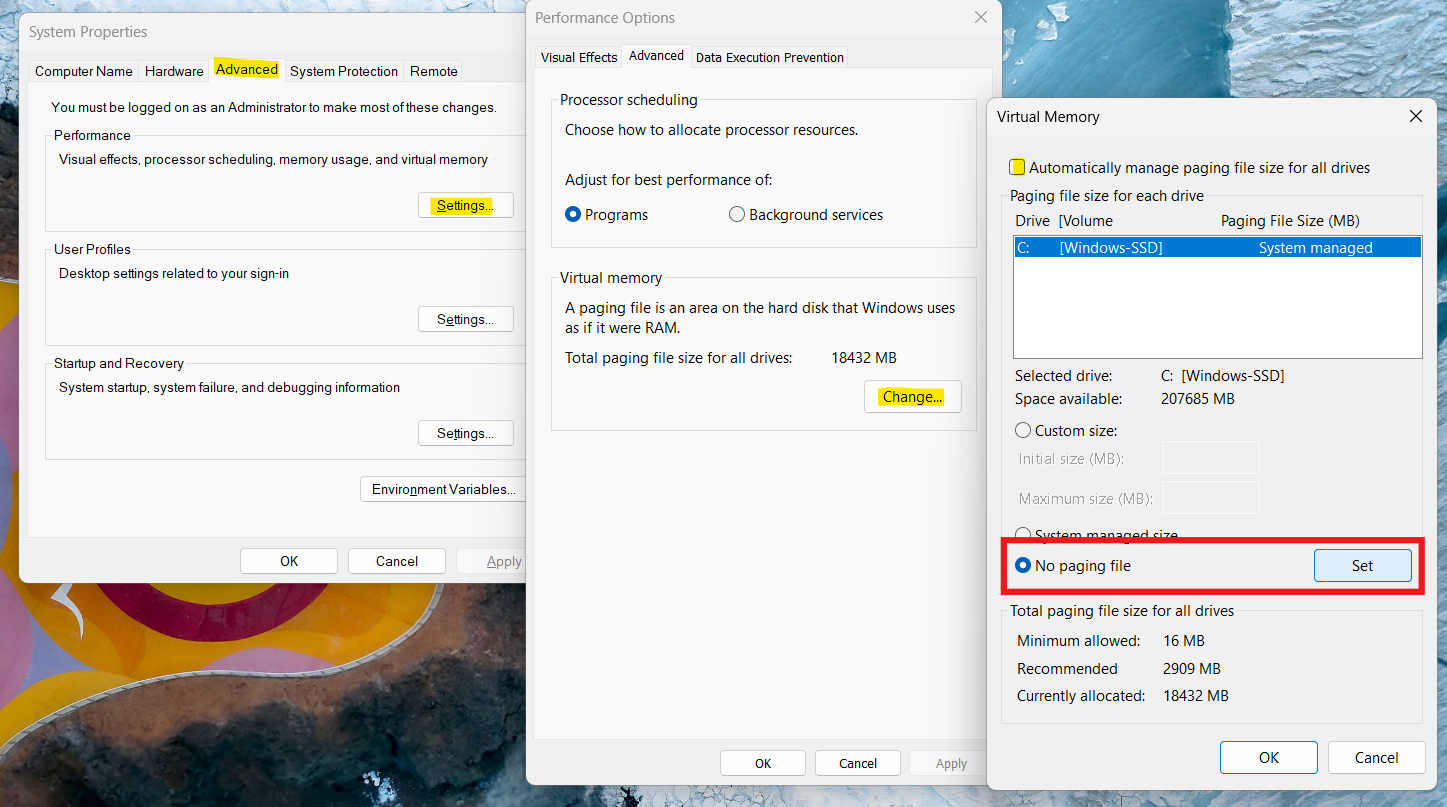
This forces Windows to rebuild the paging file from scratch.
Fix 2: Set Virtual Memory Manually
If automatic settings fail, manually configure virtual memory.
1. Open System Properties (systempropertiesadvanced).
2. Go to Performance and click on Settings and then Advanced.
3. Click Change under Virtual memory.
4. Disable automatic management.
5. Select Custom size.
6. Click Set and restart the computer.
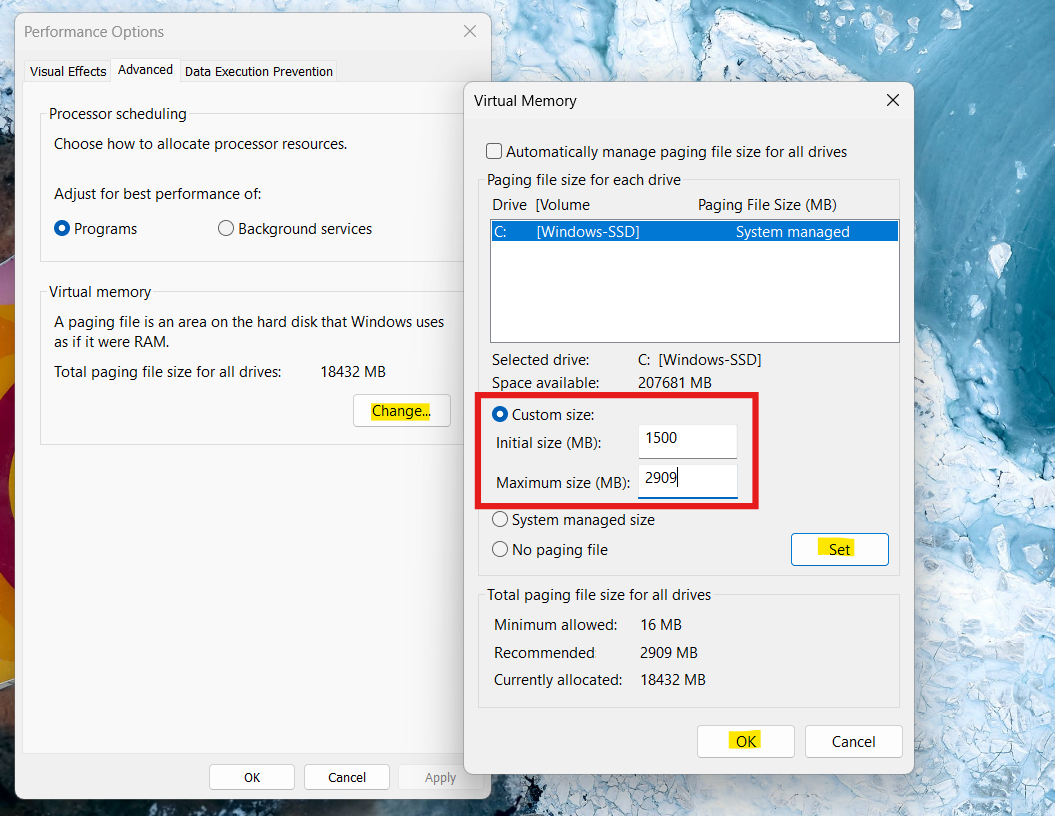
Correct virtual memory allocation prevents Windows from creating temporary paging files.
Fix 3: Modify the Registry Value
 Registry Disclaimer: It is recommended to create a System Restore point first, if you’re not familiar with registry manipulation.
A registry setting controls where the page file is stored.
1. Press Win + R, typeregedit, and press Enter.
2. Navigate to:
HKEY_LOCAL_MACHINE\SYSTEM\CurrentControlSet\Control\Session Manager\Memory Management
3. Find PagefileOnOsVolume.
4. Change its value from 1 to 0 (or vice versa).
5. Restart the computer.
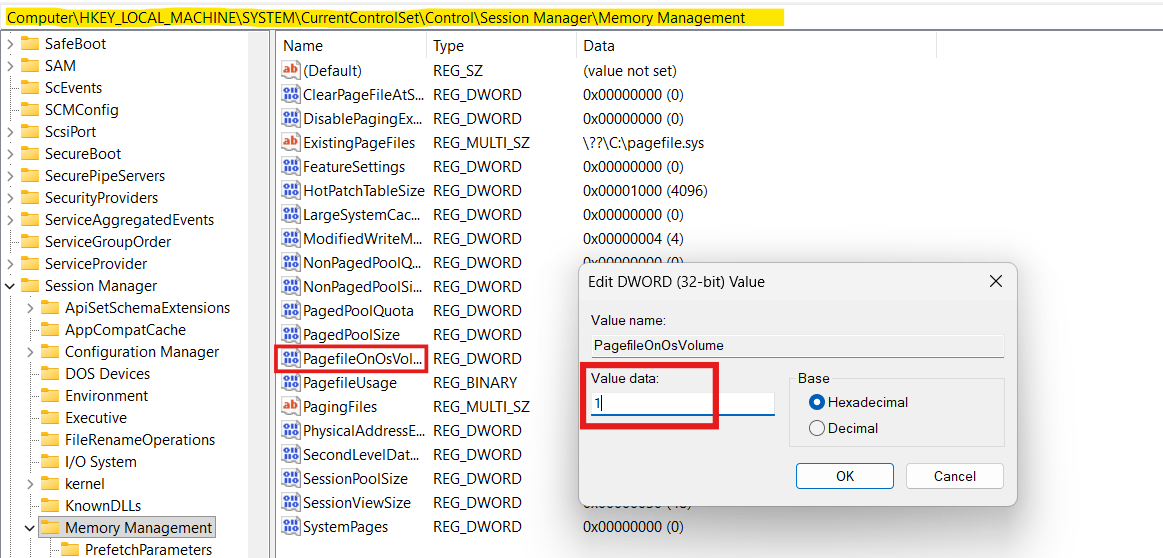
This setting determines whether the page file is stored on the OS drive or another volume.
Fix 4: Disable Active File Scavenging (AFS)
Active File Scavenging may interfere with pagefile access.
1. Open Command Prompt as Administrator.
2. Run the command:
sc config afs start= disabled
3. Restart your PC.
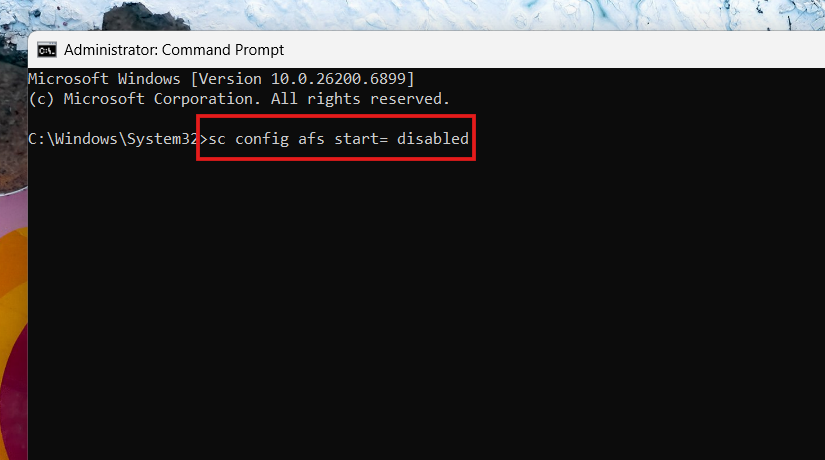
Disabling AFS prevents it from blocking Windows from accessing the paging file.
Fix 5: Check Virtual Memory Configuration
Incorrect paging file configuration is a common cause of this error. Ensure the system drive has a valid page file configured and that the disk has enough free space for virtual memory.
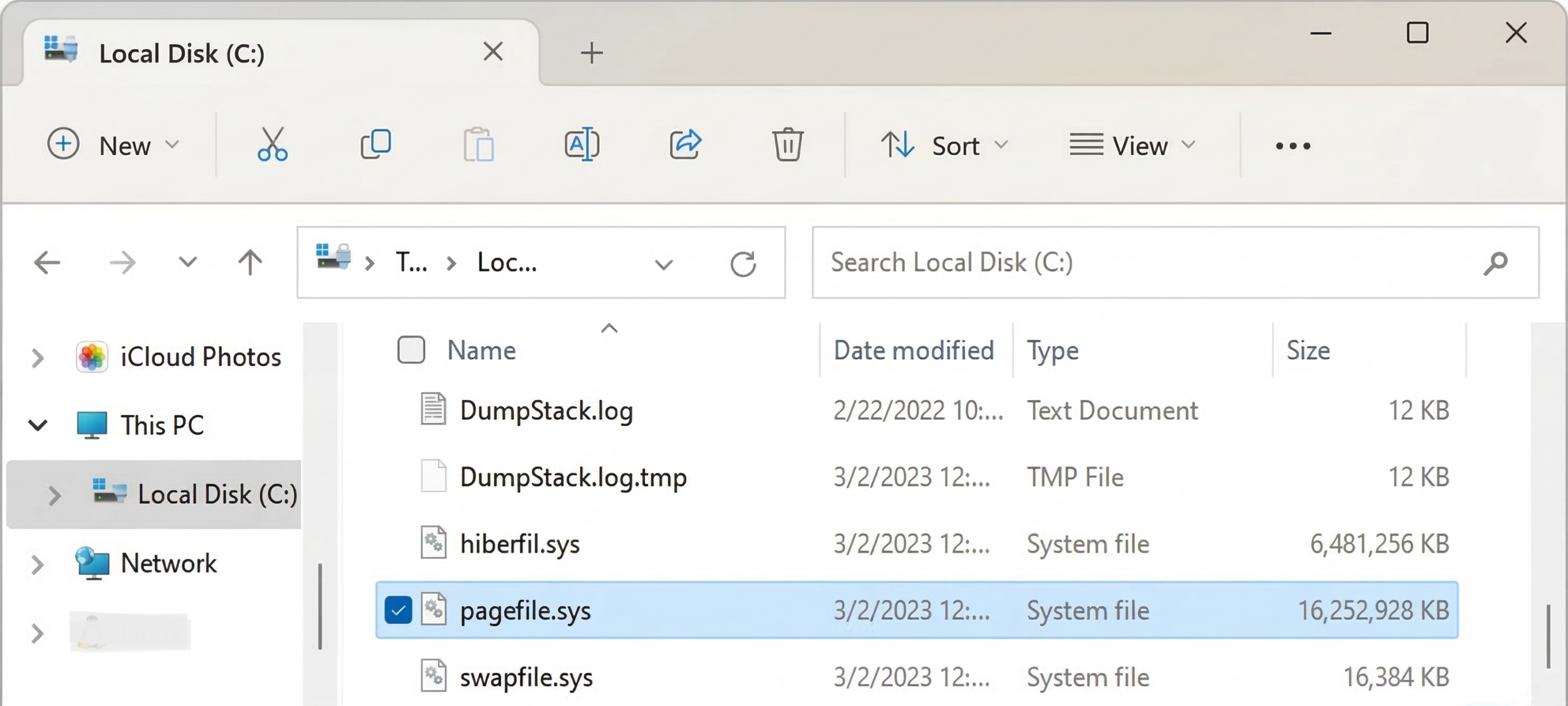
Fix 6: Delete and Recreate the Pagefile
Sometimes the existing pagefile.sys becomes corrupted.
1. Disable the paging file temporarily from Virtual Memory settings.
2. Restart your PC.
3. Enable paging file again (automatic or system managed).
4. Restart once more.
This creates a fresh pagefile.sys file and often resolves the warning.
Summary
The temporary paging file error usually occurs because of incorrect virtual memory settings or a corrupted pagefile. Resetting the paging file, configuring virtual memory manually, editing the registry, disabling AFS, and recreating pagefile.sys are effective ways to fix the issue and restore proper memory management in Windows.
![Solved: Memory integrity is turned off in Windows 11 [2026 FIX]](https://www.kapilarya.com/assets/Memory-1-768x509.jpg)