Seeing the You can’t sign in with this account, Try a different account message at the Windows 11 login screen means Windows is blocking your profile from loading normally.
Page Contents
Fix: You Can’t Sign in With This Account, Try a Different Account
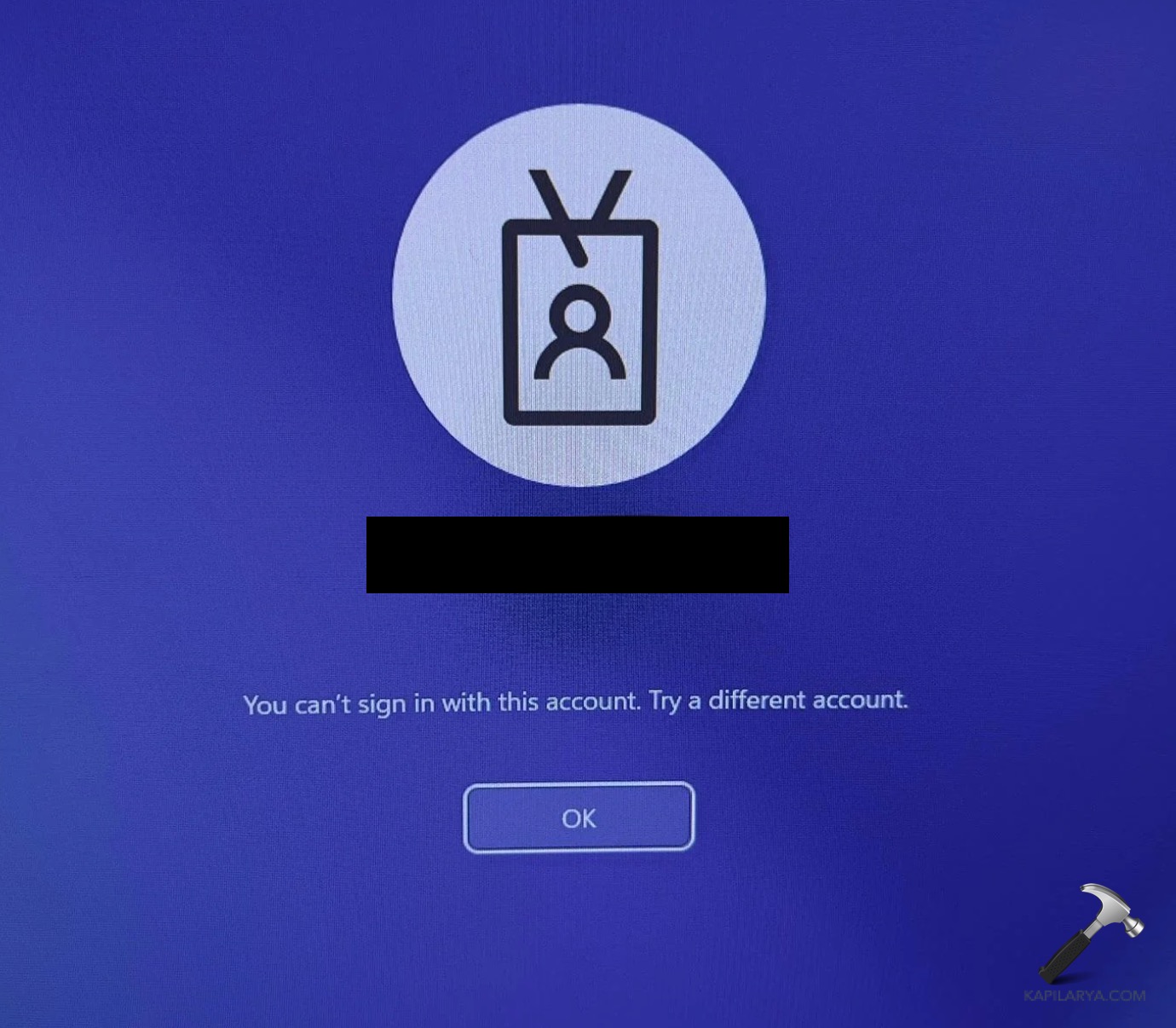
This can happen due to corrupted profile data, PIN problems, corrupted system files, or issues after an update. Below are 7 proven ways to resolve this and get back into your Windows account.
Fix 1: Restart Your Computer First
Before diving into deeper fixes, a simple restart can clear temporary authentication glitches:
1. On the sign-in screen, select the Power icon.
2. Choose Restart and let the system reboot fully.
3. Try signing in again with the same account.
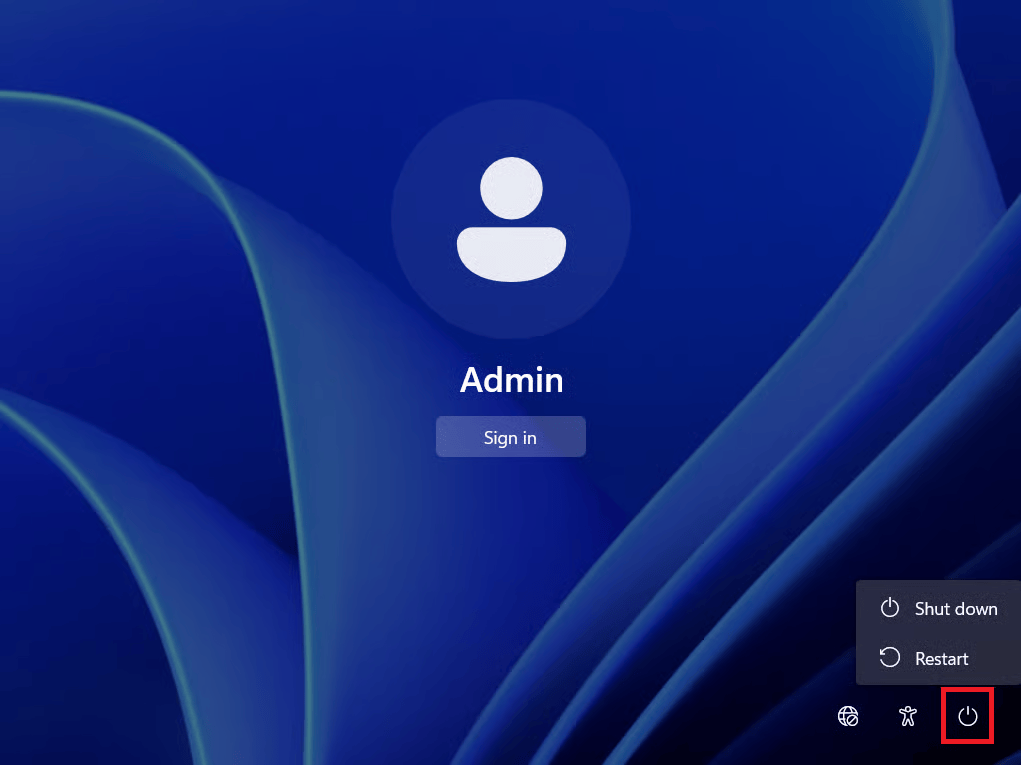
This basic reboot sometimes re-initialize the sign-in system and restores access.
Fix 2: Reset Your PIN
If the stored PIN credential is corrupted, Windows may block sign-in:
1. On the login screen, click I forgot my PIN/password.
2. Follow Microsoft’s on-screen prompts to verify your identity.
3. Create a new PIN or password and then sign in.
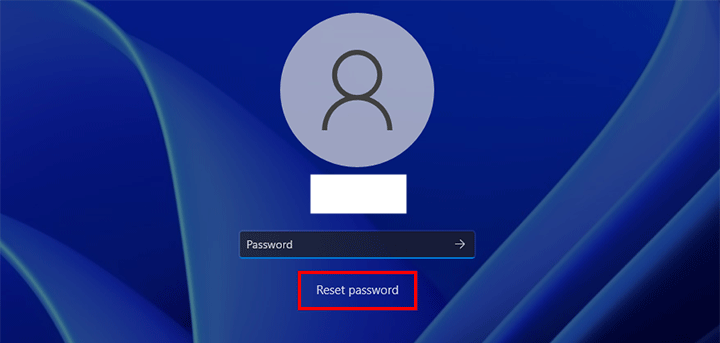
Resetting the PIN lets Windows replace the broken credentials tied to your account.
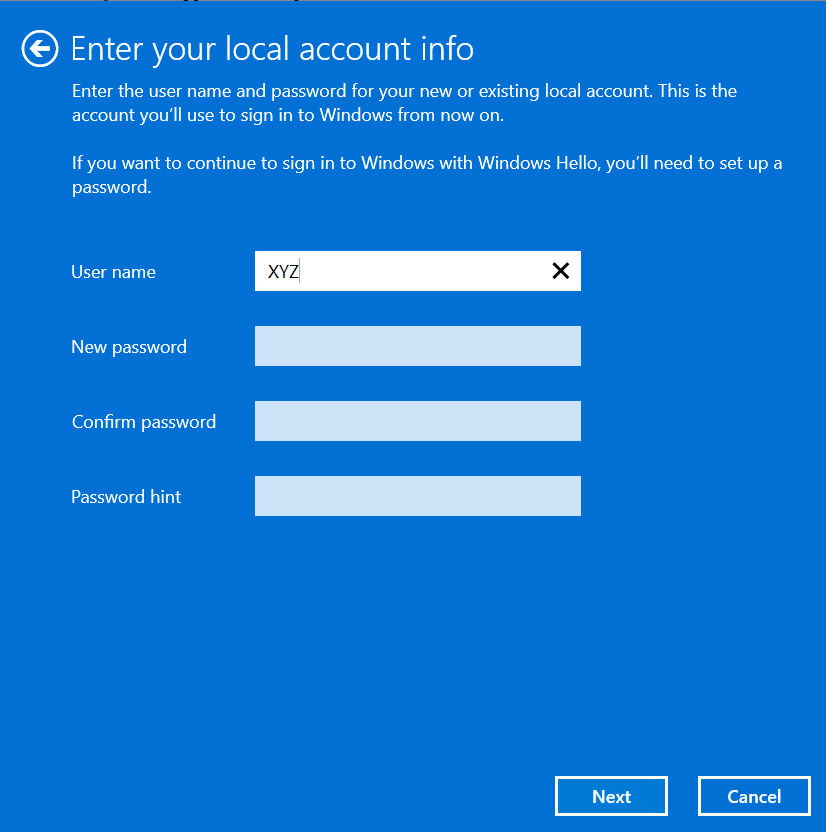
Fix 3: Sign In with a Local Account
Your Microsoft profile may be damaged, so logging in with a local account can help:
1. Restart your PC into Safe Mode (press and hold Shift while selecting Restart and then go to Advanced Startup.
2. Click on Troubleshoot and go to Startup Settings, then F4.
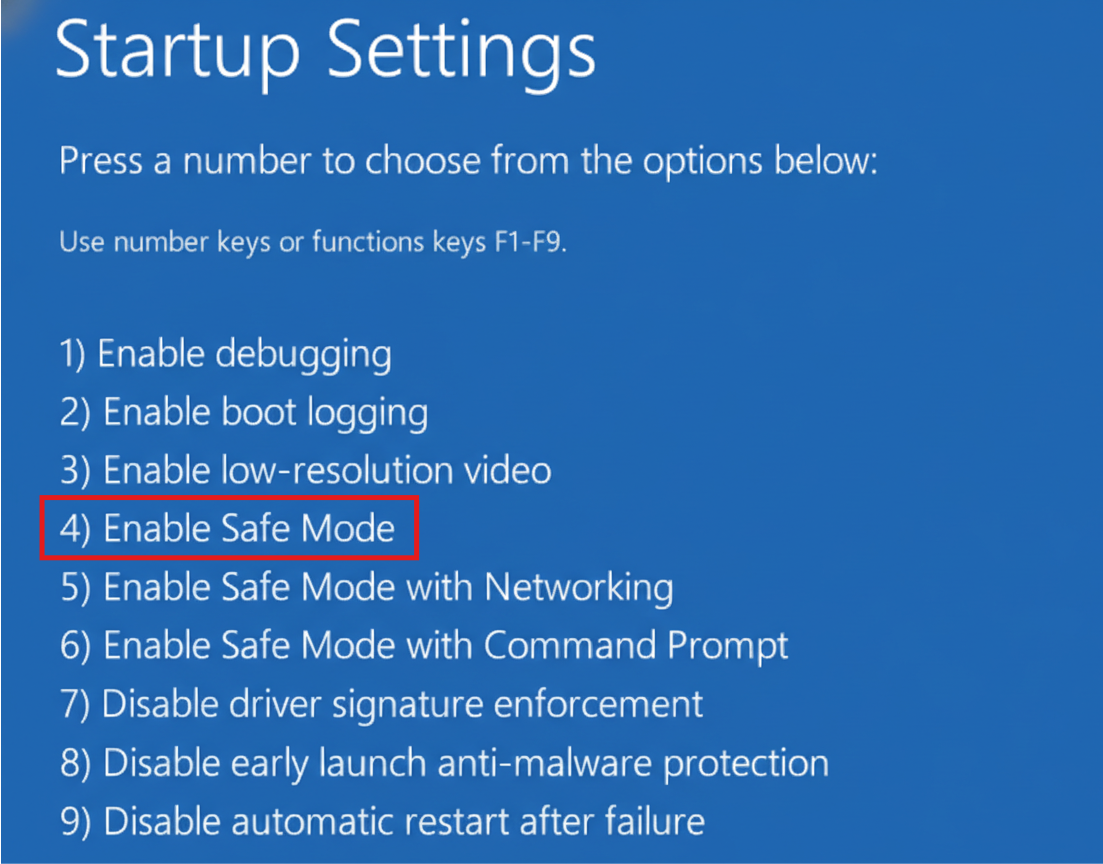
3. Once in Safe Mode, go to Settings and click on Accounts and then Your info.
4. Select Sign in with a local account instead and complete the steps.

5. Then try adding your Microsoft account again once inside Windows.
Fix 4: Create a New Local Administrator Account
If your main user profile is corrupted, create a new admin account so you can log in and troubleshoot further:
1. Boot into Safe Mode as above.
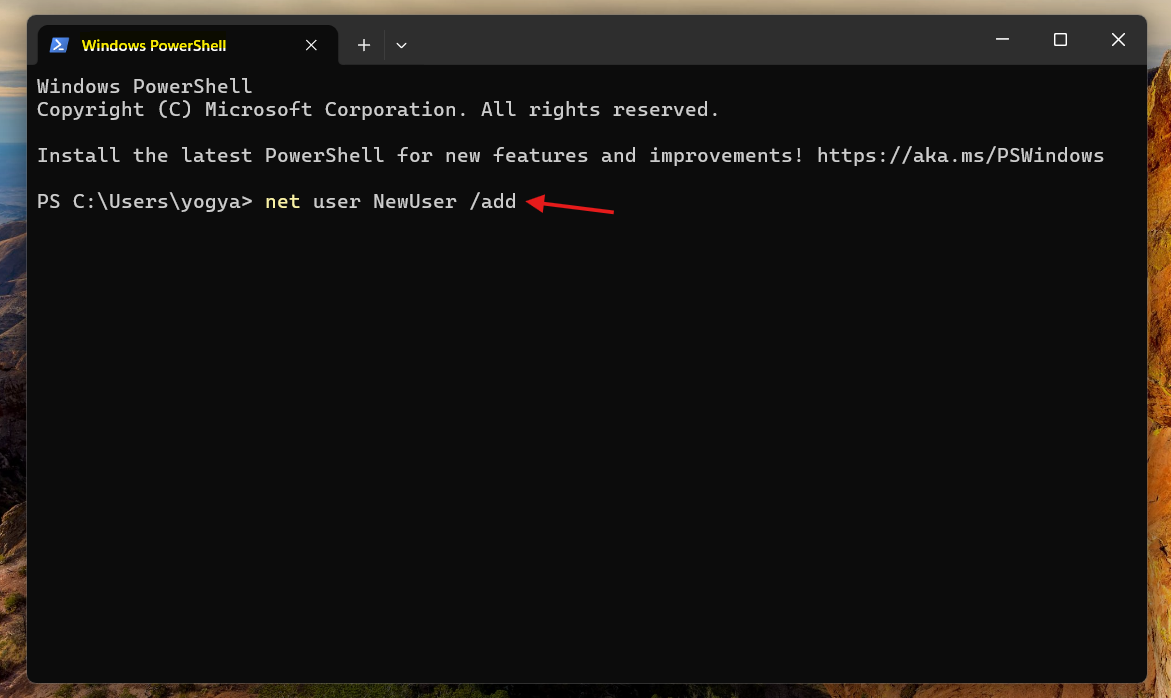
2. Open Command Prompt (Admin) or Windows Terminal.
3. Run:
net user NewUser /add
net localgroup administrators NewUser /add
4. Restart and sign in with the new account.
This gives you a clean admin profile to fix issues or migrate settings.
Fix 5: Create a New User Profile
If the account itself is beyond repair, setting up a fresh profile may be necessary:
1. Sign in with another admin account.
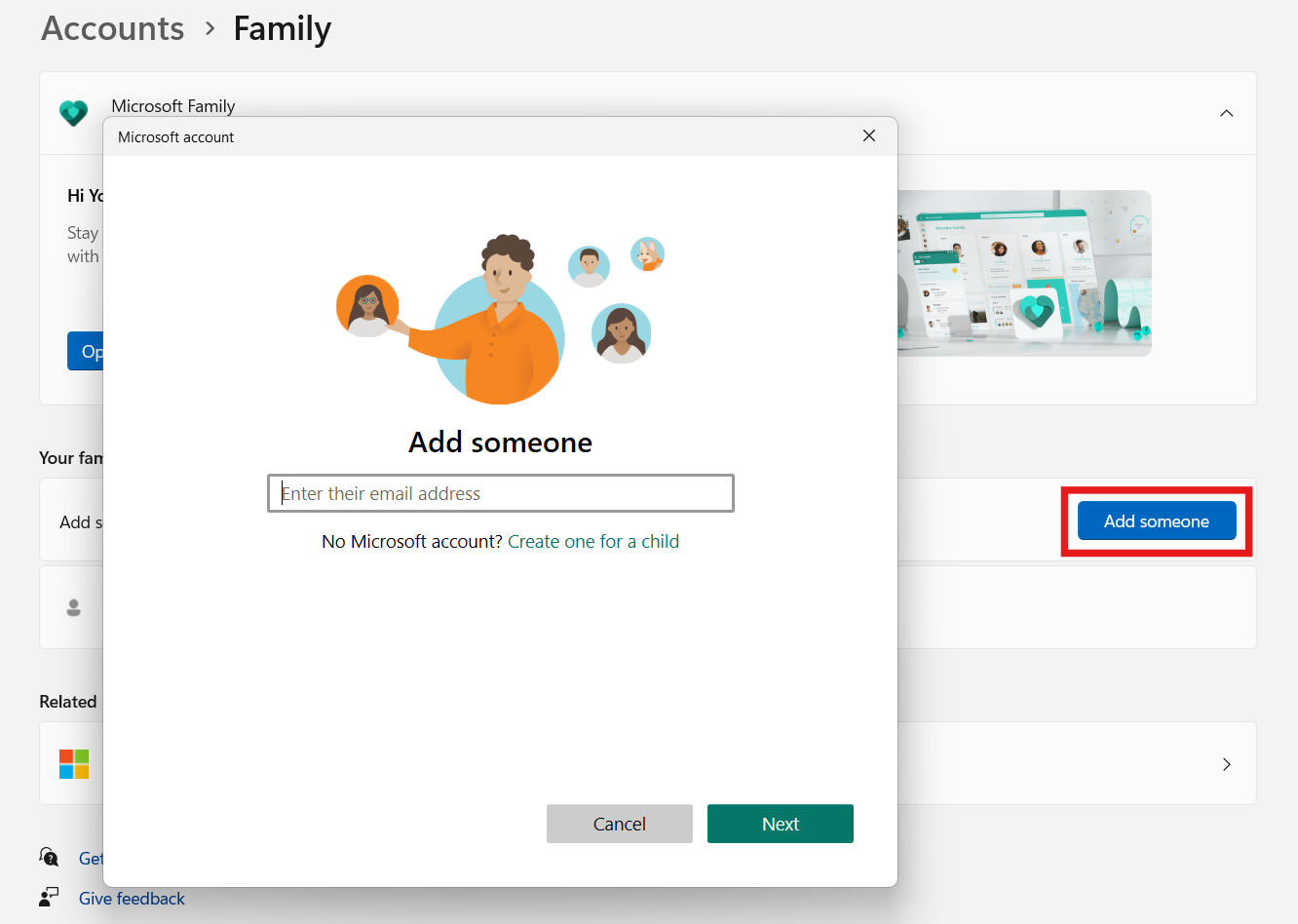
2. Open Settings and click on Accounts, then go to Family & other users.
3. Click Add someone else to this PC and create a new user.
4. Sign in with the new account and migrate your data.
Fix 6: Use System Restore to Roll Back
If the problem started after a recent change, using System Restore can take your system back to a point before the error appeared:
1. On the sign-in screen, press and hold Shift and select Restart.
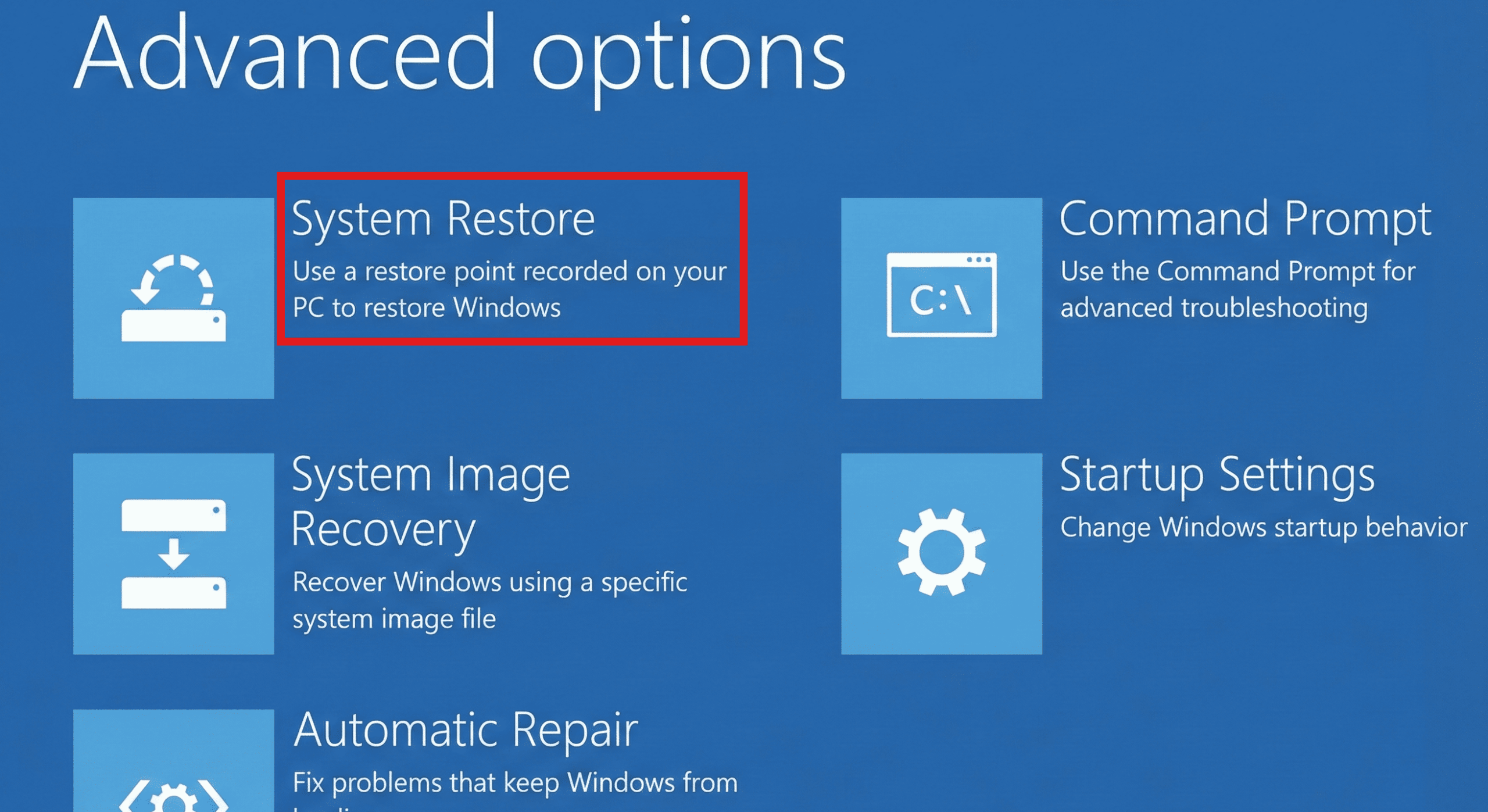
2. Go to Troubleshoot and go to Advanced options. Select System Restore.
3. Choose a restore point from before the issue began.
4. Follow prompts to roll back and then try signing in again.
Fix 7: Scan and Repair System Files
Corrupted Windows files can sometimes prevent profile loading:
1. From Safe Mode or Command Prompt (Admin), run:
sfc /scannow
DISM /Online /Cleanup-Image /RestoreHealth
2. Allow both scans to complete, then restart.
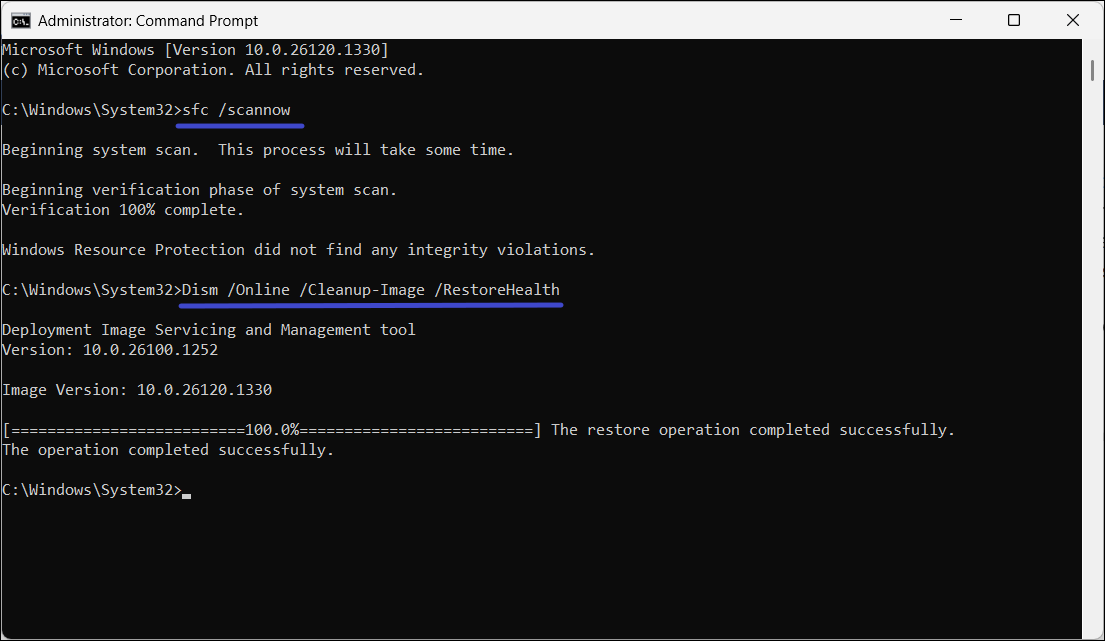
These repairs fix corrupted system components that may be blocking account authentication.
Extra Tips
1. Check Security Software: Sometimes, third-party antivirus or firewall tools can interfere with the authentication process. Try temporarily disabling them before signing in again.
2. Try Multiple Restarts: Microsoft support notes that repeated restart cycles sometimes reset the sign-in system and restore your original profile.
Summary
The You can’t sign in with this account error usually points to a corrupted profile, bad credentials, or system changes that prevent Windows from loading your account normally. Using the steps above, especially restarting, resetting your PIN, creating a new admin, or using System Restore, often gets you back in without losing personal data.
![Windows needs your current credentials [Fix]](https://www.kapilarya.com/assets/password_icon_1783831080.jpg)