Microsoft’s Copilot can remember things you share or ask, so it can personalize replies and recall past chats. However, if you want privacy or a fresh start, you can delete this stored memory and chat history.
Page Contents
How to Delete Copilot Memory in Windows 11
Windows 11 gives you multiple ways to clear Copilot’s saved memories from the Copilot app itself, through a browser, or via your Microsoft account privacy dashboard.
Fix 1: Delete All Copilot Memory in the Copilot App
If you use the Copilot app on Windows 11, you can remove all saved memories directly:
1. Open Copilot on your PC.
2. Sign in with your Microsoft account.
3. Click your Account button in the sidebar and go to Settings.
4. Tap Privacy.
5. Select Delete Memory at the bottom.
6. Confirm to erase all saved Copilot memories.
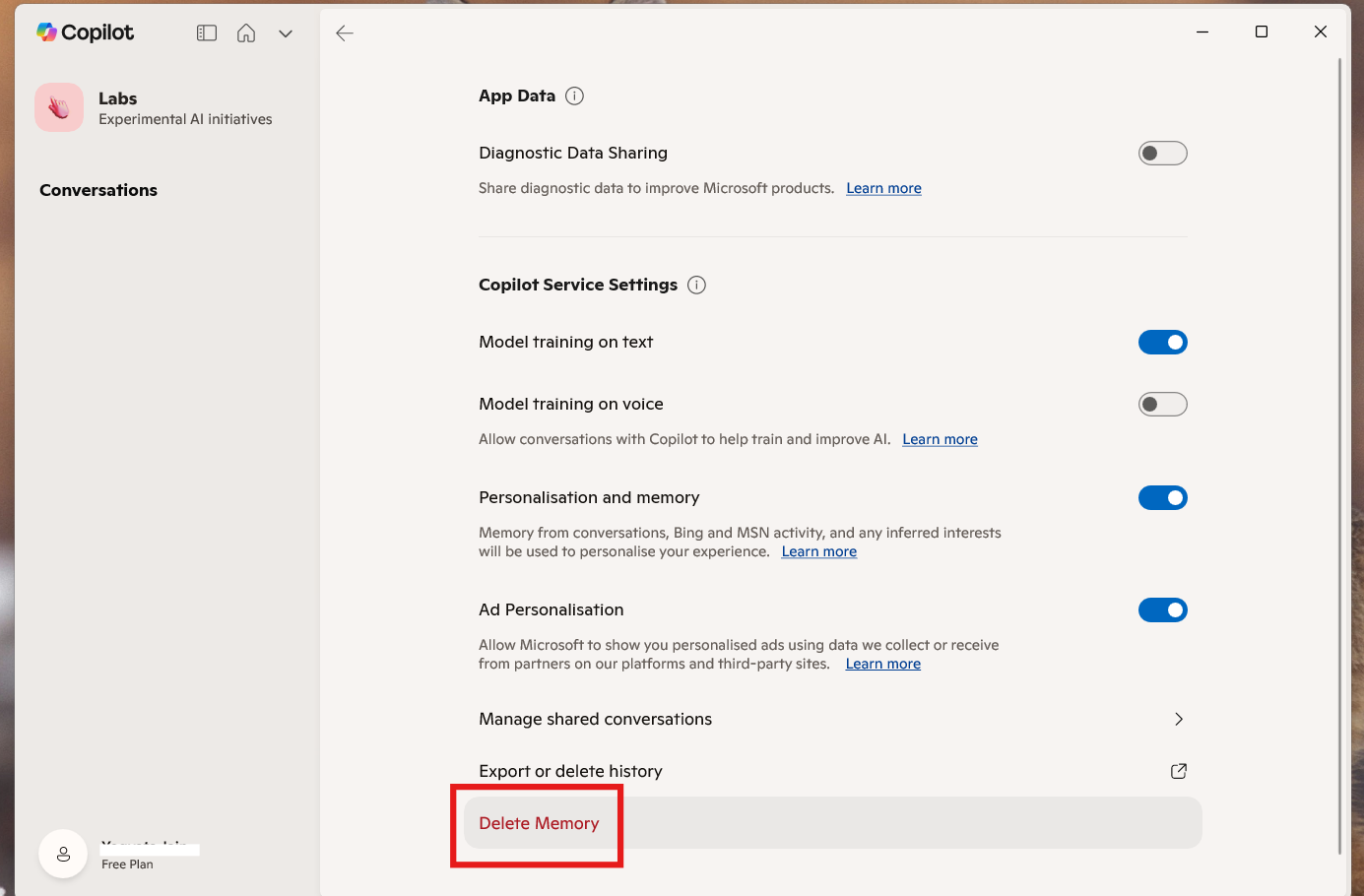
This wipes out every saved item Copilot has associated with your account in the app.
Fix 2: Delete Specific Memories Inside Copilot delete Copilot memory
Instead of clearing everything, you can remove individual entries:
1. In Copilot Settings, go to Manage memory.
2. Find the memory you want to remove.
3. Tap the Delete (trash can) icon next to it.
4. Confirm deletion.
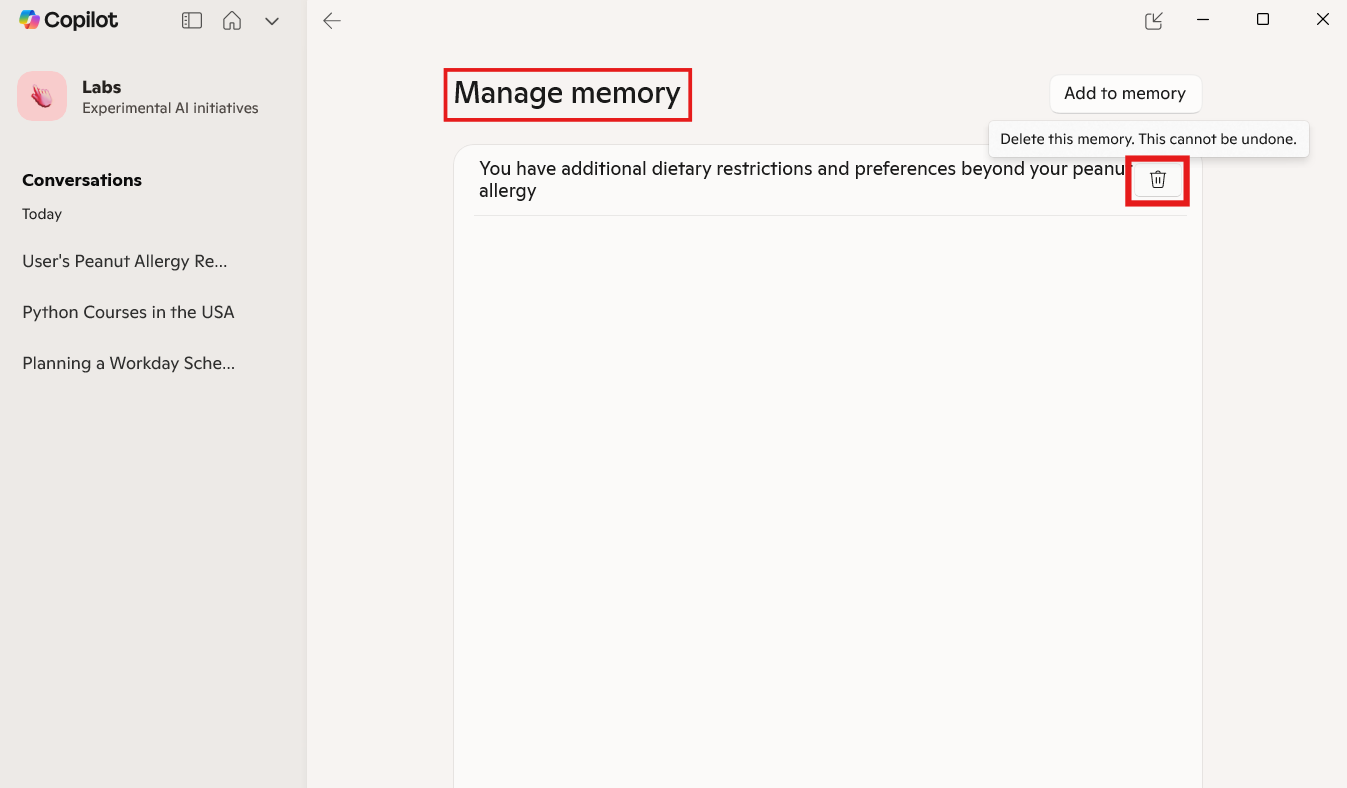
This lets you keep some memories while removing others.
Fix 3: Clear Copilot Memory from Microsoft Edge
If you use Copilot inside Microsoft Edge:
1. Open Edge and sign in with your Microsoft account.
2. Click the Copilot icon in the toolbar.
3. Tap the three-dots (More options) and go to Settings.
4. Choose Privacy and then Manage personalization and memory.
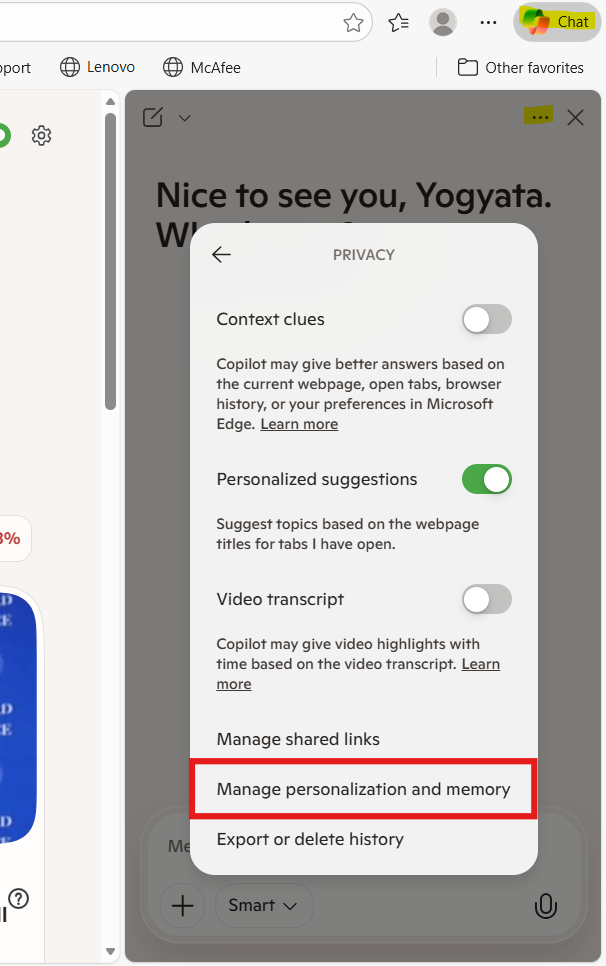
5. Either delete all memory or remove specific entries you no longer want.
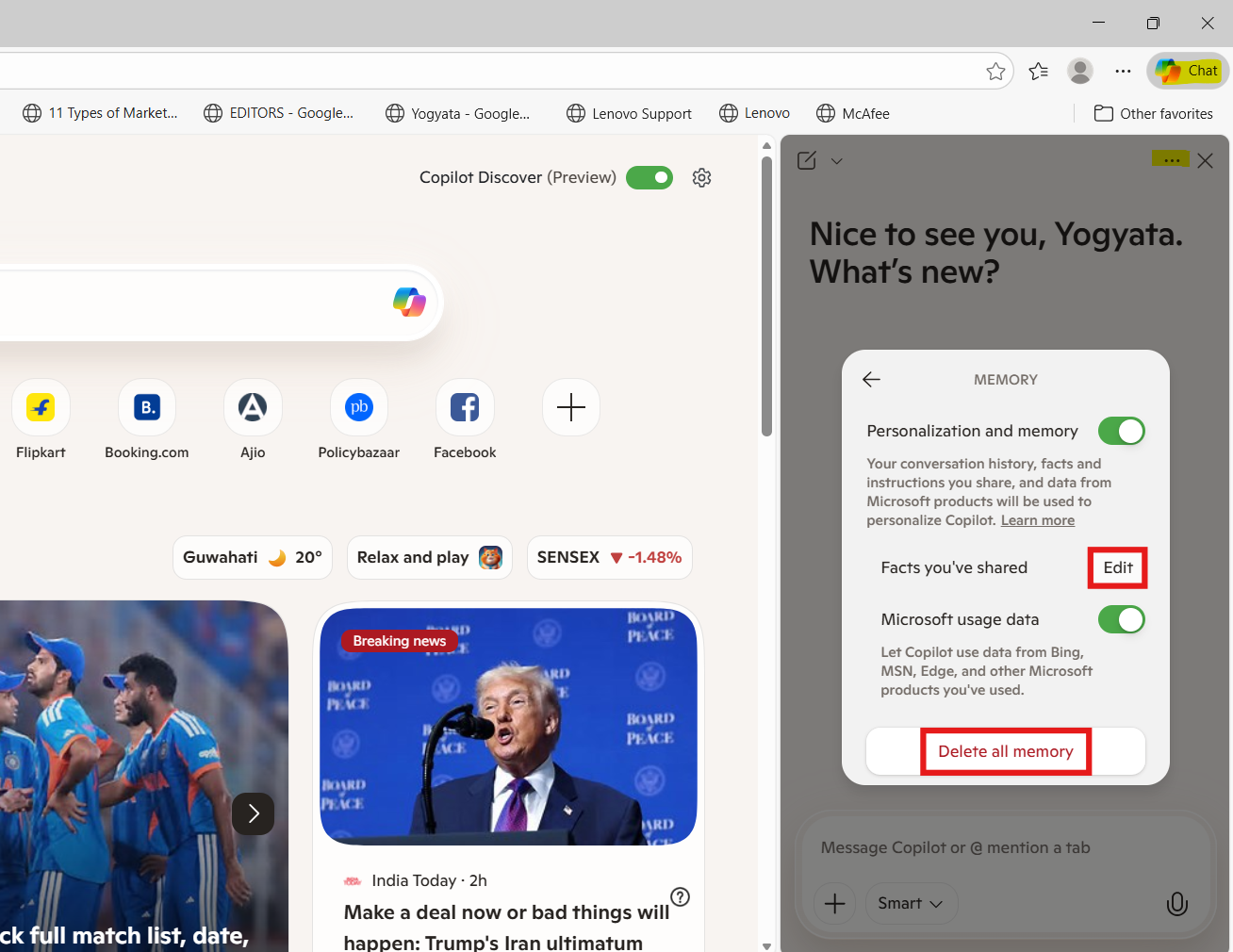
Fix 4: Delete Copilot Activity History in Your Microsoft Account
For a global delete of Copilot activity (including interactions across devices and apps):
1. Sign in to the Microsoft Account Privacy Dashboard online.
2. Go to Privacy and then Copilot activity history.
3. Click Delete all activity history and Clear to confirm.
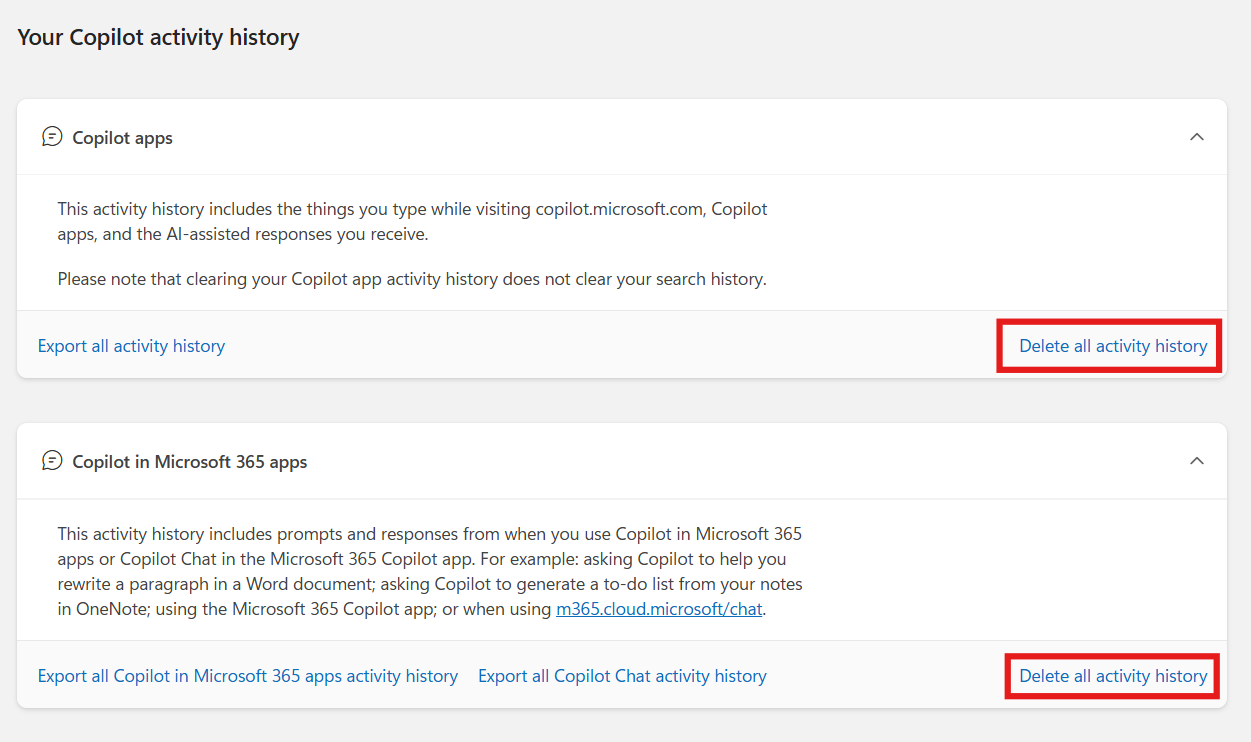
This removes Copilot history tied to your Microsoft account itself, not just on one device.
Understand What This Deletes
Deleting Copilot memory typically removes:
1. Saved memories and personalization items
2. Chat or prompt histories
3. Stored items Copilot used for past responses
You can also individually delete specific conversations in Copilot or Edge if you don’t want to delete everything at once.
Note: This doesn’t remove files you created outside Copilot (like documents or pictures) or erase memories outside your account (e.g., shared content stored by others).