BSOD IRQL_NOT_LESS_OR_EQUAL is an error that is becoming more and more frequent among Windows 11 users due to the fact that the operating system is more sophisticated and heavily relying on newer drivers, reliable RAM communication, and safe system files. Any little conflict, such as a half-complete driver or buggy update, can wreak havoc on the memory handling system and cause this error.
This step-by-step article shows the reason behind the occurrence of BSOD IRQL_NOT_LESS_OR_EQUAL, and the ways to correct the problem through simple and complex approaches.
Page Contents
Did you know?
IRQL is an acronym that is used to define Interrupt Request Level, which is used to assign priorities to the tasks that Windows processes.
The system will crash immediately when access to a memory beyond the range of the allowed device driver or system file occurs. To avoid possible damage, the BSOD IRQL_NOT_LESS_OR_EQUAL error occurs.
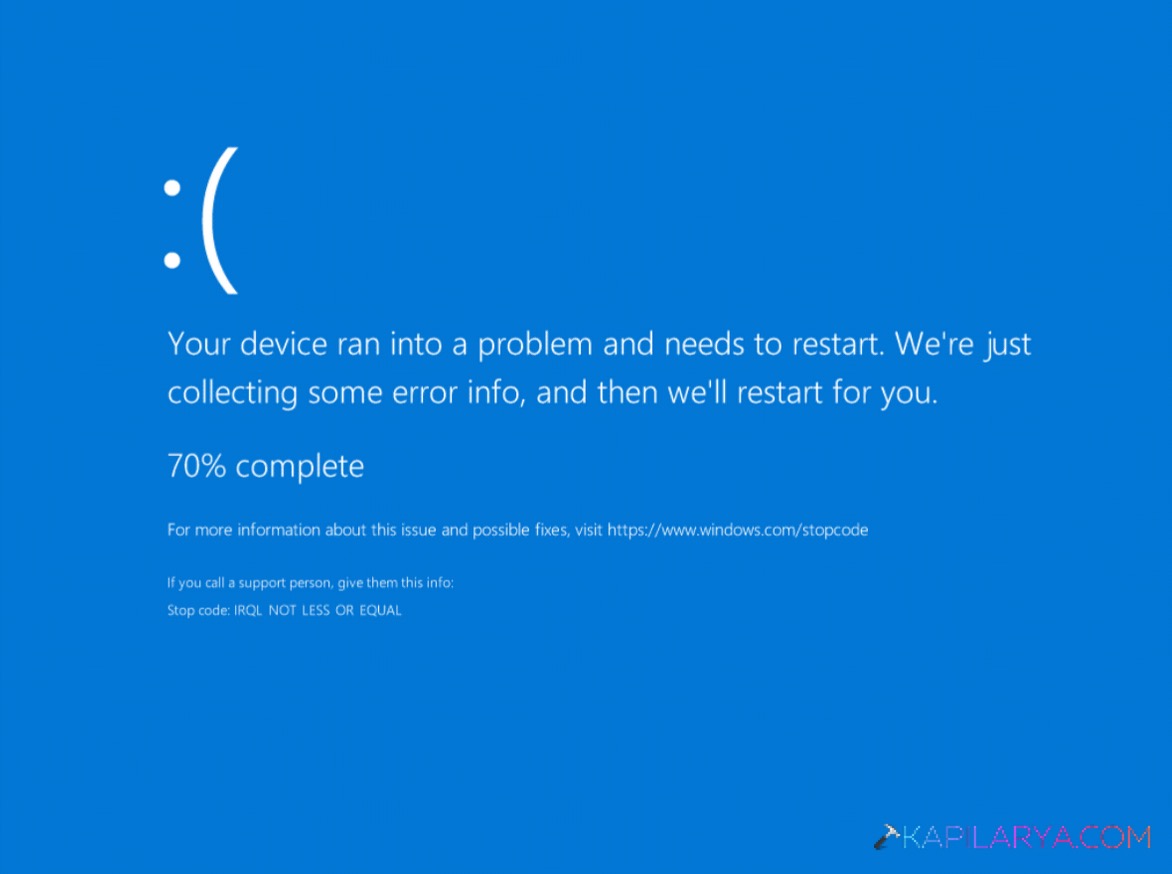
Fix BSOD IRQL_NOT_LESS_OR_EQUAL in Windows 11
When a BSOD appears, it can be annoying, particularly when it comes between a work or gaming activity. This is an error that can be fixed by taking a few steps as outlined in this guide.
Fix 1: Run System File Checker (SFC) & DISM Using Command Prompt
The IRQL not less or equal error is normally caused by corrupted or missing system files. The easiest solution to this is to run the built-in repair commands of Windows.
1. Click on Windows + S and type in cmd. Click the right on Command Prompt > select Run as administrator.

2. Type in the SFC scan command:-
sfc /scannow

Allow files to be repaired by a scan.
3. Then execute one DISM command at a time:-
DISM /Online /Cleanup-Image /CheckHealth
DISM /Online /Cleanup-Image /ScanHealth
DISM /Online /Cleanup-Image /RestoreHealth

Reboot your PC and verify whether you have solved the BSOD.
Fix 2: Check Memory for Errors Using PowerShell
One of the largest causes of the IRQL_NOT_LESS_OR_EQUAL BSOD error is faulty memory.
1. Open PowerShell (Admin).

2. Type the following command:
mdsched.exe

3. Click Restart and understand that there are no problems. Memory modules will be scanned and Windows will restart. In case of any mistakes, then remove and reinstall your RAM.
Fix 3: Update Device Drivers in Windows 11
The most frequent causes of this Windows 11 BSOD are the outdated drivers (particularly graphics, network, chipset) and so on.
1. Click on Windows + X > choose Device Manager.

2. Elaborate categories such as these:-
- Display adapters
- Network adapters
- Sound, video & game controllers
- System devices
3. Right-click on the device > select Update driver.
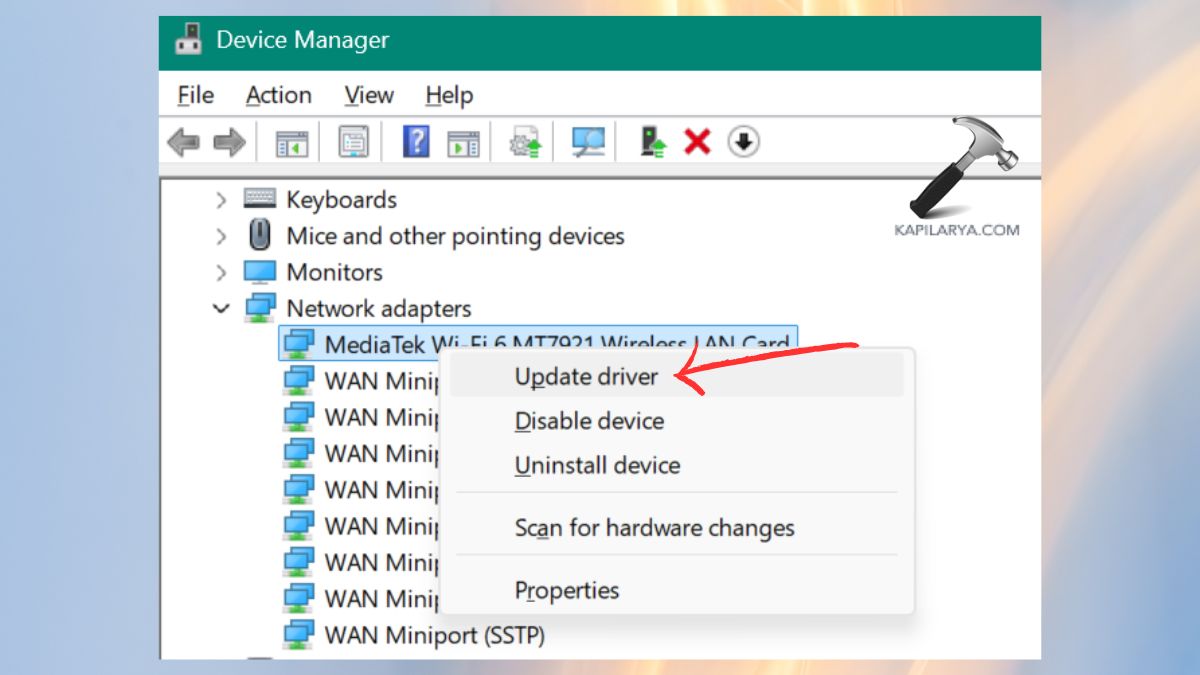
4. Choose Search automatically in order to find drivers.
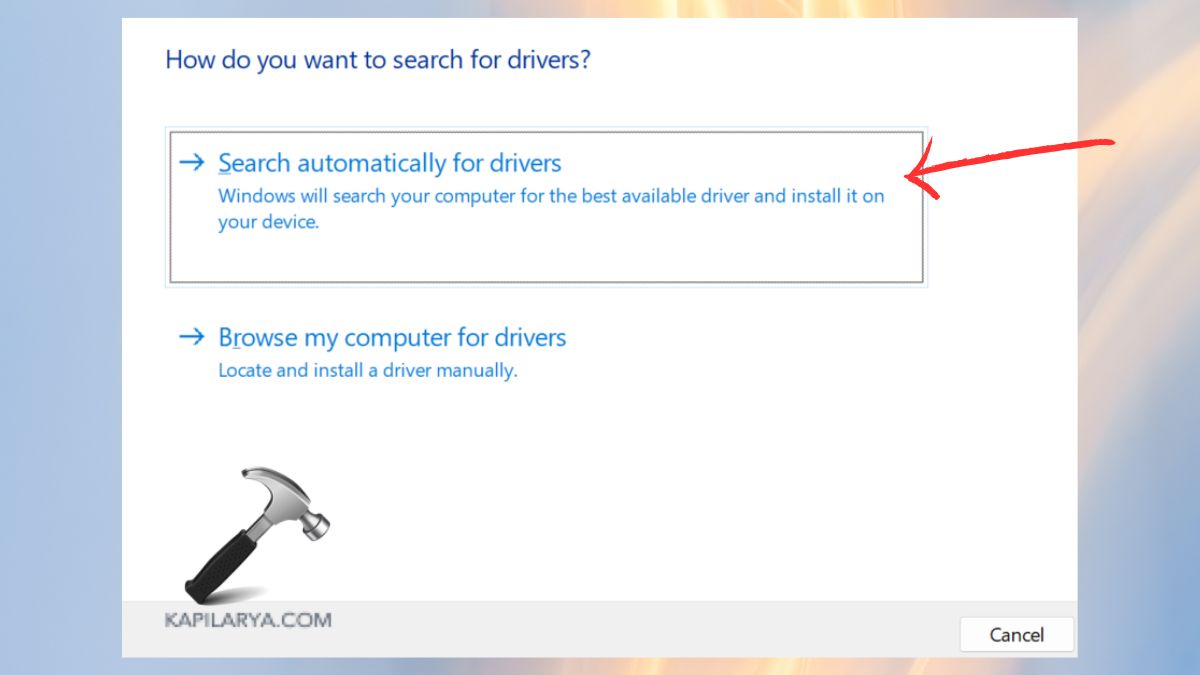
Install any possible updates and restart your PC. To be safer, you should make sure that you always update your GPU drivers (NVIDIA/Intel/AMD) and motherboard chipset drivers.
Fix 4: Analyze Minidump Files Using PowerShell
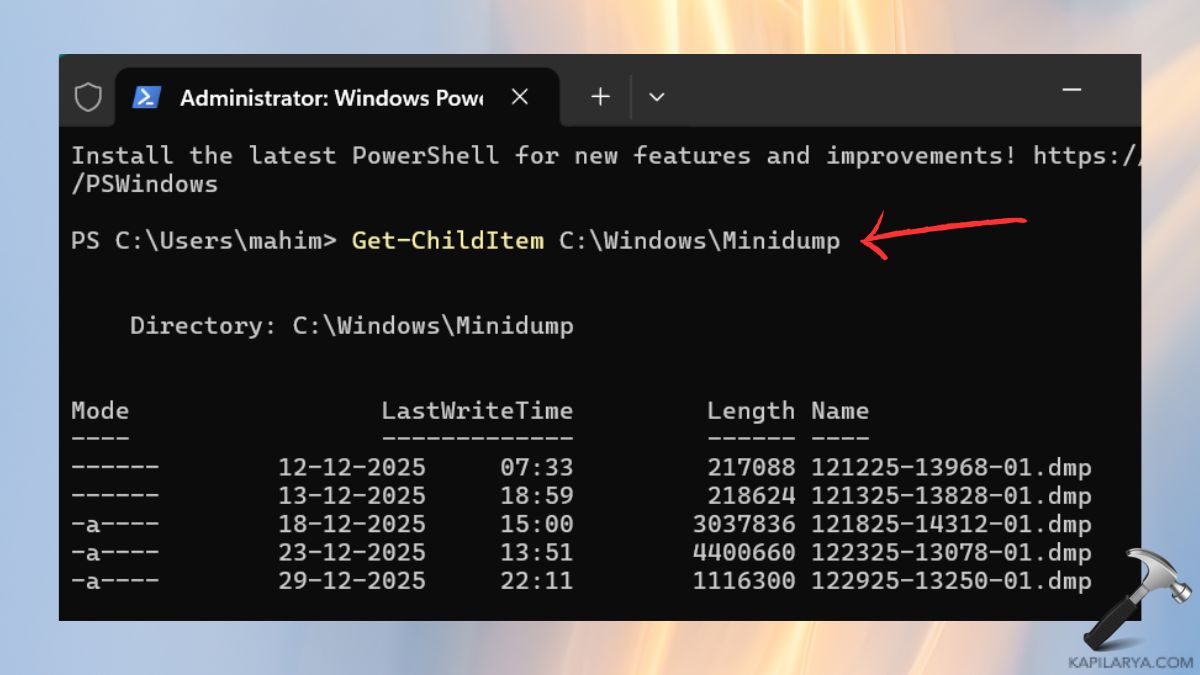
When a BSOD is caused, Windows automatically generates small crash logs known as minidump files. Such logs assist you in locating the exact driver or module that is causing the error of IRQL not less or equal.
1. Use Win+X keys to open PowerShell or Terminal (Admin).

2. These commands are used to find dump files, then debug, and analyze.
Get-ChildItem C:\Windows\Minidump
windbg -z C:\Windows\Minidump\*.dmp
!analyze -v
Record the defective driver or module and upgrade or delete it.
Fix 5: Perform a Clean Boot in Windows 11
A clean boot is used in locating software conflicts that lead to BSOD errors. It installs bare minimum services to windows.
1. Click the Windows + R and key in this.
msconfig
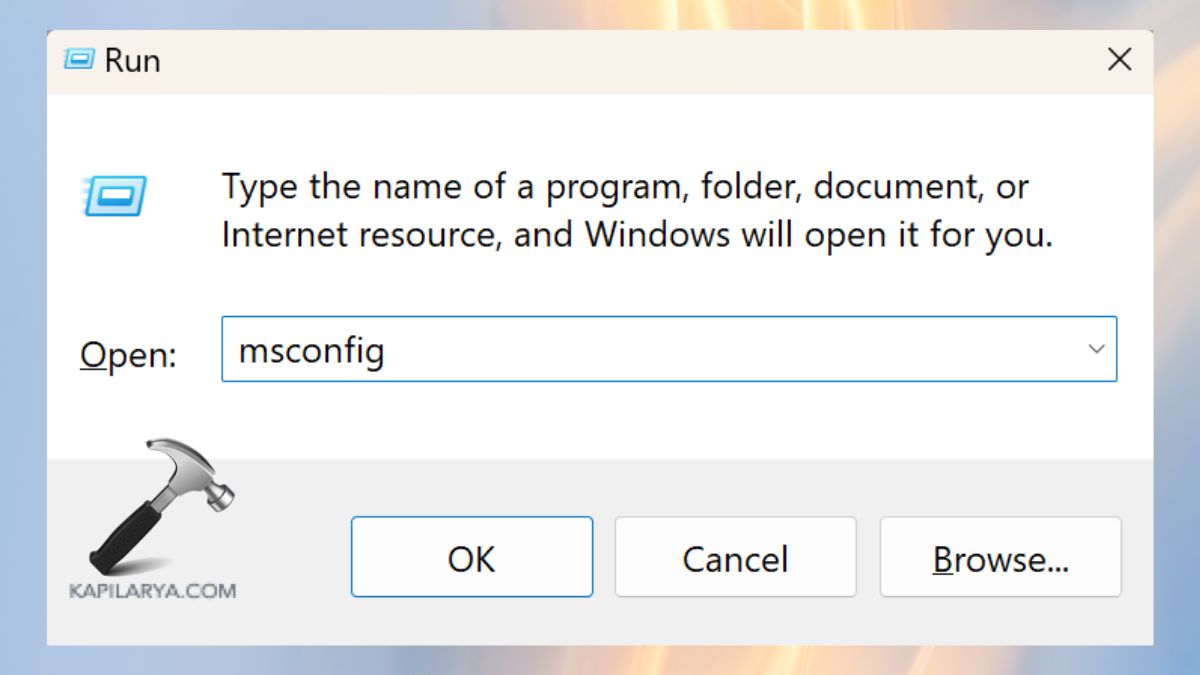
2. Go to the Services tab > upgrade the option under settings that reads Hide all Microsoft services. Select Disable all.

3. Open the Task Manager by going to Startup > and clicking on the Open Task Manager.

4. Turn off all auto-start app.
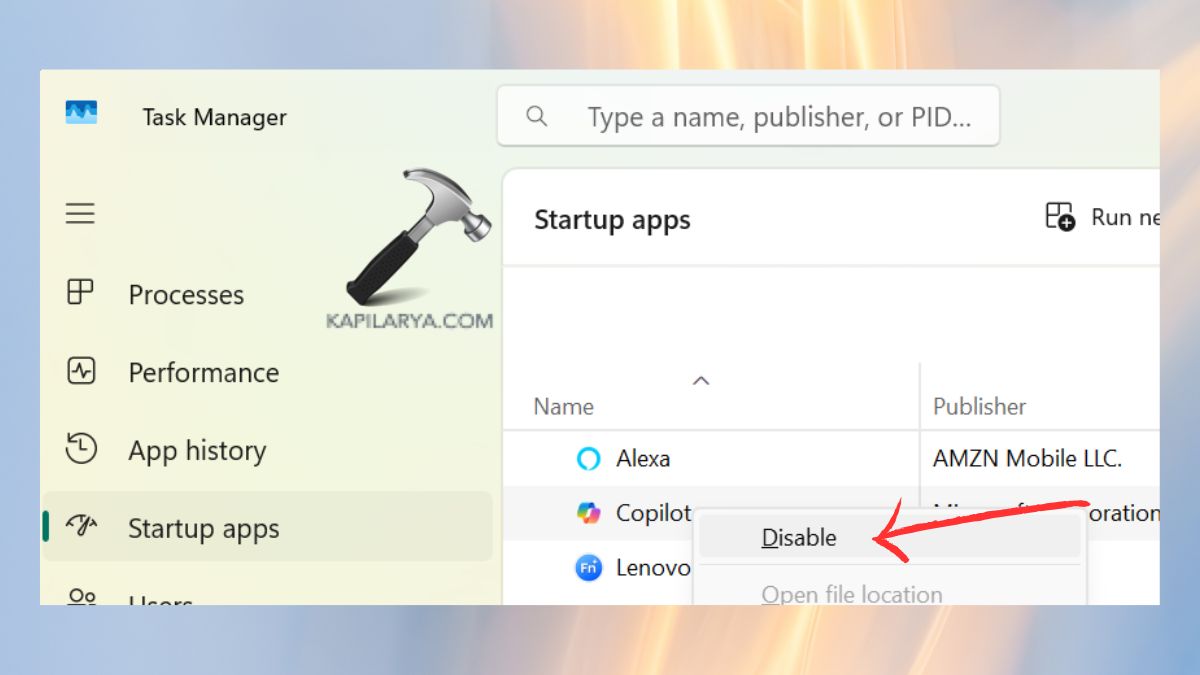
Restart your PC. In case the BSOD has disappeared, one by one activate apps/services until the suspicious one is discovered.
Fix 6: Install Pending Windows 11 Updates
Microsoft also issues patches with the regularity of fixing major bugs in the system, which are security bugs and BSOD-related bugs, among others.
1. Open Settings. Go to Windows update from the left menu.
2. Click Check for updates.

Install all updates, such as Cumulative updates, Optional driver updates and Security patches. Now, the installation of the update requires a reboot.
Frequently Asked Questions (FAQs)
What does BSOD IRQL_NOT_LESS_OR_EQUAL mean in Windows 11?
This BSOD error normally denotes a drive conflict, faulty RAM or corruption of system files. The memory address is not valid and thus Windows does not process an instruction.
Can outdated drivers cause IRQL_NOT_LESS_OR_EQUAL?
Yes, the most typical causes of this BSOD are bad or old drivers, particularly GPU, network, and chipset drivers.
Is IRQL_NOT_LESS_OR_EQUAL a hardware or software problem?
It can be both. This Windows 11 stop error is more likely to be caused by software problems (drivers, system files), although inaccurate RAMs and overheating equipment can also be the cause.
How do I stop the IRQL_NOT_LESS_OR_EQUAL BSOD from coming back?
Maintain your drivers, run system corruption scans on a regular basis, do not install unverified software, and be sure your RAM modules are in good condition.
That’s it!