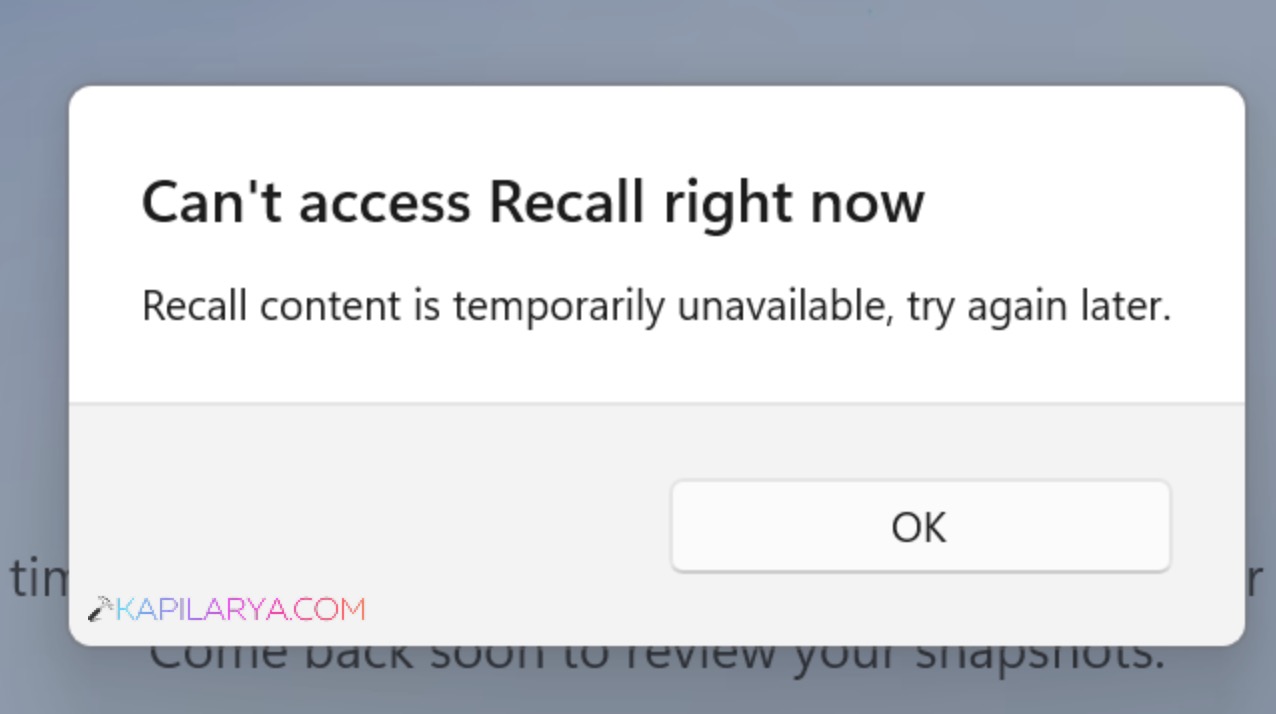
If you see the message Can’t access Recall right now in Windows 11, it means the Recall feature is temporarily unavailable due to system issues, corrupted data, or disabled settings.
Page Contents
Solved: Can’t access Recall Right Now in Windows 11
This problem often appears even when Recall is enabled and running. The issue is usually linked to snapshot errors, missing system files, or policy restrictions. Below are 5 effective fixes to restore Recall functionality.
Fix 1: Delete Corrupted Recall Snapshots
Corrupted snapshots are one of the most common causes.
1. Open Settings and then Privacy & security. Choose Recall & snapshots.
2. Expand Delete snapshots.
3. Choose: Delete all snapshots, or delete from a specific timeframe.
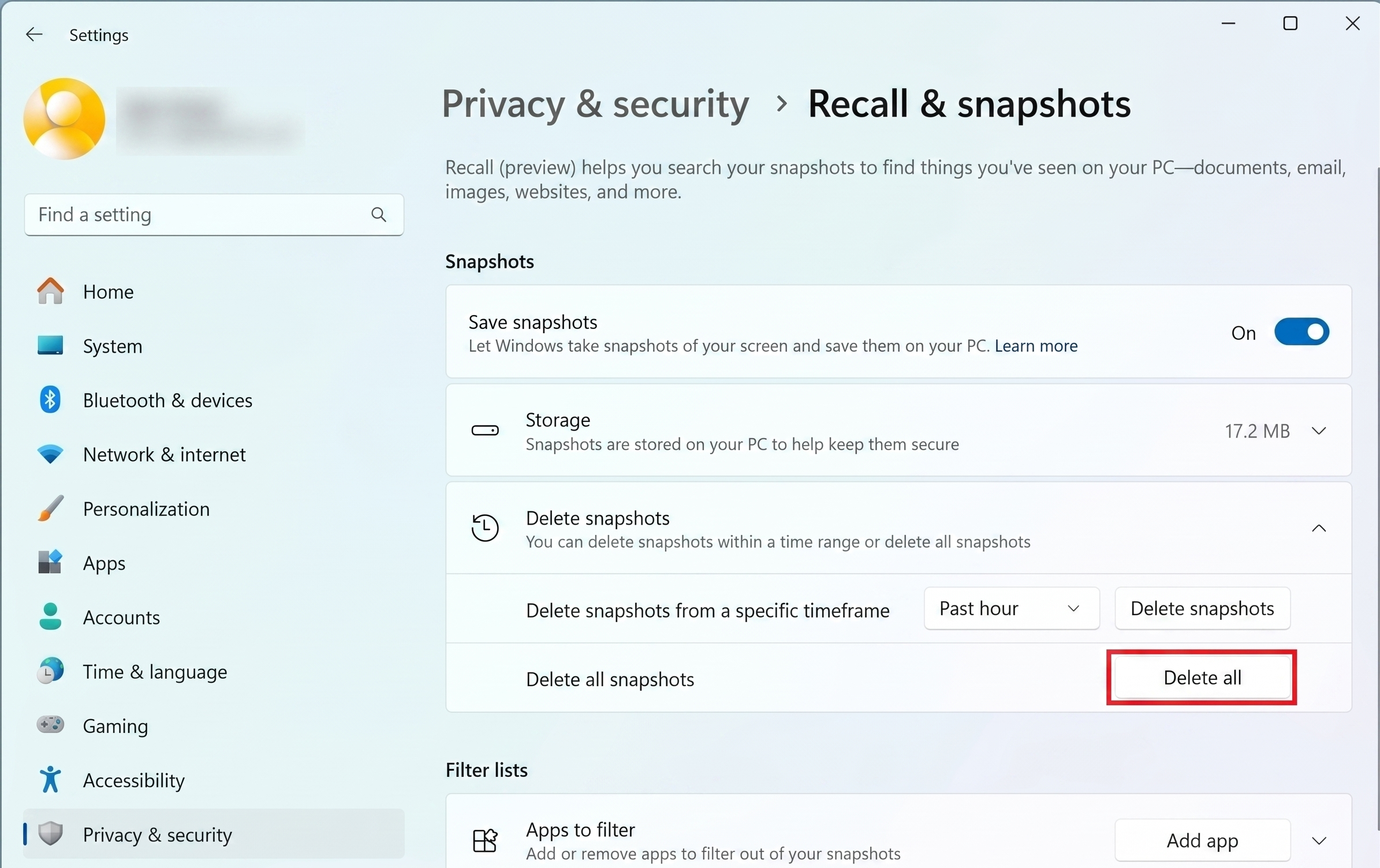
Removing corrupted data helps Recall start fresh.
Fix 2: Check and Run aihost.exe to fix the Can’t access Recall right now error
The aihost.exe process is essential for Recall to work.
1. Open Task Manager and go to Details tab.
2. Look for aixhost.exe.
3. If not running:
Open File Explorer and Go to:
C:\Windows\SystemApps\MicrosoftWindows.Client.AIX_cw5n1h2txyewy
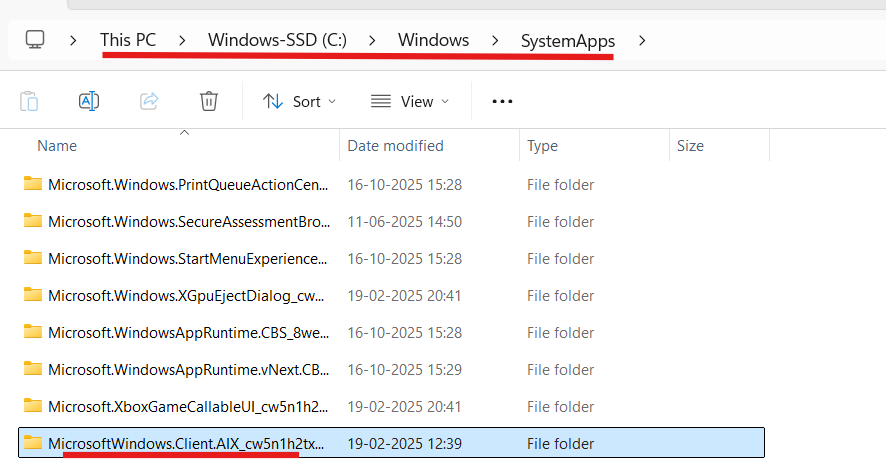
4. Double-click aixhost.exe.
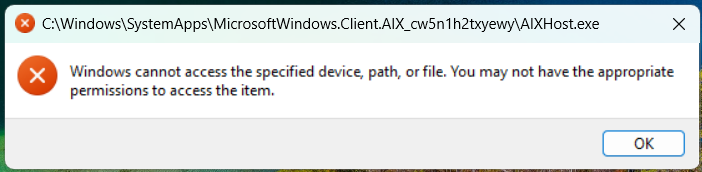
If the file is missing or corrupted, Recall may fail to open.
Fix 3: Enable Snapshot Saving (Group Policy)
If snapshot saving is disabled, Recall won’t work properly.
1. Press Win + R, type gpedit.msc
2. Go to:
User Configuration > Administrative Templates > Windows Components and choose Windows AI.
3. Open Turn off saving snapshots for use with Recall.
4. Ensure it set to Not Configured.
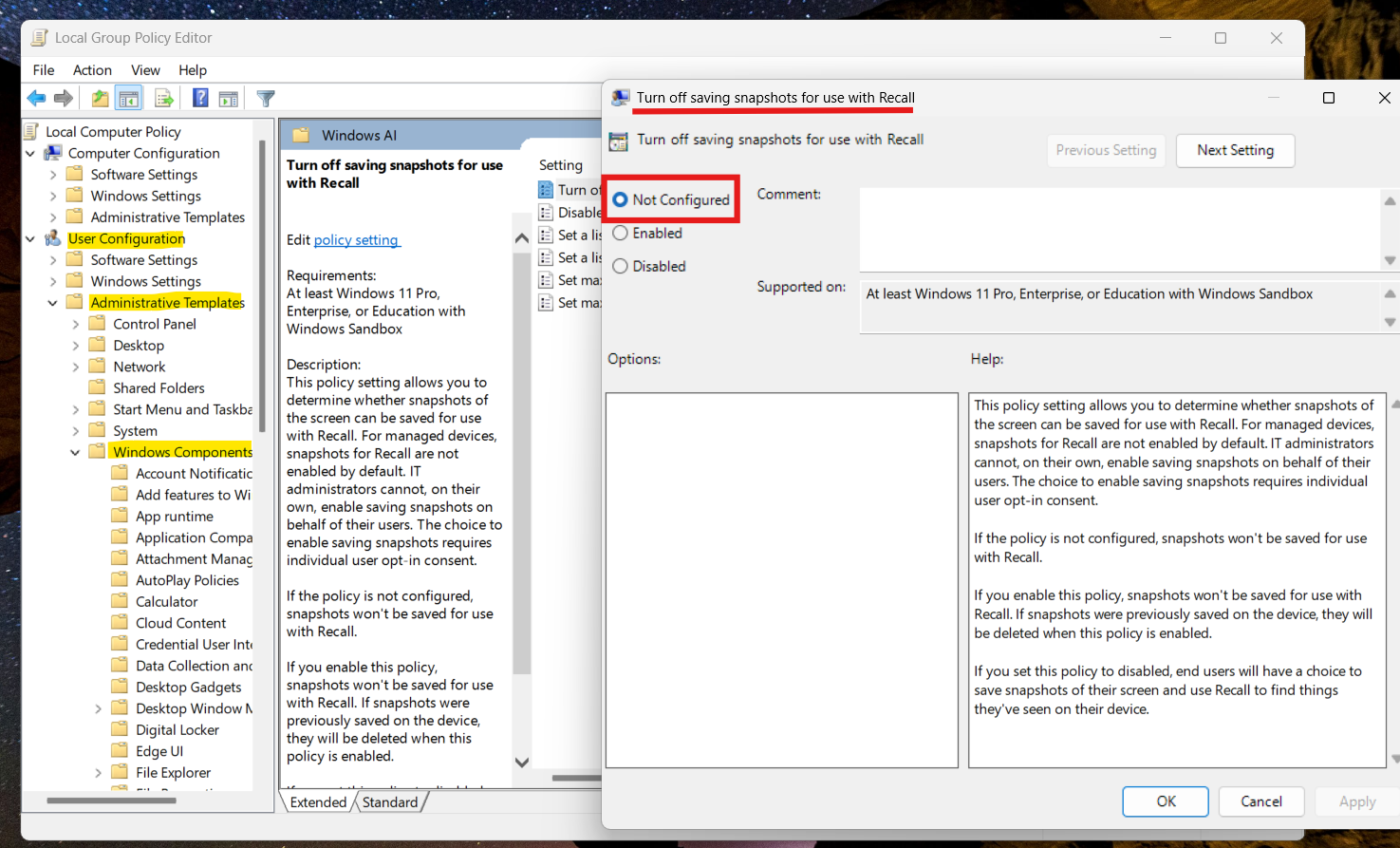
This allows Recall to store and access snapshots again.
Fix 4: Reset Recall Feature
Resetting Recall removes corrupted settings.
1. Go to Settings and then Privacy & security. Choose Recall & snapshots.
2. Open Advanced settings.
3. Click Reset Recall.
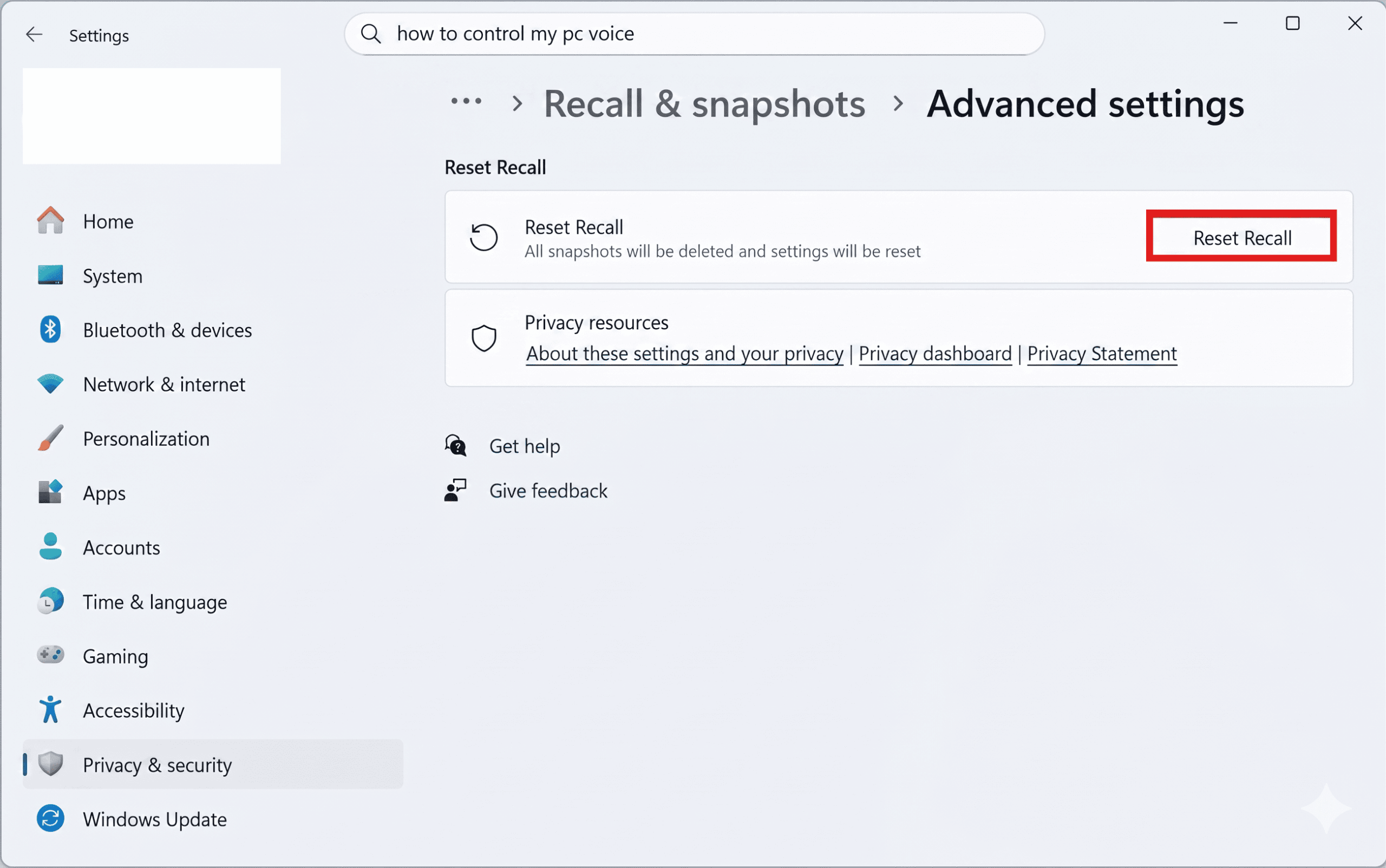
This deletes all saved snapshots and restores default settings.
Fix 5: Reinstall Recall
If Recall installation is broken, reinstalling can fix it.
1. Open Windows Features.
2. Disable Recall, restart.
3. Re-enable it again.
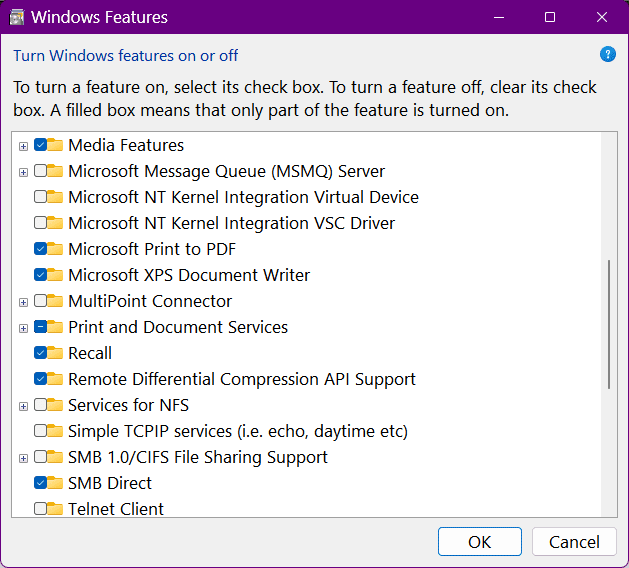
Recall is an optional feature that can be removed and reinstalled easily.
Important Note
Recall only works on supported Copilot+ PCs with required hardware (like NPU). If your device doesn’t meet requirements, the feature may not work at all.
Summary
The Can’t access Recall right now error is usually caused by corrupted snapshots, disabled settings, or missing system processes. Deleting snapshots, enabling policies, resetting Recall, and checking the aihost.exe process are the most effective fixes. If the issue persists, reinstalling Recall or verifying hardware compatibility will resolve it.