Keeping Windows Security (Microsoft Defender) up to date in Windows 11 is essential to protect your PC from the latest threats. Defender relies on frequent security intelligence updates (virus definitions). If these updates are outdated, your system may remain vulnerable to new malware.
Page Contents
Update Windows Security/Defender in Windows 11
Below are the 4 most effective methods to update Windows Defender in Windows 11.
Fix 1: Update via Windows Security App
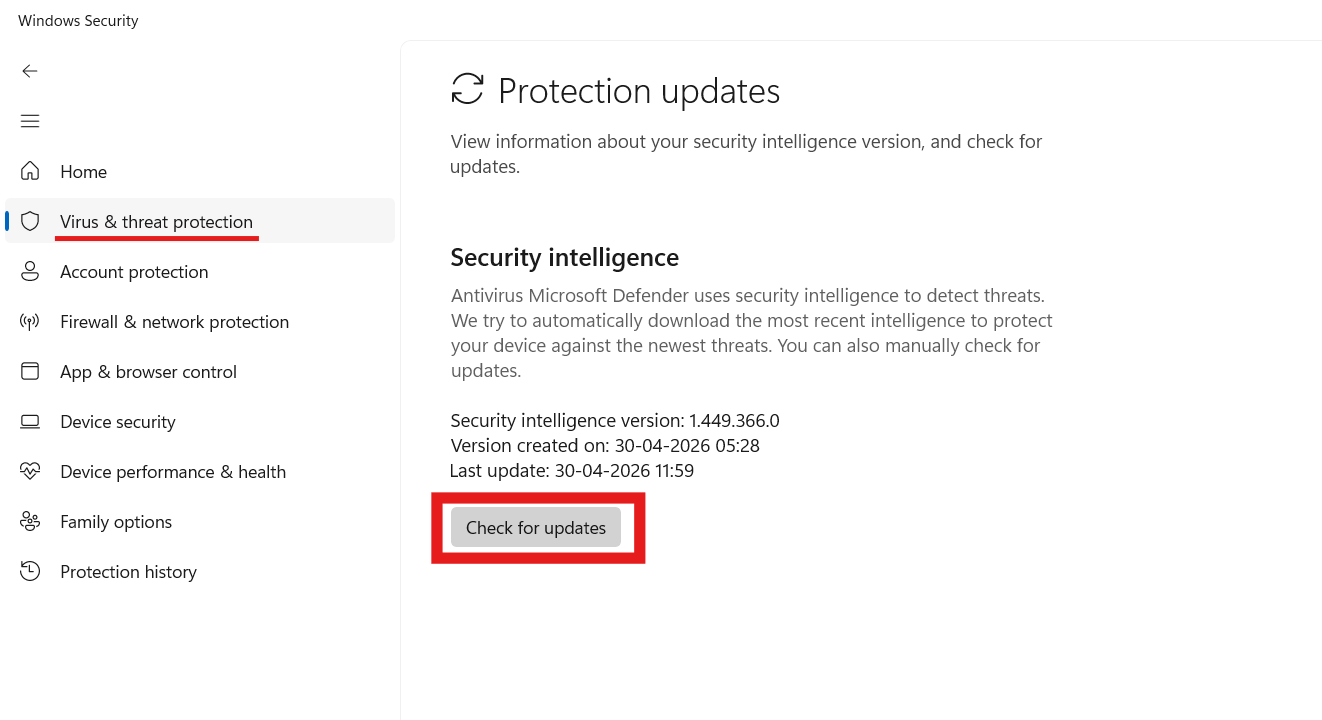
This is the most direct way to update Defender. This method directly pulls the latest virus definitions and installs them automatically if available. It’s the safest option for beginners since everything is handled through the built-in interface. You can also verify the security intelligence version here after updating to ensure it worked.
1. Search Windows Security in Start.
2. Open Virus & threat protection.
3. Scroll to Virus & threat protection updates.
4. Click on Protection Updates and then Check for updates.
Fix 2: Update via Windows Update
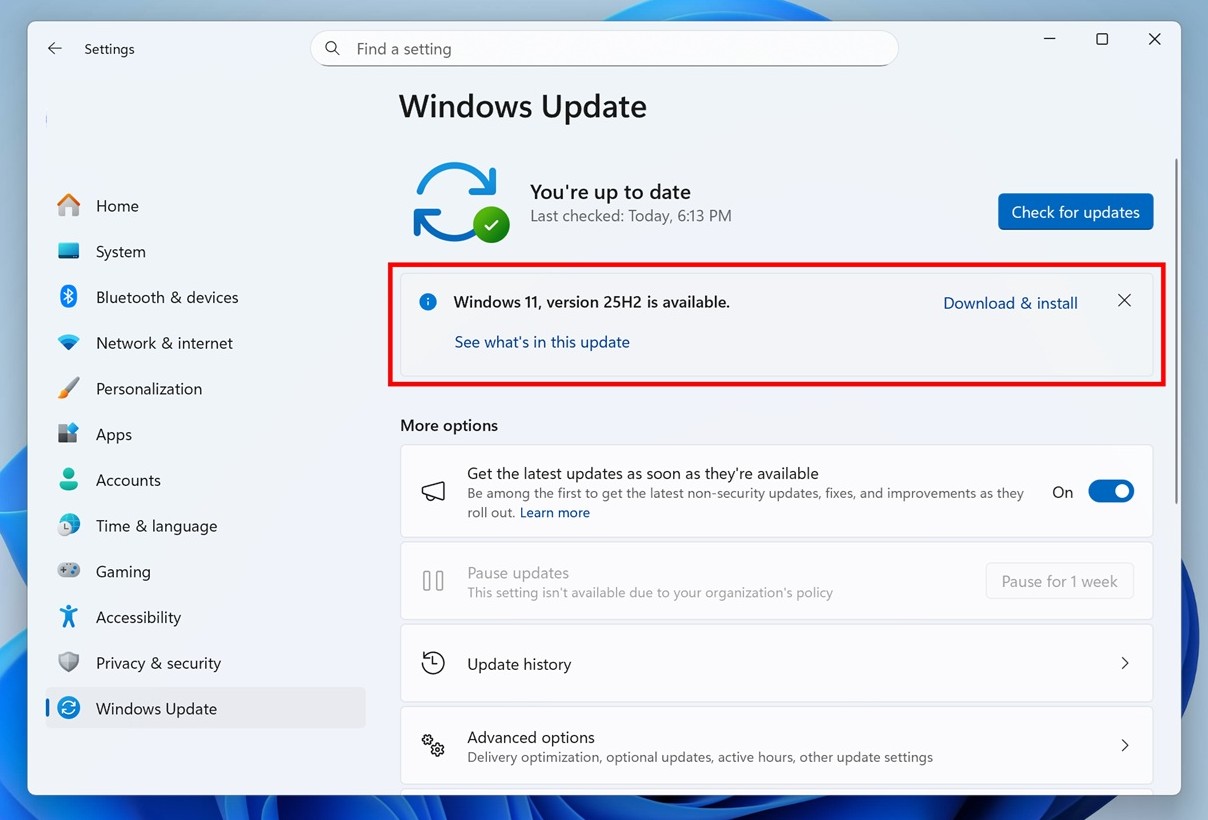
Defender updates are also delivered through Windows Update. Microsoft bundles Defender updates with system updates, so this ensures your system stays fully secure. If your Defender is not updating normally, this method often fixes underlying update service issues. It also installs related security patches along with antivirus definitions.
1. Open Settings and go to Windows Update.
2. Click Check for updates.
3. Install available updates.
Fix 3: Update Using PowerShell Command
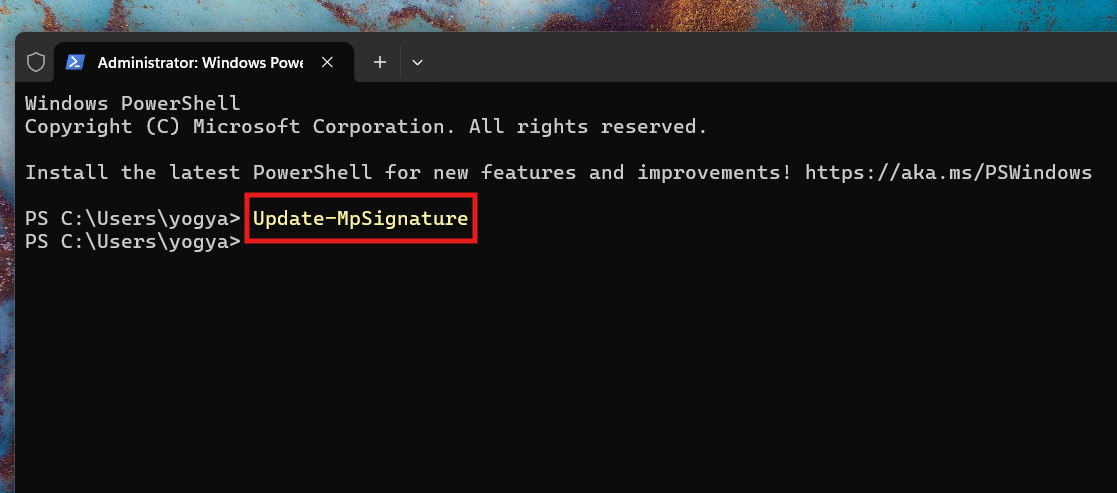
You can manually force an update using PowerShell. This command directly updates Defender’s signatures from Microsoft servers. It works silently in the background, even if the Windows Security app is not responding. This method is especially useful for advanced users or when GUI methods fail.
1. Open Windows Terminal (Admin).
2. Run:
Update-MpSignature
3. Wait for the process to complete and check.
TIP: If you’re using Command Prompt, you can use this command in administrative mode:
"%ProgramFiles%\Windows Defender\MpCmdRun.exe" -SignatureUpdate
Fix 4: Manually Download Defender Updates
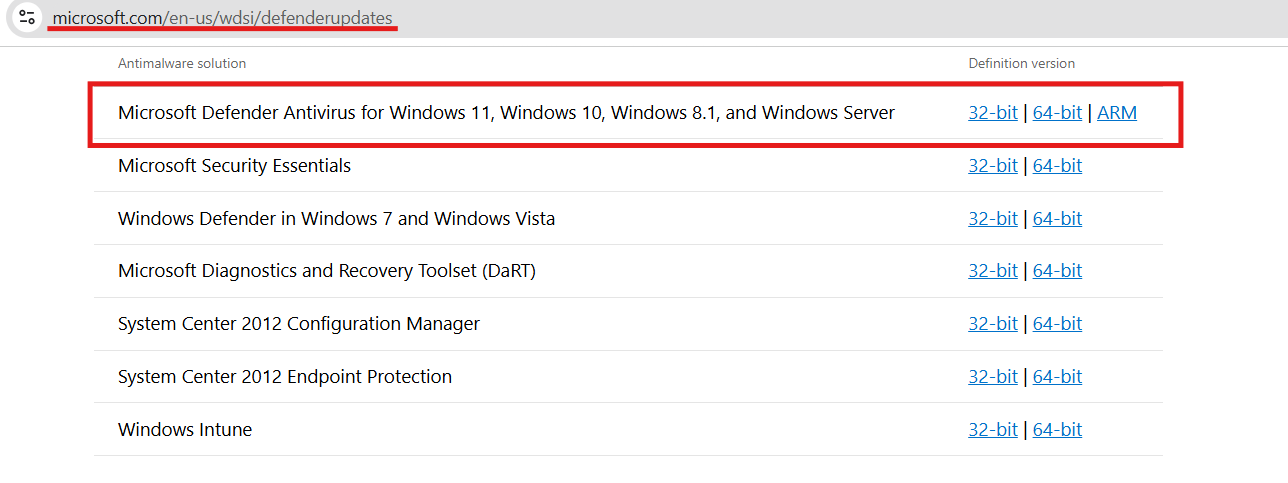
If automatic updates fail, use offline installation. This method is ideal for systems with no internet access or broken update services. It installs Defender definitions manually without relying on Windows Update. You can also use this method in enterprise or restricted network environments.
1. Download the latest security intelligence update (EXE file) from Microsoft.
2. Run the file.
3. Follow on-screen instructions.
Summary
You can update Windows Defender in Windows 11 using the Windows Security app, Windows Update, PowerShell, or manual downloads. The easiest method is through Windows Security, while PowerShell and offline updates are useful for troubleshooting. Keeping Defender updated is critical for maintaining strong system security and especially when you’re using Windows Security as primary antivirus.