You bought a new laptop or just updated to Windows 11 and noticed that your PC is running slowly, is cluttered, or is constantly showing random notifications. That’s because you are using Windows 11 with the default settings.
The good news is you don’t need the help of a tech expert. You can do it yourself with just a few simple immediate changes in Windows 11 Settings. These simple settings will boost your Windows 11 performance, improve privacy and make your PC feel more personal.

Let’s see what those Windows 11 Settings changes are:
Page Contents
Top Windows 11 Settings to Change Immediately
1. Disable Unnecessary Applications
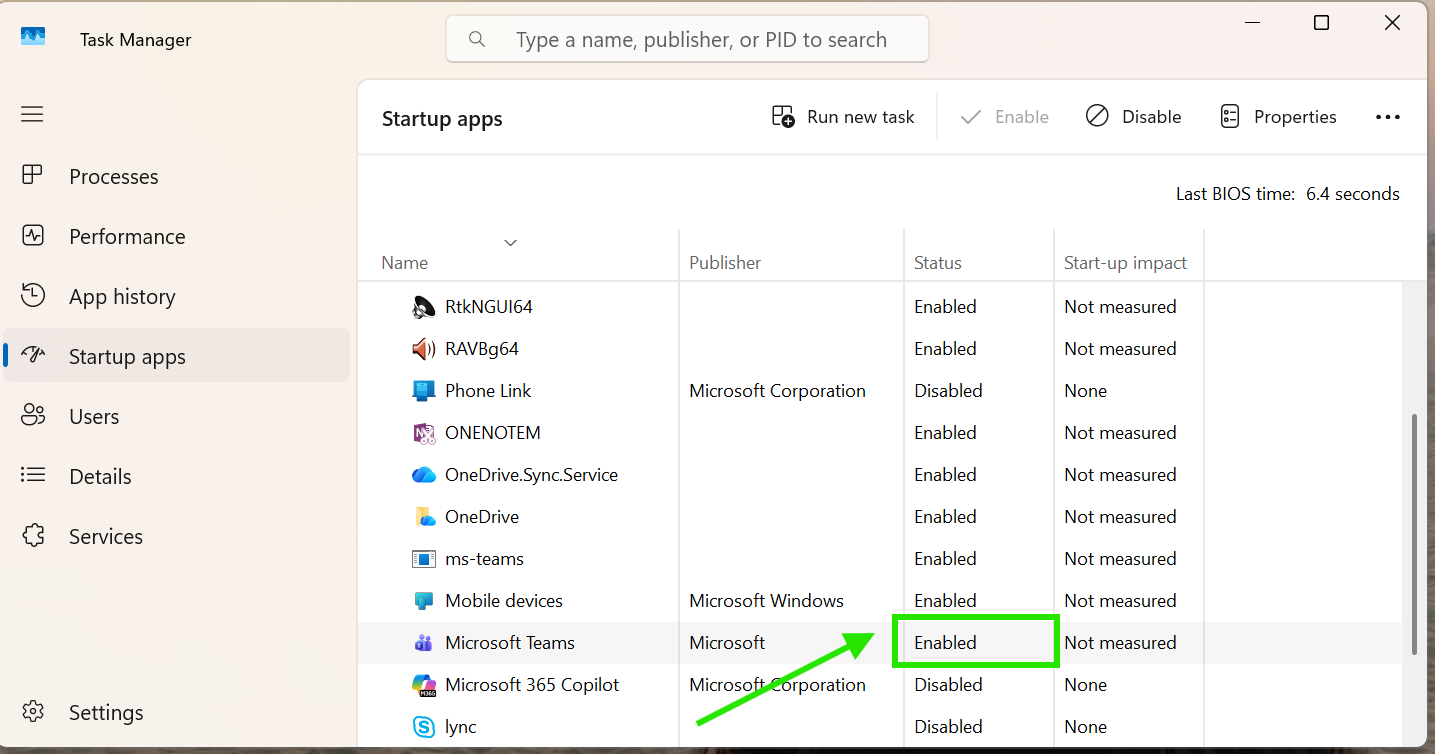
Some Apps in Windows 11 start automatically when you turn on your PC. They slow down the booting time. So, to fix that, follow the steps:
Step 1: Press Ctrl +Shift +Esc open Task Manager on Windows 11.
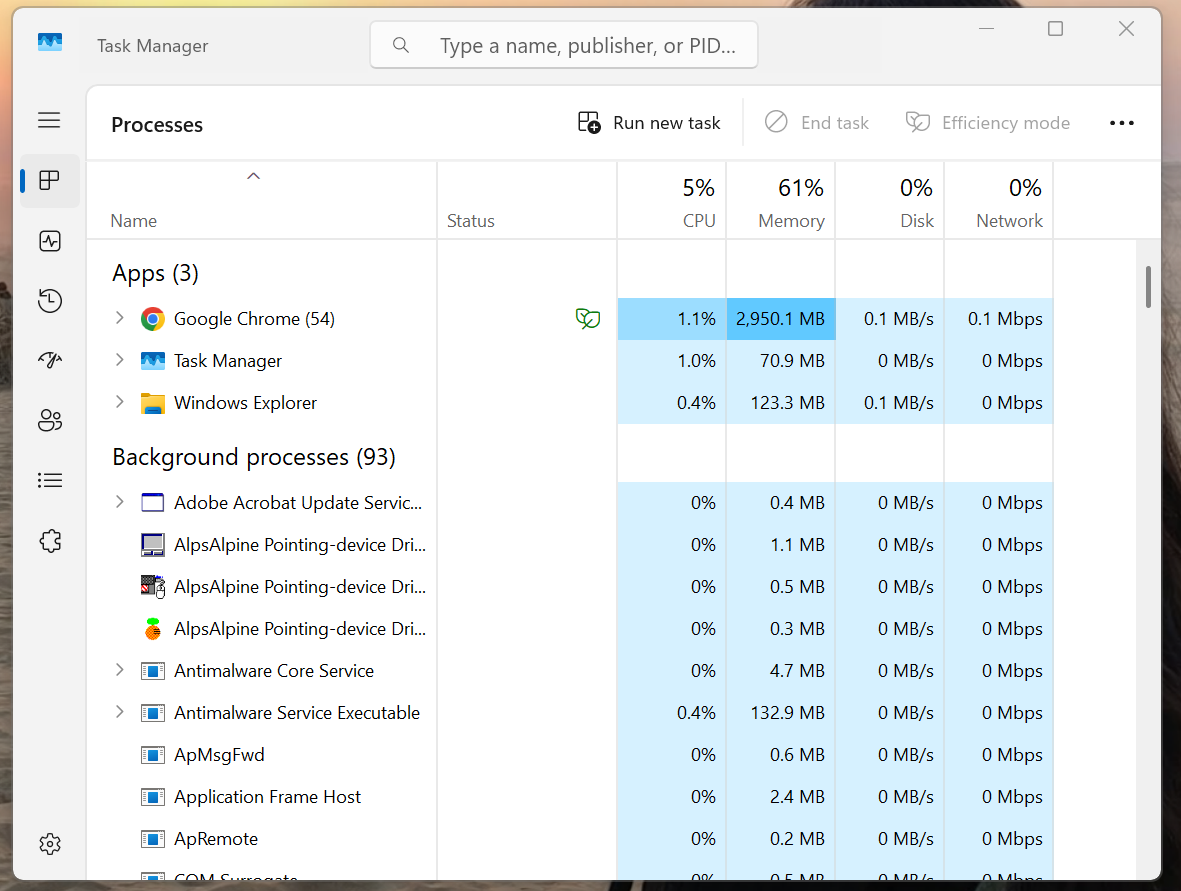
Step 2: Now, click Startup Apps.
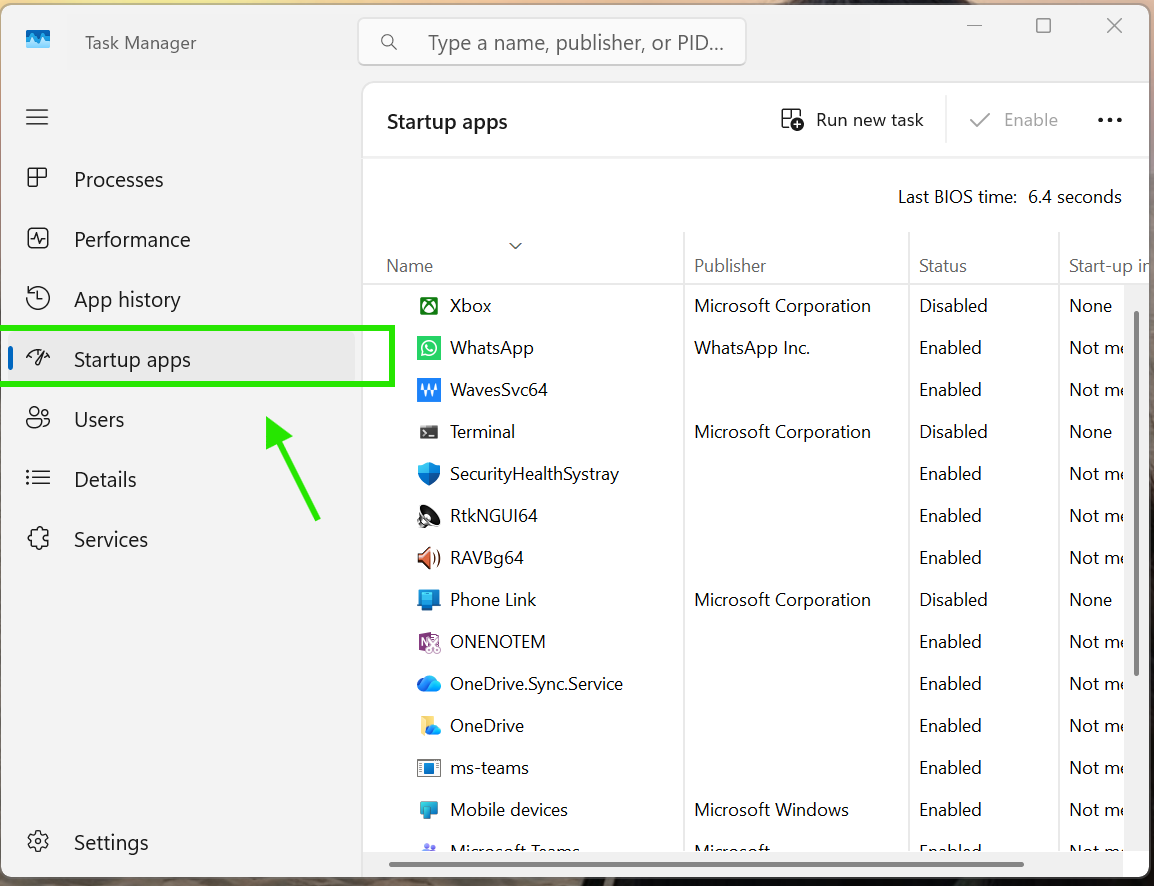
Step 3: Check for the Apps you don’t use or need.
Step 4: Now, Right-Click here and Disable it.
2. Change The Power Mode To Best Performance
Windows 11 always use “Balanced” power mode to save battery. And if you want to boost speed and performance, switch to Best Performance mode. Here is how you set this Windows 11 immediate setting change:
Step 1: Open Settings by pressing Windows + I.
Step 2: Then go to System and click on Power & Battery
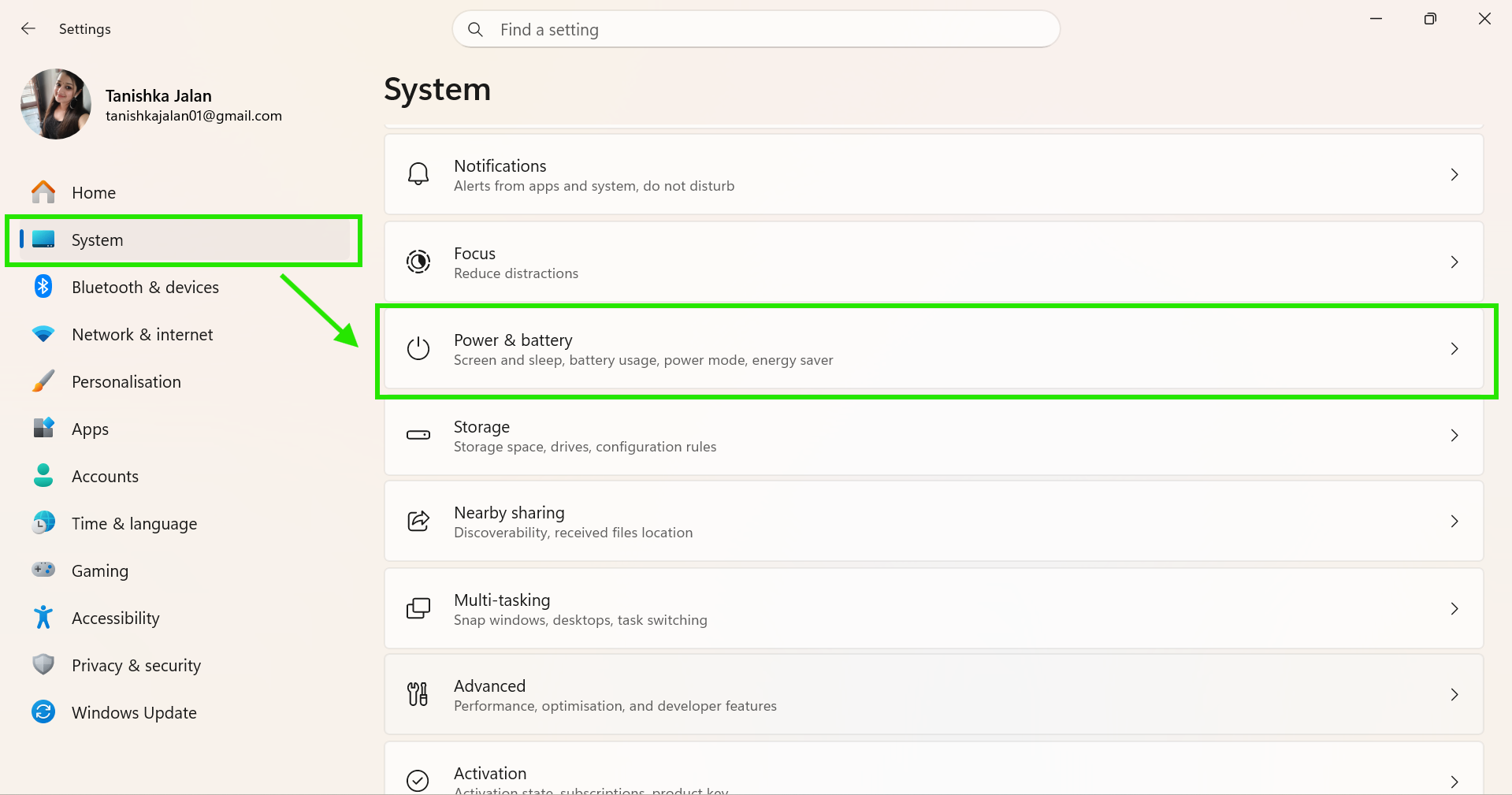
Step 3: Now look for the Power Mode option and select Best Performance from the dropdown menu.
3. Turn Off Those Annoying Notifications
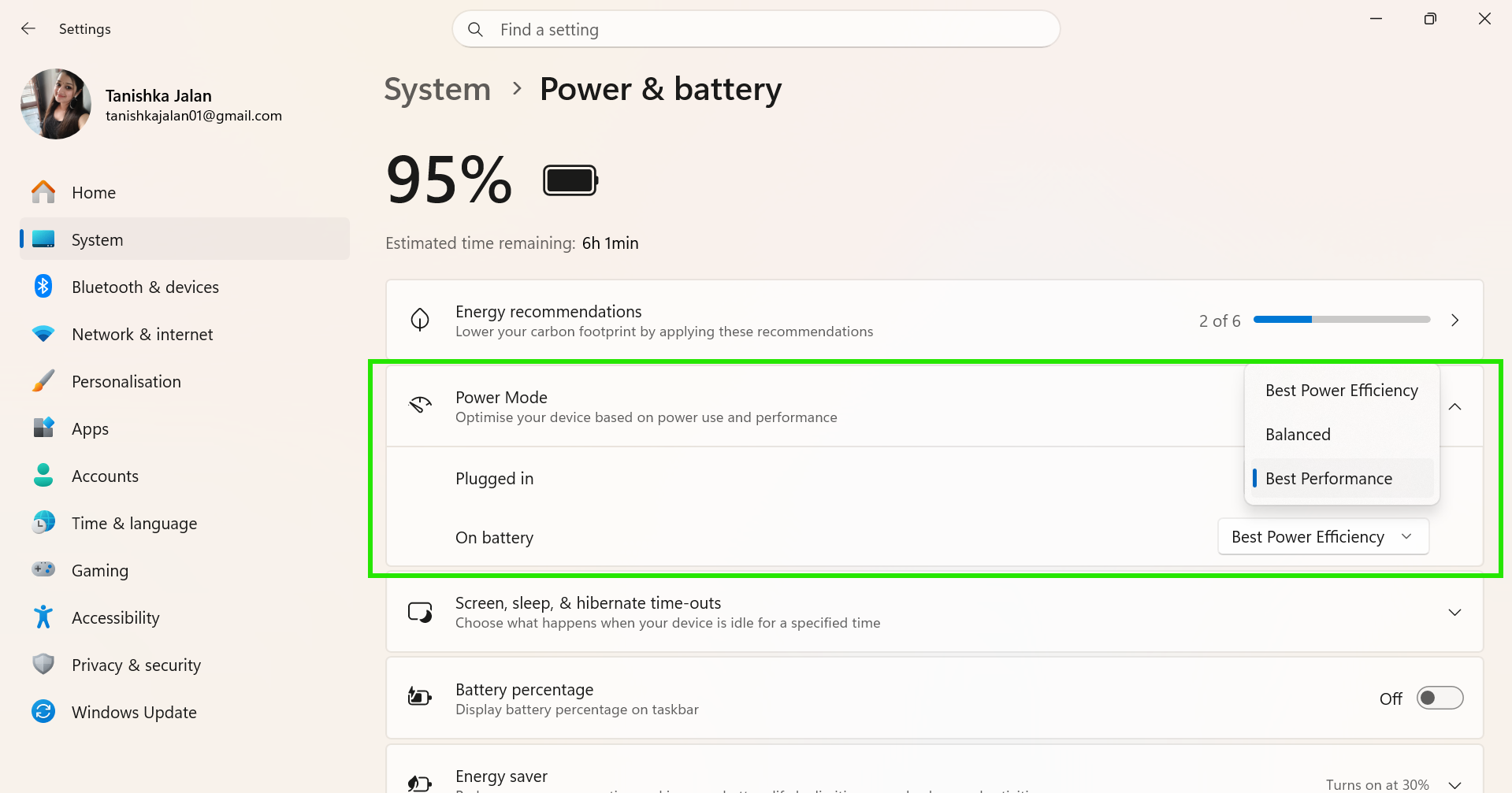
You often see notifications from Windows 11, such as tips, suggestions, or reminders. To turn off these distracting alerts, follow the steps below:
Step 1: Go to Settings using Windows + I
Step 2: Click System, then Notifications.
Step 3: Now scroll down to the bottom and uncheck: Get tips and suggestions when I use Windows.
4. Disable Personalized Advertisements
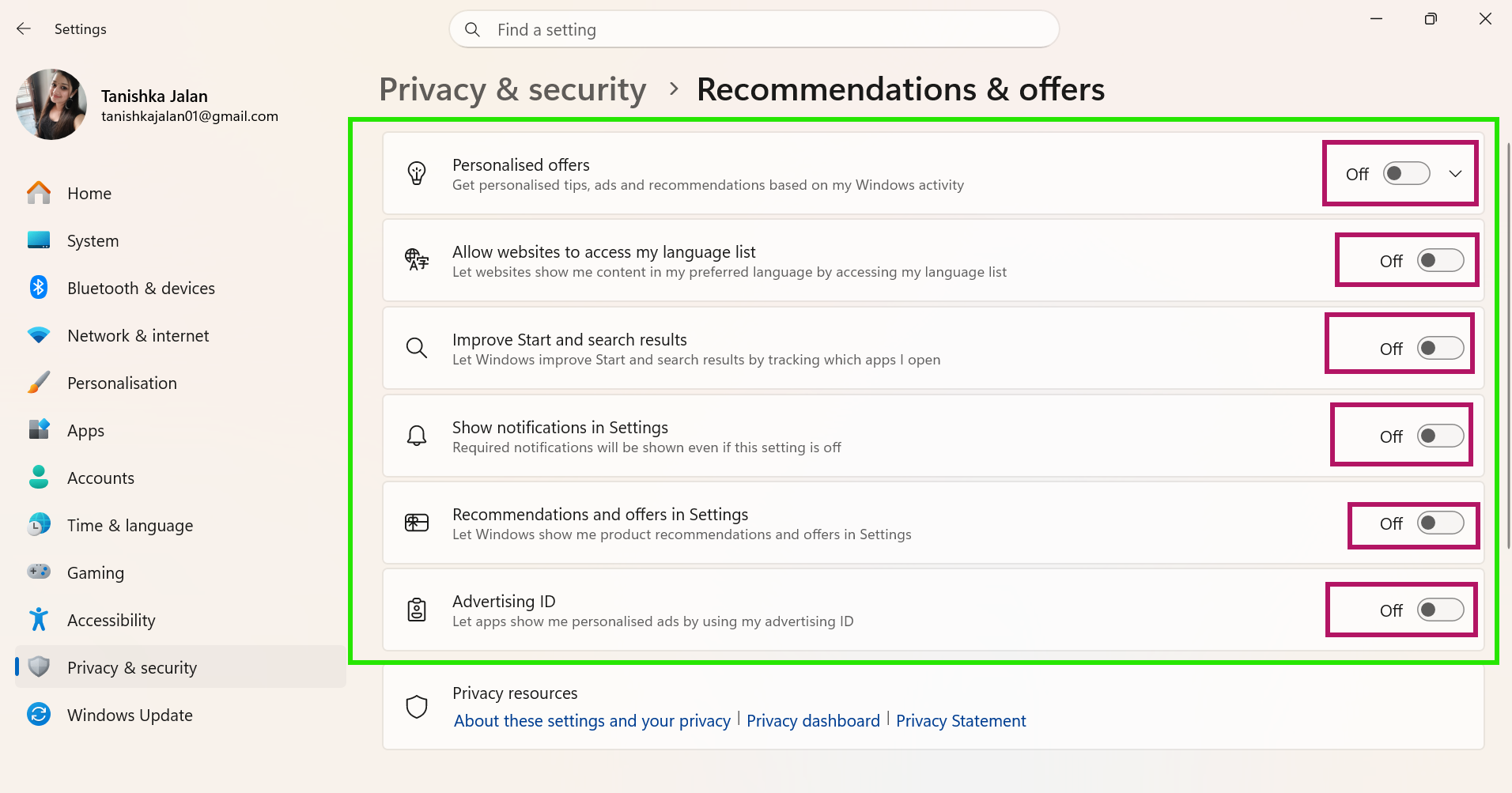
Windows 11 tracks your activities and shows personalized ads and recommendations. And if you care about your privacy, you must turn these off. Here is what to do:
Step 1: Open Settings by pressing Windows + I
Step 2: Go to Privacy And Security.
Step 3: Now, click Recommendation and offers under Windows permissions, then Toggle OFF all the options.
5. Remove Recommended Items From Start Menu
The start menu shows all the recently opened files and apps, which you sometimes don’t find useful. To clean them, follow the steps below.
Step 1: Open Settings, then go to Personalization and Start.
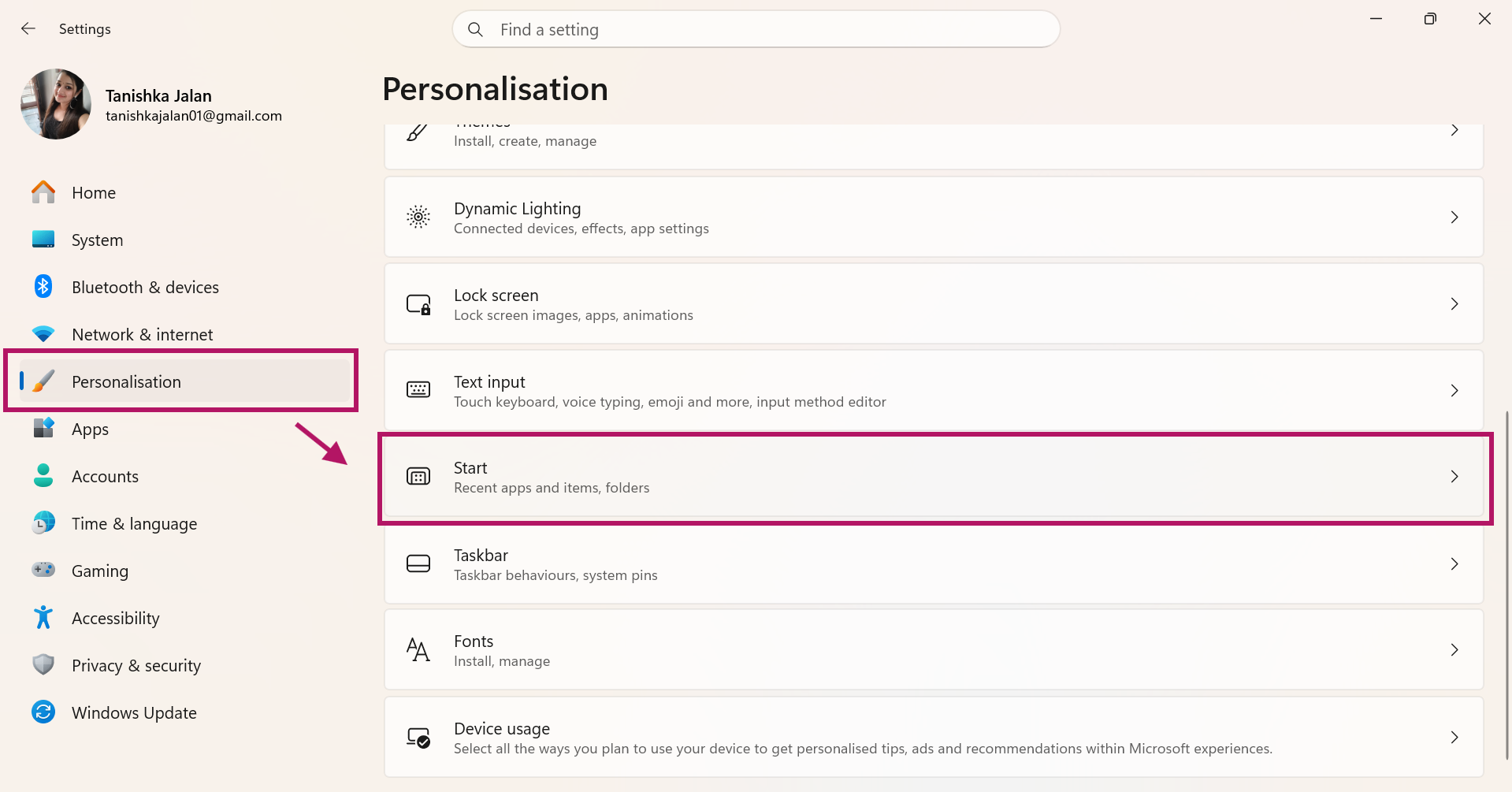
Step 2: Now Turn OFF:
- Show recently opened items in Start, Jump List and File Explorer
- Show recently added apps
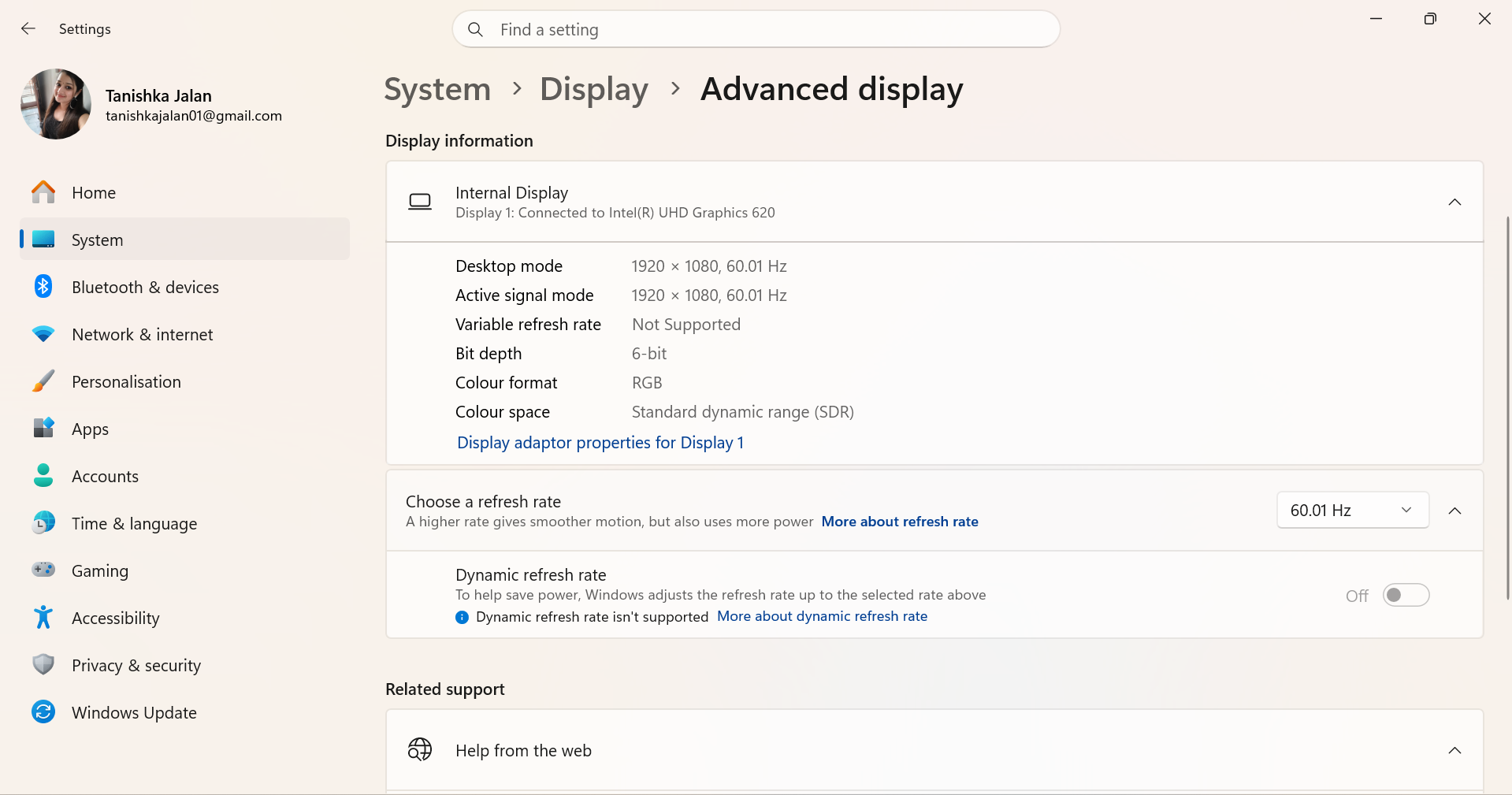
6. Change Your Screen’s Refresh Rate
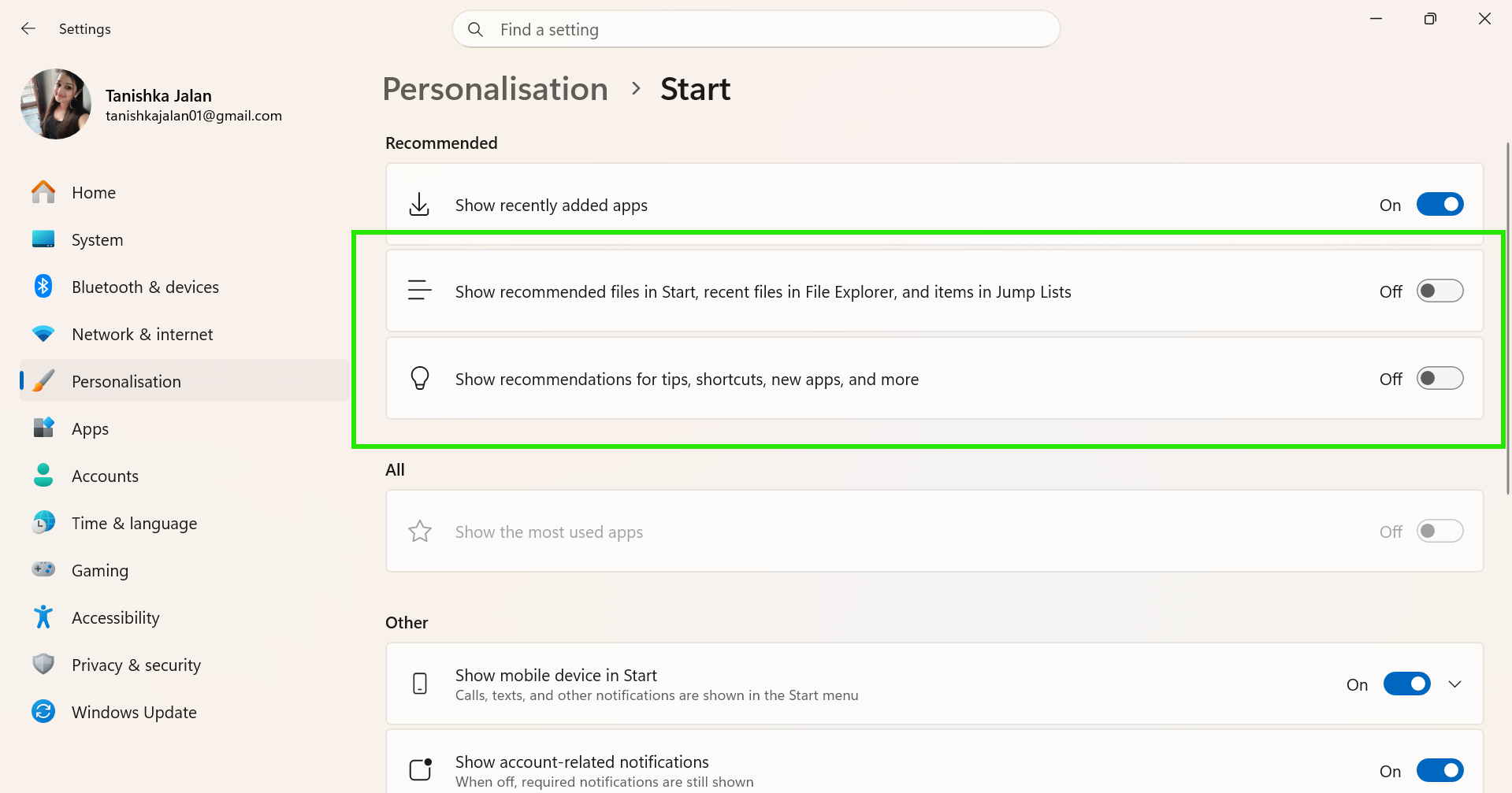
If your laptop supports a higher refresh rate of 120Hz or 144Hz, then changing its settings can make your animation look smoother. You can do this Windows 11 Settings change immediately by:
Step 1: Open Settings, click on System, and then go to Display.
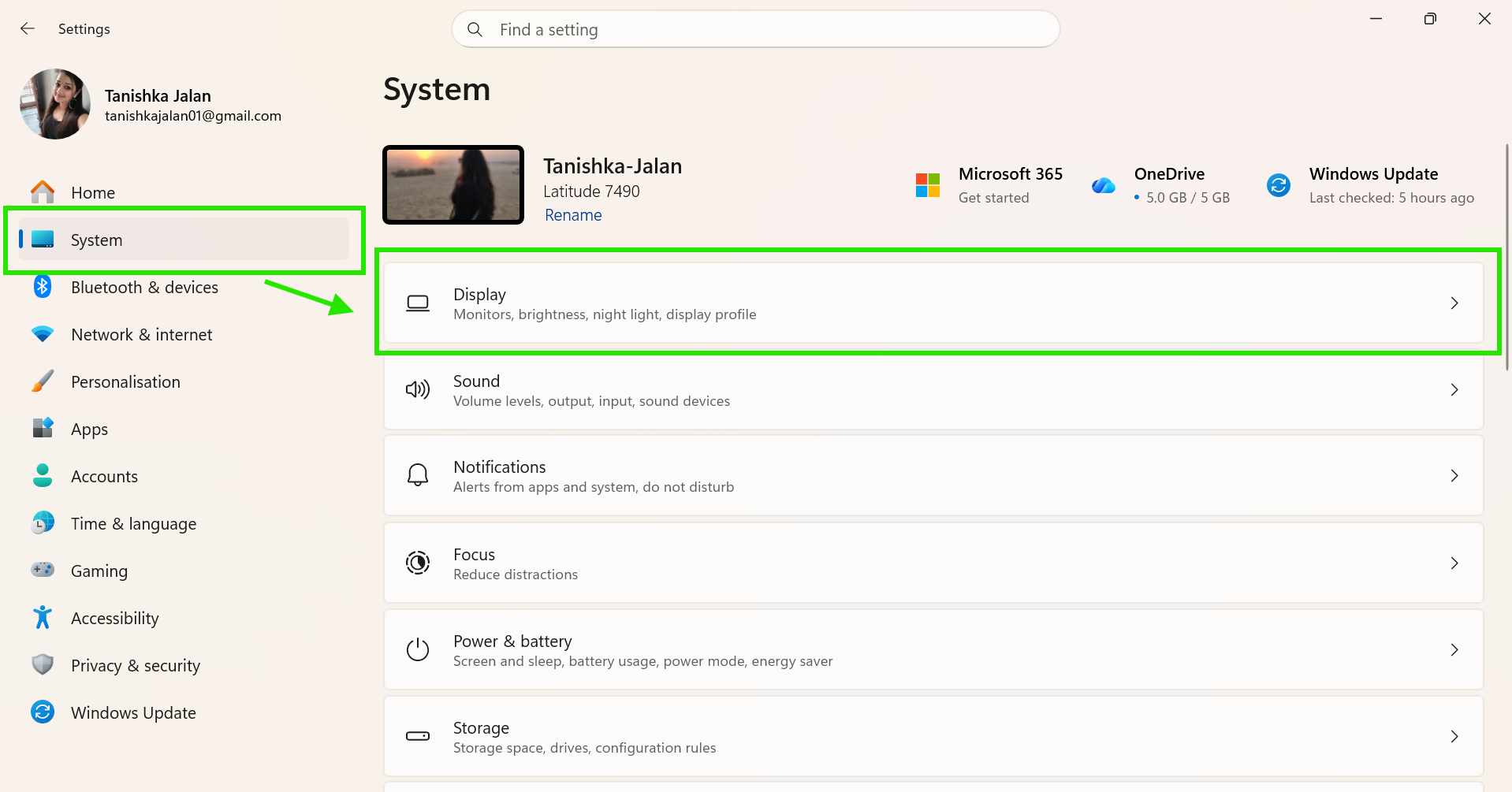
Step 2: Now scroll down and find Advanced Display.
Step 3: Choose a refresh rate if you see a higher refresh rate, like 120Hz or 144Hz.
7. Block All Third-Party Application Installation
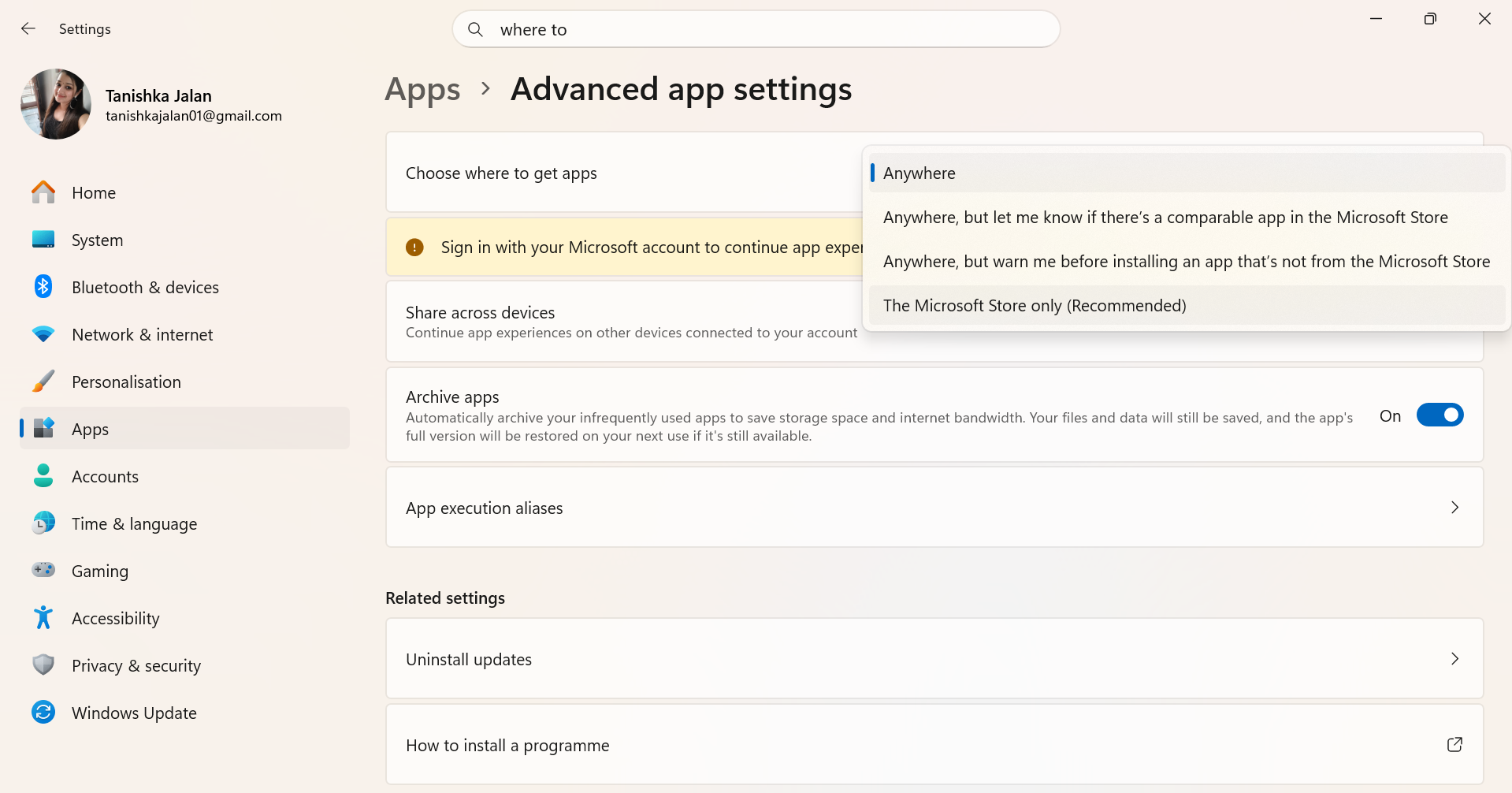
To keep your PC safe, blocking third-party apps is important for children and elderly users alike.
Step 1: Open Settings by pressing Windows + I
Step 2: Go to Apps > Advanced Apps Settings
Step 3: Now, click on the “Choose where to get apps ” option.
Step 4: Select the Microsoft Store only from the dropdown menu.
So, that’s it. We hope you’ll make all these Windows 11 settings changes immediately to greatly improve your experience.