It’s really annoying when you copy to move a file, and it shows an error. It is error 0x8007003A. Mostly, this error occurs during file transfer over a network or an external drive. Sometimes the transfer suddenly stops, and your Windows shows the message “The Specified Server Cannot Perform the Requested Operation”.
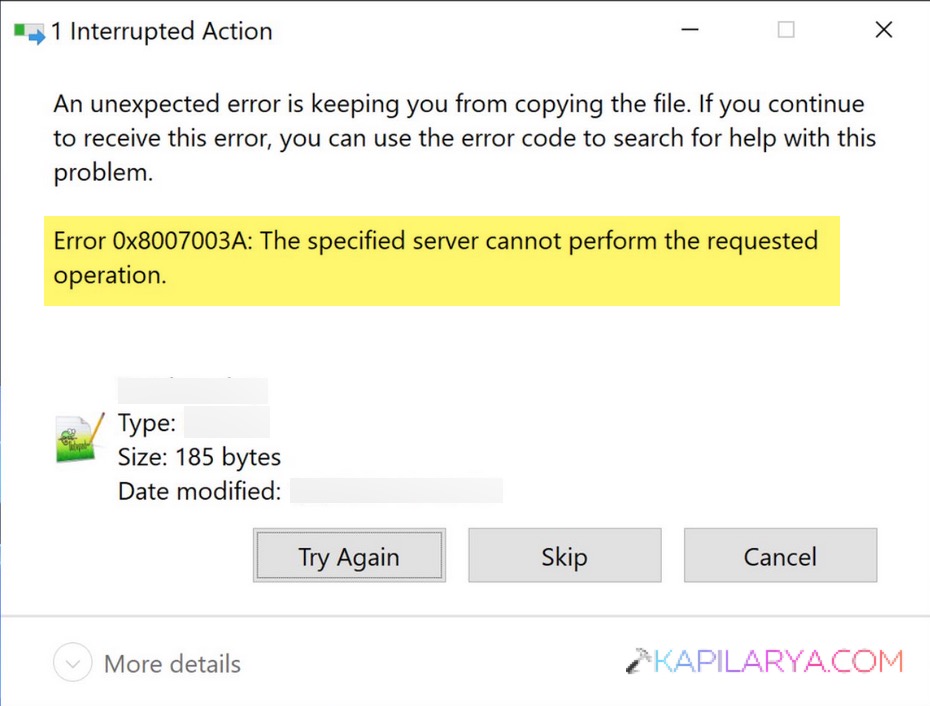
If you, too, are a Windows 11 user and want to fix error 0x8007003A, here are simple steps you can make quickly.
Page Contents
Why Does Error 0x8007003A Occur?
Error 0x8007003A, “The Specified Server Cannot Perform the Requested Operation”, occurs when:
1. Your internet/network connection is unstable.
2. Big files are being transferred to a FAT32 drive.
3. You have disabled or outdated SMB sharing support.
4. Background services interfering with file transfers.
5. Incorrect network setting or permissions.
How To Fix Error 0x8007003A In Windows 11?
Fix 1: Restart Windows Services To Fix Error 0x8007003A
Sometimes, Windows 11 network services do not respond properly during file transfer. Follow the steps below to refresh network communication and fix temporary glitches.
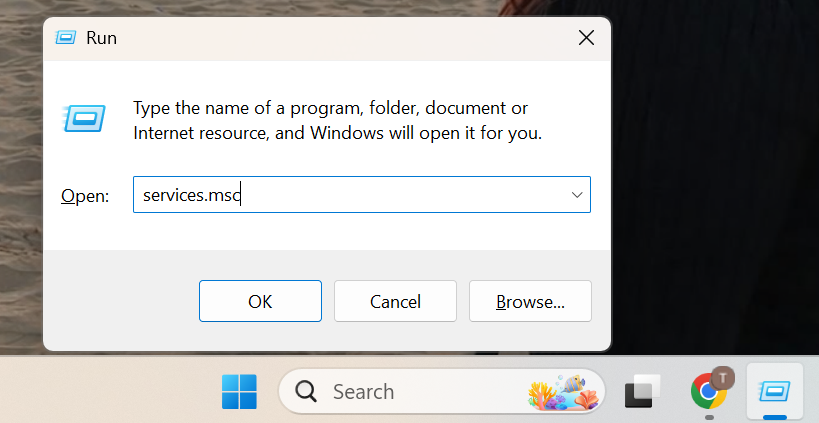
Step 1: Press Windows + R, type services.msc and now Enter.
Step 2: Now, find the Server in the list and right-click on it, then Restart.
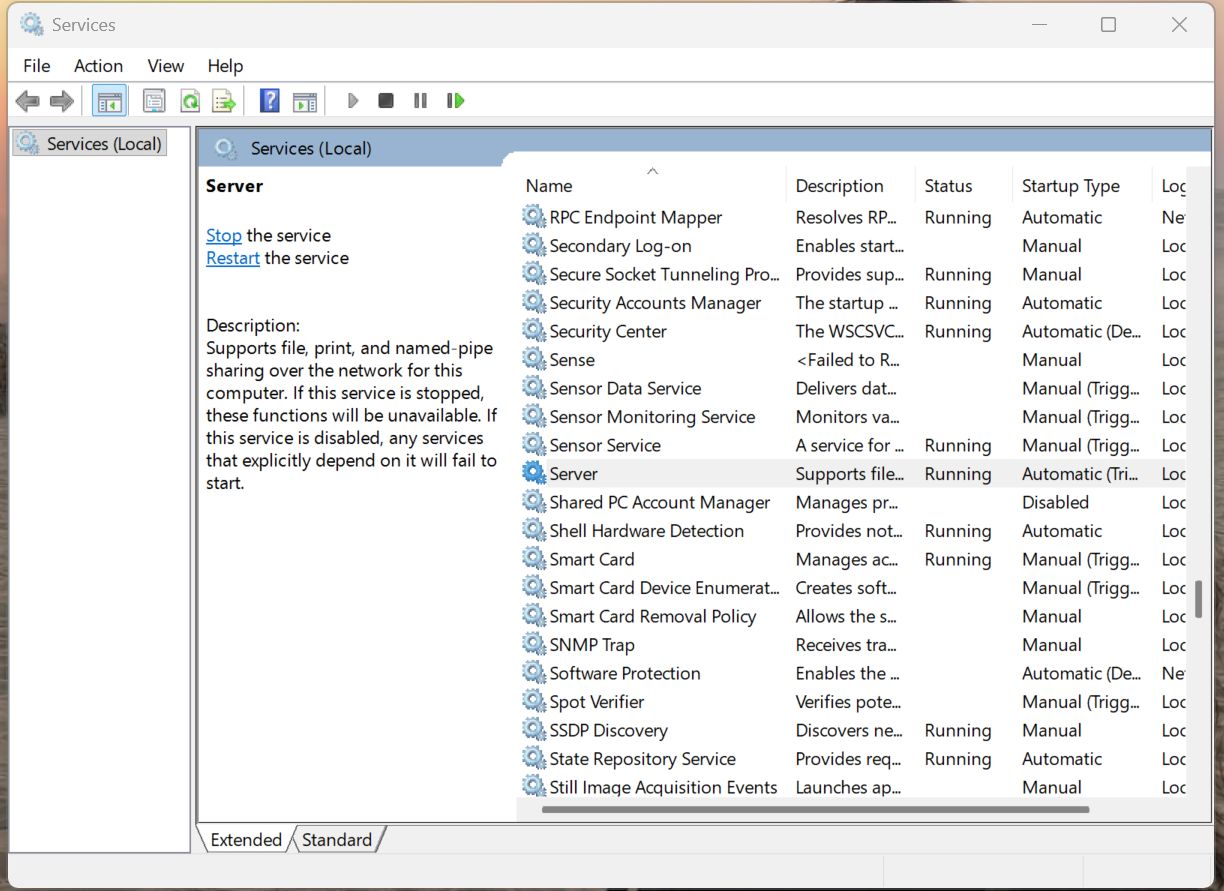
Step 3: Also, locate the DNS Client service and Restart it.
Step 4: Try copying the file again. And that’s it.
Fix 2: Check The File Size & Drive Format
Large files fail to transfer when the destination drive is formatted as FAT32.
- FAT32 drives cannot store files larger than 4GB.
- Compress files into ZIP or RAR format before you transfer them.
- Please convert the drive’s file system to NTFS for better compatibility.
Fix 3: Run Windows Network Troubleshooter
Error 0x8007003A is caused by network instability. Windows 11 has a built-in tool. This tool automatically detects network-related issues. Here is how to run it:
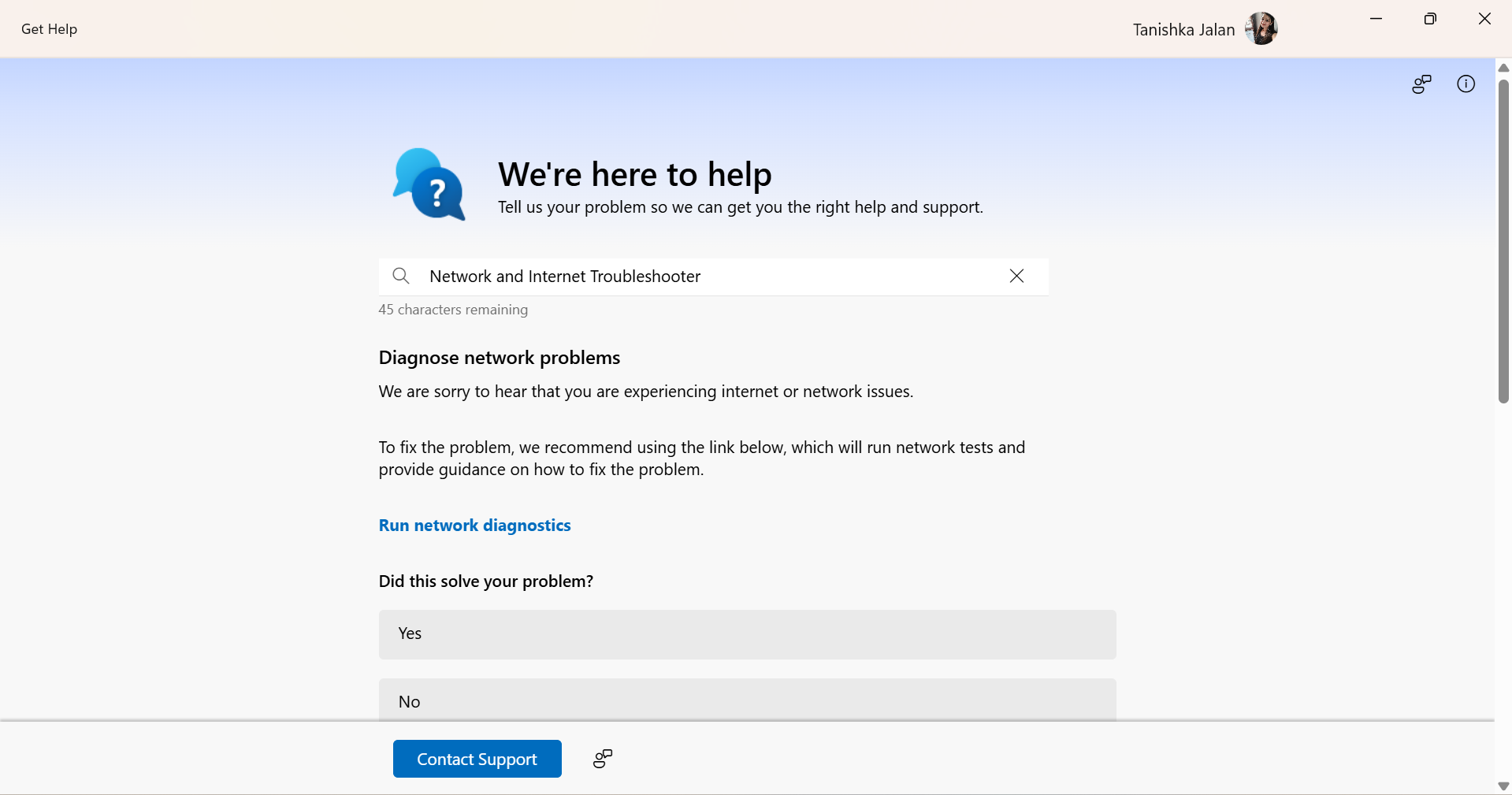
Step 1: Click search icon on taskbar, then search for the Get Help app.
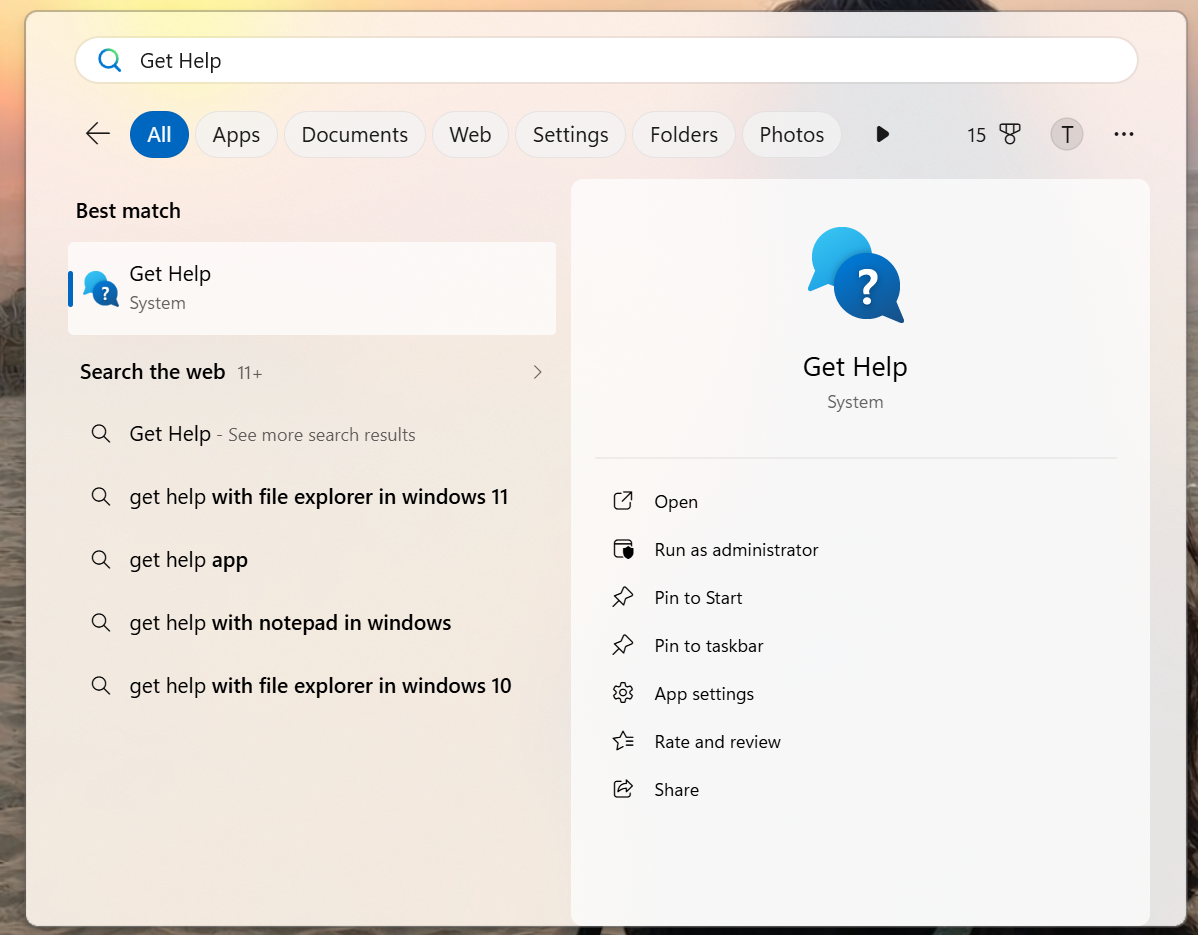
Step 2: Now search for Network and Internet Troubleshooter in the app.
Step 3: Follow the instructions on the screen to let Windows scan and apply the recommended fixes.
Fix 4: Enable SMB 1.0 Support
Older NAS devices and shared devices still rely on SMB 1.0. The steps below will help you improve compatibility with older network devices.
NOTE: Microsoft doesn’t recommends using SMB 1.0 support. Use of this protocol is completely at your own risk.
Step 1: Open Control Panel.
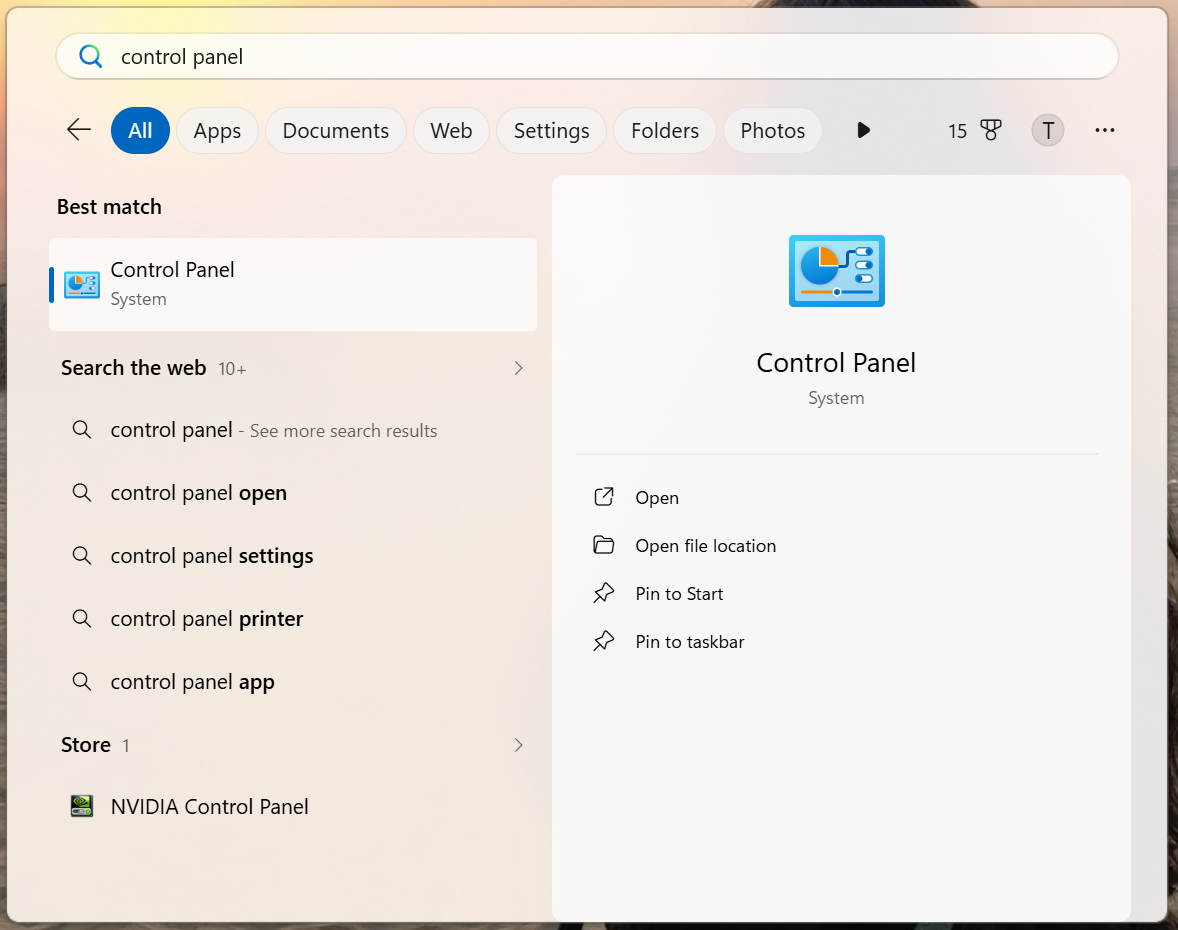
Step 2: Now search for Programs and Features, then click Turn Windows on or off.

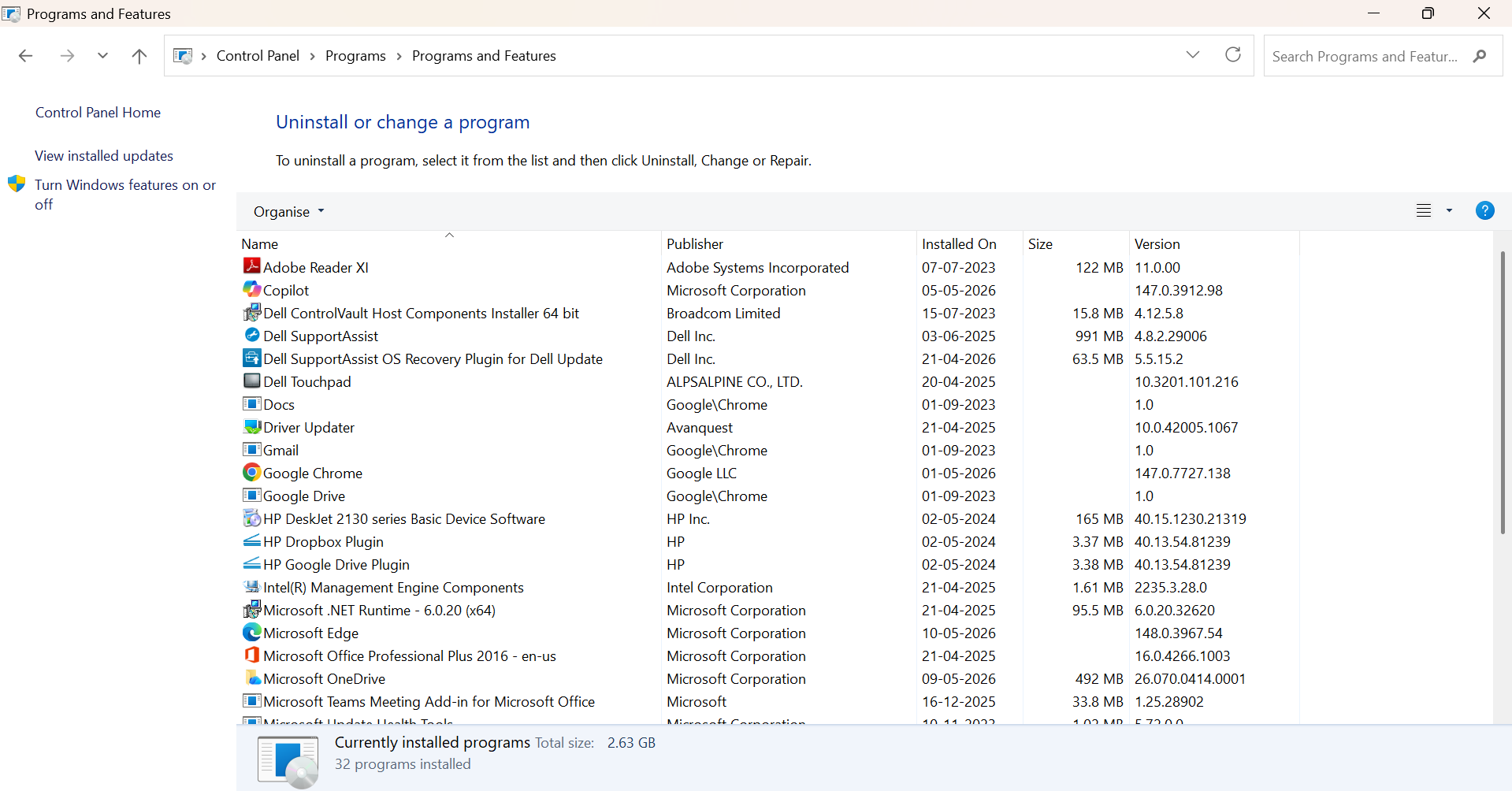
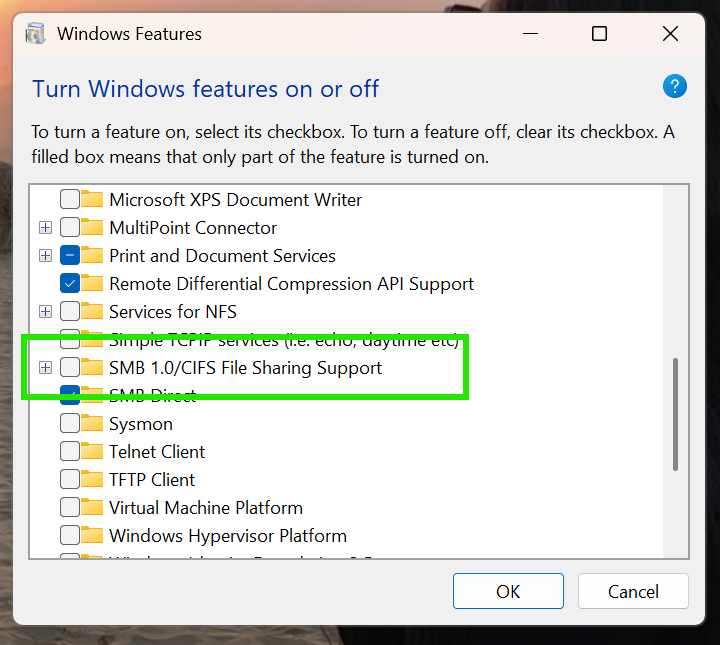
Step 3: Look for SMB 1.0/CIFS File Sharing Support.
Step 3: Enable it and restart your PC.
Fix 5: Try Copying Files In A Clean Boot State
Startup programs and background apps can interfere with network transfers. Here is how to perform a clean boot:
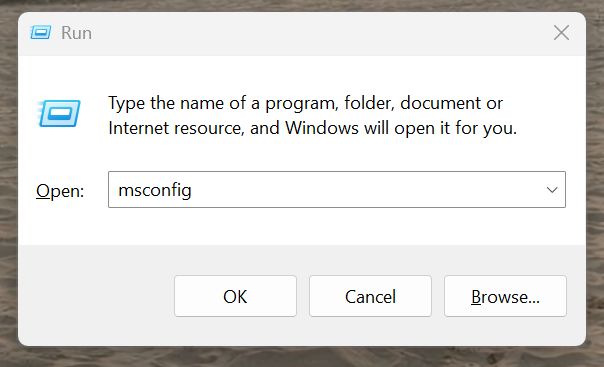
Step 1: Press Windows + R and then type msconfig, and then Enter.
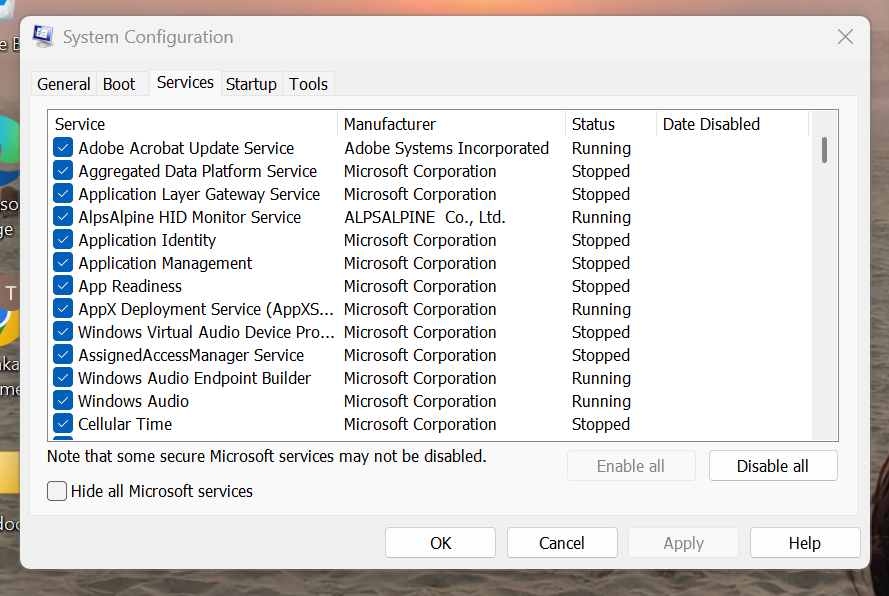
Step 2: Now, under the Services Tab, check on Hide All Microsoft Services.
Step 3: Click on Disable all.
Step 4: Now turn off the startup apps in Task Manager, then restart your PC.
So, that’s all about how to fix error 0x8007003A in Windows 11. Hopefully, you can now transfer files without showing any frustrating error 0x8007003A.